
Scan catalogues without removing the binding
You want to place a bound catalogue on the scanner glass. The size of the scan area determines how much of the page you can capture at once.


For bound catalogues, first choose a printer with a flatbed large enough for the page area you want to scan. For loose sheets, an automatic document feeder (ADF) can make the job easier. According to Brother, the MFC-J6959DW has a scan area of up to 297 × 431.8 mm. With A4 models, check the scan-bed dimensions for the specific version.
You want to place a bound catalogue on the scanner glass. The size of the scan area determines how much of the page you can capture at once.
Your pages may not fit on a smaller scan bed. Check the stated scan size: Brother distinguishes between models that print in A3 and those that also scan in A3.
You scan both bound material and stacks of loose sheets. An ADF can feed loose pages, while the flatbed is for bound catalogues.
Measure the page area you want to scan and compare it with the scan bed. Then consider whether you need an ADF for loose sheets and which print features you’ll use as well.
| What to consider | What should you check? | Who is this important for? |
|---|---|---|
| Bound catalogues | Check that the scan bed can accommodate the page area you want to capture and that you can position the book without putting unnecessary pressure on the binding. | If I want to keep my catalogue intact, the flatbed matters more than the paper feeder. Around 33% of consumers put scanning bound catalogues intact at the top of their list. |
| Large pages | Compare the scan-bed dimensions with your page size; check scanning and printing as separate features. | If large pages need to fit entirely on the scan bed, I want to know the actual scan size, not just the print size. For around 27% of consumers, having a scan area that fits is the top priority. |
| Loose sheets | Check whether the printer has an ADF and how many sheets it can feed; also consider whether single-sided feeding is enough. | If I regularly scan stacks of loose documents, I look at the feeder as well as the flatbed. Handling loose sheets is the main priority for around 20% of consumers. |
| Printing needs | Check the model’s ink system and colour features, and match them to how often you actually print. | If I mainly scan and only print occasionally, I want to weigh up the features and ink use against my own needs. Around 20% of consumers prioritise printing needs and ongoing ink use. |
A printer may print in A3 but only scan up to A4. This means a large catalogue page may not fit on the flatbed in one go.
Check the maximum scan-bed dimensions separately from the maximum print size. Brother explains that A3 all-in-one printers are available with different scan sizes.
If the scan area is too small, you may need to scan a page in sections or use a different scanning solution.
An ADF feeds loose sheets; a bound catalogue goes on the flatbed. The feeder cannot replace the flatbed for books.
Let the dimensions of your catalogue determine the scan area you need, and treat an ADF as an additional feature for loose documents.
A bound book still needs to be placed on the flatbed one page at a time, so scanning involves extra steps.
If you print infrequently, inkjet ink may also be used to prevent blockages. The Consumers’ Association (Consumentenbond) notes that this can be a factor if you do very little printing.
First estimate how often you print, then compare the ink systems and ink use of models that suit your scanning needs.
Also factor in refill ink or cartridges, as well as the ink used for maintenance.
The MFC-J6959DW is worth considering if you want to scan large catalogue pages and need print capabilities up to A3.
According to HP, the Smart Tank 7305 combines a flatbed scanner with a document feeder, which could suit a workspace where you handle both books and loose sheets.
The PIXMA TS7750i is an A4 all-in-one for anyone who scans, handles loose documents and prints.
The EcoTank ET-8500 may be worth considering if you need A4 colour or photo printing as well as scanning, and want a refillable ink system.
These Joybuy products are suited to placing bound catalogues on the flatbed and, depending on the model, handling loose sheets.
 No image available
An option to consider if you want to place bound catalogues on a flatbed scanner and also handle loose sheets.
HP lists a flatbed scanner and an automatic document feeder for up to 35 sheets for this model. Check that the scan bed suits the size of your catalogue.
 No image available
Worth considering for a home office that needs printing, scanning and copying; check that the scan bed suits your catalogue before buying.
A4 inkjet printer; stated print resolution: 4800 × 600 dpi.
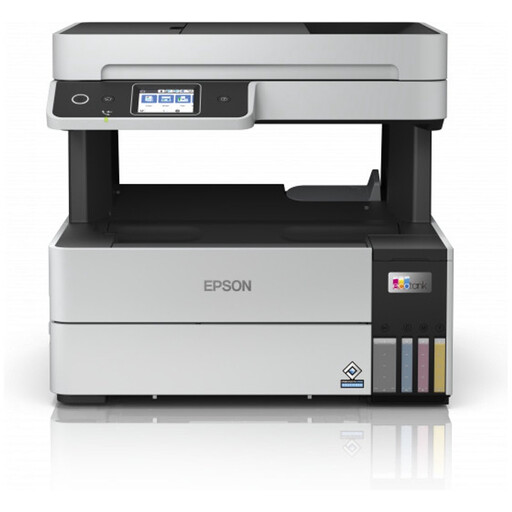 No image available
A model to consider if you need colour printing as well as scanning; check the scan bed and paper-feeding options for your needs.
A4; stated print resolution: 4800 × 1200 dpi; stated print speed: 37 ppm; Wi-Fi.
 No image available
Worth considering if you mainly want to scan bound catalogues on a flatbed and the scan area suits your page size.
Before buying, check the scan-bed dimensions and whether the version has the feeder you need for loose sheets.
To keep a bound book intact, use the flatbed. An ADF is designed for loose sheets; check in advance that the page area you want to scan fits on the scanner glass.
Don’t assume so without checking: for each model and operating system, see whether the included scanning software supports OCR and saving as a searchable PDF. Epson describes ScanSmart for its ES scanner range; that alone doesn’t confirm support for the ET-8500.
Choose an ink system that suits how often you print, and bear in mind that ink may also be used for maintenance if you print infrequently. According to the Dutch government, statutory warranty applies alongside any manufacturer’s warranty; if a product is faulty, contact the seller.
The Dutch government states that you may make a private copy for your own use, but you must not distribute or publish it. Don’t assume the private-use exception allows you to share or publish a scan; ask for permission if necessary.