Start with the connection between floors. If you can run cables, ethernet backhaul is a sensible option; if not, the placement of your Wi-Fi points and the wireless connection between them are important. Check that your server and playback devices support your video files, too: a faster router won’t automatically solve a video transcoding problem. The Dutch Consumers’ Association discusses the importance of placement and obstacles, while Plex Support explains the requirements for direct playback.
Who is this for?
Cables between floors
You can run network cables and want to connect your video library and Wi-Fi points over a wired connection. The Dutch Consumers’ Association and ASUS describe ethernet backhaul as an option when you have compatible equipment and connections.
Wireless connection between viewing areas
You want to watch videos on several floors, but can’t run cables between your Wi-Fi points. The placement of the points and the wireless connection between them are then important considerations. The Dutch Consumers’ Association recommends taking obstacles into account.
Your own video library and different players
You use a local server or storage device for files that may not play directly on every TV or tablet. Plex Support explains that direct playback depends on the capabilities of the playback device and the video file.
What should you look for?
Wired Wi-Fi points
Choose this if: you can run cables between floors and want to connect the points by wire.
Bear in mind: you’ll need the right cables, available ethernet ports and suitable places for the points.
Wireless mesh
Choose this if: running cables isn’t practical and a single router doesn’t provide good coverage in your viewing areas.
Bear in mind: floors and other obstacles can affect the connection between points. The Dutch Consumers’ Association recommends positioning them with as few obstacles between them as possible.
Extending your existing router
Choose this if: your current router and video library work well, but some floors are difficult to reach.
Bear in mind: check that the extender works with your router and find out which network mode you’ll need. FRITZ!, for example, describes the Mesh Set 1700 as compatible with an existing router or modem.
One router
Consider this if: you already have a usable connection in all the places where you plan to watch.
Bear in mind: a higher advertised speed won’t automatically overcome obstacles between floors; you may need separate Wi-Fi points.
| What to consider |
What to look for when buying |
Who is this important for? |
| Connection between floors |
Check for ethernet backhaul support, available ports and whether wireless backhaul suits your setup. |
If I can run cables, I want to know how to connect the points and video library by wire; around 33% of consumers prioritise the connection between the points. |
| Coverage in viewing areas |
Map out where your TVs and other players are, then check the signal after installation. Don’t base the number of points you need solely on the advertised coverage area. |
If I watch on different floors, I want the points in useful locations; around 27% of consumers give coverage in viewing areas top priority. |
| Your own video library |
Check where the files are stored, how the server connects to the network and whether your players can play the files directly. Storage features vary by router model. |
If I use my own files, I want my players to be able to access and play them; around 20% of consumers prioritise access to and playback from their library. |
| Purchase and management |
Compare the complete set, connections and update support with your existing modem and router. |
If I also want to keep track of the connection and management, I compare what I need for my existing network; around 20% of consumers give overall cost and management top priority. |
Common buying mistakes
-
Assuming the combined Mbps figure on the box is the speed you’ll get at the TV
The advertised Wi-Fi speed alone doesn’t tell you what the connection will be like on another floor. Placement and obstacles also make a difference, as the Dutch Consumers’ Association points out.
Compare the backhaul and check the connection where you’ll actually watch, rather than relying only on the advertised total speed.
If the connection isn’t usable where you need it, you may need an extra Wi-Fi point or cabling.
-
Assuming a mesh system also works as your video server or NAS
Wi-Fi coverage and making files available or playing them are separate functions. Storage options depend on the specific model; you may need a separate server or NAS.
Check where your library is stored, which server functions you need and which file formats your players support.
You may need a separate server or network storage if your existing equipment can’t make the files you want available.
-
Connecting an extra router without checking the network mode
Plex Support says that, by default, it treats only the server’s subnet as local for certain bandwidth settings. Changing your network setup could therefore affect local playback.
After installation, check that the server and players can communicate locally. Choose between router and access point mode deliberately if your device offers both options.
Brands to compare
TP-Link
The Deco X50-PoE (3-pack) is a Wi-Fi 6 set with three points and PoE, worth comparing if you want several Wi-Fi points.
- For the tested EU Ver 1.0, the Dutch Consumers’ Association lists two ethernet ports per point and ethernet backhaul.
- This isn’t an assessment of how it will perform in your home. TP-Link sells versions that may differ in hardware, software or support, so check the exact variant.
ASUS
The ZenWiFi AX (XT8) is a two-piece Wi-Fi 6 mesh system to compare if you’re considering wireless or wired backhaul.
- ASUS describes a configurable second 5GHz band for backhaul, as well as support for ethernet backhaul.
- The advertised total Wi-Fi speed is a manufacturer’s figure. Assess the performance and features of the specific version and setup you’re considering.
NETGEAR
The Orbi 370 RBE373 version is a three-piece mesh system to compare if you’re looking for an expandable setup.
- NETGEAR describes the Orbi 370 as dual-band, with 2.5 Gigabit connectivity. The Dutch Consumers’ Association lists ethernet backhaul for the RBE373-100EUS.
- These specifications don’t show that the system will perform better in your home than other systems.
FRITZ!
The FRITZ!Mesh Set 1700 is a three-piece system to compare if you want to extend your existing router.
- FRITZ! says the set can be connected via LAN to an existing router or fibre-optic modem, and that each point has a gigabit LAN port.
- Don’t confuse this mesh system with a FRITZ!Box with USB storage: storage features depend on the model.
Joybuy products
These product picks focus on mesh Wi-Fi for multiple floors, with options offering different numbers of points, Wi-Fi standards and connection types.
 No image available
TP-Link Deco E4 (3-pack), dual-band Wi-Fi 5 (802.11ac)
A set of three mesh points for a home setup with multiple Wi-Fi points.
Dual-band Wi-Fi 5 (802.11ac); according to the product description, the ethernet ports have a maximum speed of 100 Mbit/s.
View at Joybuy
 No image available
ASUS ZenWiFi BT8 (2-pack), tri-band Wi-Fi 7 (802.11be)
A two-point mesh system to compare for a home network with multiple Wi-Fi points.
Tri-band Wi-Fi with 2.4, 5 and 6GHz bands; the product description lists ethernet ports.
View at Joybuy
 No image available
ASUS ZenWiFi BD4, dual-band Wi-Fi 7 (802.11be)
A mesh Wi-Fi system to compare if you’re considering a wired connection between Wi-Fi points.
The product description lists support for wired backhaul and compatibility with AiMesh.
View at Joybuy
 No image available
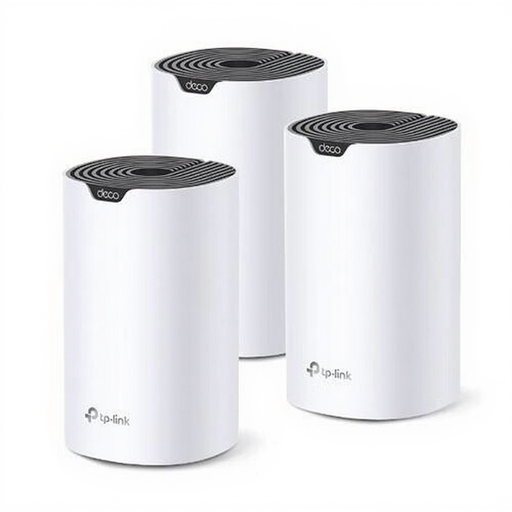
TP-Link Deco S7 (3-pack), dual-band Wi-Fi 5 (802.11ac)
A three-point mesh system to compare for Wi-Fi across multiple floors.
Dual-band Wi-Fi 5 (802.11ac); the product description lists three ethernet ports per point.
View at Joybuy
 No image available
TP-Link Deco XE75 Pro (3-pack), tri-band Wi-Fi 6E (802.11ax)
A three-point mesh system to compare for a home network with multiple Wi-Fi points.
Tri-band Wi-Fi 6E with 2.4, 5 and 6GHz bands; the product description lists three ethernet ports per point.
View at Joybuy
Frequently asked questions
Does my video library need to be connected directly to a new router?
No. A separate server or NAS can be accessed over your home network. Check how the storage device connects and what features it offers, though; storage options vary by model.
Where should I place a wireless mesh point on the next floor?
Don’t automatically put the point where the signal is already weakest. The Dutch Consumers’ Association recommends keeping obstacles between Wi-Fi points to a minimum. Use the setup assistant to check the connection in your chosen location.
Why does a video keep buffering when my Wi-Fi appears to be connected?
Check both your network connection and whether the video file is compatible with your player. Plex Support explains that direct playback depends on factors including the container, codec, bitrate and resolution. An unsupported file may need to be transcoded by the server.
Can I use my own router in the Netherlands?
Yes. According to ACM ConsuWijzer, you’re free to choose your own router. There are requirements for connecting it to your provider’s network, so ask for the necessary settings and check that the router is compatible with your connection. An own router won’t necessarily replace every modem.
Which product requirements apply to wireless routers in the Netherlands?
According to the Dutch Digital Infrastructure Inspectorate, radio equipment placed on the EU market must meet the applicable requirements and carry a CE mark. Since 1 August 2025, stricter cybersecurity requirements have also applied to relevant wireless equipment. Check the exact version; a general product listing alone doesn’t confirm that it meets the requirements.


