
Solo presenter
You’re presenting from your own laptop and want to speak clearly and mute yourself quickly. Microsoft Support explains how to select the connected microphone in Teams.


A personal headset is suitable when you’re speaking from your own computer. If several people around the same table need to be heard, you’ll need a room audio system that can cover the space. Microsoft Learn describes this as the role of a primary audio system in a shared meeting room. Then compare the connection and mute controls, and test which microphone and speaker are active before the meeting, as Microsoft Support advises.
You’re presenting from your own laptop and want to speak clearly and mute yourself quickly. Microsoft Support explains how to select the connected microphone in Teams.
You’re sharing a room with others who may also speak. Microsoft Learn explains that the microphone in the primary audio system needs to cover the meeting room.
You move between computers or workspaces and need to consider connections, comfort and audio settings. Microsoft Support advises selecting your devices and making a test call beforehand.
First, decide who needs to be heard through the microphone. Then choose a headset that suits your connection, presentation style and preferred controls.
| What to consider | What should you check? | Who is this important for? |
|---|---|---|
| Who needs to be picked up by the microphone? | Decide whether only you will be speaking, or whether several people need to be heard through a single room setup. Microsoft Learn describes a microphone that can cover the meeting room for shared room audio. | If I’m sitting at a table with others, I want their voices to come through clearly to remote participants too. Around 36% of consumers say coverage for multiple speakers in one room is their top priority. |
| How clearly your voice comes through | Check whether noise cancellation applies to the microphone, the ear cups or both; these are different features. | For an individual update, I want participants to hear my voice clearly, even in a noisy place. Around 29% of consumers prioritise how clearly their own voice comes through. |
| Connection and controls | Check whether you need USB-A, USB-C or 3.5 mm for the specific version. Then select the right microphone and speaker in your meeting app and make a test call. | If I switch between devices, I want a compatible connection and to be able to select the right audio quickly. Around 21% of consumers prioritise connection and controls. |
| Comfort and freedom of movement | Choose between mono and stereo, and check that the cable is long enough for where you’ll be presenting. | For a longer presentation, I want a fit and cable that won’t restrict me unnecessarily. Around 14% of consumers prioritise comfort and freedom of movement. |
A personal headset’s microphone is designed for the wearer; the specifications don’t show that it can pick up everyone around a table.
Decide in advance who will be speaking, and test the recording from every relevant seat. If several people need to speak through one setup, consider a room audio system.
A suitable room audio setup may also be needed for multiple speakers.
Noise cancellation on the microphone affects what other people hear; muting through the ear cups affects what you hear yourself.
Check the microphone feature and the passive or active noise cancellation in the ear cups separately.
Several devices with active audio in one meeting room can cause echo.
Decide which device will handle the room audio and test the meeting with the same participant setup. Zoom Support advises turning off computer audio on other devices in the room; muting only their microphones isn’t enough if their speakers remain active.
The wired Zone Wired is a personal USB headset worth comparing for a workspace with background noise.
The Blackwire 3225 version 8X229AA is worth comparing if you’re weighing up USB and 3.5 mm for individual presentations.
The Evolve2 40 SE is a personal office headset worth comparing if you value focus and want a Teams version.
According to its datasheet, the wired UH36 range comes in Mono and Dual versions, making it easy to compare different wearing preferences.
The IMPACT 860T ANC is a wired, double-sided Teams headset worth comparing for individual use in a busy work environment.
This selection consists of personal headsets for individual presentations; they are not room audio systems for picking up several people around a table.
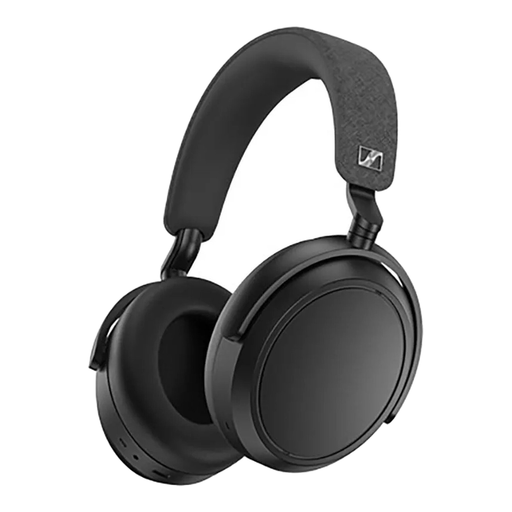 Image unavailable
A personal wireless over-ear headset for an update where you’re speaking yourself; this isn’t a room audio system for multiple speakers.
The product title lists noise cancellation, 60-hour battery life, fast charging and four microphones.
The product description mentions beamforming for calls. Before your presentation, check which microphone the meeting app is using.
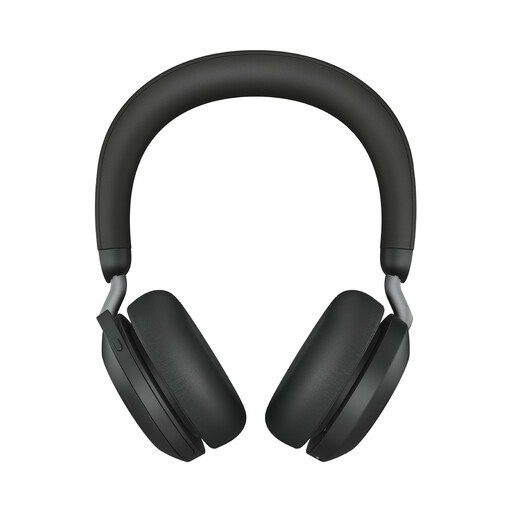 Image unavailable
A personal headset for individual presentations; the product title specifies the USB-A MS Teams version.
The product description lists active noise cancellation, connection to two devices and eight microphones with beamforming.
Check that the USB-A connection and version are compatible with your computer and meeting app.
 Image unavailable
A wired USB headset for a computer setup where you’re the speaker; it isn’t designed as a room audio system.
The product description lists in-line volume and mute controls, plus an adjustable microphone boom that can be moved out of the way.
According to the product description, the microphone has noise cancellation. Test the sound with the meeting app you use.
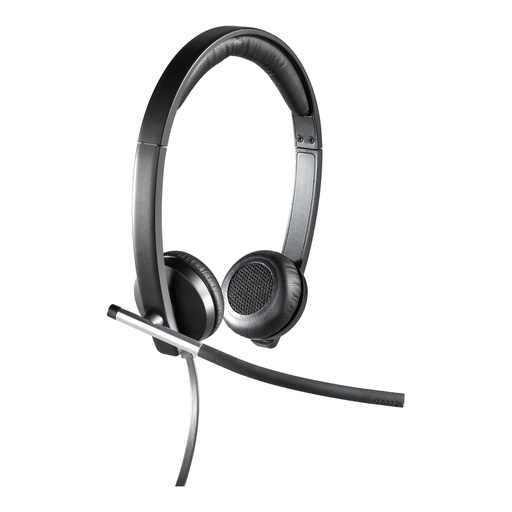 Image unavailable
A wired stereo headset to consider for a personal presentation or calling setup.
The product description lists USB plug-and-play and in-line volume controls.
According to the product description, the microphone has sound isolation and acoustic echo cancellation is included. Test the setup with the other active audio devices in the room.
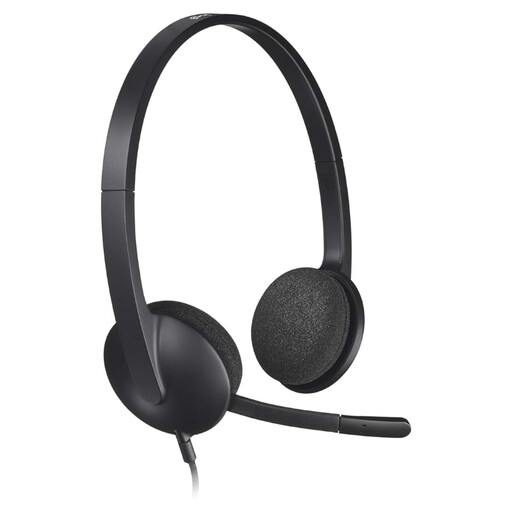 Image unavailable
A wired USB headset for individual online presentations from a computer.
The product description lists stereo sound and an adjustable microphone.
According to the product description, the microphone reduces background noise for other people on the call. Check your microphone selection in the meeting app.
Don’t assume it can. For a shared meeting room, Microsoft Learn describes a primary audio system with a microphone that can cover the room; test the actual setup before everyone joins.
Decide which device will handle the room audio and turn off computer audio on the other devices. Zoom Support warns that muting only the microphones isn’t enough if the speakers remain active.
In Teams, select the microphone and speaker you plan to use in the device settings, then make a test call. Microsoft Support explains that this lets you check the microphone and speaker.
For online consumer purchases, you generally have a 14-day cooling-off period after delivery, subject to exceptions that you should check before buying. ACM ConsuWijzer also makes clear that your statutory guarantee rights exist alongside the seller’s guarantee: when used normally, a product must do what you could reasonably expect of it.
No. A Teams version relates to compatibility with that platform and isn’t, in itself, a legal declaration of conformity. For a specific product, check the applicable conformity information; platform certification isn’t a safety mark.