
Vandaag of morgen in huis

Kwaliteit gegarandeerd

Welkomstaanbiedingen ontgrendelen: GRATIS bezorging | Tot 80% korting | Gratis 30 dagen JoyPlus-proefperiode
Download de app
An MSI barebone PC might seem like a straightforward way to build a compact computer. However, buyers can easily end up with the wrong model if they focus only on the processor or price. With an MSI mini PC barebone in particular, expansion options, connections and included components all affect how useful it will be in practice.
Look out for these common pitfalls before you buy:
For office work, browsing, video calls and administrative software, a modern Intel Core processor is generally a good choice. If you use virtual machines, large spreadsheets, local databases or other professional applications, also check the number of cores and the maximum RAM capacity.
A barebone PC with DDR5 RAM will generally use newer memory modules with higher transfer speeds than DDR4. Check whether the memory is already installed. According to their product specifications, MSI CUBI NUC models support up to 64 GB DDR5. The MSI PRO DP180 supports up to 64 GB, but uses DDR4 memory.
Also check the type of memory:
A PC with M.2 SSD support will generally boot faster and respond more quickly when you open programmes. Don’t just check whether it has an M.2 slot: look at the number of slots, the supported form factor and the PCIe generation too.
According to its product specifications, the MSI CUBI NUC AI 1UMG-018BEU has two M.2 PCIe 4.0 x4 connections. The MSI CUBI NUC 1MG-237BEU also supports one 2.5-inch drive, one M.2 42 mm drive and one M.2 80 mm drive. This makes it an interesting option if you’re looking for a compact computer with several storage options.
The MSI PRO DP180 supports M.2 storage, as well as both HDDs and SSDs. The desktop also has one 3.5-inch bay. Before installation, check whether you want to use a SATA drive, an NVMe SSD or both.
Two Ethernet ports can be useful on a business mini PC if you use different networks, a local system or network equipment. Wi-Fi 6E supports the 6GHz band as well as 2.4 and 5GHz, provided your router and surroundings support it.
Also check:
A compact size is especially useful if desk or meeting-room space is limited. However, don’t put a mini PC in a closed cabinet or among papers, as this can restrict airflow.
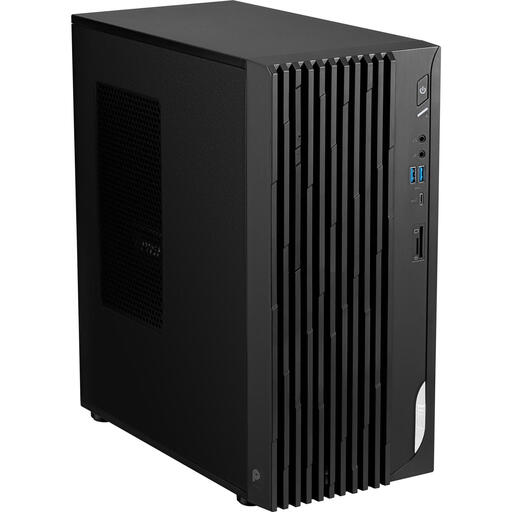
Why it suits this user: This desktop-style model is easier to get to grips with during initial setup and offers connections for a range of peripherals. According to its product specifications, it has an Intel Core i5-14400 processor and supports up to 64 GB of memory.
The product specifications clearly state that it supports HDD, SSD and M.2 storage. Before buying, check which RAM and storage components you still need to add yourself; the operating system is not installed.
Four USB 2.0 ports, three USB 3.2 Type-A ports, one USB-C port, HDMI and DisplayPort. The case measures 323 × 168 × 369 mm.
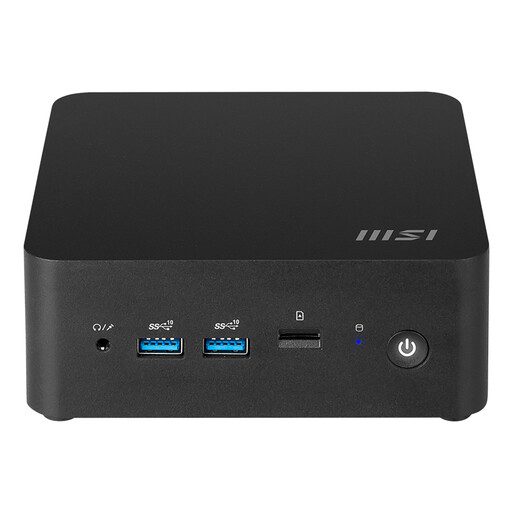
Why it suits this user: This model is for anyone who wants plenty of connection options in a very small case. It measures 119.6 × 115.2 × 37.5 mm and supports VESA mounting.
Its M.2 support and DDR5 specification are clearly stated. The product specifications list Windows 11 Home; if you’re expecting a self-build configuration, check exactly what’s included when you order.
Intel Core Ultra 7 155H, up to 64 GB DDR5, two M.2 PCIe 4.0 x4 slots, two Thunderbolt 4 ports and Wi-Fi 6E with Bluetooth 5.3.
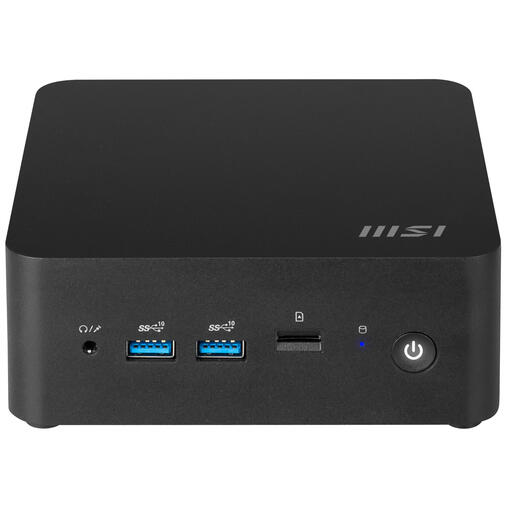
Why it suits this user: This compact workstation has a stated volume of 0.84 litres. It’s a good choice when desk space is limited but you still want extra internal storage.
The available storage options are specified: two M.2 connections and one SATA connection. Check in advance whether RAM, an SSD and an operating system are included with your version.
Intel Core 7 150U, up to 64 GB DDR5, two 2.5Gbps Ethernet ports, Wi-Fi 6E, Bluetooth 5.3 and VESA mounting.
We’ve put together a complete, up-to-date list of products that meet these strict selection criteria and the applicable European safety regulations.
Before opening the case, check which components you’ll need. With a model supplied as a barebone, these are usually RAM and an SSD, and sometimes an operating system. Shut down the computer completely, unplug the power cable and take precautions against static electricity during installation.
Once everything is installed, connect your monitor, network and peripherals. Then install your chosen operating system and the correct MSI drivers. Use the supplied power adapter with mini PCs and keep the ventilation openings clear. Keep small screws and mounting parts out of reach of young children.
The statutory legal guarantee in Europe is at least two years for consumers. Keep your proof of purchase and check the terms for business purchases, as they may differ from those for consumer purchases.
No. What’s included varies by model. According to the product specifications, the MSI PRO DP180 does not have an operating system installed. Windows 11 Home is listed for the MSI CUBI NUC AI. Always check the latest product information before buying RAM, storage or software.
You can, provided the model has suitable slots. Check the memory type, maximum capacity, M.2 form factor and supported PCIe or SATA connection. Always unplug the power cable before opening the case.
A mini PC often has a lower stated power rating, but actual consumption depends on processor load, storage, connected screens and peripherals. The MSI CUBI NUC models list a 120 W power supply; the MSI PRO DP180 lists 350 W. These are power supply ratings, not fixed figures for everyday energy use.
