
Working with wide spreadsheets
You navigate wide datasets and lengthy documentation across two screens. Logitech describes horizontal scrolling using the M720’s tilt wheel, while Trust lists a side scroll wheel on the Ozaa+.


For wide datasets, horizontal scrolling is an important factor when choosing a mouse. If you use a mouse for long periods, give greater weight to hand position and fit. Two monitors connected to one computer don’t require a mouse that switches between devices: that feature is only relevant if you use multiple computers.
You navigate wide datasets and lengthy documentation across two screens. Logitech describes horizontal scrolling using the M720’s tilt wheel, while Trust lists a side scroll wheel on the Ozaa+.
You spend long periods working at a screen and prioritise hand position and fit over extra scrolling features. Arboportaal highlights repetitive hand movements when working at a screen; a suitable mouse doesn’t replace varying your work.
You switch between computers or work with little room to move a mouse. Look for a connection and controls that suit your setup; two monitors connected to one computer don’t, by themselves, count as a second device.
Best for: wide spreadsheets and a familiar mouse shape.
Bear in mind: an extra scrolling feature says nothing about how well the mouse fits your hand. Compare a tilt wheel with a separate side wheel.
Best for: anyone who wants to assess hand position and fit first.
Bear in mind: the shape may take some getting used to, and it won’t necessarily have a dedicated horizontal scroll wheel.
Best for: a workspace with little room to move the whole mouse.
Bear in mind: using the ball takes some getting used to; a scroll ring isn’t the same as a dedicated horizontal scroll wheel.
Start with the task that matters most to you: navigating wide spreadsheets, finding a comfortable hand position, switching between computers or using a mouse in a compact workspace.
| What to consider | What should you check? | Who is this important for? |
|---|---|---|
| Wide and lengthy datasets | Check whether the model supports horizontal scrolling and whether the wheel feels comfortable to use for fast or precise vertical navigation. | If you often browse wide spreadsheets and lengthy sources, you may want to rely less on other navigation methods. Around 40% of consumers give spreadsheet navigation top priority. |
| Hand position and fit | Check your hand size, whether the mouse is designed for left- or right-handed use, and whether its shape suits your grip. | If you use a mouse for long periods, a comfortable hand position may matter more than an extra scrolling feature. Around 30% of consumers prioritise hand position. |
| Connecting to computers | Work out whether you use one computer or several, then check Bluetooth, a USB receiver and software support for your operating system. | If you want to use one mouse with several computers, the connection and device-switching features are relevant; connecting two monitors is different. Around 20% of consumers give switching between devices top priority. |
| Limited desk space | Consider whether a trackball with a scroll ring suits you, and check its size and controls. | If you have little room to move a mouse around, a ball-operated model may be an alternative. Around 10% of consumers prioritise having limited space for mouse movement. |
Moving a pointer across two monitors connected to the same computer is different from switching a mouse between separate computers.
Before comparing models, work out how many computers you actually use. For monitors connected to one Windows computer, you can set their layout in the display settings.
A mouse’s shape and size need to suit the person using it. A different mouse won’t undo repetitive hand movements or long periods of screen work.
Assess the fit and your workspace, and vary your screen-based tasks. Don’t treat a manufacturer’s claim about preventing discomfort as a proven result for your situation.
The Kensington Expert Mouse has a scroll ring. For horizontal scrolling, Logitech lists a tilt wheel on the M720, while Trust lists a side scroll wheel on the Ozaa+.
If you often navigate wide spreadsheets, check exactly what controls the model offers.
The M720 and MX Master 3S range offer different scrolling and customisation options. Check the exact version before assuming a specification applies.
This specific Ozaa+ model combines a large size with a side scroll wheel and multi-device connectivity.
The HE Break range includes vertical models for which hand size and handedness are important factors in choosing.
The Expert Mouse Wireless Trackball is an alternative with ball control and a scroll ring, suited to a workspace with little room to move a mouse.
This selection includes conventional and vertical mice for different scrolling, hand-position and connectivity needs.
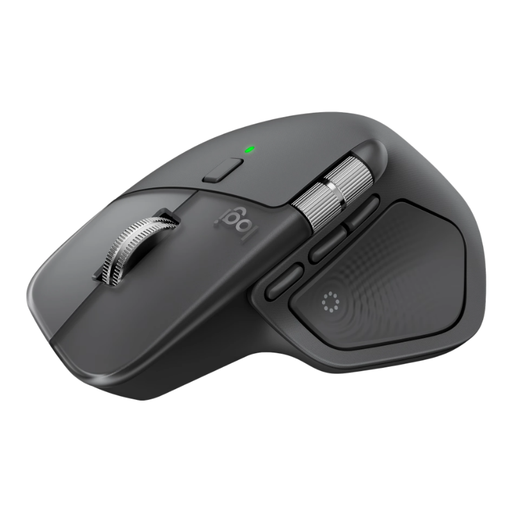 No image available
An option to compare if you’re looking for a conventional mouse. Check that this version’s scrolling controls and connectivity suit the way you work.
 No image available
Worth considering if you want a vertical shape and a choice of wireless connections. Check that it fits your hand.
USB-C charging; three DPI levels: 800, 1200 and 1600.
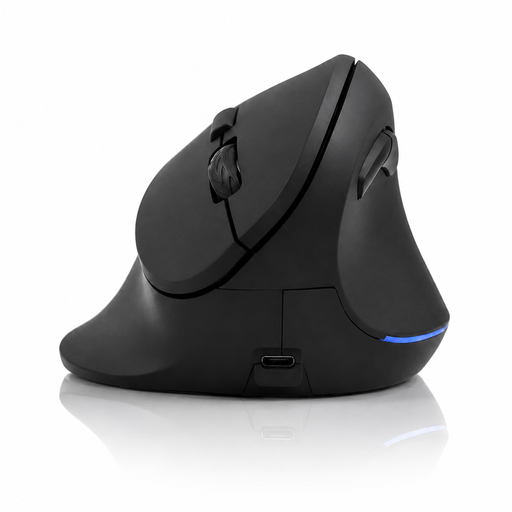 No image available
An option if you want to combine a vertical shape with a scroll wheel. Check that the controls and fit work for you.
Bluetooth and 2.4 GHz; USB-C charging; 800–1600 DPI.
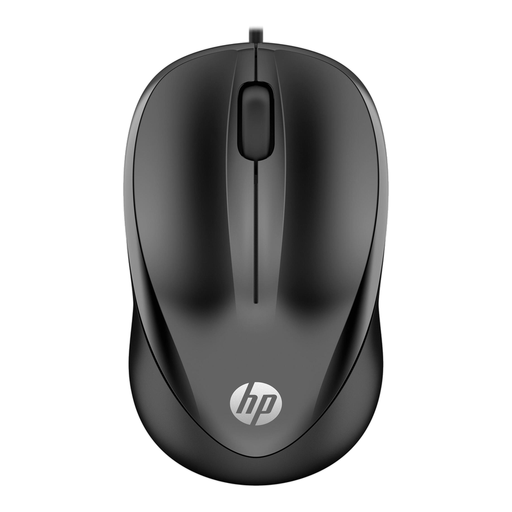 No image available
A wired option for basic computer navigation. Check that your workspace has a USB Type-A port.
1200 DPI optical sensor; three buttons; black.
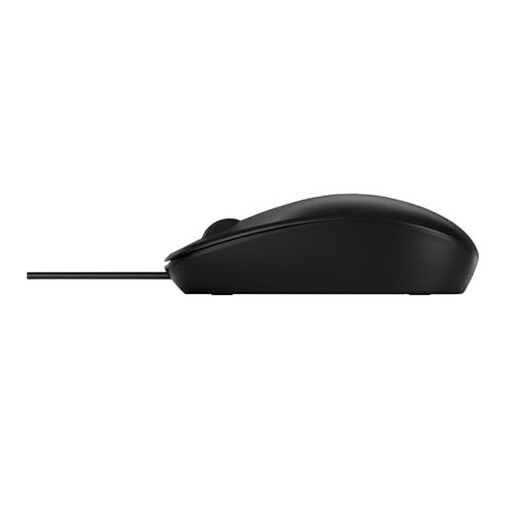 No image available
A wired mouse to consider if you need basic navigation with a scroll wheel. Check that a cable suits your workspace.
1200 DPI optical sensor; USB connection.
No, not if both monitors are connected to the same Windows computer. Set their layout in the display settings and check that the pointer moves as you expect. A mouse that switches between devices is useful if you use separate computers.
Use Bluetooth or plug in the USB receiver, if your chosen model supports that connection. For extra button functions, also check that your operating system is supported by the software. For example, Logitech says you can’t customise the M720’s buttons using Logi Options+ on Linux.
No, changing your mouse won’t, by itself, remove the strain of working at a screen for long periods. Arboportaal highlights repetitive hand movements; for employees, the Working Conditions Decree requires screen work to be alternated at set intervals with other work or a break.
For online consumer purchases, you’ll generally have a statutory 14-day cooling-off period after delivery, subject to exceptions; ACM ConsuWijzer explains how the cooling-off period works. If the mouse is faulty, contact the seller for an appropriate solution under your statutory rights. The Dutch government explains what you can do if a product is faulty.