Choose a mouse that suits your hand, workspace and approach to website editing. A vertical design may be worth considering if hand position is your priority, while adjustable controls and convenient scrolling features can be useful if you do a lot of navigating and designing. Check the connection and compatibility too; Arboportaal stresses that taking breaks and setting up your workspace properly remain important, whatever mouse you choose.
Who might find this mouse advice useful?
Regular website editor
You often spend long sessions working on your site and want to start by considering which hand position, fit and workspace setup feel comfortable. Arboportaal outlines points to consider when working at a screen, but that information won’t tell you which mouse will feel comfortable for you.
Page and image designer
You switch between pages, images and settings, and want control over pointer speed and scrolling. Manufacturers such as Logitech and Trust describe features for these tasks, but the specifications won’t tell you how well they’ll suit the way you work.
Practical home user
You want to use your mouse without connection issues and need to consider available USB ports, Bluetooth, power supply and desk space. Check the requirements for the exact version and your computer before choosing.
What should you look for when choosing?
First, decide which factor matters most for your website work: fit, controls, connection, or everyday use and aftercare. Then compare only the features and connections you need for your own workspace.
| What to consider |
What to look for |
Who may value it most |
| Hand comfort during longer sessions |
Consider your hand size, whether you need a left- or right-handed version, and the grip; take breaks from screen work. |
If I work on pages for long periods, I want a shape that suits my hand and a workspace I can set up properly. Around 40% of consumers prioritise fit and hand position. |
| Working with pages and images |
Check the pointer speed, scrolling features and buttons for functions you’ll actually use. |
If I switch frequently between pages, images and settings, I want to adjust the pointer and scrolling to suit my tasks. Around 30% of consumers give controls top priority. |
| Connection and desk space |
Check whether you need a USB port or Bluetooth connection, and how much room you’ll need to use the mouse. |
If my computer has few spare ports or my desk offers little room to move the mouse, I want to know in advance how it connects and works. Around 20% of consumers give connection or workspace the greatest weight. |
| Running costs and aftercare |
Check the power supply, any parts you may need and the applicable warranty terms. |
If I mainly want to know how the mouse is powered and what to do if it develops a fault, I compare these points before buying. Around 10% of consumers prioritise usage and aftercare over other considerations. |
How to avoid common buying mistakes
-
Assuming ‘ergonomic’ guarantees comfort
A product description doesn’t prove that the shape will suit your hand or prevent discomfort. Hand size and posture vary from person to person.
Consider the grip, whether you need a left- or right-handed version, and how your workspace is set up. Take breaks from screen work; don’t assume a product claim means it will have a medical benefit.
-
Assuming a USB receiver is included
Logitech states that a compatible Logi Bolt receiver isn’t included with the MX Anywhere 3S. So check that the connection you want will work with your computer.
Check what’s in the box and the connection required for the exact version before ordering.
-
Assuming all Bayo II versions are identical
Trust’s product information for Bayo II versions isn’t consistent about the connection. The product line name alone therefore doesn’t tell you which connection a particular version has.
Check the full model number, connection and package contents for the version on offer.
Mouse brands to consider
Logitech
The Lift, MX Master 3S and MX Anywhere 3S offer different shapes and control features to compare from model to model.
- Logitech describes the Lift as having a vertical shape and a fit for small to medium-sized hands. For the MX Master 3S, the brand lists adjustable pointer speed and scrolling features.
- These are manufacturer specifications, not an independent comparison or a guarantee of personal comfort. For the Lift, check the hand-size guidance and choose the correct left- or right-handed version.
Trust
The Bayo II is a vertical mouse, but you should check the connection and version for each product.
- Trust lists a 57° angle for the Bayo II and a choice of pointer speeds from 800–2400 DPI.
- Connection details vary between product listings. Check the full model number and the connection for the specific version; ergonomic benefits aren’t a guaranteed personal outcome.
Kensington
The Orbit K72337EU is a stationary trackball with a scroll ring, worth considering if you’d prefer to control the pointer without moving a mouse.
- Kensington specifies a symmetrical shape, a wired USB connection and programmable buttons for this model.
- The specifications won’t tell you whether trackball controls will feel comfortable when editing pages and images; consider whether they suit you.
Mouse options on Joybuy
This selection includes conventional and vertical mice for working on websites from home. For each version, compare the listed controls and connection with your computer’s compatibility.
 No image available
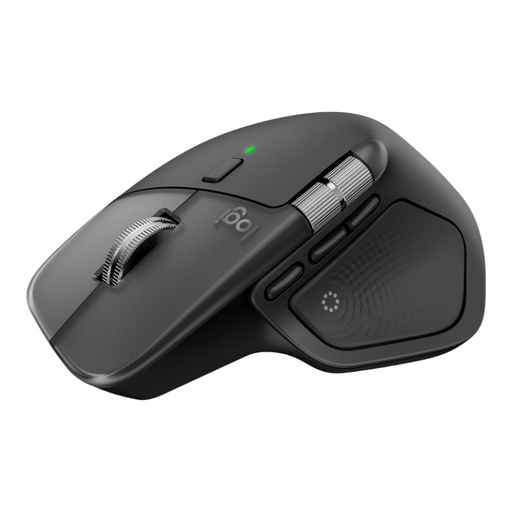
Logitech MX Master 4 for Mac, Space Black
An option for anyone who wants to scroll frequently while editing a website and values controls that help with navigation.
The product name lists Bluetooth, USB-C charging and compatibility with macOS, iPadOS and Windows.
Joybuy
 No image available
Vertical wireless mouse with USB-C charging
A vertical design to compare if the shape of the mouse is an important consideration for your workspace.
The product name lists Bluetooth and 2.4 GHz connectivity, USB-C charging and three DPI settings: 800, 1200 and 1600.
Joybuy
 No image available
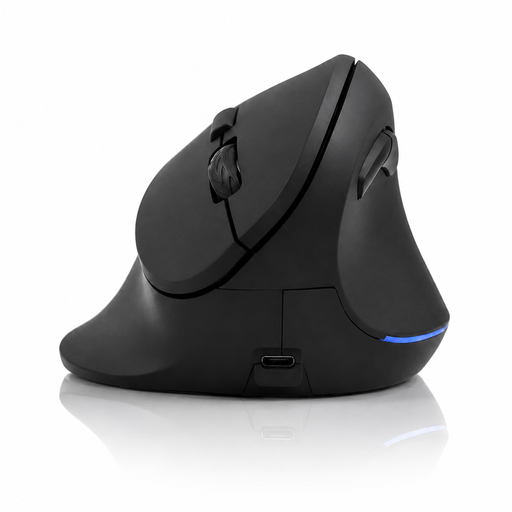
Wireless vertical mouse with six buttons
This vertical design is an option to compare if you’re considering a different mouse shape.
The product name lists a 2.4 GHz connection, a USB-C battery and a DPI range of 800–1600.
Joybuy
 No image available
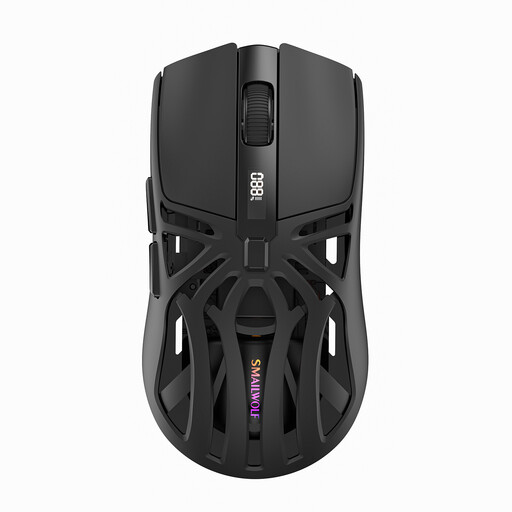
NAXSIR rechargeable wireless mouse
An option to consider if you want to adjust the pointer speed for different tasks.
The product name lists six DPI settings and Bluetooth, 2.4G and Type-C cable connections.
Joybuy
 No image available
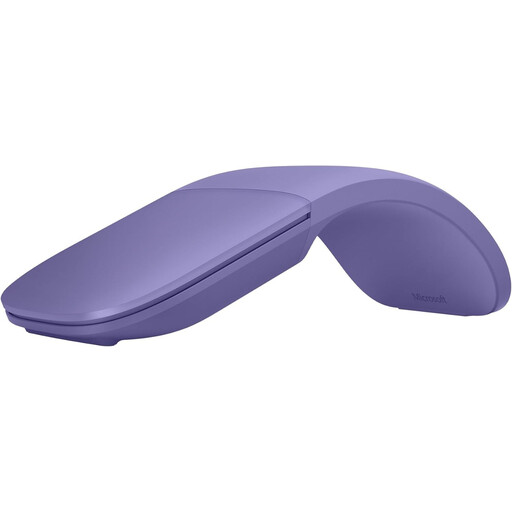
Microsoft Surface Arc Mouse Violet
Add this model to your comparison if you’re considering which controls and shape would suit your website work.
Joybuy
Frequently asked questions
Should I use a vertical mouse for working at a screen at home?
No. The Dutch guidance cited doesn’t require you to use a vertical mouse. Arboportaal does highlight the importance of taking breaks from screen work or switching to another task; what’s appropriate depends on your working situation. Choose based on fit and task, not because you think you have to.
What should I check before connecting a wireless mouse?
Check which connection the exact version uses and whether your computer supports it. Logitech lists Bluetooth for the MX Anywhere 3S and states that a compatible Logi Bolt receiver isn’t included.
Is a specialist mouse enough for long working sessions?
No. A mouse alone can’t replace taking breaks or setting up your workspace properly. Arboportaal mentions these points alongside the use of accessories; the product information doesn’t show that any one mouse model prevents discomfort.
What warranty and cooling-off period apply to an online purchase?
For a consumer purchase in the Netherlands, you’re entitled to a product that meets the terms of the agreement; the Dutch government describes this as the statutory guarantee. For online purchases from a business, the Dutch government says you generally have a 14-day cooling-off period, with some exceptions. Check the terms of your specific purchase, and distinguish your statutory rights from any additional guarantees.


