Choose based on what you do most: a standard adjustable mouse for familiar pointing and navigation, a vertical mouse if you want a different hand position, or stationary control if you have little space beside your keyboard. Fit, connectivity and how extra buttons work in your plotting software can vary by model. TNO also points out that mouse use is a consideration when working at a screen, so your workstation set-up and varying your activities matter too.
Who is this relevant for?
Frequent plotter who needs precise pointing
You often place points or selections on graphs and navigate through long data series. Adjustable cursor control and useful scrolling features are therefore important considerations; Logitech and Rapoo describe these features for specific models.
Sit-stand desk user looking for a different hand position
You use a mouse for long periods and are looking for a shape and position that suit your hand. TNO identifies mouse use as a consideration when working at a screen via Arboportaal; a different mouse shape is no substitute for a suitable workstation set-up and varying your activities.
Plotter with limited space for a mouse
You have little space beside your keyboard and want to know whether a trackball or central pointing device is suitable for precise plotting. These designs keep the controls in a fixed position, but use different movements from a standard mouse.
What should you look for when choosing?
First decide which action you perform most often, then compare the shape, connectivity and extra controls.
| What to consider |
What should you check? |
Who is this important for? |
| Precise pointing and navigation |
Check whether you can adjust the sensitivity and whether extra buttons or side scrolling work in your plotting software. |
If you often select points and navigate through long graphs, you’ll want a cursor speed that suits your screen and the way you work. Around 36% of consumers prioritise plotting precision and navigation. |
| Hand position during extended use |
Compare the fit and handedness; keep the mouse within comfortable reach and break up your screen-based work. |
If you use a mouse for long periods at a time, you’ll want a shape that suits your hand without relying on a guarantee of comfort. Around 29% of consumers prioritise hand position and fit. |
| Desk space and reach |
Measure the free space beside and in front of your keyboard, and, if possible, try the controls with your own graphs. |
If you have little space beside your keyboard, a pointing device that stays in one place may be worth exploring. A trackball and a rollerbar do require different movements, though. Around 21% of consumers choose mainly based on space and ease of reach. |
| Connectivity, power and software |
Check your computer’s connections, your preferred connection method and whether the buttons work in your application; also check which power accessories are included. |
If your main concern is making sure the connection or power supply suits your set-up, check these points before choosing. Around 14% of consumers prioritise connectivity and maintenance. |
Common pitfalls
-
Assuming the highest dpi rating automatically means more precise plotting
A sensor’s maximum setting doesn’t necessarily tell you how easy the cursor will be to control when pointing to data points.
Check whether the sensitivity is adjustable and try the controls with your own screen and graphs.
-
Taking ‘ergonomic’ to mean a guarantee that discomfort will disappear
Fit and use vary from person to person. Your workstation set-up and taking breaks from screen-based work also need attention.
Choose a shape that suits your hand and the way you work, set up your workstation appropriately and seek professional advice if discomfort persists.
-
Choosing a trackball or central mouse without trying it first
Both keep the controls in one place, but the movements differ from those used with a standard mouse and from each other.
Check the space beside and in front of your keyboard and, if possible, try the small movements you make when plotting.
-
Assuming a charging cable or all connection accessories are included
Logitech states that a USB-C cable is not included with the MX Ergo S.
Check what’s in the box and the ports on the exact version before buying.
You may need to buy a separate cable or the required computer adapter for this version.
Brands to compare
Logitech
The brand offers several types of controls that could suit plotting, from a standard mouse to vertical pointing and a trackball.
- Logitech lists an 8000 dpi sensor for the MX Master 3S, a version of the Lift for small to medium-sized hands, and a 20° tilt for the MX Ergo S.
- These model-specific details don’t prove that a model will be more comfortable or precise for every user; fit and ease of use remain personal considerations.
Rapoo
The MT750S is a standard wireless mouse worth comparing if side scrolling and switching between devices are important to you.
- Rapoo describes this model as having a side-scroll wheel, adjustable sensitivity and several connectivity options.
- Check the features and settings of the exact version, and whether the side-scroll wheel performs the action you want in your plotting software.
Contour Design
The RollerMouse Red is a central rollerbar mouse for those who want to keep the controls in front of the keyboard.
- Its central position and rollerbar offer an alternative to moving a mouse around beside the keyboard.
- Check whether its position and way of working suit your keyboard set-up and precise plotting tasks; the manufacturer’s comfort claims don’t guarantee an individual result.
Trust
The wireless Verto is a vertical mouse with adjustable sensor sensitivity.
- Trust lists a 60-degree angle and sensitivity settings of 800, 1200 and 1600 dpi for the Verto.
- Check whether the shape suits your hand and whether the settings work well for your plotting tasks; the manufacturer’s description doesn’t guarantee individual comfort.
Kensington
The Expert Mouse Wireless Trackball K72359WW is an option to compare if you’re looking for a finger-operated trackball.
- Kensington lists an ambidextrous design, a scroll ring and connectivity via Bluetooth or USB receiver for this model.
- These specifications don’t tell you whether finger control will work well for your graphs; try the movement and check the fit before choosing.
Joybuy products
The mice below offer adjustable cursor control, vertical pointing or trackball control; central rollerbar controls are not included here.
 No image available
AJAZZ AJ159 PRO wireless gaming mouse
Could suit you if you’re looking for adjustable cursor sensitivity and a magnetic charging dock; check whether the shape suits your hand.
PAW3395 sensor; DPI settings from 100 to 26,000; connectivity via 2.4 GHz, USB-C or Bluetooth; weight 56 g; white version with RGB lighting.
The product description warns that you should keep the magnetic charging dock at least 15 cm away from pacemakers, among other things.
View at Joybuy
 No image available
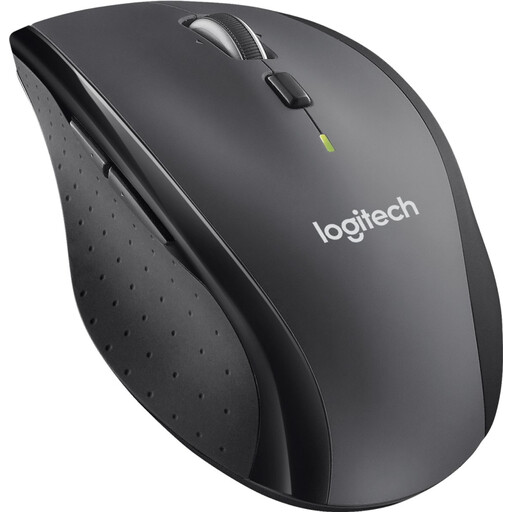
Logitech M705 Wireless Mouse, black
Could suit you if you’re looking for a standard mouse with adjustable sensitivity and scrolling for working through long data series.
Adjustable DPI and fast scrolling; uses a USB receiver and does not work via Bluetooth.
View at Joybuy
 No image available
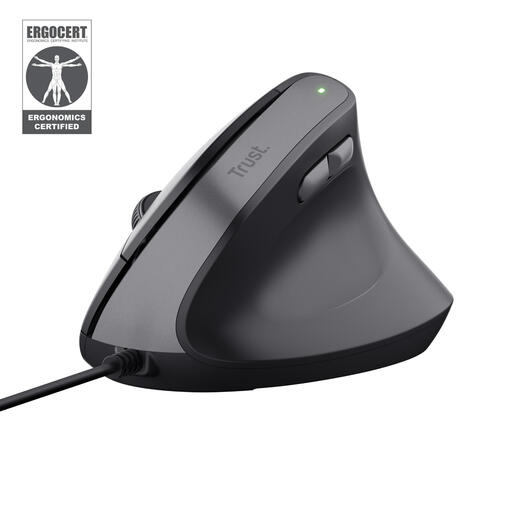
Trust Bayo II wired vertical mouse
Could suit you if you’re looking for a vertical hand position and the right-handed shape works for you.
57-degree vertical angle; adjustable sensitivity from 800 to 2400 DPI; wired USB connection; two thumb buttons for forward and back.
View at Joybuy
 No image available
Logitech ERGO M575S, Graphite
Could suit you if you have little space beside your keyboard and want to try controlling the cursor with your thumb.
Wireless trackball with thumb control and three customisable buttons; connects via Bluetooth or a Logi Bolt receiver.
The cursor moves using the trackball and your thumb, rather than by moving the mouse across the desk.
View at Joybuy
 No image available
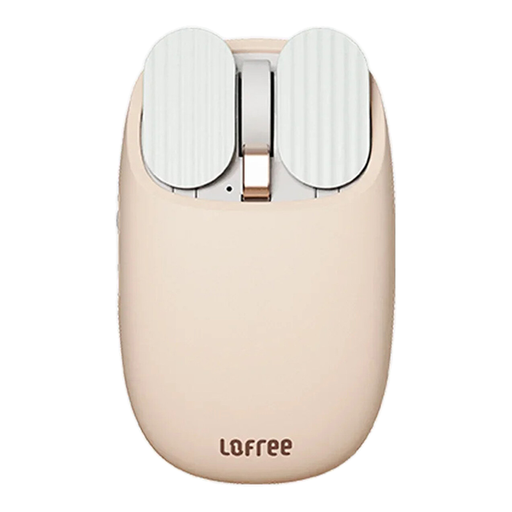
Lofree Wavy Chips EP115, Milk Tea
Could suit you if you’re looking for a standard wireless mouse with adjustable sensitivity and extra navigation controls.
Connects via Bluetooth or 2.4 GHz; five DPI levels; thumb wheel and side buttons.
According to the product description, this model is not compatible with dual-system Boot Camp mode on Mac.
View at Joybuy
Frequently asked questions
How should you position your mouse when switching between sitting and standing?
Place the mouse within comfortable reach and check its position again after adjusting the desk. For working from home, Arboportaal recommends setting the table height to allow a relaxed arm position and keeping the mouse close; a different mouse shape is no substitute for this set-up.
Will an extra scroll wheel automatically move a graph?
No. The action you want also depends on your application and any settings. Check how it works in your own plotting software before relying on the extra wheel.
Do you need to buy a charging cable separately for the Logitech MX Ergo S?
Logitech states that the MX Ergo S charges via USB-C and that a cable is not included. Check what’s included with the version you choose; this does not automatically apply to other trackballs.
Are you always entitled to exactly two years’ legal guarantee on a mouse in the Netherlands?
No. ACM ConsuWijzer explains that there is no fixed statutory guarantee period in the Netherlands: what matters is what you can reasonably expect from the product under normal use. The seller must resolve the issue if a product develops a fault too soon, in accordance with the applicable terms.
Should screen-based work at a sit-stand desk be broken up?
For employers, Arboportaal states that screen-based work should be broken up at regular intervals with other tasks or a break. Whether this applies depends on the working situation; it does not mean you have to buy a particular type of mouse.


