
Web designers working with wide design canvases
You spend a lot of time navigating designs and want to tailor cursor control, scrolling and shortcuts to the software you use.


If you work across two screens controlled by one computer, switching between devices isn’t a deciding factor. Choose a mouse based on its fit, customisable controls and the navigation features you use. A side-scroll wheel may suit wide design canvases, while a vertical mouse or trackball offers a different grip and way of working. Above all, make sure you can work accurately with it.
You spend a lot of time navigating designs and want to tailor cursor control, scrolling and shortcuts to the software you use.
When working for long periods, you’ll want to assess whether a vertical mouse, trackball or central control suits your hand and working style.
If you use two separate computers as well as two screens, switching between devices may matter in addition to standard cursor control.
Suitable for: frequent navigation across wide design canvases and a need for customisable controls. Trust lists a side-scroll wheel on the Ozaa+, while Logitech describes the MX Master 4’s customisable controls through Logi Options+.
Bear in mind: check the fit and whether you can use the required software on your computer.
Suitable for: anyone considering a different grip. Logitech says the Lift is designed for small to medium-sized hands and is also available in a left-handed version.
Bear in mind: the grip may take some getting used to, particularly when making precise selections.
Suitable for: anyone who wants to control the pointer without moving a mouse across the desk. The Kensington Expert Mouse Optical Trackball stays in one place, while the Contour RollerMouse Red is operated in front of the keyboard.
Bear in mind: using a ball or roller feels different from using a standard mouse and may take some getting used to.
| What to consider | What should you check? | Who is this important for? |
|---|---|---|
| Precise navigation | Try making selections with your usual screen layout; check whether the model offers side-scrolling or the customisable controls you want. | If I often navigate wide design canvases, I want to make precise selections and scroll sideways quickly; around 36% of consumers prioritise navigation and precision. |
| Fit and grip | Check your hand size, which hand you use and whether you can work accurately with the chosen grip or controls. | When using a mouse for long periods, I want to choose a shape that suits my hand and how I use it; around 29% of consumers prioritise hand comfort. |
| Switching between computers | Establish whether you use two screens with one computer or two separate computers. If you use two computers, check the connection and software requirements. | If I work on two separate computers, I want to know how to switch between them; around 21% of consumers prioritise switching between computers. |
| Space and hand preference | Measure the available space beside your keyboard and check whether the exact version is suitable for your left or right hand. | With a crowded desk, I want a mouse that needs little room to move, or I’m looking for a version suited to my dominant hand; around 14% of consumers prioritise desk space or hand preference. |
If both screens are controlled by one computer, switching devices and multi-computer features may not be necessary.
First establish whether you use one or two computers, then consider whether you need features for switching between devices.
A different grip or central control changes how you work, but doesn’t tell you whether it will feel comfortable for your hand or prevent discomfort.
Try the controls when making precise selections, and break up long periods of screen work. If discomfort starts, consider seeking advice about your workstation.
Connectivity, hand preference and product specifications can vary between versions.
Before buying, check the full model name, the version you’ve selected and its connections. Also check which accessories, such as a receiver, are included.
A stated manufacturer’s warranty doesn’t, by itself, tell you what you can expect from a product under Dutch statutory consumer rights.
ACM ConsuWijzer explains that your statutory rights depend on what you could reasonably expect from the product under normal use. Keep your proof of purchase and contact the retailer if there’s a problem.
Logitech offers a range of control styles: the MX Master 4 for customisable controls, the Lift with its vertical grip, and the MX Ergo S as a thumb-operated trackball.
Trust says the Ozaa+ combines a side-scroll wheel with multi-device connectivity.
The Expert Mouse Optical Trackball is a wired, stationary alternative for trackball control.
Contour Design says the RollerMouse Red offers central control in front of the keyboard.
Mice on Joybuy with customisable controls, navigation or multi-device connectivity that may suit design work.
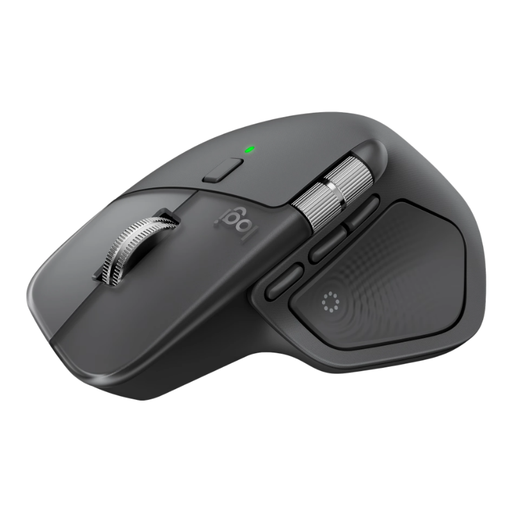 No image available
Suitable for anyone who wants to scroll horizontally and vertically while designing, and tailor the controls to their workflow.
The product description says Logi Options+ needs to be installed to customise the Action Ring, buttons and DPI.
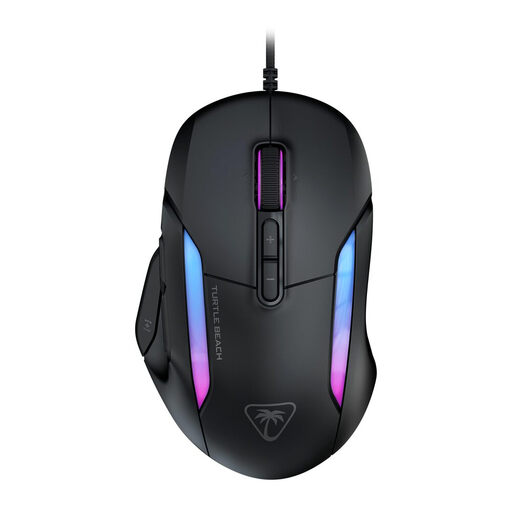 No image available
May suit you if you want to navigate horizontally and customise the controls.
The product description lists Swarm II software for customising DPI, lighting, macros and button assignments.
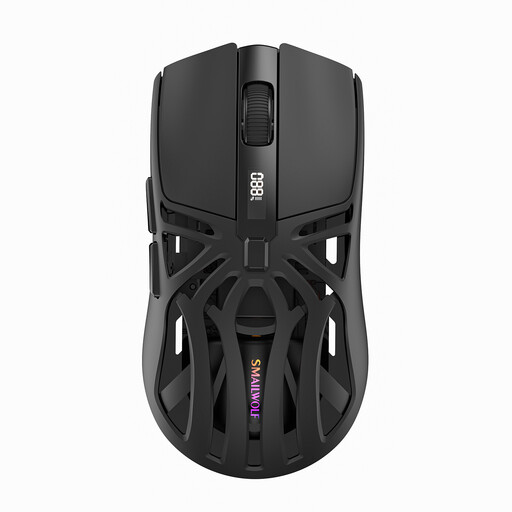 No image available
Suitable for anyone who wants to adjust cursor speed or is looking for a mouse with several connectivity options.
The product name lists Bluetooth, 2.4G, a Type-C cable connection and 6-level DPI.
 No image available
Suitable for anyone who wants to adjust cursor sensitivity and is looking for different connectivity options.
The product name lists 2.4G, USB-C and Bluetooth.
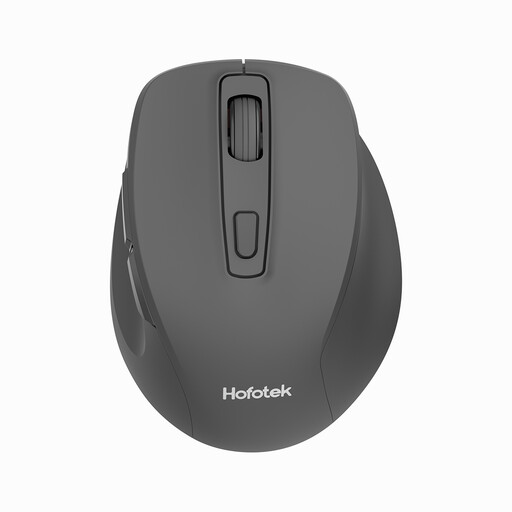 No image available
Suitable for anyone who wants to adjust cursor speed or values quiet clicks.
The product name lists 2.4G and adjustable DPI levels.
Not if both screens are connected to the same computer. Device switching is designed for separate computers. For Logitech Flow, Logitech says the software must be installed on both computers, which also need to be connected to the same Wi-Fi or Ethernet network.
It depends on the feature. Logitech lists Logi Options+ for customising the MX Master 4; check whether you’re allowed to install this software on your work computer.
No. Arboportaal advises breaking up screen work, changing position regularly and taking microbreaks. If discomfort starts, Arboportaal recommends contacting the occupational physician and having your workstation assessed.
No. ACM ConsuWijzer explains that your statutory rights depend on what you could reasonably expect from a product under normal use. If the product doesn’t meet those expectations, the retailer is responsible for providing an appropriate solution; a stated manufacturer’s warranty doesn’t limit your statutory rights.
Arboportaal’s guidance doesn’t require a particular mouse model. For employees, it outlines employers’ responsibilities for safe screen work and setting up the workstation; this isn’t a product requirement for every buyer.