
Building large photo galleries
You organise lots of photos or work with wide views, and want to navigate quickly both horizontally and vertically without losing control when pointing.


Choose a mouse based on your main task: horizontal scrolling across wide photo workspaces, a comfortable shape for extended pointing, or device switching if you use two separate computers. Having two screens connected to one computer doesn’t, by itself, mean you need a multi-device mouse. For supported devices, Logitech Flow requires Logi Options+ on both computers and the same Wi-Fi or Ethernet network, among other things.
You organise lots of photos or work with wide views, and want to navigate quickly both horizontally and vertically without losing control when pointing.
You use a mouse for extended periods and pay attention to fit, hand position and the opportunity to vary your tasks.
Your screens are connected to separate computers, and you want to know whether a device switch or compatible software would make it easier to control both.
| What to consider | What to look for | Who is this important for? |
|---|---|---|
| Navigating wide workspaces | Check whether the mouse has a tilting scroll wheel or a side scroll wheel, and whether your photo software responds to it. | If I’m navigating wide images or timelines, I want to scroll horizontally without losing control of the pointer; around 36% of consumers prioritise navigation. |
| Comfortable fit for extended use | Consider your preferred hand and the shape of the mouse; try it to see whether you can point accurately enough. | When working with photos for a long time, I want a comfortable shape that lets me point precisely; around 29% of consumers prioritise fit and hand position. |
| Switching between computers | Check whether the screens are connected to one or two computers, then check the device and software requirements. | If I use two separate computers, I want to know whether I can switch between them with one mouse; around 21% of consumers prioritise controlling two computers. |
| Available space and preferred hand | Check how much space you have and whether the mouse can be used left- or right-handed. | If there’s little room to move a standard mouse, or I want to be able to use it with either hand, these factors matter more; around 14% of consumers have this need. |
Features such as Logitech Flow and Easy-Switch are designed to control multiple connected computers or devices. You don’t need them to move a single cursor across two screens connected to the same computer.
First, check whether both screens are connected to one computer or whether you use two computers. Only then decide whether you need to switch between devices.
Choosing a device-switching feature you don’t need could mean extra installation and setup.
A high maximum DPI doesn’t automatically give you the most comfortable cursor speed for precise selections. Logitech says you can adjust the tracking sensitivity of the MX Master 3S Bluetooth Edition to suit your workflow and monitor resolution.
Consider how adjustable the mouse is and try the pointer in your own photo software, rather than comparing only the maximum figure.
Vertical mice and trackballs work in different ways, and neither will automatically suit everyone. Arboportaal also recommends varying your tasks, taking micro-breaks and setting up your workstation properly when working at a screen.
Check that the shape suits your hand and try it to see whether you can point accurately enough. Break up long periods of screen work.
On Joybuy listings for the Logitech MX Master 3S and Trust Ozaa, the product name didn’t always match the variant description.
Before buying, check the full model name, version, connection type and box contents on the product page.
Choosing the wrong version could mean extra time spent arranging a return or replacement.
The models reviewed offer different ways to work: adjustable tracking on the MX Master 3S Bluetooth Edition, and a tilting scroll wheel and device switching on the M720.
The Ozaa+ has a side scroll wheel for horizontal navigation, while the Bayo II Wireless has a vertical shape.
The Expert Mouse Wireless is an ambidextrous trackball with a scroll ring, for anyone who wants to try a different way of pointing.
These mice cater for different photo-work needs, such as horizontal scrolling, a vertical shape, customisable buttons or multi-device connectivity.
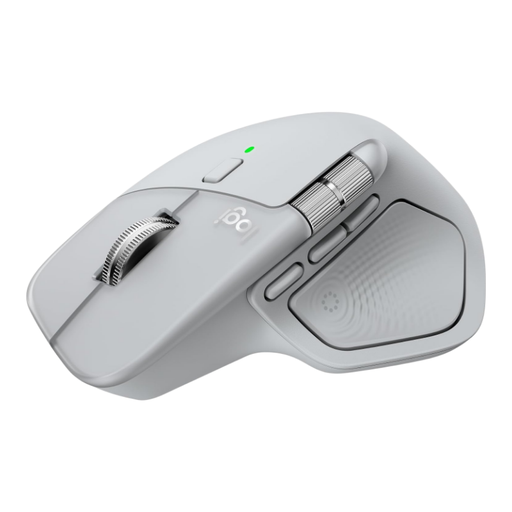 Image unavailable
Worth considering if you want to scroll horizontally and customise buttons for tasks you do regularly; check that the controls work with your photo software.
The product description lists adjustable DPI, a horizontal thumb wheel, up to three paired devices and programmable buttons.
 Image unavailable
Consider this version if you’re looking for a vertical mouse; try it to see whether you can point accurately enough.
The product description lists Bluetooth and 2.4 GHz, six buttons and three DPI settings: 800, 1200 and 1600.
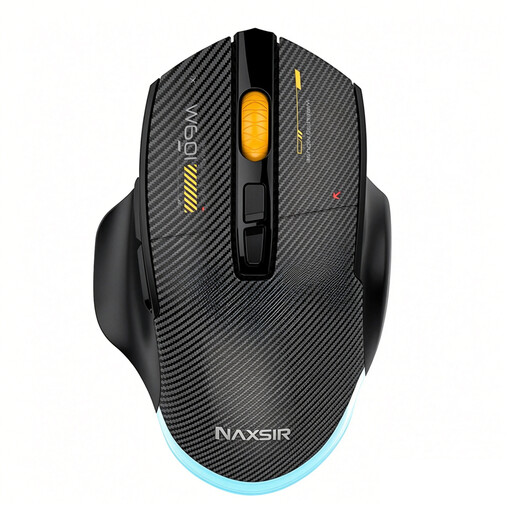 Image unavailable
An option to consider if you want programmable buttons and adjustable sensitivity; check that the features suit your photo work.
The product description lists three connection modes, seven programmable macro buttons and six DPI settings.
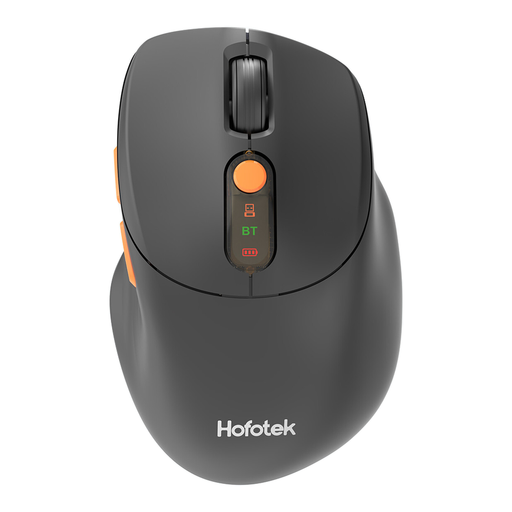 Image unavailable
Consider this mouse if you want to switch between devices and adjust the DPI settings.
The product description lists connectivity for up to three devices, 2.4 GHz or Bluetooth, quiet clicks and five DPI settings from 800 to 4000.
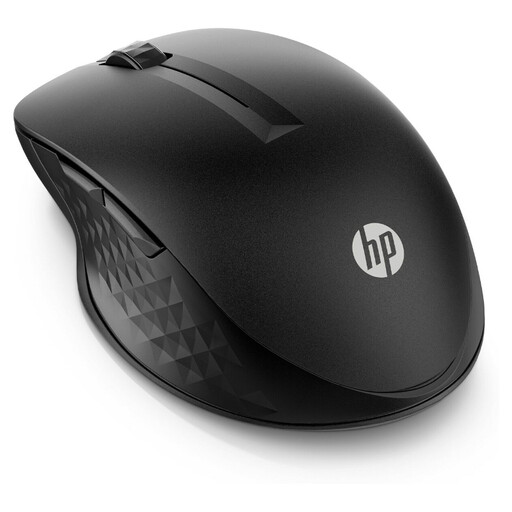 Image unavailable
An option to compare if you’re looking for a multi-device mouse with customisable buttons.
The product description lists a USB-A receiver or Bluetooth, up to 4000 dpi, programmable buttons and an adjustable scroll wheel. It also says the shape is suitable for left- and right-handed use.
No, not just because you have two screens. Device switching and Logitech Flow are designed for separate computers, so first check whether your screens are connected to one computer or two. For Flow, also check model compatibility and the software and network requirements.
Start with a cursor speed you can control comfortably and try it in your own photo software. Logitech says you can adjust the MX Master 3S Bluetooth Edition’s tracking through Logi Options+ on Windows and macOS; the sensor’s maximum value isn’t necessarily the most comfortable setting.
It depends on the shape of the mouse and what feels comfortable to you. Arboportaal also recommends varying your tasks, taking micro-breaks and setting up your workstation properly when using a screen and mouse intensively; a different mouse doesn’t replace these measures.
No. According to the Dutch government, there’s no fixed term for the legal guarantee in the Netherlands: what you can reasonably expect depends on the product and the purchase. If a product is faulty, contact the seller; normal wear and tear or damage you’ve caused yourself isn’t automatically covered by free repair.