If two screens are connected to one computer, you don’t need a special multi-computer mouse. First, set up your screen layout correctly, then choose a mouse that feels comfortable for pointing and scrolling. If you use two computers, check whether the mouse can switch between devices. Moving the cursor across the edge of a screen may require additional software and a suitable network connection, as Logitech Support explains for Flow. The right fit and connection also depend on your hand and workspace.
Who is this choice relevant to?
Search filter tester using two screens
You repeatedly test filter options and results across two screens connected to one computer, and want to control the cursor and lists with precision. Microsoft Support explains how to test cursor movement across multiple monitors.
Long-hours screen user
You carry out many rounds of testing in a row and focus on hand position and ease of use, without assuming that a mouse will relieve discomfort. Arboportaal explains the repetitive actions involved in screen-based work; Logitech provides information on hand size and hand preference for each Lift version.
Tester using two computers
You switch between two separate computers while testing and want to know whether a mouse simply switches between devices or also supports cursor movement between them. Logitech Support outlines the additional software and network requirements for Flow.
What should you consider when choosing?
First establish whether both screens are connected to one computer or whether you work across two computers. Only then can you decide if you need device switching or additional software.
| What to consider |
What should you look for? |
Who is this important for? |
| Moving the pointer between screens |
Check the screen order in Windows and test where the cursor crosses the screen edge before replacing your mouse. |
When I use filter options across two monitors connected to one computer, I want the cursor to move logically between the screens. Around 31% of consumers prioritise precise pointing. |
| Scrolling through results |
Decide whether you only need to scroll through vertical lists or also need to scroll horizontally across wider content. Check what controls the model you choose offers. |
When working through long lists of results, I want to keep going without awkward navigation distracting me. Around 31% of consumers prioritise scrolling and navigating results. |
| Fit for your hand |
Consider your hand size, hand preference and available room to move. A vertical shape or trackball won’t automatically suit everyone. |
When I’m testing for long periods, I want a shape that suits my hand and desk. Around 23% of consumers consider hand fit their first selection criterion. |
| Connection and switching between computers |
Check whether your computer has Bluetooth or the required USB port. Switching between devices isn’t the same as moving the cursor between computers using software; Logitech Support lists requirements for Flow, including installation on both computers and connection to the same network. |
When testing across two separate computers, I want to know which connections and switching features will work on both machines. Around 15% of consumers prioritise switching between computers. |
Common mistakes when choosing
-
Blaming the mouse straight away when the cursor doesn’t move smoothly between screens
When two screens are connected to one computer, how the cursor moves between them also depends on the screen layout you’ve set.
Check the screen positions in Windows and test the new layout before choosing another mouse.
-
Confusing device switching with automatic cursor movement between computers
A mouse that can pair with multiple computers won’t automatically move the cursor between them. For Logitech Flow, Logitech specifies additional software and network requirements.
First establish whether you’re using two monitors or two computers. If you’re using two computers, check the software requirements and whether the network allows the connection.
-
Choosing a vertical mouse based only on its ergonomic label
Hand size, hand preference and available space vary. An ergonomic shape isn’t a proven remedy for discomfort; Arboportaal also highlights repetitive actions and static strain in screen-based work.
Check that the mouse fits your hand and that you choose the right version. Where possible, vary prolonged periods of static work.
Relevant brands to consider
Logitech
The MX models discussed offer adjustable controls and scrolling; the Lift has a vertical design. Logitech Flow is relevant if you use compatible, separate computers.
- Logitech says the MX Anywhere 3S can pair with up to three devices via Bluetooth. According to Logitech, the Lift is designed for small to medium-sized hands and is also available in a left-handed version.
- According to Logitech, a Logi Bolt receiver isn’t included with the MX Anywhere 3S. Check the connection and software requirements for each model.
Trust
The Bayo II discussed here is a wireless vertical option with controls for browser navigation.
- Trust specifies a 57-degree angle, two side buttons and a 2.4GHz USB receiver for this version.
- Trust’s claim that the shape puts less strain on the wrist is a manufacturer claim, not a proven outcome for this testing task. Check that you have a suitable USB port.
HP
The HP 480 Comfort Bluetooth mouse discussed here combines device pairing with a wheel for two-way scrolling.
- HP specifies Bluetooth 5.3, access to three devices, a 4D tilt wheel and one AA battery for this model.
- Pairing with multiple devices doesn’t, by itself, confirm continuous cursor movement between computers.
Kensington
The Pro Fit Ergo and Expert Mouse Optical Trackball discussed here offer different designs: a vertical mouse and a stationary trackball.
- Kensington says the Pro Fit Ergo is suitable for medium to large hands. According to Kensington, the Expert Mouse Optical Trackball can be used with either hand.
- The Pro Fit Ergo uses a nano receiver; the Expert Mouse Optical Trackball is wired. They are different products, not versions of the same model.
Mouse options at Joybuy
This selection includes standard and vertical mice, with a range of connection and scrolling options. Check the features and requirements listed for each model to make sure they suit your computer.
 No image available
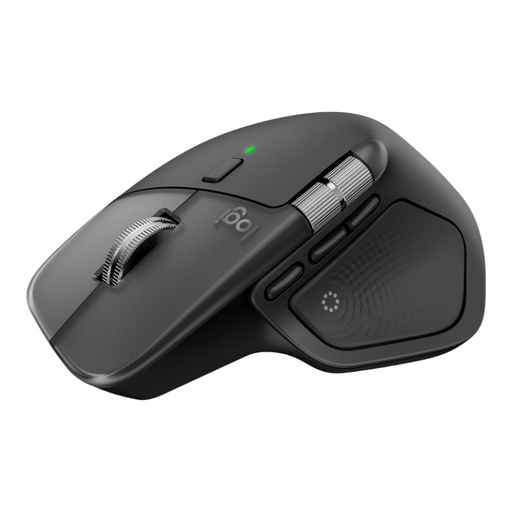
Logitech MX Master 4 for Mac, Space Black
An option if you’re looking for a mouse with Bluetooth and scrolling controls for working through results.
The product name lists compatibility with macOS, iPadOS and Windows, USB-C charging and haptic feedback.
View at Joybuy
 No image available
Vertical wireless mouse with USB-C charging
An option if you’re looking for a vertical shape and a choice of Bluetooth or 2.4GHz connection.
The product name lists three DPI levels: 800, 1200 and 1600.
View at Joybuy
 No image available
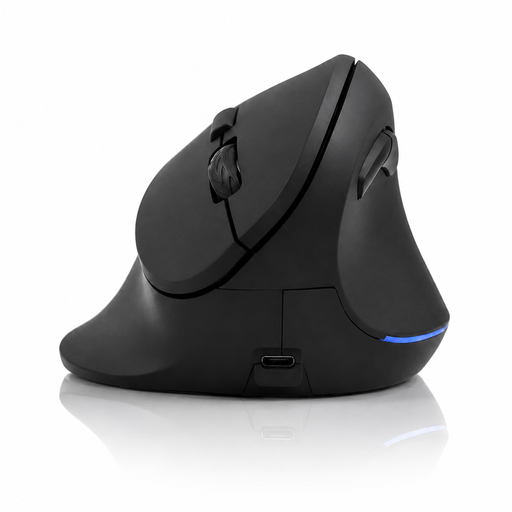
Vertical wireless mouse with 6 buttons
An option if you’re considering a vertical mouse with multiple buttons for repeated navigation.
The product name lists a 2.4GHz connection, USB-C battery and a DPI range of 800–1600.
View at Joybuy
 No image available
AJAZZ AJ159 PRO wireless mouse, white
An option if you want to choose between the connection methods listed in the product name.
The product name lists 2.4G, USB-C and Bluetooth, 26K DPI, a 400 mAh battery, a weight of 56 g and RGB lighting.
The product description warns that the magnetic base should be kept away from pacemakers, medical implants and cards.
View at Joybuy
 No image available
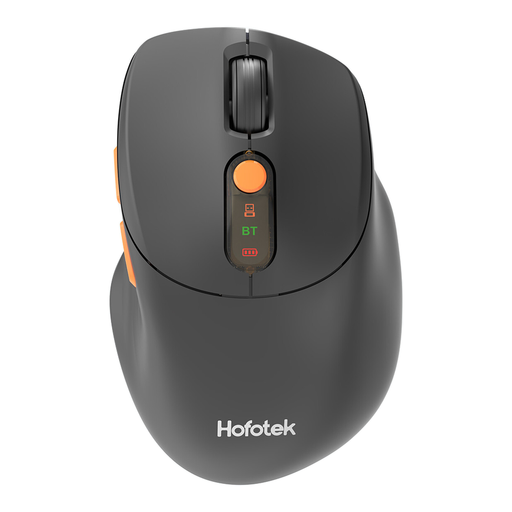
HOFOTEK M311 2.4G+BT Silent Office Mouse, black and orange
An option if you’re looking for an office mouse with quiet clicks and a choice of connection options.
The product name lists 2.4G+BT, adjustable DPI levels and one AA battery.
View at Joybuy
Frequently asked questions
Do I need a special mouse for two monitors connected to one Windows computer?
No, not just because you’re using two monitors. Arrange the screens in Windows and test how the cursor moves between them before replacing your mouse.
Can a mouse paired with two computers automatically move the cursor between them?
No, pairing alone doesn’t provide this feature. For Logitech Flow, Logitech specifies installing Logi Options+, pairing with both computers and connecting them to the same network; a managed network may restrict the connection.
What should I check when connecting a mouse?
Check whether your computer has Bluetooth or the required USB port, then test pointing, clicking and scrolling in your own workspace. If the model uses batteries, check which type it needs; HP specifies one AA battery for the HP 480 Comfort.
What are my rights when buying a mouse online in the Netherlands?
According to ACM ConsuWijzer, for a standard online purchase you generally have a statutory 14-day cooling-off period after delivery, subject to legal exceptions. You’re also entitled to a product that meets reasonable expectations; this isn’t the same as a fixed warranty lasting exactly two years.


