What should you look for when choosing?
Start with the thing you notice most in everyday use: hand position, navigation, connectivity or quiet operation.
Standard mouse with extra scrolling features
A good fit if: you want to keep using a familiar mouse and scroll through lots of long texts.
Bear in mind: extra features don’t automatically mean the shape will suit your hand; also check the version and included connection options.
Vertical mouse
A good fit if: you prefer a vertical grip and the size and handedness suit you.
Bear in mind: getting used to a different grip and changing your posture are still important; a mouse is no substitute for breaks.
Trackball
A good fit if: you have limited space to move a mouse across your desk and thumb control suits you.
Bear in mind: controlling the cursor with your thumb feels different from moving a standard mouse.
Simple, quiet wireless mouse
A good fit if: you mainly write and read, don’t need many extra features and want quiet clicks.
Bear in mind: check that the receiver or connection you need is compatible with your computer.
| What to consider |
What to check before buying |
Who is this most important for? |
| Hand position |
Fit, hand size and left- or right-handed design. |
During long editing sessions, I want to start with a grip that suits my hand. Around 36% of consumers put hand position first. |
| Text and photo navigation |
Scrolling controls and, if you need them, adjustable cursor movement. |
If I scroll through lots of journal text or select travel photos, I want the controls to suit those tasks. Around 29% of consumers prioritise navigation. |
| Connectivity |
Bluetooth, a USB receiver or a cable; also check the port and whether it supports multiple devices. |
If I want to use my mouse with one or more computers, the connection needs to be compatible. Around 21% of consumers choose connectivity as their main priority. |
| Quiet operation and simplicity |
Quiet clicks and whether the available features suit the way you use the mouse. |
In a quiet home workspace, I want minimal clicking noise and no controls I don’t need. Around 14% of consumers put quiet operation and simplicity first. |
Mouse options at Joybuy
This selection includes mice for scrolling through long documents, a vertical grip, adjustable cursor sensitivity and quiet operation. Check which features and connections suit your needs for each model.
 No image available
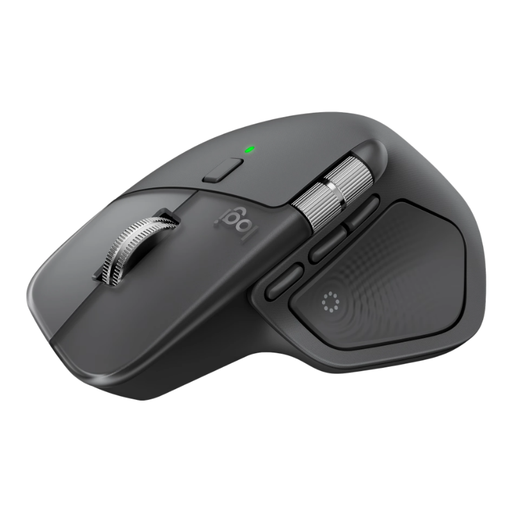
Logitech MX Master 4 Graphite
An option if you scroll through lots of long texts and want different ways to scroll.
The product description lists eight programmable buttons, MagSpeed scrolling, horizontal scrolling and connectivity via a USB-C receiver or Bluetooth. Check which connection is compatible with your computer.
View at Joybuy
 No image available
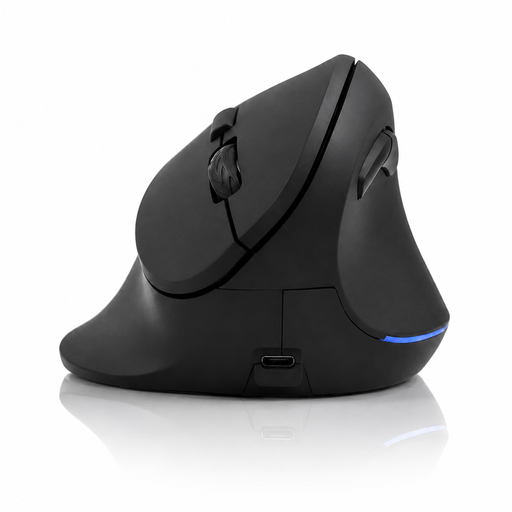
Wireless ergonomic vertical mouse with 6 buttons
An option if a vertical grip suits you and you want to adjust your cursor sensitivity.
The description lists six buttons, adjustable DPI levels and four-way scrolling. It says the mouse uses a USB receiver; check that your computer has a compatible port.
View at Joybuy
 No image available
AJAZZ AJ159 PRO wireless gaming mouse
An option if you want to adjust cursor sensitivity and have several connectivity options.
The product information lists a PAW3395 sensor, 26K DPI and connectivity via 2.4 GHz, Bluetooth or USB-C. The mouse weighs 56 g according to the title and comes with a magnetic charging dock. The product warning states that the dock must be kept at least 15 cm away from pacemakers and away from credit cards and medical implants.
View at Joybuy
 No image available
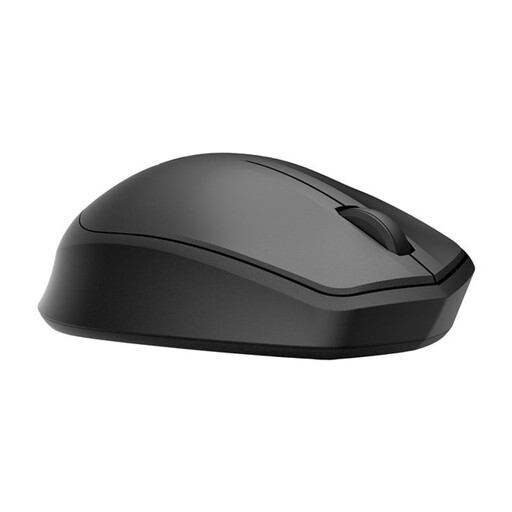
HP 285 Silent Wireless Mouse
An option if you value quiet clicks and simple controls.
The product description lists noise reduction on the main buttons, a wireless dongle and one AA battery. The stated battery life is up to 18 months. Check that you have a compatible USB port.
View at Joybuy
 No image available
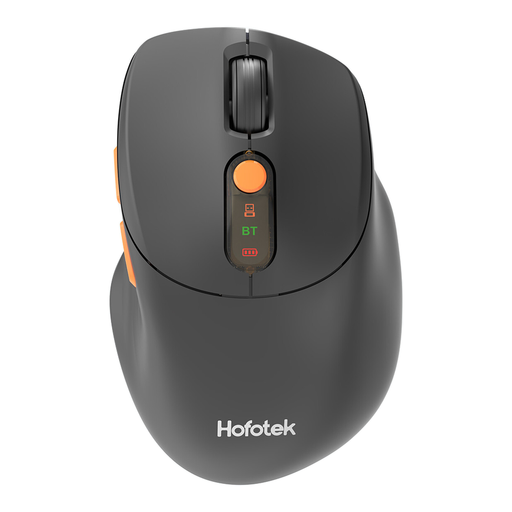
HOFOTEK M311 quiet office mouse
An option if you want quiet clicks and the ability to switch between devices.
The product description lists connectivity via 2.4 GHz or Bluetooth, support for up to three devices and adjustable DPI levels. Windows, macOS and Android are listed as compatible systems; the mouse uses one AA battery.
View at Joybuy
Frequently asked questions
How do you choose between a vertical mouse and a trackball?
Choose based on the controls you want to use: with a vertical mouse, you move it across the desk, while with the Logitech ERGO M575S, Logitech says you move the cursor with your thumb without moving the body of the mouse. For a vertical mouse, check the hand size and handedness; for a trackball, consider whether thumb control suits you.
What else can you change about your workspace besides your mouse?
The Dutch Arboportaal advises alternating screen-based tasks, adjusting your workspace to your body measurements and taking micro-breaks. This is workplace advice; a new mouse is no substitute for these measures.
What should you check when connecting a wireless mouse?
Check whether the exact version uses Bluetooth, requires a USB receiver or supports both, and whether your computer has the required connection or port. Don’t assume the same accessories are included just because two versions share a model name.
What are your rights when buying online or if a product is faulty?
In the Netherlands, online purchases from a business by consumers generally come with a 14-day cooling-off period; whether it applies depends on the agreement. You’re also entitled to a product that meets reasonable standards. According to the Dutch government, there is no fixed period for the statutory guarantee; if a product is faulty, contact the seller.
Do legal rules for screen-based work automatically apply to your personal journal?
No. The screen-based work obligations described by the Arboportaal apply to employers and employees. Advice on varying your activities and setting up your workspace can also be useful for personal use, but that doesn’t automatically make it a legal requirement for a personal project.


