
Long-transcript editor
If you often navigate long documents and correct passages, pay attention to the scroll wheel and any buttons you can use in your workflow. RTINGS.com discusses scroll controls as useful for working with documents.


For accurate transcription work, a mouse with comfortable scrolling and controls that suit the user is a sensible starting point. If quiet operation or use by different people matters most, weigh those factors separately. Extra buttons are only useful if you can use them in your transcription software and, where necessary, are allowed to install the required software on the computer. At a shared workstation, also check handedness, connectivity and access rights: one design will not automatically suit everyone.
If you often navigate long documents and correct passages, pay attention to the scroll wheel and any buttons you can use in your workflow. RTINGS.com discusses scroll controls as useful for working with documents.
If you work close to other people, quieter clicks may matter, without changing the familiar feel of a standard mouse. Trust and CHERRY describe models with silent buttons.
If you share a desk or switch between computers, check that the mouse suits different hands and that its connection and settings work with each computer. Trust, CHERRY, Kensington and Logitech describe a range of connections and designs.
Start with the actions you perform most often when transcribing. Then consider noise, fit and sharing the computer.
| What to consider | What should you look for? | Who should give this more weight? |
|---|---|---|
| Navigating long documents | Try scrolling and selecting text in your own software, and check whether any extra buttons work with it. | When working with long transcripts, I want to move quickly between passages and select text precisely. Around 33% of consumers give navigation and selection top priority. |
| Quiet clicking | Check which buttons are silent, and try the scroll wheel’s noise and feel too. | When colleagues are nearby, I want to click without making unnecessary noise. Around 25% of consumers put quiet clicking above the other considerations. |
| Fit and hand position | Consider hand size and preferred hand. Try a different style of control if you are thinking about a trackball or central mouse. | For extended use, I want a design that suits my hand and how I sit at the desk. For around 25% of consumers, personal fit comes first. |
| Shared connections | Count the computers and available ports. Check Bluetooth and software policies, and manage file permissions separately from the mouse connection. | When several people or computers use the same workstation, I want to connect easily without mixing up access rights. Around 17% of consumers prioritise being able to take over the workstation. |
Depending on the version, a vertical mouse may be designed for a particular hand preference and hand size. Kensington, by contrast, describes the Orbit trackball as ambidextrous; using it is different from using a standard mouse.
Find out which hands people use and their hand sizes, and let them try the design before choosing a model.
If users have different hand preferences, one version may not work for everyone, so a different design may be needed.
Silent main buttons alone tell you nothing about the sound or feel of the scroll wheel. A basic silent model may also lack features you want to use when transcribing.
Try clicking, scrolling and the editing actions you need separately.
Logitech states that customising the MX Master 4’s functions requires Logi Options+. On a shared computer, software policies and support from your transcription software may therefore be deciding factors.
Check in advance whether you are allowed to install the software and whether the commands you want work in your programme.
Arranging permission or help with installation in advance may require extra preparation.
According to ACM ConsuWijzer, the legal guarantee in the Netherlands depends on what you could reasonably expect from the product under normal use, rather than on one fixed period.
Keep your proof of purchase and contact the seller if the mouse develops a fault too soon under normal use.
Logitech offers models for navigating documents, as well as a separate vertical mouse design.
Trust describes the Ozaa+ as a silent mouse with side-scrolling controls and connections for multiple devices.
The CHERRY GENTIX SILENT is a wired, symmetrical option for use with one computer.
The Orbit Wireless Trackball with Scroll Ring uses a different way to control the cursor.
Contour describes the RollerMouse Red as a central control positioned in front of the keyboard.
This selection includes mice for transcription work where scrolling, quieter clicking, different hand preferences or use at a shared workstation are important considerations.
 No image available
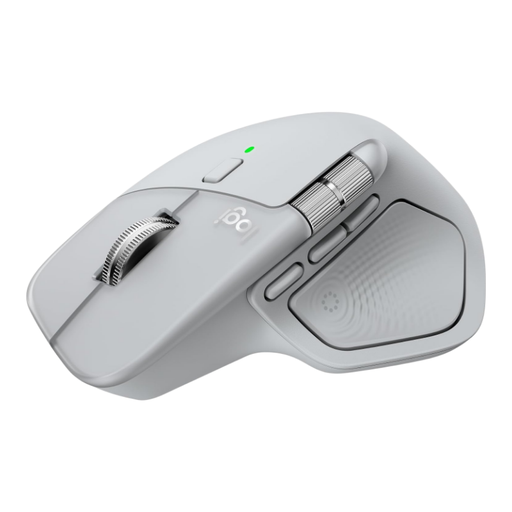
The MX Master 4 has vertical and horizontal scroll controls; Logitech says customisation is handled through Logi Options+. Check that its right-handed design and any software installation suit the users and the workstation’s policies.
 No image available
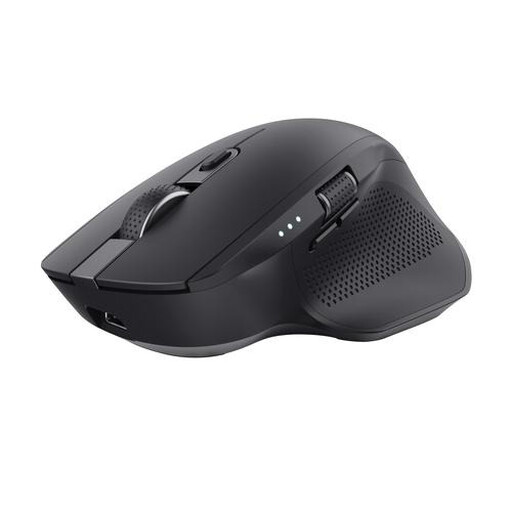
Trust specifies silent buttons, a side scroll wheel, a 2.4GHz receiver and two Bluetooth connections. The product details describe a large, right-handed mouse; check that this version suits everyone at the desk.
 No image available
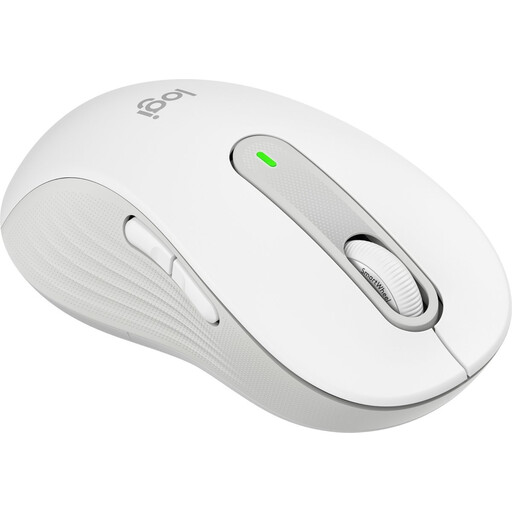
According to the product details, this version is designed for left-handed users with larger hands. It is therefore best suited to a shared desk when that hand preference and size match the intended user or users.
 No image available
According to the product details, this Graphite version is designed for right-handed users with small to medium-sized hands. Check that it fits the user; a vertical design is not automatically right for everyone.
 No image available
The product name suggests a compact, silent mouse. Check its fit and connection at the shared workstation before choosing.
Arboportaal does not specify a particular mouse model as a requirement. Its guidance says employees should alternate screen work with other work or a break at set intervals; the stated workstation requirements apply, among other situations, when screen work exceeds two hours a day. Discuss the shared workstation setup with your employer.
Start by finding out whether everyone uses the same computer or connects their own devices. A wired USB-A mouse needs a suitable port; Trust says the Ozaa+ has a receiver and two Bluetooth connections. Adjust the workstation for each user and manage file permissions separately.
No. Arboportaal advises alternating screen work and taking microbreaks; for employees, the Working Conditions Decree requires screen work to be alternated with other work or a break. Discuss any symptoms as soon as they arise with the occupational health physician, and ask for a workstation assessment if needed.
Contact the seller to claim your legal guarantee. According to ACM ConsuWijzer, this depends on what you could reasonably expect from the product; there is no automatic fixed two-year period.
No. Connecting a mouse and controlling access to files are separate matters. If transcripts contain personal data, the organisation must, according to the Dutch Data Protection Authority, prevent unauthorised access and set appropriate access rights.