When there’s little room to move a mouse beside your keyboard, a stationary trackball could be the answer. If you still have some space, a compact mouse remains a familiar option. Choose based on how you select text and scroll through long documents. For longer sessions, also check the fit and your workstation setup: a vertical shape or an ergonomic claim doesn’t guarantee that discomfort will disappear.
Who is this guide for?
Transcript editor working with long documents
You select text and navigate interview transcripts frequently. Try using the pointer and scroll wheel together in your own software. Arboportaal notes that precise positioning and frequent mouse movement can be relevant when working at a screen.
User with virtually no room for a mouse
There’s very little space beside your keyboard to move a conventional mouse. A stationary trackball works differently and may be worth trying; Kensington describes the Orbit as stationary.
User working through long editing sessions
You want a mouse that suits your hand and workstation, without assuming that any one shape will prevent discomfort. Arboportaal highlights the importance of workstation setup when working at a screen.
What should you look for when choosing?
When transcribing at a small desk, the space needed to move the mouse, how it handles text selection and how well it fits your hand all matter in different ways.
Compact conventional mouse
Choose this if: you have some room to move it and want familiar pointer control.
Bear in mind: you’ll still need to move the mouse; a slim shape doesn’t automatically make it suitable for long sessions.
Stationary trackball
Choose this if: you have very little room beside your keyboard to move a mouse.
Bear in mind: using the ball takes some getting used to; dirt around it can affect movement, according to Kensington.
Vertical mouse
Choose this if: you want to try a different hand position and have room to move the mouse.
Bear in mind: check the size and handedness; the shape doesn’t eliminate the need for space to move it.
| Buying concern |
What should you look for? |
Who does this matter to? |
| Selecting and navigating text |
Test selecting text and scrolling in your transcription software; compare a multi-mode scroll wheel with a scroll ring. |
When I edit long transcripts, I want to select passages precisely and move through the document smoothly. Around 33% of consumers prioritise this type of navigation. |
| Limited room to move a mouse |
Measure the space beside your keyboard and try using a trackball to highlight text. |
When there’s barely any room to move a mouse, I want to know whether stationary control suits the way I work. Around 27% of consumers give available space for mouse movement top priority. |
| Fit and hand position |
Check the size and whether it’s designed for left- or right-handed use; keep the mouse within reach and take breaks from intensive screen work. |
During long editing sessions, I want a mouse that fits my hand, without relying on claims about its shape. Around 20% of consumers put fit and hand position ahead of other buying concerns. |
| Quiet operation and switching devices |
Check which connections your devices support and whether the receiver you need is included. |
When I’m working in a quiet room or switching between computers, I want the clicking and connectivity to suit my workspace. Around 20% of consumers prioritise quiet operation or switching devices. |
Avoiding common buying mistakes
-
Focusing only on a high DPI specification
A sensor specification alone won’t tell you whether selecting short passages or navigating long documents feels comfortable in your transcription software.
Try the pointer speed, text selection, and both short and long-distance scrolling in the software you use.
-
Assuming a small mouse means a suitable workstation
You still need to move even a compact mouse. Your workstation setup remains important during extended screen work.
Check how much space the device and its movement take up. If you have virtually no room to move a mouse, you could try a trackball and adjust your workstation to suit.
-
Choosing a vertical mouse without checking the size and handedness
Logitech positions the Lift for small to medium-sized hands and offers separate left- and right-handed versions.
Check the specific version and try the grip if possible. Don’t assume that its shape will reduce discomfort.
-
Assuming a trackball needs no maintenance
Kensington notes that dirt around the ball can make movement stiffer or less smooth.
Follow the care instructions for the specific model and clean the ball if its performance deteriorates.
Brands to compare
Logitech
Logitech describes a range of control styles, including compact mice, a thumb-operated trackball and a vertical mouse.
- The MX Anywhere 3S and Pebble Mouse 2 M350s offer conventional pointer control, while the ERGO M575S is operated with your thumb.
- For the Lift, check the hand size it suits and whether you need a left- or right-handed version. A trackball requires a different way of controlling the pointer.
Kensington
Kensington describes the wired Orbit K72337EU as a stationary, ambidextrous trackball with a scroll ring.
- According to Kensington, the Orbit has programmable buttons and a 150 cm USB cable.
- You won’t need to move the body of the mouse, but you’ll need to get used to the ball and take the cable into account.
Trust
Trust describes the Ozaa Compact as a compact wireless mouse for use with multiple devices.
- Trust says it can connect to up to three devices using a combination of a 2.4GHz receiver and Bluetooth.
- Check that the shape suits your hand and that the connection works with your devices.
Joybuy products
These product picks include conventional mice with scrolling or device-switching features, as well as a vertical mouse. You’ll still need room to move the vertical model.
 No image available
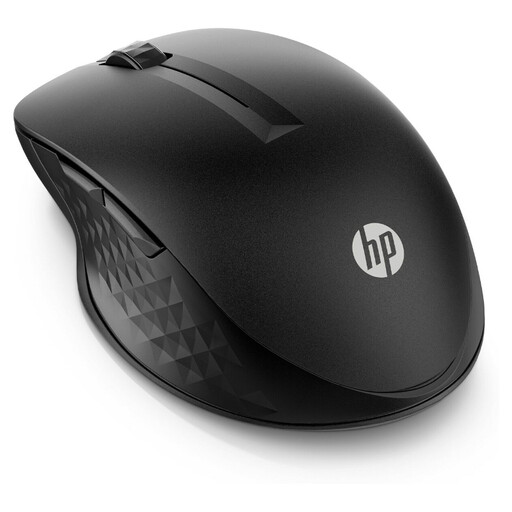
HP 430 Multi-Device Wireless Mouse
A good fit for a multi-computer setup if you want an adjustable scroll wheel.
The product information lists four programmable, quiet buttons, standard and super-fast scroll modes, and multi-device connectivity. The shape is described as suitable for both left- and right-handed use.
View at Joybuy
 No image available
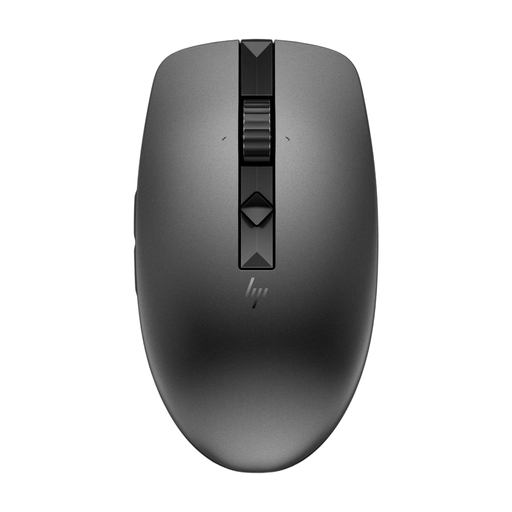
HP 635 Multi-Device Wireless Mouse
A conventional mouse to consider if you work through long documents and quiet buttons matter to you.
The product information lists a compact design, quiet buttons, adjustable scroll speed with standard and super-fast modes, and multi-device connectivity.
View at Joybuy
 No image available
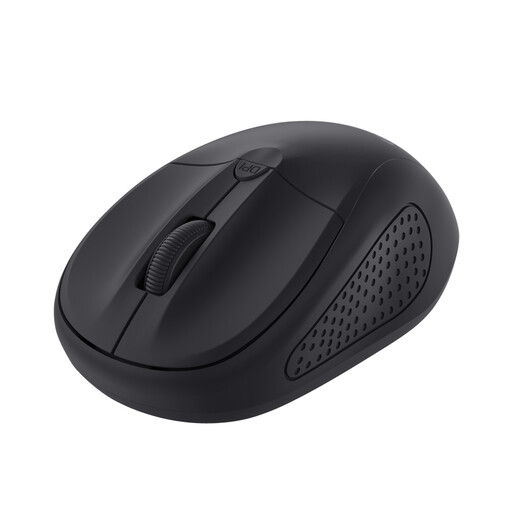
Trust Primo Mouse Travel, 1600 DPI
A compact conventional option if you still have room to move the mouse.
The product information lists an optical wireless travel mouse with a scroll wheel, three buttons, adjustable DPI and a design for both left- and right-handed use. The RF connection requires a suitable, available USB port.
View at Joybuy
 No image available
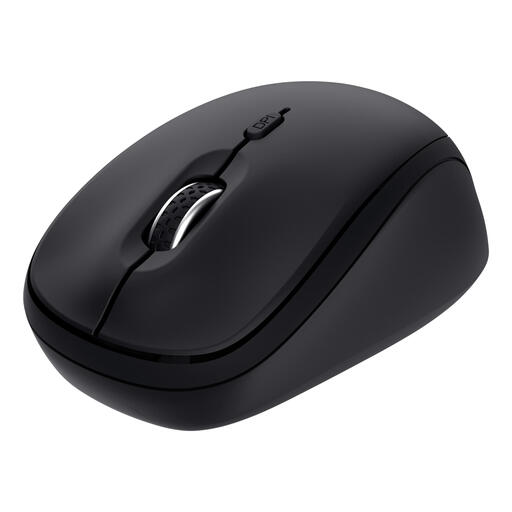
Trust Yvi+ Multi-Device Wireless Mouse
A good fit for a workspace where you want a compact mouse and switch between multiple devices.
The product information lists connectivity for up to three devices, quiet buttons and a scroll wheel.
View at Joybuy
 No image available
Logitech Lift Vertical Ergonomic Mouse, Graphite
A vertical option to consider if you want to try a different hand position and are right-handed.
According to the product information, this version is designed for small to medium-sized right hands. The description lists a SmartWheel, four customisable buttons and connectivity via Bluetooth or USB receiver. You’ll still need to move the mouse.
View at Joybuy
Frequently asked questions
Is a trackball always better than a compact mouse on a small desk?
No. A stationary trackball saves space for movement, but it controls the pointer differently. If you have enough room, you could also try a compact mouse and see which way of working feels more comfortable for selecting text in your own software.
How do you set up a wireless mouse, and what should you check first?
Check whether your mouse and computer support Bluetooth or a suitable USB receiver. For its Bluetooth setup, Logitech says to press and hold the Easy-Switch button for three seconds if the light isn’t flashing; for other models, follow the instructions provided with the device.
What can you do if a trackball feels stiff or jerky?
Refer to your model’s care instructions and clean the ball as directed. Kensington notes that dirt around the ball can cause friction and make the pointer move irregularly.
In the Netherlands, are you covered only by the manufacturer’s warranty?
No. According to the Rijksoverheid, purchases are covered by a legal guarantee: you’re entitled to a product that works as it should. Any manufacturer’s warranty, retailer’s warranty or extended warranty you’ve bought is separate; if there’s a fault, contact the retailer first.
What rules apply to wireless mice in the Netherlands?
Wireless equipment must meet European requirements for radio equipment. The Rijksinspectie Digitale Infrastructuur states that stricter requirements for wireless devices apply from 1 August 2025. Check the product and compliance information for the specific model; the product name alone doesn’t show that it meets the requirements.


