Which mouse is right for you?

If you work with wide tide tables

You often switch between times or columns and want to navigate smoothly without losing control of the pointer. Microsoft Support describes scroll bars and keyboard controls as ways to navigate a worksheet; Logitech lists adjustable tracking for the MX Master 3S.

If you spend long periods at a screen

When choosing, you want to consider your hand position and workspace set-up, not just the shape of the mouse. TNO, via Arboportaal, discusses mouse use in the context of screen work; Trust describes the Verto as a vertical mouse.

If you have limited or shared desk space

You have little room to move a mouse, or want an input device that can be used by both left- and right-handed people. Kensington describes the wired Orbit with scroll ring as symmetrical.

What should you look for when choosing?

Conventional productivity mouse

A good fit for Anyone who often navigates wide worksheets and wants to compare extra scrolling controls. Logitech lists adjustable tracking and MagSpeed scrolling for the MX Master 3S Bluetooth edition reviewed here.

Bear in mind Extra controls won’t automatically make tide data more accurate; check that the features work as you want them to in your programme.

Vertical mouse

A good fit for Anyone who wants to try a different hand position and is looking for a vertical shape that suits their hand. Trust lists a 60-degree angle and 1000 and 1600 dpi sensor settings for the wired Verto.

Bear in mind The cable takes up space, and the different grip may take some getting used to; a vertical shape is no guarantee that discomfort will go away.

Stationary trackball

A good fit for Anyone with little room to move a mouse or who wants to compare options for left- and right-handed use. Kensington describes the wired Orbit with scroll ring as symmetrical.

Bear in mind You control the pointer with the ball instead of moving the whole mouse. A scroll ring doesn’t confirm that horizontal scrolling will work in your programme.

What to consider What to look for Who is this important for?
Navigation Try horizontal scrolling and pointing in the programme you use. Check whether scroll bars or keyboard shortcuts already do the job. If I often move between columns and points on a graph, I want to navigate smoothly without losing control of the pointer. Around 36% of consumers put navigation first.
Hand position Consider whether the shape suits your hand and whether you can use the mouse comfortably for the length of time you need. Also look at your workspace set-up. If I work at my computer for long periods, I want a shape that suits my hand and workspace. Around 29% of consumers put hand position first.
Space and hand preference Check how much space you have and whether the controls suit left- or right-handed use. Test the scrolling direction separately. If my desk is cramped or I share the device with someone, I want to consider the space needed and hand preference. Around 21% of consumers put space or shared use first.
Connection and power Check your computer’s ports, the connection type for the exact model, and whether it runs on batteries, needs charging or uses a cable. If I mainly want a simple connection and minimal power-related fuss, I check these details before buying. Around 14% of consumers put connection and maintenance first.

How to avoid common buying mistakes

  • Assuming a high maximum dpi means more accurate work

    A stated maximum sensor value alone won’t tell you whether the pointer speed will be easy to control on your graph.

    Check whether the sensitivity can be adjusted, and try pointing to data points in the programme you use.

  • Assuming a scroll ring guarantees horizontal scrolling

    Kensington describes the ring as a control for scrolling through pages. That doesn’t confirm that the horizontal controls you want will work in every programme.

    Check the scrolling direction and how your programme responds to the controls.

  • Thinking an additional warranty package replaces your statutory rights

    According to ACM ConsuWijzer, the statutory guarantee is separate from a seller’s or manufacturer’s guarantee.

    Check what extra cover an additional package provides, and keep it separate from your existing statutory rights.

    An optional additional warranty package may cost extra.

Brands to compare as a reference

Logitech

The MX Master 3S Bluetooth edition reviewed here is a useful reference if you’re comparing adjustable tracking and extra scrolling controls.

  • Logitech lists a sensor of up to 8000 dpi and MagSpeed scrolling for this model.
  • These are manufacturer specifications, not an independent assessment of suitability for tide charts. Check the exact model and connection type.

Trust

The wired Verto is a vertical model to compare if you want to try a different hand position.

  • Trust lists a 60-degree angle, sensor settings of 1000 and 1600 dpi, and a 1.5-metre USB cable for this model.
  • Its shape is no guarantee that discomfort will go away; fit, getting used to it and your workspace set-up all matter.

Kensington

Orbit trackballs are a useful reference for stationary control; check the features of each wired or wireless model.

  • Kensington describes the wired Orbit with scroll ring as symmetrical. For the wireless version reviewed here, Kensington lists Bluetooth or 2.4 GHz connectivity and adjustable dpi.
  • Don’t assume the wireless model has the same connections and settings as the wired version. Test the scrolling function in your own programme.

Mice at Joybuy

This selection at Joybuy includes mice suited to navigation and use at a home workspace, including conventional and vertical models.
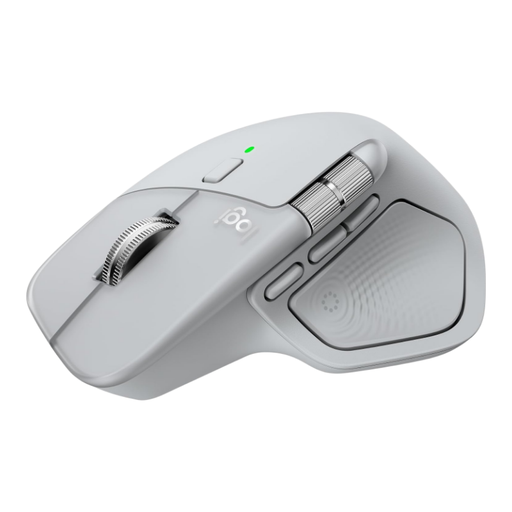
Logitech MX Master 4 in light grey

Logitech MX Master 4 Light Grey

An option to compare if you navigate wide tables and want extra scrolling controls.

The product description lists eight programmable buttons, Bluetooth or a USB-C receiver, horizontal and vertical scrolling, and adjustable DPI.

View at Joybuy

Vertical wireless mouse with Bluetooth, 2.4 GHz and USB-C

Vertical wireless mouse with USB-C, Bluetooth and 2.4 GHz

A model to compare if you’re looking for a vertical shape and several connection options.

The product name lists DPI settings of 800, 1200 and 1600. The product description lists six buttons and a rechargeable battery.

View at Joybuy
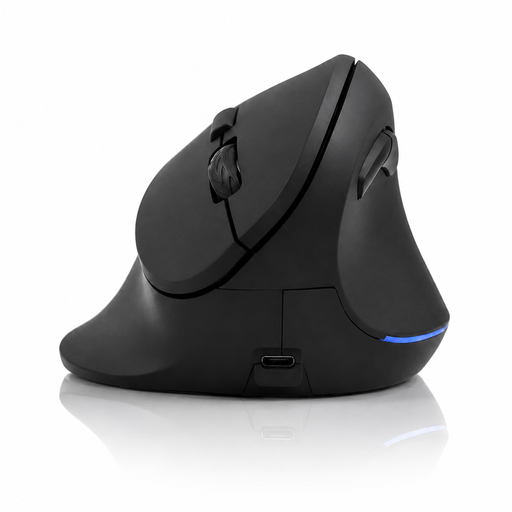
Wireless vertical mouse with six buttons and four-way scroll wheel

Wireless vertical mouse with 6 buttons and four-way scroll wheel

An option to compare if you’re looking for a vertical mouse with scrolling controls.

The product name lists 2.4 GHz, USB-C and a DPI range of 800–1600. The product description lists a four-way scroll wheel and three DPI settings.

View at Joybuy

AJAZZ AJ159 PRO wireless gaming mouse in white

AJAZZ AJ159 PRO wireless gaming mouse, White

An option to compare if you’re looking for a wireless mouse and the listed connections suit your computer.

The product name lists 2.4 GHz, USB-C and Bluetooth, a PAW3395 sensor and 26K DPI. The product description lists a magnetic charging dock with magnets; according to the description, keep it away from pacemakers, medical implants and credit cards.

View at Joybuy
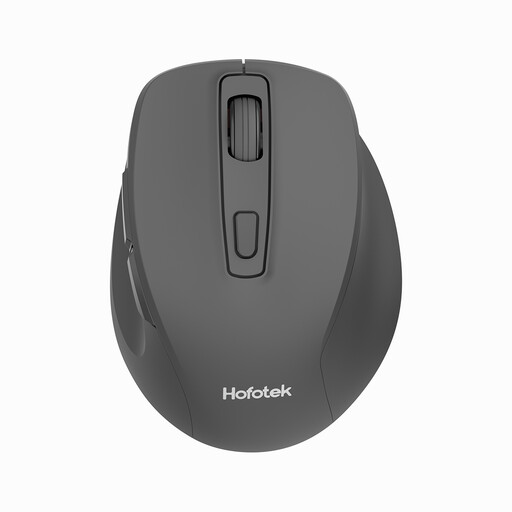
HOFOTEK M308 2.4G Silent Office Mouse in black

HOFOTEK M308 2.4G Silent Office Mouse, Black

An option to compare if you’re looking for a wireless mouse with adjustable cursor sensitivity.

The product description lists quiet clicks, DPI settings of 800, 1000, 1200 and 1600, and a 2.4GHz USB receiver. It also lists compatibility with Windows, macOS and Android.

View at Joybuy

Frequently asked questions

Do I need a separate horizontal mouse wheel for tide tables in Excel?

Not necessarily. Microsoft Support also describes scroll bars and keyboard controls for navigating a worksheet. First, see if they work for your file, then consider whether extra mouse controls would add anything.

Do I need to install software for an Orbit Wireless trackball?

According to Kensington, the wireless Orbit reviewed here works straight out of the box; KensingtonWorks is an optional manufacturer recommendation for customising its functions. Check the instructions for the exact model you’re buying.

What can I do if the fit isn’t right after buying online?

According to ACM ConsuWijzer, online consumer purchases usually come with a statutory cooling-off period of up to 14 days after delivery, subject to certain exceptions. Check the returns policy before buying and try the mouse out carefully.

What are the rules on warranties and disposing of an old mouse in the Netherlands?

For a consumer purchase, the statutory guarantee is separate from any commercial guarantee; according to ACM ConsuWijzer, what you could reasonably expect from the product under normal use is important. The Dutch government describes a take-back scheme for private individuals buying a new, similar device, but not for businesses. Check with the seller whether the scheme applies to your old mouse.

Does Dutch law specify which mouse I must buy for home use?

Arboportaal’s information on screen work describes employers’ obligations for healthy screen work, not a prescribed mouse model for every private buyer. Choose based on the controls and connection that suit your computer and workspace.
