When choosing a mouse for thesis work, start with a grip and shape that suit your hand and the space on your desk. Then decide whether document navigation, quiet clicks or limited room to move the mouse matters most. A vertical mouse, trackball, central mouse and productivity mouse each work differently. The Netherlands’ Arboportaal explains that, under Article 5.10 of the Working Conditions Decree, screen work should be alternated at regular intervals with other work or a break. A different mouse does not replace those breaks.
Who these mouse designs are for
Writer with long days at a screen
You spend long periods writing and editing at a screen and want to consider hand position, reach and taking breaks. TNO’s factsheet on screen work, available through Arboportaal, highlights mouse use as something to pay attention to.
Reader and writer of long documents
You often switch between chapters, PDFs and sources, and want comfortable scrolling and controls that are easy to reach. Logitech describes document controls on the MX Master 4, while Kensington lists a scroll ring on the Expert Mouse.
Writer with a crowded desk
Notes or reference materials take up space beside your keyboard, so you want a pointer that you don’t have to keep moving back and forth. The Logitech ERGO M575 stays in place, while Contour Design positions the RollerMouse in front of the keyboard.
What to consider when choosing
Start with a control style that suits your hand and desk, then compare scrolling, workspace and click noise.
Productivity mouse
Choose this if: You scroll through chapters and reference materials a lot and prefer having a mouse beside your keyboard; Logitech also describes a thumb wheel on the MX Master 4.
Consider: The MX Master 4 is right-handed; haptic features and customisation require Logi Options+.
Vertical mouse
Choose this if: You prefer a vertical grip. Check the hand size and whether you need a left- or right-handed version. Logitech describes the Lift as suitable for small to medium-sized hands; the R-Go HE Break comes in different sizes and versions for either hand.
Consider: The shape does not guarantee that it will prevent discomfort; fit and getting used to it still matter.
Trackball
Choose this if: If you have little room to move a mouse, a stationary trackball could be a good fit. The ERGO M575 is operated with your thumb, while the Kensington Expert Mouse has a scroll ring.
Consider: Choose between thumb and finger control carefully; a trackball works differently from a mouse that you move across the desk.
Central mouse
Choose this if: If you want to control the pointer in front of your keyboard rather than at the side, consider a RollerMouse.
Consider: Contour Design describes positioning it in front of a low-profile keyboard; check that the available space and height suit your setup.
| What to consider |
What to look for when buying |
Who this matters to |
| Hand position and comfort |
Check the hand size, preferred hand and how easy the buttons are to reach. |
When I’m writing for long stretches, I want a grip that suits my hand and preferred hand. Around 36% of consumers prioritise hand position and long-term comfort. |
| Long documents |
Look at the scroll wheel, any side controls and software requirements. |
When reading and editing long documents, I want to scroll smoothly and reach the controls easily. Around 29% of consumers give document navigation top priority. |
| Desk space |
Measure the clear space beside and in front of your keyboard, and choose the control style you prefer. |
When books and notes fill my desk, I want to control the pointer without repeatedly moving a mouse to the side. This is the main buying concern for around 21% of consumers. |
| Quiet, straightforward use |
Check which buttons are quiet and what receiver or connection the version uses. |
When I want to work quietly, I look for quiet standard clicks and want to choose features I’ll actually use. Around 14% of consumers put quiet, simple operation first. |
Avoiding common buying mistakes
-
Assuming a vertical design or ergonomic label will prevent discomfort
The right size and grip vary from model to model. A particular shape or product label does not prove that a mouse will prevent or treat discomfort.
Check the fit and positioning, and take regular breaks from screen work. Don’t treat manufacturers’ health claims as a personal promise of treatment.
A mouse that doesn’t suit your hand size or workspace can still be the wrong purchase.
-
Choosing extra buttons without checking the software requirements
Haptic features and customisation on the Logitech MX Master 4 require Logi Options+.
Before buying, check that your computer’s operating system and installation policy allow you to use the features you want to set up.
-
Looking only at how much space a trackball needs
A trackball stays in place, but changes how you control the cursor. A RollerMouse needs space in front of the keyboard and a suitable keyboard setup.
Measure the available space and decide whether thumb, finger or rollerbar control suits you.
Brands worth comparing
Logitech
The range includes vertical mice, a thumb-operated trackball and mice with extra controls for working with documents.
- Logitech describes the Lift as suitable for small to medium-sized hands; the ERGO M575 is operated with your thumb.
- The MX Master 4 is right-handed, and certain customisation options require Logi Options+.
R-Go Tools
The HE Break is an option if you’re looking for a vertical mouse in a particular hand size and version.
- R-Go offers HE Break versions in different sizes, for both left- and right-handed use.
- The break indicator works with R-Go Break software and does not replace taking an actual break.
Kensington
The Expert Mouse is a trackball with centrally positioned controls and a scroll ring.
- Kensington describes the Expert Mouse as suitable for medium to large hands.
- Check that the controls and stated software features suit your hand and computer.
Contour Design
The RollerMouse Red controls the cursor with a rollerbar positioned in front of the keyboard.
- Its central position offers a different way of working from a mouse beside the keyboard.
- Check the available space in front of your keyboard and the combination of keyboard height and mouse. Health claims are not a guaranteed outcome.
HP
The HP 285 Silent is a wireless mouse for anyone who values quiet standard clicks.
- HP claims up to 90% noise reduction for the left and right buttons and mentions a dongle.
- The stated noise reduction applies to the left and right buttons; it does not mean the scroll wheel is quiet.
Joybuy mice for thesis work
This selection of Joybuy products includes mice for navigating documents, quiet everyday use, and vertical or stationary control to suit different desk setups.
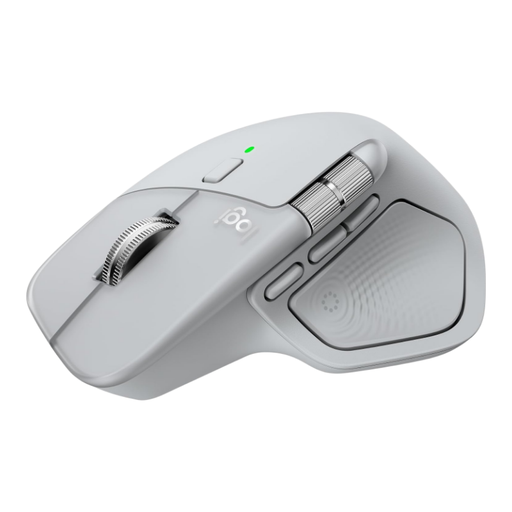 Image unavailable
Logitech MX Master 4 Light Grey
Ideal if you navigate long documents and wide spreadsheets a lot and want to scroll horizontally.
MagSpeed scroll wheel and thumb wheel for horizontal scrolling; eight programmable buttons; wireless and can be paired with up to three devices.
Logi Options+ is required for haptic feedback, the Actions Ring and button customisation.
View at Joybuy
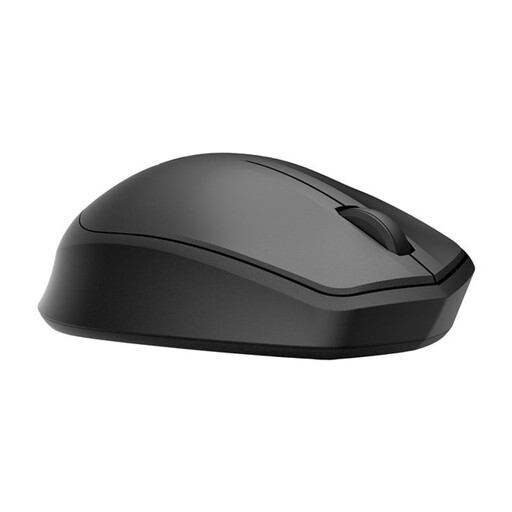 Image unavailable
HP 285 Silent wireless mouse
Ideal if you want to work wirelessly and prefer quieter clicks on the main buttons.
HP lists noise reduction for the left and right buttons; connects via a 2.4 GHz dongle.
The stated specifications include a 10-metre range and an 18-month battery life. Noise reduction applies to the left and right buttons.
View at Joybuy
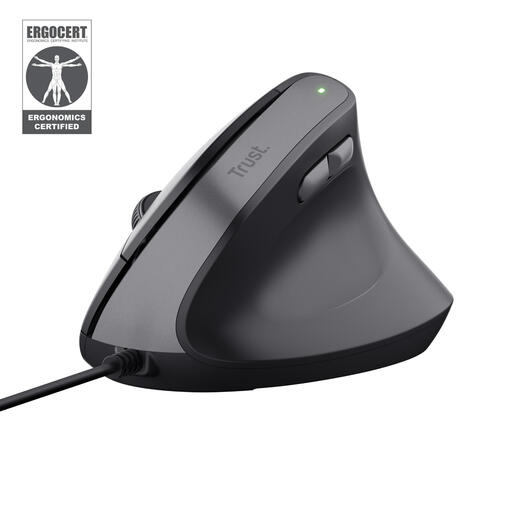 Image unavailable
Trust Bayo II wired vertical mouse, black
Ideal if you want a vertical grip and can use a wired, right-handed model with a USB connection.
The description lists a 57-degree vertical angle, adjustable DPI and plug-and-play operation.
The thumb buttons are designed for forward and back navigation.
View at Joybuy
 Image unavailable
Logitech ERGO M575S Graphite
Ideal for a desk with little room to move a mouse: the trackball stays in place and is operated with your thumb.
Wireless connection via Bluetooth or a Logi Bolt receiver; three customisable buttons.
View at Joybuy
 Image unavailable
Logitech Lift Vertical Ergonomic Mouse Graphite
Ideal for a right-handed user with small to medium-sized hands who wants a vertical grip.
The description lists a 57-degree vertical angle, SmartWheel and quiet clicks; connects via Bluetooth or a USB receiver.
This version has four customisable buttons and is designed for small to medium-sized right hands.
View at Joybuy
Frequently asked questions
Do you need a vertical mouse to work on your thesis at home?
No. The Netherlands’ Arboportaal guidance on screen work does not specify a vertical mouse as a required product type. However, under Article 5.10 of the Working Conditions Decree, Arboportaal advises alternating screen work at regular intervals with other work or a break.
Do workplace health and safety obligations automatically apply to every PhD student writing at home?
Not automatically just because you are a PhD student. Arboportaal describes employers’ obligations for employees working from home and the application of the rules to students in specific circumstances. Whether they apply to you depends, among other things, on your employment or study status.
How do you position a central mouse by your keyboard?
Contour Design describes positioning it directly in front of a low-profile keyboard. Check that there is enough space and that the height of your keyboard and central mouse work well together.
How do you clean a trackball if the ball feels stiff?
Logitech advises gently pushing the ball out of its housing through the back of its trackball to clean it. For a different model, follow its own manual, as the method for removing the ball may vary.
Can you return a mouse bought online or make a warranty claim?
According to ACM ConsuWijzer, a standard online consumer purchase usually comes with a 14-day cooling-off period after delivery, subject to legal exceptions. In addition, statutory warranty in the Netherlands depends on what you could reasonably expect from the product under normal use.


