What should you consider when choosing?
Start with the issue you encounter most often when taking minutes. Then consider the shape and features: quiet clicks, a different hand position and easy switching between devices are separate selection criteria.
| What to consider |
What should you check? |
Who should pay particular attention? |
| Clicking noise |
Check whether the exact version has quiet buttons; quiet doesn’t automatically mean completely silent. |
If colleagues work nearby, I want to make as few audible clicks as possible while editing. Around 31% of consumers say quiet operation is their top purchasing priority. |
| Fit and prolonged use |
Check your hand size and handedness, and whether the shape feels comfortable to use; also consider your posture and breaks. |
If I use the mouse for long periods, I want a version that fits my hand without expecting it to solve the strain caused by my work. Around 25% of consumers prioritise fit and strain. |
| Connecting and switching |
Check Bluetooth support, available USB ports, the type of receiver and how many devices the version can pair with. |
If I switch between computers, I want to know in advance which connections are available at all my workstations. Around 25% of consumers give connecting and switching top priority. |
| Finding your way around minutes |
Decide whether you mainly navigate long passages of text or also wide documents; check the scroll function on the exact model. |
If I edit long meeting minutes, I want to move through the text precisely and choose only extra features I’ll actually use. Around 19% of consumers prioritise navigating documents. |
Mouse options at Joybuy
These Joybuy products are suited to taking minutes at a shared desk, with options for quiet clicks, different connections, navigating text and handedness.
 No image available
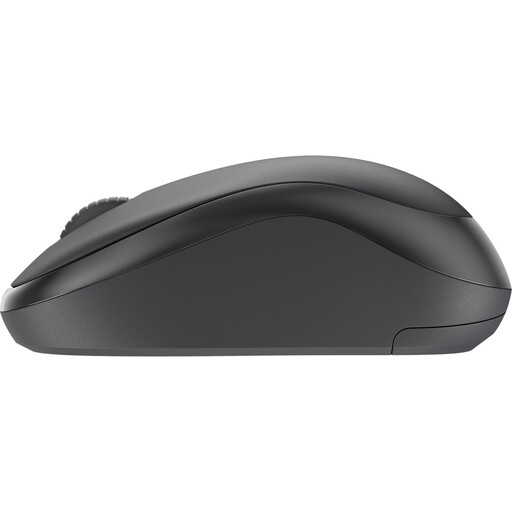
Logitech M240 Silent Wireless Black
An option to compare if you’re looking for quiet clicks and familiar mouse controls.
The product description mentions Silent Touch, a scroll wheel and connectivity via Bluetooth or Logi Bolt. It also says the mouse can be used by both left- and right-handed people.
View at Joybuy
 No image available
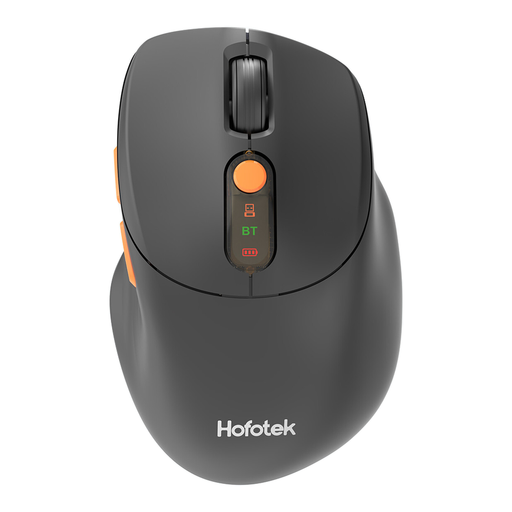
HOFOTEK M311 silent office mouse, 2.4G+BT (1xAA Battery)
An option to compare if you want quiet clicks and switch between computers.
The product information lists Bluetooth and 2.4 GHz, with switching between up to three devices. The title mentions several DPI levels and one AA battery; check that the connections are compatible with your devices.
View at Joybuy
 No image available
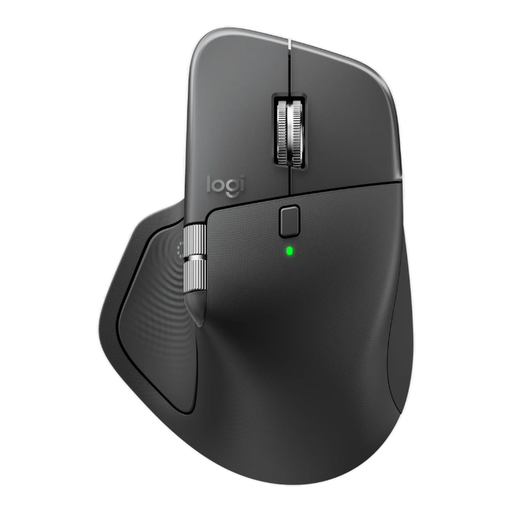
Logitech MX Master 4 for Business, Graphite, 8K DPI
An option to compare if quiet clicks, extra scroll controls and switching between devices are important to you.
The product information lists Quiet Click, MagSpeed scrolling, a thumb wheel and Bluetooth or Logi Bolt. The title mentions 8K DPI and USB-C charging; the description says it can be used with up to three devices. This version is designed for right-handed users.
View at Joybuy
 No image available
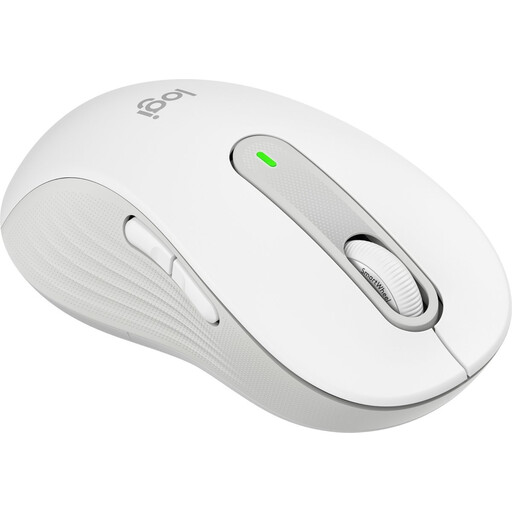
Logitech Signature M650 L Left White 910-006240
An option to compare if you’re left-handed, have larger hands and value quiet clicks.
The product information lists SilentTouch, scrolling and connectivity via Bluetooth Low Energy or Logi Bolt. This version is designed for left-handed users with larger hands.
View at Joybuy
 No image available
Logitech Lift Vertical Ergonomic Mouse Graphite
An option to compare if you want to assess a vertical shape for fit and ease of use.
The product information lists quiet clicks, SmartWheel, Bluetooth and a USB receiver. This version is designed for right-handed users with small to medium-sized hands; a vertical shape is not a proven treatment for discomfort.
View at Joybuy
Frequently asked questions
Do you have to use a vertical mouse when working at a screen?
No, the Dutch regulations described don’t specify a vertical mouse as a required product type. Arboportaal says that screen work should be alternated at set times with other work or a break; you should also choose a mouse shape that suits your hand and workstation.
How do I connect a mouse to a computer at a different workstation?
First, check which connections your computer supports and which ports are available. For the Signature M650, Logitech lists Bluetooth Low Energy or a Logi Bolt receiver; for the Ozaa+, Trust lists a USB receiver and Bluetooth channels. If the mouse has customisable buttons, also check that the required software works on your computer.
What else can help when editing for long periods?
Arboportaal recommends varying your working posture, taking micro-breaks and alternating screen work with other tasks. If you start to experience discomfort, the portal recommends speaking to your prevention officer or occupational physician, or arranging a workstation assessment.
Who should I contact about a faulty mouse, and how long is the warranty in the Netherlands?
Report a faulty product to the seller. According to the Dutch government, there is no fixed statutory warranty period in the Netherlands; what you can expect depends, among other things, on the product and the information provided. A manufacturer’s warranty is in addition to your statutory rights.


