
Spreadsheet navigator
You work through lots of responses, rows and columns, and want to navigate quickly without losing track of individual cells. Microsoft Support also describes arrow keys and scroll bars as ways to navigate.


For long, wide spreadsheets, a mouse with a dedicated thumb wheel is worth considering. If you spend a long time pointing and selecting, compare models for fit; if space is limited, a trackball may suit you. Glass tracking is only relevant if you use your mouse on a glass surface. If your screen is reflecting light, adjusting your workstation is more important, as Arboportaal points out.
You work through lots of responses, rows and columns, and want to navigate quickly without losing track of individual cells. Microsoft Support also describes arrow keys and scroll bars as ways to navigate.
You spend a long time pointing and selecting, and want a shape that suits your hand and working posture. Arboportaal emphasises that your workstation set-up matters too.
You work on a glass surface, regularly move between workstations or have little room to move your mouse. The right solution depends on the surface you work on or the specific limitation you need to overcome.
Start with how you navigate your data, then compare grip, workspace and connectivity.
| What to consider | What to check before buying | Which consumers it matters to |
|---|---|---|
| Navigating spreadsheets | Check which scrolling directions and controls are available, and try them out in your spreadsheet software. | When I work through long, wide spreadsheets, I want to move forwards quickly and return to specific cells easily. Around 40% of consumers prioritise navigating data. |
| Grip and comfort | Check your hand size and the shape, and find out whether the model is suitable for left- or right-handed use. | When pointing and selecting for long periods, I want a mouse that suits my hand and working posture. Around 30% of consumers prioritise grip and fit. |
| Using the mouse on your work surface | Work out whether you use your mouse on glass and check the conditions attached to the sensor claim; deal with screen reflections separately. | If I work on a glass surface or have little room to move my mouse, I want to know which limitation I need to address. Around 20% of consumers prioritise their work surface or available space. |
| Connectivity and care | Check Bluetooth support, the type and inclusion of a receiver, and whether any cleaning is required. | When I connect or use my mouse every day, I want to know in advance what connection and care it requires. Around 10% of consumers prioritise connectivity and maintenance. |
A sensor claim about the surface you move the mouse on does not mean that distracting light or reflections on your screen will disappear.
Check where the problem is coming from. If your screen is reflecting light, Arboportaal recommends, among other things, positioning your viewing direction parallel to the window.
A shape that suits one person’s hand may not suit every hand or working posture. Logitech says the Lift is suitable for small to medium-sized hands and lists a separate left-handed version.
Check the size and model, and assess the mouse alongside your working posture rather than judging it by its shape or a manufacturer’s claim alone.
Logitech lists Bluetooth for the MX Anywhere 3S and states that the compatible Logi Bolt receiver is not included.
Check the exact model, what’s in the box and your computer’s Bluetooth capabilities.
If you need a compatible receiver, you may have to buy one separately.
Kensington explains that dirt in the ball housing can affect movement, so a trackball needs regular cleaning.
Factor in cleaning the ball and housing when choosing a pointing device for a small workspace.
Allow time to clean the ball and housing regularly.
The Logitech models mentioned offer different options for scrolling, varied surfaces and vertical grip.
The Bayo II is a vertical option to compare with a traditional mouse.
The Expert Mouse Wireless is a trackball option for desks with little room to move a mouse around.
This selection includes vertical mice and a symmetrical office mouse, with different scrolling and connectivity options for working with survey data.
 No image available
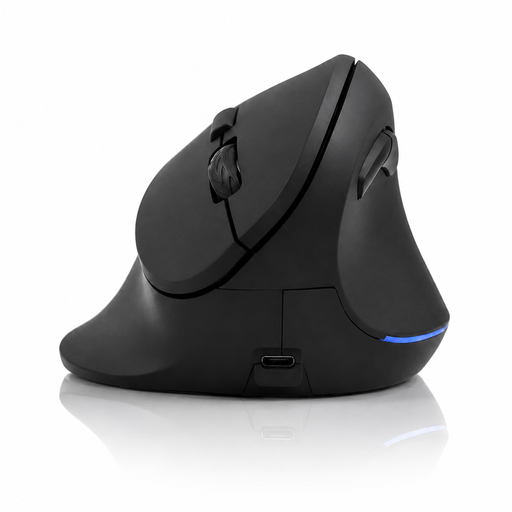
The vertical shape and 4-way scroll wheel are worth considering if you want to compare spreadsheet navigation and grip.
Six buttons; Bluetooth and 2.4 GHz; three DPI settings: 800, 1200 and 1600; USB-C charging.
 No image available
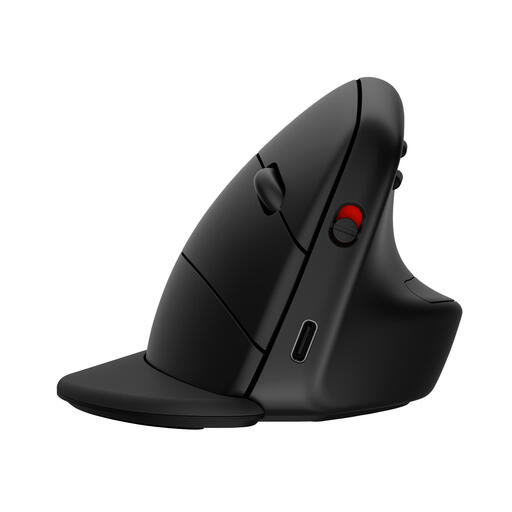
This model is an option to consider if you want to compare a vertical grip with wireless connectivity options.
Bluetooth and 2.4 GHz connectivity; six buttons; USB-C charging; DPI settings from 800 to 1600.
 No image available
A vertical shape with a detachable wrist rest to compare if you’re looking for that combination.
According to the product description, the mouse can connect to up to three devices via Bluetooth or an HP dongle. It also mentions a built-in battery.
 No image available
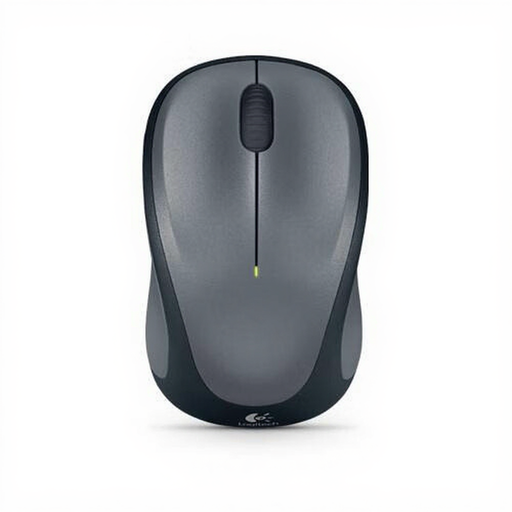
A symmetrical shape offers an alternative to consider alongside the vertical models.
Optical sensor; 2.4 GHz wireless connectivity; 1000 DPI; three buttons and a scroll wheel. The product description says it can be used with either hand.
 No image available
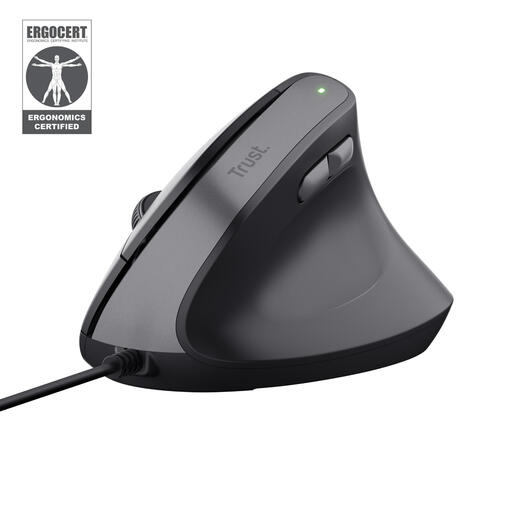
A vertical mouse to compare if you use a fixed workstation with a USB connection.
Trust specifies a 57-degree angle for the Bayo II. This model has a wired USB connection; the product description lists two thumb buttons.
No. Glass tracking refers to the surface you move the mouse on. If your screen is reflecting light or causing glare, Arboportaal recommends, among other things, positioning your viewing direction parallel to the window.
Not necessarily. Microsoft Support also describes using arrow keys and scroll bars to navigate a spreadsheet. A dedicated thumb wheel is an additional control; check how it works in your spreadsheet software.
Check which connections your computer supports and which components are included. Logitech lists Bluetooth for the MX Anywhere 3S and states that the compatible Logi Bolt receiver is not included. Kensington specifies Bluetooth or a USB nano receiver for the Expert Mouse Wireless.
Yes. Kensington says that dirt in the ball housing can affect movement. Clean the ball and housing according to the instructions for your model, especially if the cursor moves stiffly or jerkily.
For a consumer purchase made at a distance, the Dutch government says you have 14 days to change your mind in many cases; exceptions may apply. You are also entitled to a product that is fit for purpose. Check who the seller is and which terms and conditions apply to your purchase.