
Anyone working with large survey tables
You want to move quickly through lots of rows and columns. Customisable buttons are particularly useful if your software and workplace policy allow them.


For wide survey tables, a mouse with vertical and horizontal scrolling is worth considering. If you mainly want a different grip, compare it with a vertical mouse. If you want to move the mouse less or reach sideways less often, consider a trackball or a central pointing device. None of these designs replaces varying your posture or taking breaks. Also check the fit, connections and CE marking for the specific version on offer.
You want to move quickly through lots of rows and columns. Customisable buttons are particularly useful if your software and workplace policy allow them.
You want to choose a mouse that suits your hand size and which hand you use, without viewing a particular design as a treatment for discomfort.
You want to reach sideways less or move the mouse less often when adjusting your sit-stand workstation.
Choose this design if: you often navigate large files with lots of rows and columns, and find a conventional mouse grip comfortable.
Bear in mind: extra customisation options may require software. This design does not offer the same grip as a vertical mouse.
Choose this design if: a different grip is your priority and the hand orientation and size suit you.
Bear in mind: you will still need to move the mouse and may need time to get used to operating it.
Choose this design if: you would rather keep the mouse in one place, for example when there is little free space beside your keyboard.
Bear in mind: thumb and finger controls involve different movements. Also check the system and connection requirements.
Choose this design if: your main aim is to reach sideways less often for a mouse beside your keyboard.
Bear in mind: the controls sit in front of the keyboard, take up space there and may take some getting used to.
| What to consider | What should you check? | Who is this important for? |
|---|---|---|
| Navigating tables | Check whether the mouse offers both vertical and horizontal scrolling, and whether the actions you want work with your software. | If I have lots of rows and columns to check, I want to move easily between the data. Around 36% of consumers prioritise navigating long, wide tables. |
| Fit and hand position | Check the hand orientation and size of the exact version, and whether you can reach the buttons at sitting and standing desk heights. | If I do a lot of pointing work, I want a grip that suits my hand. Around 29% of consumers put fit and hand position first. |
| Room to move | Compare the space beside and in front of your keyboard. If possible, try the specific trackball or roller controls. | If there is little room beside my keyboard, I want to move the mouse less or reach sideways less often. Around 21% of consumers prioritise having limited room to move. |
| Connection and setup | Check whether it uses Bluetooth or what type of receiver it needs, the USB ports available, system compatibility and whether configuration software is allowed. | If I want to use a mouse with my work equipment, I want to make sure the connection and settings are suitable. Around 14% of consumers put connectivity and customisation first. |
Hand size and orientation vary between versions. Even with a different mouse, a suitable working posture and changing position remain important.
Adjust your mouse and workstation for both desk heights. If work-related discomfort is starting or persists, seek advice from a workplace health and safety representative or occupational health doctor if needed.
A thumb-operated trackball, a finger-operated trackball and a central roller bar involve different movements and need different amounts of space around the keyboard.
First decide which movement you want to change, then try the relevant type of control.
An additional service does not replace your statutory rights if a product is faulty.
Check what the extra cover offers, and contact the seller if your product is faulty.
The Logitech models mentioned offer different ways to use a mouse: scrolling and customisable actions with the MX Master 4, a vertical grip with the Lift, and thumb control with the MX Ergo S.
The HE Break range offers vertical mice in different sizes and for different hands.
The Expert Mouse Wireless Trackball is designed for anyone looking for finger control, a symmetrical shape and a scroll ring.
The RollerMouse Pro is a central pointing device for anyone who wants to reach less often for a mouse beside the keyboard.
This selection includes a mouse for navigating wide tables and vertical mice for anyone who wants to try a different grip.
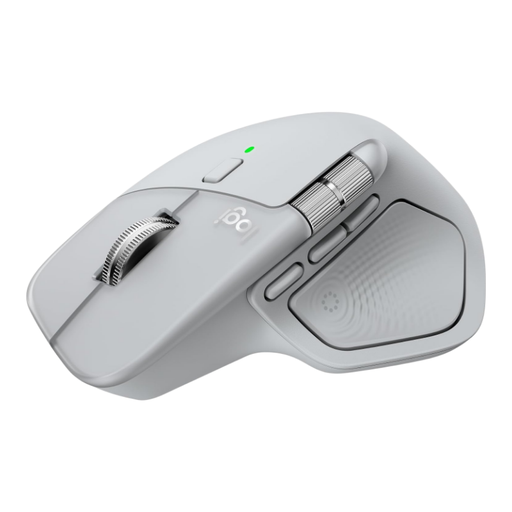 Image unavailable
Worth considering if you navigate large spreadsheet tables frequently and want to set up actions you use often.
MagSpeed scroll wheel and horizontal scrolling. Logi Options+ is required for customisable actions; check whether you are allowed to install it on your work device.
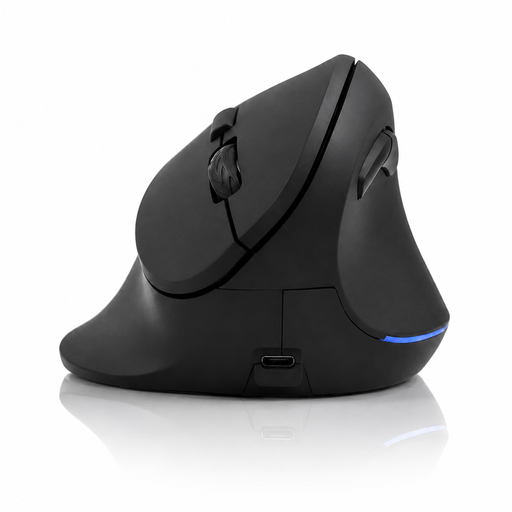 Image unavailable
An option to compare if you want to try a vertical grip and also scroll through tables.
The product title lists 2.4 GHz wireless connectivity, USB-C charging and 800–1600 DPI.
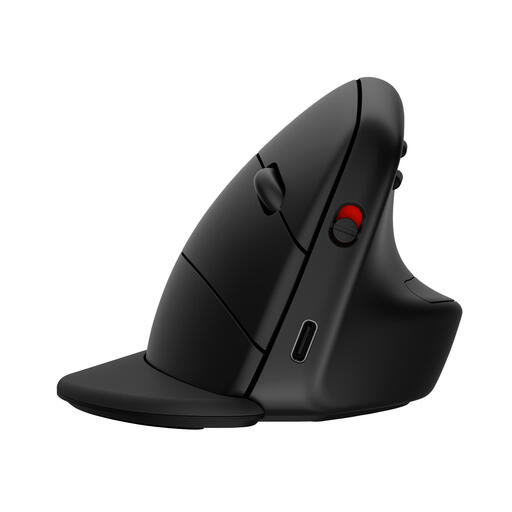 Image unavailable
A vertical design to compare if you want to try a different grip.
Before buying, check which connections and systems are supported by the exact version.
 Image unavailable
Worth considering if you are looking for a vertical mouse and this version suits your hand.
This version is designed for right-handed users with small to medium-sized hands. The vertical angle is 57°.
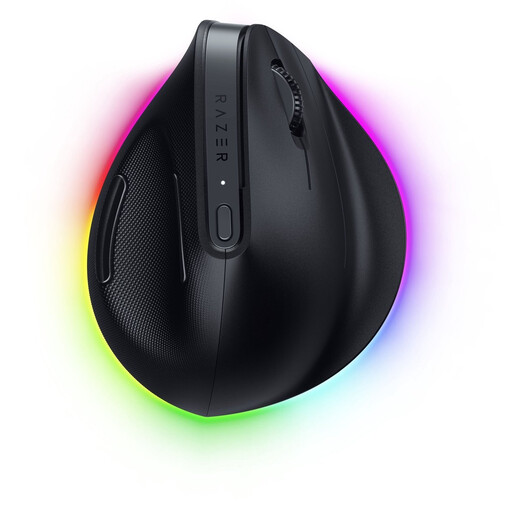 Image unavailable
A vertical version to compare if you want to try a different mouse grip.
The product information lists programmable buttons. Check which settings and software are available for your device.
Adjust your workstation when you change the desk height, and keep your shoulders, wrists and forearms relaxed. Arboportaal recommends varying your posture and taking breaks from prolonged screen work; a particular mouse is no substitute for this.
For the customisations mentioned for the MX Master 4, Logitech lists Logi Options+ for Windows and macOS. If you use a managed work laptop, check whether installation is allowed before relying on personal shortcuts.
The Dutch Authority for Digital Infrastructure states that electronic and radio equipment sold in Europe must meet the applicable requirements and carry the correct CE marking. Check the marking and documentation for the version on offer. If in doubt, contact the seller.
Follow the manufacturer's cleaning instructions for the exact model. Logitech recommends cleaning the MX Master 4 regularly to help prevent stubborn marks. Check the instructions before applying this advice to another model or surface.
For online consumer purchases, you generally have a statutory 14-day cooling-off period after delivery, although exceptions may apply. In the Netherlands, statutory guarantee rights also apply for as long as you can reasonably expect the product to last. If a product is faulty, contact the seller.