If you mainly work with long or wide survey files, look for precise or fast scrolling and check separately whether you need horizontal controls. If you switch between computers, check which connection options are permitted and whether a receiver is included. For extended use, a comfortable fit and a properly set-up workstation matter more than extra buttons.
Who is this buying guide for?
Anyone tidying up large spreadsheets
When there are lots of rows, precise or fast scrolling can help. For wide files, horizontal controls are a separate consideration. Logitech describes line-by-line and fast scrolling on the Signature M650, while Trust lists a side scroll wheel on the Ozaa+.
Anyone working at different desks
If you take your mouse with you or use several computers, consider the connection options, whether a receiver is included, click noise and cleaning. Logitech and Trust describe different connection options for their models.
Anyone who prioritises fit
For extended screen work, hand size, hand preference and how you operate the mouse all matter. Logitech describes different M650 versions, while Kensington says the Expert Mouse is ambidextrous and designed for medium to large hands.
What should you look for when choosing?
First, consider how you navigate your files and whether you need to scroll horizontally. Then compare the fit, connection to your work computer and the maintenance needed for shared use.
| What to consider |
What should you look for? |
Who is this most important for? |
| Navigating files |
Check whether the wheel scrolls quickly or line by line, and whether the model has separate horizontal controls. |
When checking long survey files, I want to move quickly through rows and navigate wide spreadsheets precisely. Around 33% of consumers prioritise scrolling controls. |
| Fit |
Compare the exact size and handed version; if possible, try the grip and controls. |
For extended use, I want a mouse that suits my hand and preferences. Around 27% of consumers give fit top priority. |
| Connection and click noise |
Check Bluetooth support, available USB ports, whether a receiver is included and your workplace’s policy on peripherals. |
At a shared or hot desk, I want to know which connection is allowed and whether the clicks will disturb others. Around 20% of consumers prioritise connection or click noise. |
| Cleaning and maintenance |
Follow the instructions for the exact model; with a trackball, the ball and its housing also need attention. |
When several people use the same device, I want to be able to clean and maintain it in line with the manufacturer’s instructions. Around 20% of consumers give cleaning the most weight. |
Common buying mistakes
-
Confusing fast vertical scrolling with horizontal scrolling
These are different controls. A fast vertical scroll wheel won’t automatically move sideways through a wide spreadsheet.
Check whether the exact model has a side scroll wheel or another horizontal control.
-
Assuming every version in a mouse range fits the same way
The Logitech M650, M650 L and M650 L Left are designed for different hand sizes or handedness.
Check the full model name and version, and try the grip if possible before choosing.
-
Assuming a wireless mouse always comes with the right receiver
Logitech states that the MX Anywhere 3S does not include a Logi Bolt receiver. The right connection also depends on your work computer.
Before buying, check the connection options, what’s included with the exact version and your workplace rules.
-
Overlooking trackball maintenance
Dirt in the ball housing can affect operation, so a trackball needs attention to both the ball and its housing.
Factor the cleaning instructions into your decision. Kensington warns against spraying the trackball directly, as moisture could get into the housing.
Brands to consider
Logitech
The models described offer a range of options: the M650 family has versions for different hands, the MX Anywhere 3S is compact, and the MX Master 3S has extra controls.
- Logitech describes several M650 versions, and Bluetooth connectivity for up to three devices with the MX Anywhere 3S.
- Check the full model name, handed version and included receiver; features of one model don’t automatically apply to all Logitech mice.
Trust
The Trust Ozaa+ is described as suitable for use with multiple devices and wide documents.
- According to Trust, the Ozaa+ has silent buttons, a side scroll wheel and a rechargeable battery.
- Trust describes this as a large model, so check whether its shape suits your hand. These are manufacturer specifications, not the results of an independent performance test.
Kensington
The Expert Mouse K72359WW is a trackball with a scroll ring and an ambidextrous design.
- According to Kensington, the model can connect via Bluetooth LE or a USB nano receiver.
- Kensington says the model suits medium to large hands. The ball and housing need cleaning, so consider whether the controls suit you.
Joybuy products for this use
This selection includes mice for long or wide files and shared desks, with a focus on scrolling controls, connectivity and everyday use.
 No image available
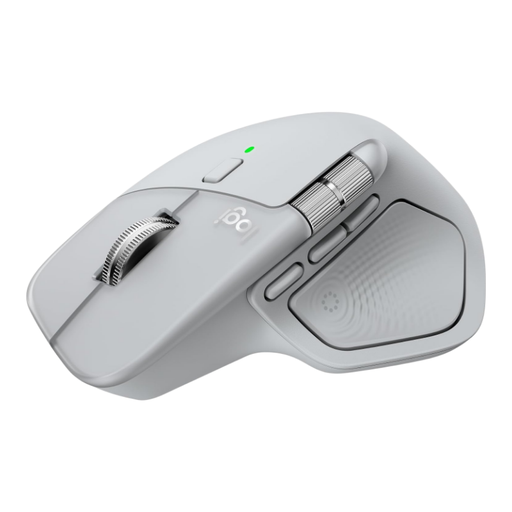
Logitech MX Master 4 Light Grey
Worth considering if you want to give scrolling controls extra attention when working with long or wide files.
Version: Light Grey.
View at Joybuy
 No image available
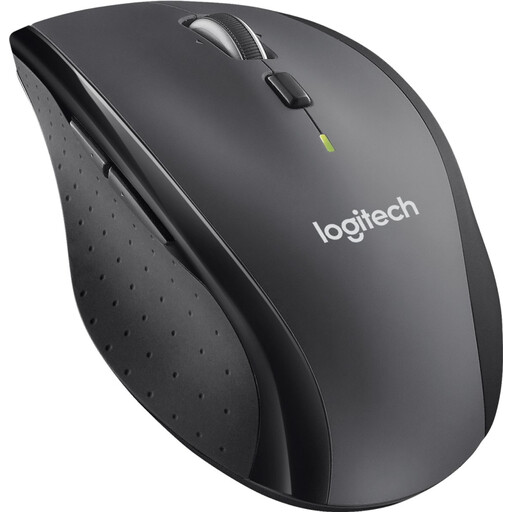
Logitech M705 Wireless Mouse Black
Worth considering if you’re looking for a wireless mouse for working with long documents.
The connection listed is a Unifying receiver; Bluetooth is not listed as a connection option.
View at Joybuy
 No image available
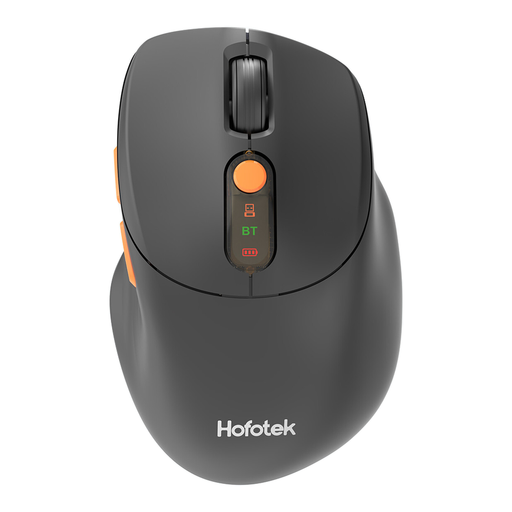
HOFOTEK M311 2.4G+BT Silent Office Mouse
Worth comparing if you’re considering different connection options for a shared desk.
The product name lists 2.4G+BT, silent operation, adjustable DPI levels and one AA battery; the version is black and orange.
View at Joybuy
 No image available
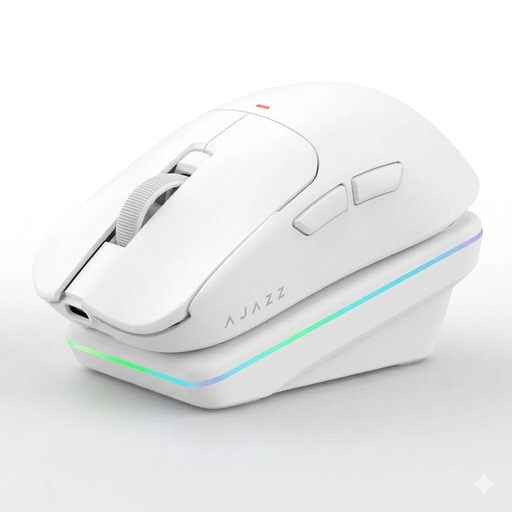
AJAZZ AJ200 AI MC Wireless Gaming Mouse
Worth comparing if you want to take multiple connection options and a charging dock into account.
The product name lists three connection methods: BT, 2.4G and USB-C. It also mentions a charging dock, 24000 DPI and a weight of 63 g.
View at Joybuy
 No image available
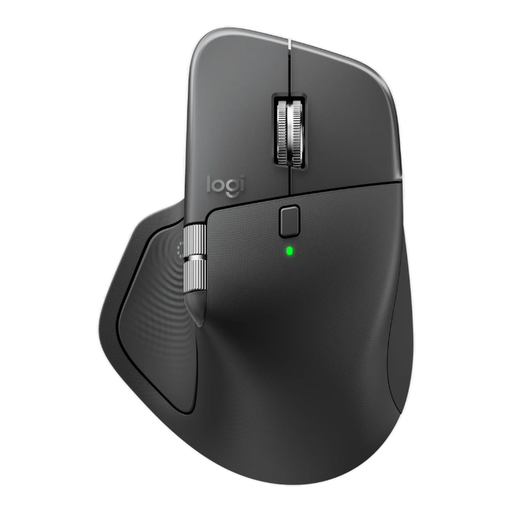
Logitech MX Master 4 for Business, Graphite
Worth considering if you’re weighing up scrolling controls and different connection options for long or wide documents.
The product name lists Bluetooth, a Logi Bolt receiver, USB-C charging and 8K DPI.
View at Joybuy
Frequently asked questions
Do I need to install software to use a mouse for working with survey data?
Not every feature requires software; it depends on the mouse and the adjustments you want to make. Kensington describes configurable buttons through TrackballWorks. Check whether you need this feature and whether you’re allowed to install the software on your work computer. Trust describes the Ozaa+ as connecting via a USB receiver and Bluetooth.
How do I clean a shared mouse or trackball?
Follow the manufacturer’s instructions for the exact device and your workplace’s guidance. Kensington recommends using a soft cloth and warns against spraying a trackball directly, as moisture could get into the housing.
What can I do if a mouse I bought as a consumer in the Netherlands develops a fault?
According to the Dutch government, contact the retailer to resolve the issue: you’re entitled to a product that works properly. A manufacturer’s guarantee or an extended warranty you’ve bought does not replace your statutory rights.
Does Dutch law require a particular mouse model at a shared desk?
Dutch government guidance on screen work does not specify a mandatory mouse model. Arboportaal does explain employers’ duty to organise screen work without risks to health and safety, and provides information about setting up a workstation. This does not mean there is a general requirement to choose the same mouse shape for every employee.


