
People who work with wide spreadsheets
If you check lots of rows and columns that are far apart, easy navigation matters. A horizontal scroll wheel may suit you, although Excel also offers keyboard and scrollbar navigation.


If you mainly work with wide, lengthy survey spreadsheets, compare a mouse with a horizontal scroll wheel with the navigation options in your spreadsheet software. If hand position is your priority, look for a vertical mouse that suits your hand; if you have little room to move a mouse, a trackball may be a good option. In every case, check the model, connection and compatibility with your device and software.
If you check lots of rows and columns that are far apart, easy navigation matters. A horizontal scroll wheel may suit you, although Excel also offers keyboard and scrollbar navigation.
When you point and click repeatedly, your hand position, mouse shape and workspace setup all play a part. A vertical mouse or trackball changes how you operate the pointer, but there’s no guarantee it will feel comfortable for you.
On a cramped desk, a trackball may suit you if you want to control the pointer without moving the mouse across the desk. Bear in mind that you’ll control the cursor with a different movement.
May suit you if: you often navigate between columns that are far apart.
Bear in mind: check that your spreadsheet software supports the wheel and any additional controls.
May suit you if: you want to compare a vertical grip and can find a model that fits your hand.
Bear in mind: the different grip may take some getting used to, and doesn’t automatically replace a separate horizontal scroll wheel.
May suit you if: you have little room to move a mouse.
Bear in mind: you control the pointer differently, so try it out to see if it works well for precise cell-by-cell tasks.
May suit you if: a separate side scroll wheel isn’t essential and you use the keyboard or scrollbars a lot.
Bear in mind: Microsoft describes keyboard and scrollbar navigation as options in Excel. The approach that works for you depends on your software and workflow.
Start with the task you do most often: navigating wide tables, finding a comfortable hand position, checking device compatibility or working with limited room to move.
| What to consider | What should you check? | Who should prioritise this? |
|---|---|---|
| Table navigation | Check whether there’s a separate horizontal scroll wheel and how the vertical wheel works in your spreadsheet software. | If you often switch between rows and columns that are far apart, you’ll want to move quickly around the worksheet. Around 36% of consumers prioritise table navigation above all else. |
| Hand position | Compare the mouse with your hand size, check whether it’s designed for left- or right-handed use, and consider how you control the pointer. | If you spend a long time pointing and clicking, you’ll want a shape that suits your hand and workflow, without assuming that a particular design will prevent discomfort. Around 29% of consumers prioritise hand position. |
| Connection and settings | Check whether your device supports Bluetooth or the required USB connection, and whether any setup software works with your operating system. | If you want to use the mouse with a particular device or customise its buttons, connection and software are key. Around 21% of consumers prioritise compatibility above all else. |
| Desk space | Measure the available room to move and consider whether thumb control works for you when selecting individual cells. | On a small or crowded desk, it can be useful to control the pointer without moving the mouse. Around 14% of consumers prioritise limited desk space. |
Adjustable sensitivity alone doesn’t tell you whether scrolling, selecting and the grip suit the way you clean up data.
Compare the controls and fit before treating maximum DPI as the deciding factor.
A vertical mouse and a trackball work differently, and a mouse is only one part of spending long hours at a screen.
If possible, try out the controls and regularly alternate screen work with another task or a break.
Some models come in versions for different hands. The general name doesn’t always make it clear which version you’re looking at.
Before ordering, check the full model code and whether the mouse is designed for your left or right hand.
The Lift, ERGO M575S and MX Master 4 cater to different preferences: a vertical grip, thumb control or extra scrolling options.
The Trust Ozaa+ is worth considering if you want to compare two scroll wheels for navigating wide tables.
The CHERRY MW 4500 and MW 4500 LEFT are separate versions to compare if you’re looking for a mouse with an angled grip.
These products are suited to scrolling through wide worksheets and comparing a vertical mouse for working from home.
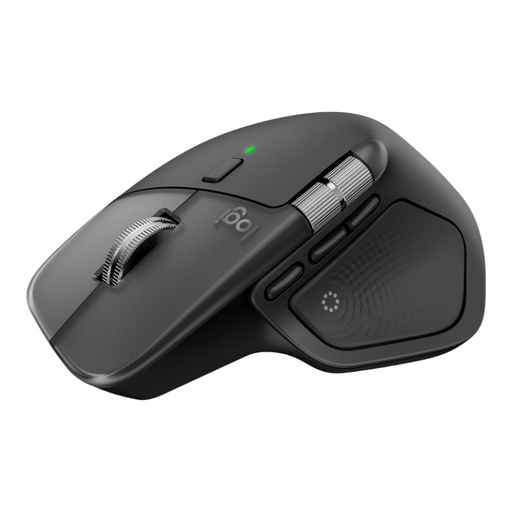 No image available
An option to compare if you often navigate large spreadsheets: the product information lists a horizontal thumb wheel and a MagSpeed scroll wheel.
The title mentions macOS, iPadOS and Windows. Check that the connection and features you need work with your device and software.
 No image available
A model to consider if you want to compare a vertical grip for working from home.
The product name lists Bluetooth, a 2.4 GHz receiver and three DPI levels: 800, 1200 and 1600. Check which connection your device supports.
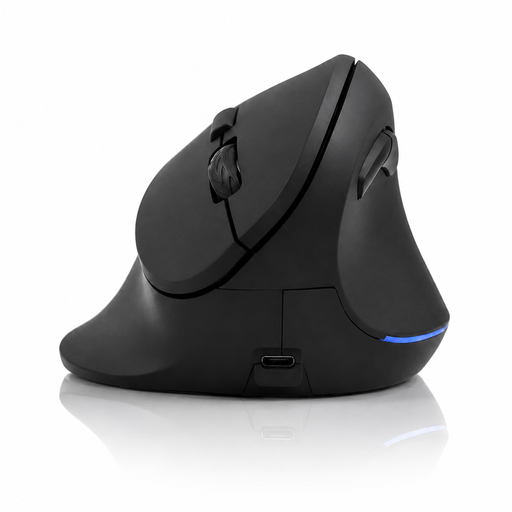 No image available
A second vertical version to compare if you want to try this type of grip for working in the office or from home.
The product name lists Bluetooth, a 2.4 GHz receiver and DPI settings from 800 to 1600. Check the exact settings and connection for your needs.
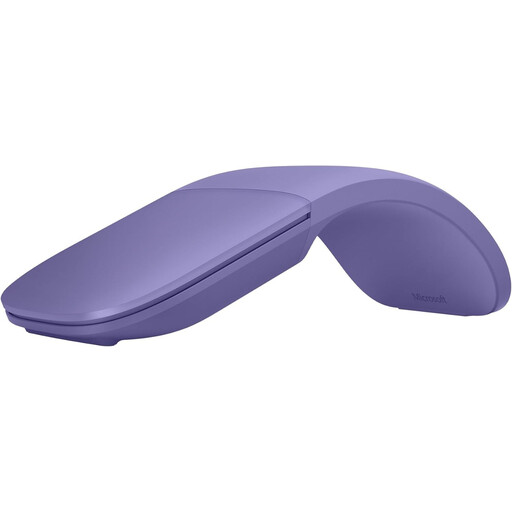 No image available
A mouse to consider if you want to scroll horizontally and vertically using a single scroll surface.
The product information lists Bluetooth and home use. Check that the controls suit the way you work with spreadsheets.
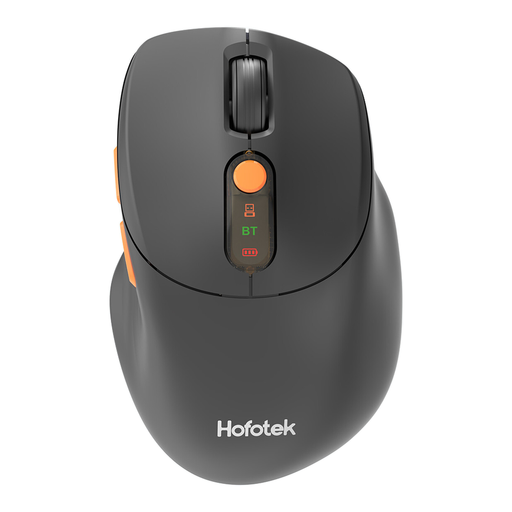 No image available
An option to compare if quiet clicks and wireless use are important for your workspace.
The product name lists 2.4 GHz and Bluetooth connectivity, several DPI levels and one AA battery. Check that the connection suits your device.
No, a side scroll wheel isn’t essential. Microsoft also describes using arrow keys, navigating between ranges and scrollbars. A separate wheel is mainly worth comparing if you often scroll horizontally. Try the controls in your own version of the software.
No, a vertical shape doesn’t guarantee that discomfort will be reduced or prevented. Hand size, grip and workspace setup all play a part. If discomfort persists, personal professional advice is more appropriate than relying on a claim about the effect of a mouse.
Check whether your device supports Bluetooth or the required USB receiver, and whether any setup software is available for your operating system. Logitech lists Logi Options+ for Windows and macOS with the MX Master 3S; this doesn’t automatically tell you anything about other models.
For eligible distance purchases from a business, you’ll generally have a 14-day cooling-off period, according to information from the Dutch government. You’re also entitled to a product that is of satisfactory quality; the Netherlands has no fixed statutory two-year warranty period. If there’s a fault, contact the seller.
For employees, Arboportaal states that screen work should be alternated with another task or a break at regular intervals. The information cited doesn’t prescribe a particular mouse model; the relevant workplace arrangements depend on your working situation.