
Writer at a shared desk
You want to click as you write without making unnecessary noise next to your colleagues. Manufacturers offer mice with quiet buttons.


Start with what has the biggest impact on your work: quiet buttons, smooth navigation through long documents, a shape that suits your hand or easy connection to your work computer. A conventional mouse with quiet buttons may suit a shared desk. Choose a vertical mouse or trackball only if its shape and controls work for your hand and workspace, and always check the connection and specific model.
You want to click as you write without making unnecessary noise next to your colleagues. Manufacturers offer mice with quiet buttons.
You switch between precise editing and quickly finding your way back through a lengthy proposal; the scroll wheel controls can make a difference. Logitech lists two scrolling modes for the Signature M650.
You take your mouse to different workspaces, so size, connectivity and how it fits your hand matter. Trust lists Bluetooth and a USB receiver for the Ozaa Compact; check that these options work with your work computer.
First, choose the feature that matters most while you write, then check for any extra functions. For each model, also consider how it fits your hand and the connection options available at your workspace.
| What to consider | What should you look for? | Who might this matter more to? |
|---|---|---|
| Noise level | Check whether the buttons on the exact model are described as quiet and whether its shape suits your hand. | If I click frequently at a shared desk, I want to disturb my colleagues as little as possible. Around 31% of consumers prioritise quiet clicks. |
| Document navigation | Look at the model’s scrolling controls and consider whether you mainly work line by line or also need to move quickly through pages. | When I’m editing a long proposal, I want to make precise corrections and quickly find passages again. Around 25% of consumers prioritise document navigation. |
| Fit for your hand | Check the size and model for your preferred hand, then decide for yourself whether the grip feels comfortable. Also consider your workspace set-up and how you vary your work. | When writing for long periods, I want a shape that suits my hand, without assuming that a particular type of mouse will prevent discomfort. Around 25% of consumers prioritise hand position. |
| Connectivity | Check whether Bluetooth is allowed, whether a suitable USB port is available and which receiver or charging method the model uses. | When I switch between my own laptop and a shared computer, I want to know which connection will work. Around 19% of consumers prioritise flexible connectivity. |
Quiet controls and a good fit are different things. Logitech offers different sizes of the M650, as well as a left-handed L version.
First choose a model that suits your hand and preferred hand; then compare the controls and noise level.
Mice can use different connection options. At a shared workspace, the available ports and Bluetooth pairing policy may determine what you can connect.
Before buying, check which connections are allowed and whether your computer has the required port or receiver.
A different shape changes how you use the mouse, but it doesn’t prove that discomfort will go away. Your screen-work set-up and the way you vary your tasks also matter.
Try the grip for yourself, set up your workspace to suit you and vary your screen-based work.
The Signature M650 is a conventional option with quiet controls and two scrolling modes; the Lift has a vertical shape.
The Ozaa Compact is a compact mouse with several connection options; the Bayo II has a vertical shape.
The HP 280 Silent Wireless Mouse is a conventional mouse with quiet clicks.
The Orbit Wireless Trackball with scroll ring is a stationary alternative if you have little room to move a mouse around.
This selection includes quiet mice, a keyboard and mouse combo, and wireless gaming mice. Check whether the controls and connection on each model are suitable for a shared desk.
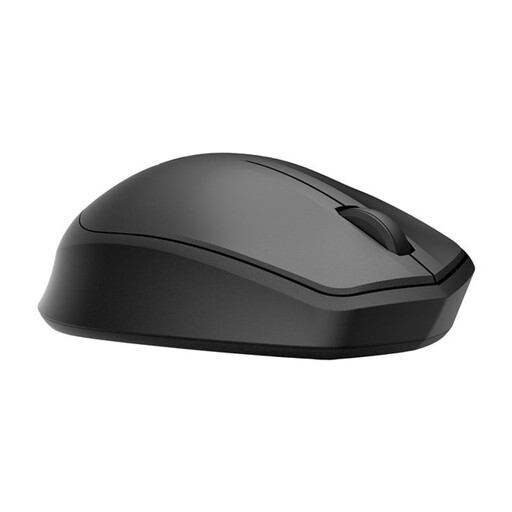 Image unavailable
Suits anyone looking for quiet clicks and a wireless connection using a USB receiver.
The product name describes a quiet wireless mouse; the connection described requires a USB port.
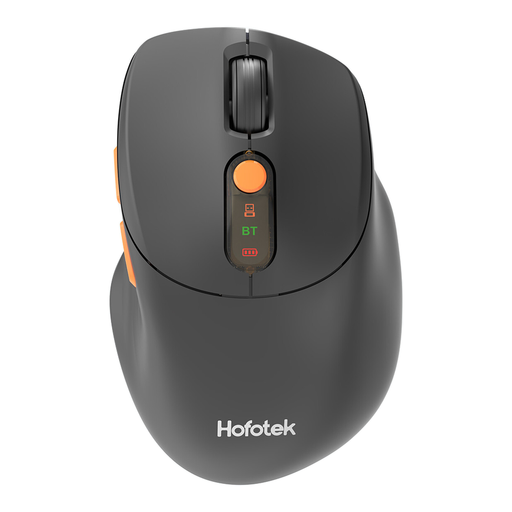 Image unavailable
An option if you’re looking for quiet clicks and a choice of wireless connections.
The product name lists 2.4G+BT and an AA battery.
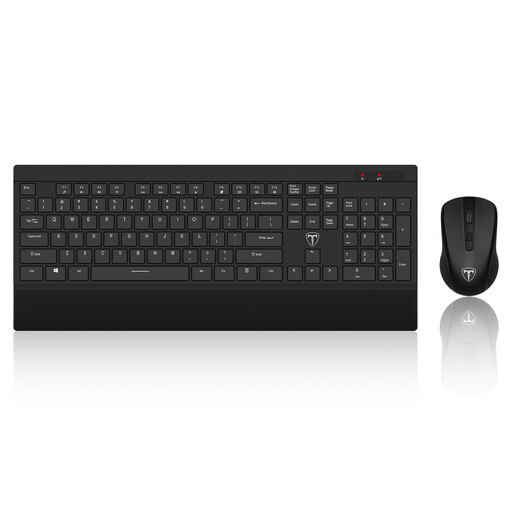 Image unavailable
This combo may suit you if you also need a keyboard and are comfortable with the layout listed.
The product name specifies a US QWERTY layout and a wireless set. Check that the keyboard layout suits you.
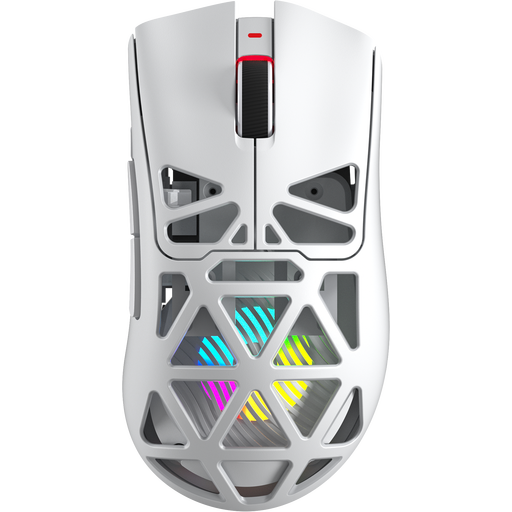 Image unavailable
A wireless gaming mouse. The product name doesn’t mention quiet controls, so check this if clicking quietly around colleagues matters.
The product name lists Bluetooth 5.0, 2.4 GHz and USB-C.
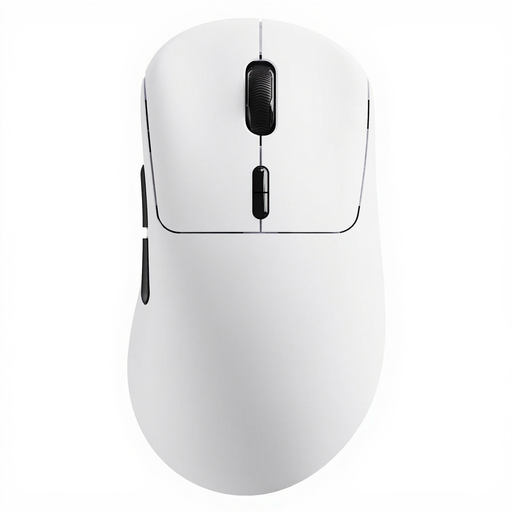 Image unavailable
A wireless gaming mouse. The product name doesn’t mention quiet controls, so check this before using it at a shared desk.
The product name lists a weight of 53 g, battery life of up to 750 hours and 10 programmable buttons.
First, check whether Bluetooth is allowed on your work computer and whether a suitable USB port is available. According to Logitech, the Signature M650 supports Bluetooth Low Energy and Logi Bolt; according to Trust, the Ozaa Compact supports Bluetooth and a 2.4GHz receiver. Which connection works depends on the computer and workplace policy.
Don’t assume that one mouse shape will prevent discomfort. Choose a shape that feels comfortable and set up your workspace to suit you; Arboportaal advises regularly alternating screen-based work with other tasks or taking a break.
For an online consumer purchase, you generally have a statutory 14-day cooling-off period from the day the product is delivered. Check the applicable exceptions and returns policy. If a mouse breaks too soon under normal use, your statutory guarantee rights against the seller are separate from any manufacturer’s warranty; ACM ConsuWijzer explains these consumer rights.
The cited information from Arboportaal doesn’t specify a required mouse shape. There are rules requiring screen-based work to be alternated with other tasks or a break; the choice of mouse depends on your workspace and needs.