
Frequent filter tester
You often work through long lists of results, switching between scrolling and clicking filter options. Look for an easily accessible scroll wheel and buttons that suit the way you work.


Choose a mouse based on the task you do most often: scrolling through long lists of results, clicking repeatedly with a comfortable grip, or controlling the cursor with limited room to move. Then check that its handedness, connection and controls suit your computer and workspace; a sit-stand desk won’t make an unsuitable mouse a good fit. Arboportaal also stresses that screen-based work should be alternated with other tasks or a break.
You often work through long lists of results, switching between scrolling and clicking filter options. Look for an easily accessible scroll wheel and buttons that suit the way you work.
You test filters regularly and mainly want a mouse that suits your handedness and hand size. Compare standard, vertical and other control styles, but don’t assume ergonomic claims guarantee a particular result.
You share the space beside your keyboard with other items or switch between work setups. Consider how much room you need to move the mouse and which connection options are available.
Start with the task that matters most to you: scrolling, finding a comfortable grip or controlling the cursor with limited space.
Best for: long lists of results where you regularly switch between scrolling and clicking. Logitech lists features such as MagSpeed, a thumb wheel and customisable controls for the MX Master 3S for Business.
Keep in mind: check that the shape and buttons suit your hand. This specific model’s Logi Bolt receiver needs a spare USB-A port; Logitech lists Windows and macOS as compatible with its optional customisation app.
Best for: anyone who prioritises grip and fit. Trust specifies a 60° grip and three DPI settings for its wireless Verto; R-Go Tools offers HE models in different hand sizes, for left- or right-handed use.
Keep in mind: a different grip may take some getting used to. Try using it to select small filter options accurately; an ergonomic shape doesn’t guarantee a particular result for you.
Best for: a workspace where there’s little room to move a mouse around. The Kensington Orbit Wireless has a trackball and scroll ring.
Keep in mind: using a ball and ring is different from using a conventional mouse. Try selecting small filter options accurately with them.
| What to consider | What should you check? | Who is this important for? |
|---|---|---|
| Navigating results | Try the scroll wheel, click buttons and any customisable buttons in the search interface you use. | If I work through long lists and often switch between scrolling and filters, I want controls that are easy to reach. Around 40% of consumers put smooth navigation first when choosing what to buy. |
| Handedness and fit | Check the hand size, whether it’s designed for left- or right-handed use, and whether the grip feels comfortable. | When clicking repeatedly, I want a shape that suits my hand, not just a model described as ergonomic. Around 30% of consumers put fit first. |
| Room to move | Check how much space you have and whether a trackball, scroll ring and buttons are easy to reach in that space. | If there’s little room beside my keyboard, I want to control the cursor without constantly moving the mouse. Around 20% of consumers prioritise having limited room to move. |
| Connection | Check the available ports, Bluetooth support, receiver type and any software requirements for your operating system. | I want a mouse that connects to my computer without overlooking a missing port or incompatible connection. For around 10% of consumers, the connection is the main reason for buying. |
Hand size, grip and usage vary from person to person. A product description or ergonomic shape doesn’t guarantee that a mouse will prevent discomfort for you.
Choose a model that suits your hand and try its controls with the filters you use. Also break up screen-based work: Arboportaal recommends alternating it with other tasks or taking a break.
A name such as MX Master 3S doesn’t, by itself, confirm that you’re looking at the MX Master 3S for Business. Connections and other features may differ between versions.
Before buying, compare the full model name, version, connection and box contents.
When testing filters, you need to be able to scroll, click and control the cursor comfortably and accurately. Different types of mouse may handle these tasks in different ways.
Try the controls on your search page, including with small filter options and a long list of results.
The MX Master 3S for Business and Lift for Business are business models you can compare to explore different control styles.
The wireless Verto is a vertical model worth comparing if grip and adjustable cursor speed matter to you.
The Orbit Wireless Trackball with scroll ring offers a different way to control the cursor when you have little room to move a mouse.
The HE range is worth comparing if hand size and left- or right-handed versions are important to you.
This selection includes wireless mice for a range of filter-testing tasks, including vertical models, adjustable cursor control and fast scrolling.
 Image unavailable
An option to compare if you’re looking for a vertical grip.
Bluetooth and 2.4 GHz; USB-C charging; DPI settings of 800, 1200 and 1600.
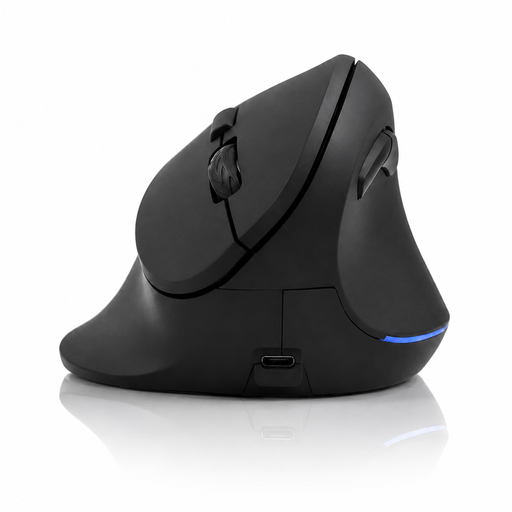 Image unavailable
An option if you want a vertical design with controls for scrolling and clicking.
Four-way scroll wheel and six buttons; DPI settings of 800, 1200 and 1600; 2.4 GHz and USB-C charging.
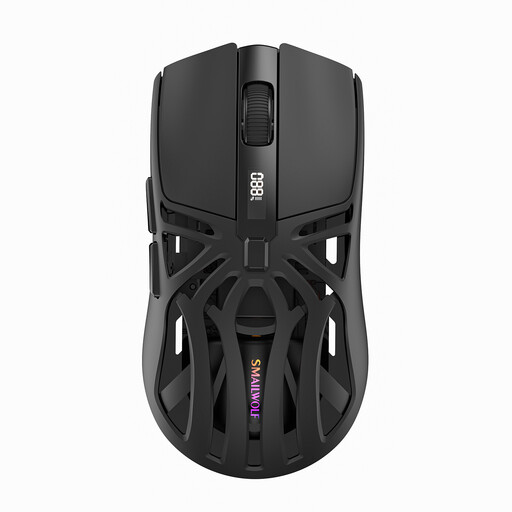 Image unavailable
An option if you want to compare different connection types and adjustable cursor speed.
Bluetooth, 2.4G and Type-C cable connection; six DPI levels.
 Image unavailable
The product description says this version is designed for small to medium-sized hands.
26K DPI; 2.4G, USB-C and Bluetooth; 56 g; 400 mAh battery; magnetic base.
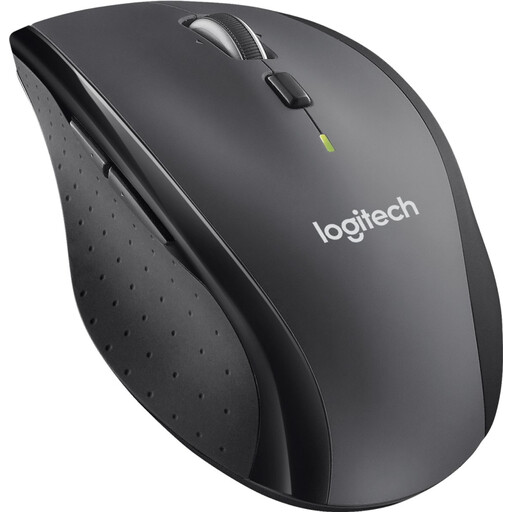 Image unavailable
An option to compare if you want to work through long lists of results quickly.
Wireless; fast scrolling; Unifying receiver for USB connection.
No, a vertical mouse isn’t essential for testing filters. Choose based on the task you do most and what fits your hand: a conventional mouse may offer direct scroll controls, a vertical mouse has a different grip, and a trackball controls the cursor in another way. An ergonomic product claim doesn’t prove that a model will prevent discomfort for you.
Check which connections the exact version supports and what your computer needs to use them. According to Logitech, the Logitech MX Master 3S for Business supports Bluetooth Low Energy or a Logi Bolt receiver; the receiver needs a spare USB-A port.
According to ACM ConsuWijzer, when you buy online as a consumer you often have a 14-day cooling-off period from delivery; check the applicable exceptions and rules on trying out the product. ACM ConsuWijzer also says you’re entitled to a product that meets the expectations you could reasonably have for normal use. This right isn’t simply limited to a fixed manufacturer’s warranty period.
Arboportaal’s guidance doesn’t say that you have to use a vertical mouse. For employees, Arboportaal does recommend alternating screen-based work with other tasks or taking a break; this isn’t a general product requirement for every individual buyer.