Who is this choice relevant to?

Precise route planner

You adjust route points and want precise control of the pointer and map zoom, so you assess how well the mouse works on your desk and what scroll controls it offers. Logitech describes these features for the MX models mentioned here.

Long-session map user

You regularly plan for long periods in front of a screen and prioritise fit and hand control over compactness or extra buttons. Models come in different shapes, from a vertical mouse to a trackball.

Planner with a tricky workspace

You might work at a glass table or have little room beside your computer, and want to know whether a mouse that works on different surfaces or a stationary trackball is a better fit. Screen reflections need a separate solution.

What should you consider when choosing?

What to consider What should you check? Who is this most important for?
Pointer control Check whether you can adjust the sensitivity and, if possible, try the mouse on your own desk. If I want to point to and drag route points precisely, I need good control of the pointer; around 33% of consumers say precise pointing and dragging are their top priority.
Scroll controls Decide whether you need multiple scroll modes or a separate thumb wheel, and check how it works in your route planner. If I want to switch between small increments and faster scrolling while viewing a map, I pay attention to the wheel controls; around 25% of consumers prioritise scrolling.
Hand comfort Compare the fit, hand position and whether the model is designed for left- or right-handed use. For longer planning sessions, I want a shape and controls that suit my hand; around 25% of consumers say hand comfort is their top priority.
Desk surface and space Check the requirements for use on glass; if you have little room to move a mouse, consider a trackball. If my table is glass or I have little room to move a mouse, I need a suitable way to control the pointer; around 17% of consumers prioritise their desk surface or available space.

Common buying mistakes

  • Confusing a glass-compatible sensor with a solution to screen reflections

    Tracking on a glass desk and distracting light on your screen are two different problems. A different mouse won’t eliminate reflections.

    Check separately how it works on your table. For reflections, the Arboportaal recommends measures including positioning your viewing direction parallel to the window and using suitable blinds.

  • Assuming a USB receiver is always included

    Logitech says the Logi Bolt receiver is not included with the standard MX Anywhere 3S.

    Check the exact version, what’s in the box and whether Bluetooth works with your computer. If you want to use Logi Bolt, check how to obtain the receiver.

  • Choosing a vertical mouse without checking the version

    Logitech describes the Lift as suitable for small to medium-sized hands and also offers a left-handed version. So the words ‘vertical mouse’ alone don’t tell you whether a particular version is right for you.

    Check the hand size the version is designed for and whether you need a left- or right-handed model. Try the fit if possible.

  • Mistaking a fixed two-year warranty for the full statutory guarantee

    ACM ConsuWijzer and the Netherlands Authority for Consumers and Markets explain that statutory guarantees in the Netherlands do not have a single fixed time limit. A manufacturer’s warranty does not replace your rights against the retailer.

    Keep your proof of purchase and contact the retailer if the product is faulty.

Brands to compare

Logitech

The models mentioned range from a compact mouse and one with extra scroll controls to vertical mice and trackballs.

  • Logitech says the MX Anywhere 3S and MX Master 3S work on glass. For the MX Master 3S, the brand specifies a minimum glass thickness of 4 mm.
  • According to Logitech, the Lift is designed for small to medium-sized hands, while the MX Ergo S is for medium to large hands.
  • These features apply to the models mentioned and not automatically to every mouse from the brand. If you’re considering extra controls, check that they work as you want them to in your route planner.

Kensington

The Expert Mouse Wireless Trackball is an ambidextrous, stationary option with a scroll ring.

  • Kensington lists Bluetooth LE or a USB nano receiver, as well as customisable buttons.
  • Kensington says the model is suitable for medium to large hands. Consider whether using the ball gives you the precision you need to drag route points.

Trust

The Verto Wireless is a vertical mouse worth comparing with a conventional mouse.

  • Trust lists three DPI settings: 800, 1200 and 1600, and a USB micro receiver.
  • The DPI settings alone don’t tell you whether the mouse works on your glass desk. Check that the specific version is suitable.

Joybuy products

These Joybuy products suit different needs, including scroll controls, a vertical mouse shape, pointer settings and use on a glass table. Check which controls and desk surface requirements suit your situation for each model.
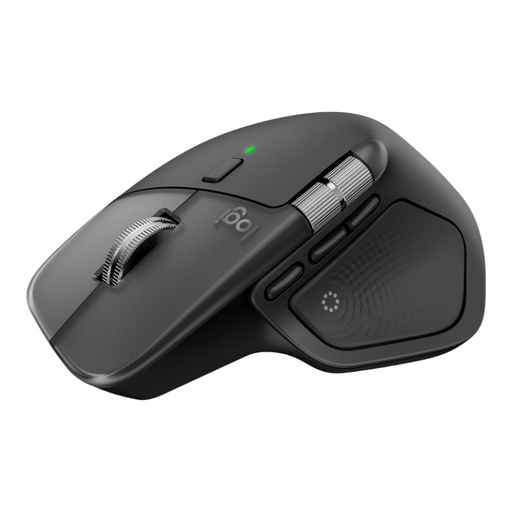
Logitech MX Master 4 for Mac, Space Black

Logitech MX Master 4 for Mac

For route planning where you want to scroll both vertically and horizontally. Check that the controls work for you in your mapping software.

Bluetooth mouse; compatible with macOS, iPadOS and Windows. Colour: Space Black.

View at Joybuy
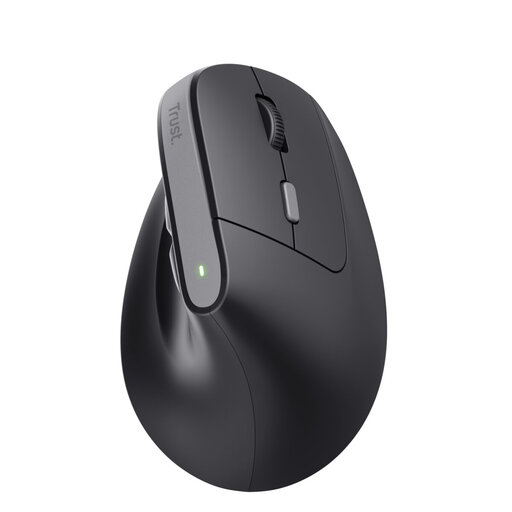
Trust Bayo II Medical, right-handed wireless mouse

Trust Bayo II Medical, right-handed mouse

For anyone looking for a vertical hand position and adjustable pointer speed. This version is right-handed, so check that it suits you.

Wireless optical mouse; 2400 DPI.

View at Joybuy
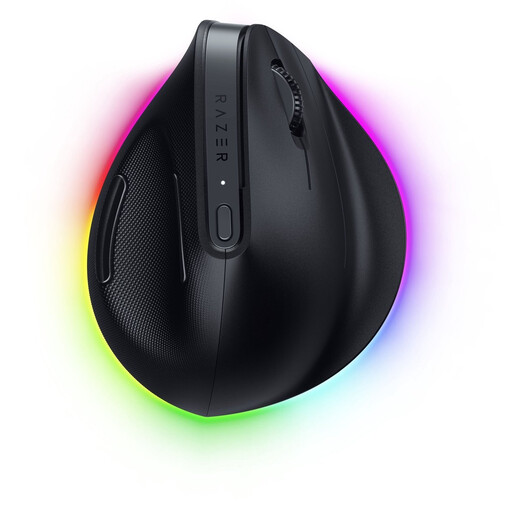
Razer Pro Click V2 Vertical Edition

Razer Pro Click V2 Vertical Edition

If you’re looking for a vertical mouse and work on a glass desk, check before buying whether this version is suitable for your surface.

View at Joybuy
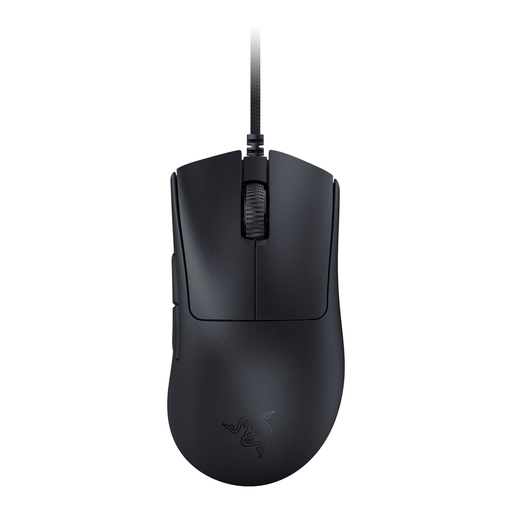
Razer DeathAdder V3 Optical Mouse, Black

Razer DeathAdder V3 Optical Mouse

If you’re looking for an optical mouse for a glass table, check that this version is suitable for the surface you work on.

Colour: Black.

View at Joybuy
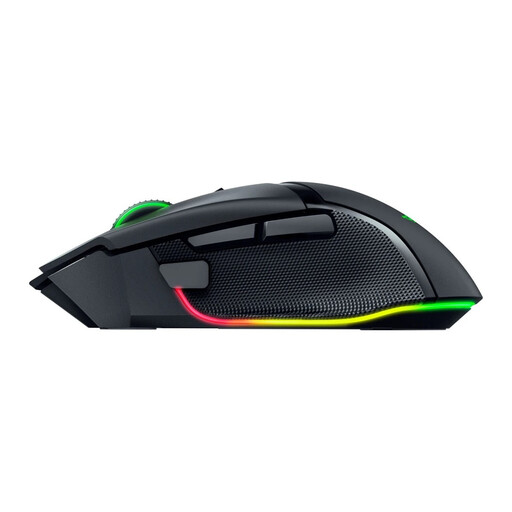
Razer Basilisk V3 Pro 35K Ergonomic Wireless Gaming Mouse, Black

Razer Basilisk V3 Pro 35K

For navigating maps when you want to switch between stepped and free scrolling. Check that the controls work for you in your route planner.

Ergonomic wireless gaming mouse; colour: Black.

View at Joybuy

Frequently asked questions

Will a mouse that works on glass also help with glare from the window?

No. Tracking on a glass surface has no bearing on how easy your screen is to read. For reflections, the Arboportaal recommends measures including positioning your screen parallel to the window and using suitable blinds.

Do I need a separate USB receiver for the standard MX Anywhere 3S?

Only if you want to connect this version using Logi Bolt rather than Bluetooth. Logitech says the Logi Bolt receiver isn’t included, so check the version and your computer’s connection options.

Which setting can I adjust if a route point is difficult to select?

Start with the pointer speed and try a setting that feels manageable. Logitech says you can adjust the MX Master 3S sensitivity using Options+ on Windows and macOS; Trust lists 800, 1200 and 1600 DPI for the Verto.

What can I adjust at my workstation beside a bright window?

Check whether daylight is reflecting on your screen and, if necessary, adjust the screen position or use blinds. The Arboportaal recommends, among other things, positioning your viewing direction parallel to the window.

What if the mouse breaks sooner than expected during normal use?

According to ACM ConsuWijzer, the retailer is responsible for the statutory guarantee. If a product is faulty, you may be entitled to a repair, replacement or refund. Statutory guarantees in the Netherlands do not have a fixed general limit of two years: what you could reasonably expect from the product also matters.
