Choose a mouse to suit the work you actually do: for documents, quotes and the occasional floor plan, a standard productivity mouse is often a sensible choice; if you use CAD regularly, dedicated navigation features may be useful. If you work for long periods or have limited space, compare a vertical mouse or trackball too. No mouse shape can guarantee that you’ll avoid discomfort; fit, workstation setup and varying your tasks remain important.
Which mouse is right for you?
DIY renovator who draws plans
You regularly edit digital floor plans or 3D models and want to compare controls that work with your drawing software. The 3Dconnexion manual describes a dedicated middle button for CAD navigation on the CadMouse Compact Wireless.
Long-hours home worker
You’re planning a renovation alongside plenty of other screen-based work, so you’re considering fit, hand position and a workstation suited to your tasks. TNO points out that using a mouse for long periods deserves attention.
Planner with a crowded desk
You work among samples, paperwork and equipment, and want cursor control that needs little room to move. A trackball is worth comparing if you’d rather not move a mouse across your work surface.
What should you consider when choosing?
Start by asking whether you use CAD regularly. Then compare fit and the space available on your desk, and finally check the connection and any software you need.
| What to consider |
What should you look for? |
Who is this important for? |
| Drawing controls |
Check that your CAD software supports the features you want. According to 3Dconnexion, 3DxWare is needed to use all the CadMouse Compact Wireless features. |
If I regularly edit drawings, I want easy access to features such as panning, zooming and rotating. Around 36% of consumers prioritise controls for drawing work. |
| Fit for long periods of use |
Compare the mouse with your hand size and check whether it’s designed for left- or right-handed use; a vertical shape won’t suit every hand automatically. |
For long working days, I want to choose a mouse shape that suits my hand and workstation. Around 29% of consumers put fit and comfort first. |
| Limited desk space |
Compare thumb-operated trackballs with models that have a larger ball. Also consider your hand preference and the space available for your keyboard and arm. |
If my desk is crowded, I want to control the cursor without sliding the mouse across the work surface. Around 21% of consumers prioritise limited movement space. |
| Connection and software |
Check Bluetooth support, available USB ports, the receiver supplied and the system requirements for the exact model. |
When I switch between computers, I want to know in advance which connection and installation are needed. Around 14% of consumers prioritise connectivity and ease of use. |
Common buying mistakes
-
Assuming the highest dpi is best for drawing
Adjustable tracking and CAD navigation are different features. A high dpi rating alone won’t tell you whether a mouse suits your drawing software or the way you work.
First decide whether you edit drawings and which controls you need for the job. Then compare the relevant specifications.
Don’t pay for features your software or working style won’t use.
-
Buying a vertical mouse as a guaranteed fix for discomfort
Fit varies from hand to hand and between models. A different mouse shape is no substitute for a suitable workstation setup, varying your tasks or taking breaks.
Check your hand size and whether the model is designed for left- or right-handed use. Also make sure it suits the space available, and break up your screen-based work.
-
Assuming every wireless mouse works the same way with every computer
Models can differ in their connection options and software requirements. Some customisable features need additional software.
Check the connection, receiver and software required for the exact model, especially if you switch between computers.
Brands and models to consider
Logitech
The Logitech models featured offer different options: productivity controls, a vertical hand position and thumb-operated trackball control.
- The manufacturer describes the Lift as suited to small to medium-sized hands; a left-handed version is also available.
- Check the hand orientation and connection for each model. The MX Master 3S information mentioned here relates specifically to the Bluetooth Edition.
3Dconnexion
The CadMouse Compact Wireless is worth comparing if you regularly edit CAD drawings or 3D models.
- The manual describes a dedicated middle button for CAD navigation.
- According to the manual, 3DxWare is needed to use all the features. Check that your working environment supports the features you want.
Trust
The wireless Verto offers a vertical shape and a USB receiver, making it an alternative to compare with other mouse shapes.
- Trust specifies a 60-degree angle and three dpi settings for the wireless Verto.
- These features apply to the wireless version described; they don’t prove that the mouse will be more comfortable for every user.
Kensington
The Expert Mouse Wireless is a trackball designed for left- and right-handed users. It’s worth comparing with a thumb-operated trackball.
- Kensington specifies a scroll ring and four customisable buttons.
- The manufacturer recommends it for medium to large hands. Also check the TrackballWorks connection requirements for Mac.
Mouse options at Joybuy
This selection includes standard productivity mice, vertical mice and trackballs for viewing documents and digital plans, working from home for long periods and making the most of a limited workspace.
 No image available
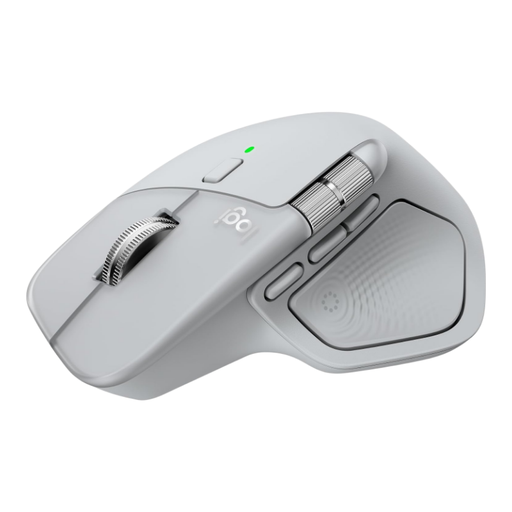
Logitech MX Master 4 Light Grey
An option for scrolling through lengthy documents and viewing wide digital plans.
The product information lists programmable buttons, MagSpeed scrolling and a horizontal thumb wheel.
Connects via Bluetooth or Logi Bolt and can pair with up to three devices. Logi Options+ is listed for customising features such as the Actions Ring and buttons.
View at Joybuy
 No image available
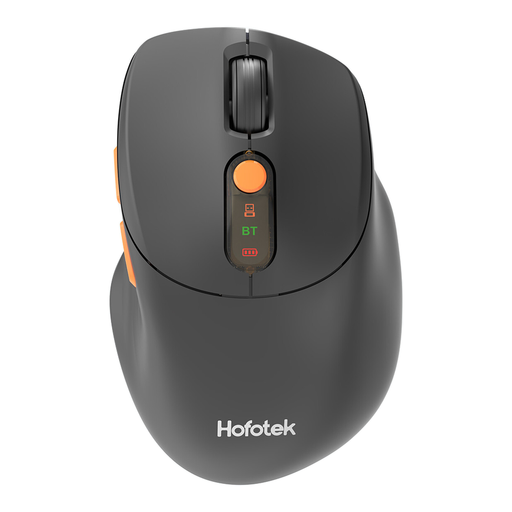
HOFOTEK M311 2.4G+BT
An office mouse to compare if quiet clicks and wireless working are important to you.
The product information lists quiet clicks, adjustable dpi levels and 2.4 GHz or Bluetooth connectivity.
According to the product information, it can pair with up to three devices. The title specifies power from 1 AA battery.
View at Joybuy
 No image available
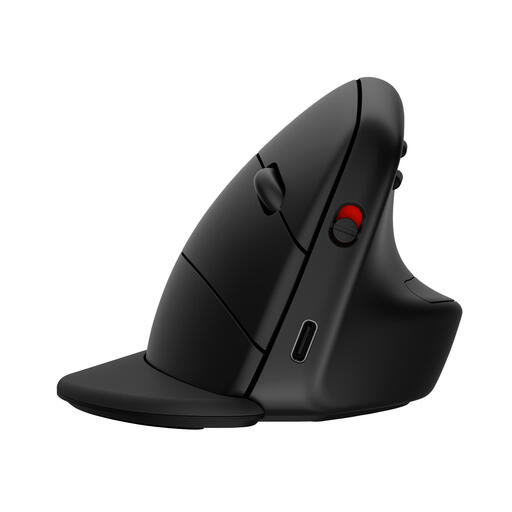
HP 925 Ergonomic Vertical Mouse
A vertical mouse to compare if you’d like to try a different hand position.
The product information describes a right-handed version with a detachable wrist rest.
Connects via Bluetooth or the supplied dongle and can pair with up to three devices. The sensor is described as suitable for use on multiple surfaces.
View at Joybuy
 No image available
Logitech ERGO M575S Graphite
A thumb-operated trackball to compare if you want to control the cursor without moving the mouse across your work surface.
The product information lists Bluetooth, a Logi Bolt receiver and customisable buttons.
Move the cursor with your thumb using the trackball; check whether this type of control suits you.
View at Joybuy
 No image available
Logitech Lift Vertical Ergonomic Mouse Graphite
A vertical mouse to compare if you’re looking for a different hand position and the specified hand size suits you.
This version is described as designed for right-handed users with small to medium-sized hands; the specified angle is 57 degrees.
Connects via Bluetooth or a USB receiver. The product information lists quiet clicks, a SmartWheel and customisable buttons.
View at Joybuy
Frequently asked questions
Do you need a CAD mouse for renovation plans?
A CAD mouse is worth comparing only if you regularly draw in CAD and want dedicated controls for features such as panning, zooming or rotating. The 3Dconnexion CadMouse Compact Wireless manual states that 3DxWare is needed for all features, so check that your software supports the ones you want.
How can you set up your mouse for lots of home working?
Choose a mouse and workstation setup that suit your tasks, and break up screen-based work with other tasks or a break. Arboportaal explains that screen-work regulations also require this variation. For employees, the employer’s duty of care also covers the home workstation, within what can reasonably be expected of the employer; this does not require a specific mouse model.
What should you consider when setting up and maintaining your mouse?
First check that your computer can pair via your chosen Bluetooth or USB connection. 3Dconnexion specifies 3DxWare for all CadMouse Compact Wireless features; check the software requirements for customisable buttons on other models. Clean a trackball according to the instructions for your chosen model.
What are the rules on returns and warranties in the Netherlands?
For many online consumer purchases, you have a 14-day cooling-off period, with some exceptions, as explained by the Dutch government. Consumers are also entitled to goods that meet the required standards under Dutch statutory conformity rules, as explained by Business.gov.nl. An additional warranty package is separate from this; different rules may apply to business purchases.


