If you often switch between sections and documents while creating slides, look for customisable controls and scrolling options, and check that the required software works on your computer. If hand position or limited desk space matters more to you, compare a suitable vertical mouse with a trackball. They work differently, and choosing the right version for your hand is still important.
Which mouse is right for you?
Frequent slide editor
You create presentations regularly and want to move quickly between sections, documents and tools. Check whether the extra buttons work with the software you use. Logitech says Logi Options+ lets you customise functions on Windows and macOS.
Home worker looking for hand comfort
You work at a screen for long periods and want to choose a shape that suits your hand size, preferred hand and available desk space. A mouse is not a treatment for health problems. Logitech describes the Lift as suitable for small to medium-sized hands; Kensington says the Orbit Wireless is suitable for both left- and right-handed users.
Working in a quiet shared space
You want to keep clicking noise to a minimum while creating slides, and need a connection that works with your home computer. Logitech says the Lift has quiet clicks, but check the specifications of the exact version.
Which purchase considerations matter?
Mouse with extra controls
A good fit if: you often switch between tools and documents when working on slides, and want to stick with a familiar mouse shape. Logitech lists a horizontal scroll wheel and customisable controls for the MX Master 4.
Consider: extra features are most useful if you set them up and actually use them. iCreate notes the MX Master 4’s relatively flat hand position as something to bear in mind.
Vertical mouse
A good fit if: you want to try a less flat hand position and can find a model that suits your hand and preferred hand. Logitech also offers the Lift in a left-handed version; CHERRY lists a separate left-handed MW 4500.
Consider: the different shape may take some getting used to, and a vertical mouse is not a proven treatment for discomfort. Take regular breaks from screen work.
Stationary trackball
A good fit if: you have little room to move a mouse around, or want a model that can be used by both left- and right-handed people. Kensington lists a scroll ring on the Orbit Wireless.
Consider: you move the ball rather than the whole mouse. Try it to see whether this way of working feels comfortable and precise enough for your slides.
| What to consider |
What to look for when buying |
Who is this important for? |
| Controls when working on slides |
Check how easy the buttons and scroll wheel are to reach, and whether the required customisation software works with your operating system. |
If I often switch between slides and documents, I want to carry out actions quickly without choosing features I won’t use. Around 31% of consumers say controls for editing slides are their top purchase priority. |
| Hand position and fit |
Compare hand size, preferred hand, grip and available desk space; if you choose a vertical mouse, check you have the right version. |
When working for long periods, I want a shape that suits my hand, without assuming it will prevent discomfort. Around 25% of consumers give fit and control for extended use top priority. |
| Connectivity |
Check the exact version, available ports, Bluetooth support and what’s included in the box. |
When connecting the mouse to my own computer, I want to know in advance which connection and port I need. Around 19% of consumers say computer connectivity is their top purchase priority. |
| Quiet clicking |
Check whether the exact version has quiet main buttons; compare noise claims only when the stated testing conditions are the same. |
If I work in a quiet space with other people nearby, I want to reduce clicking noise, even if extra controls are less important. Around 13% of consumers put quiet operation at the top of their list. |
| Ease of use and maintenance |
Compare the power source, any batteries or rechargeable battery, settings, and the returns and warranty terms. |
If I have a permanent workspace, I’d rather not have to think much about power or settings. Around 12% of consumers give ease of purchase and maintenance top priority. |
Which pitfalls can you avoid?
-
Assuming a vertical mouse will prevent discomfort
A different shape alone won’t determine how your hand feels when using a mouse. Screen work involves other aspects of posture and physical strain, too.
Choose a version that suits your hand, and break up screen work with other tasks or a break. Arboportaal describes varying your activities as part of safe screen work.
-
Assuming ‘wireless’ always means Bluetooth
A wireless mouse may use a different connection from the one you expect; some models also come with a USB cable.
Check the exact version, connections and box contents. Kensington lists Bluetooth and a 2.4 GHz receiver for the Orbit Wireless; Trust lists a 1.5-metre USB cable for the wired Verto.
-
Confusing an extra warranty with your statutory rights
A commercial or paid-for warranty does not replace your statutory rights if a product is faulty or not as described.
Consider any additional cover separately and check what it offers. ACM ConsuWijzer explains that your statutory warranty is separate from a manufacturer’s or extended warranty.
Brands worth considering
Logitech
The MX Master 4 and Lift offer different shapes and control options; which one suits you depends on your hand and the way you work.
- Logitech says the MX Master 4 has customisable controls and haptic feedback; Logi Options+ is required for the software features mentioned.
- According to Logitech, the Lift is designed for small to medium-sized hands and is also available in a left-handed version.
- iCreate notes the MX Master 4’s relatively flat hand position as a consideration.
Trust
The Verto and Bayo+ offer different connection and power options among Trust’s vertical mice.
- Trust specifies a 1.5-metre USB cable for the wired Verto and a rechargeable battery for the Bayo+.
- The manufacturer describes the shape as comfortable, but that doesn’t tell you whether it will suit your hand.
Kensington
The Orbit Wireless is a stationary trackball with a scroll ring, for anyone comparing an alternative to a conventional mouse.
- Kensington lists Bluetooth and a 2.4 GHz receiver; you can assign functions using KensingtonWorks.
- With a trackball, you move the ball rather than the whole mouse, so pointing works differently.
CHERRY
The MW 4500 is an angled wireless mouse, available in separate versions for left- and right-handed users.
- CHERRY specifies a 45° angle, three resolution settings and a nano receiver.
- CHERRY notes that the different shape may take some getting used to at first; choose the version for the correct hand.
Mice for working on slides at Joybuy
This Joybuy selection features computer mice with extra controls and/or different connection options. Compare the buttons, connectivity and any software requirements for each model with the way you work.
 No image available
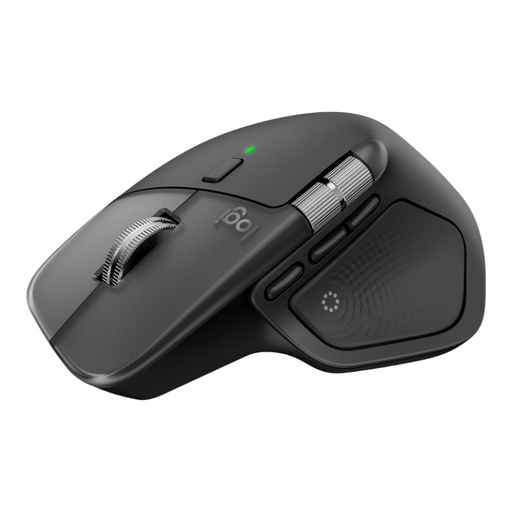
Logitech MX Master 4 for Mac
The horizontal scroll control and customisable actions are useful if you often carry out the same tasks while working on slides.
The product description lists Bluetooth or a Logi Bolt receiver, as well as a rechargeable battery. Logi Options+ is required to customise the buttons and Actions Ring.
Joybuy
 No image available
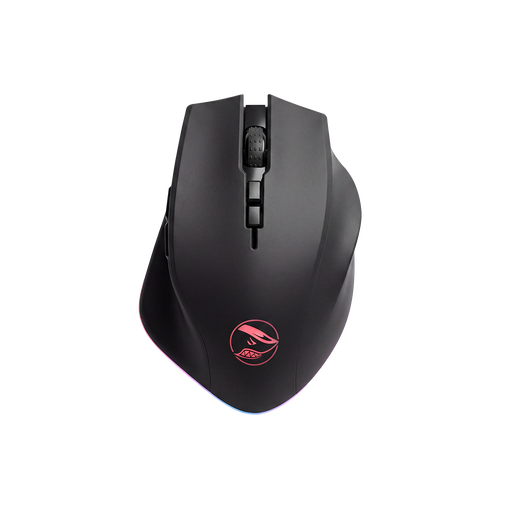
Shark Velocity M71 Wireless Gaming Mouse
The eight programmable buttons may be useful if you want to set up repeated actions while working on slides.
The product description lists 2.4 GHz wireless and USB, plus adjustable DPI.
Joybuy
 No image available
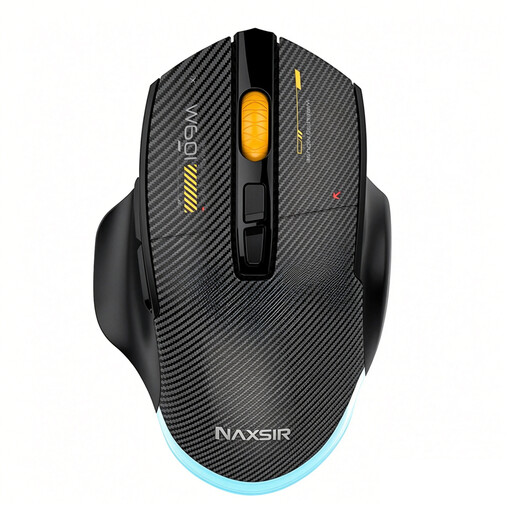
NAXSIR 3-in-1 Gaming Mouse
The seven programmable macro keys are worth considering if you want to customise repeated actions.
The title lists USB-C, 2.4 GHz and Bluetooth, six DPI levels and 12,800 DPI.
Joybuy
 No image available
NAXSIR Rechargeable Wireless Mouse
This model may suit you if you want to compare programmable macro buttons and several connection options.
The product name lists Bluetooth, 2.4G and a Type-C cable connection, plus six DPI adjustment levels. The description mentions programmable macro buttons.
Joybuy
 No image available
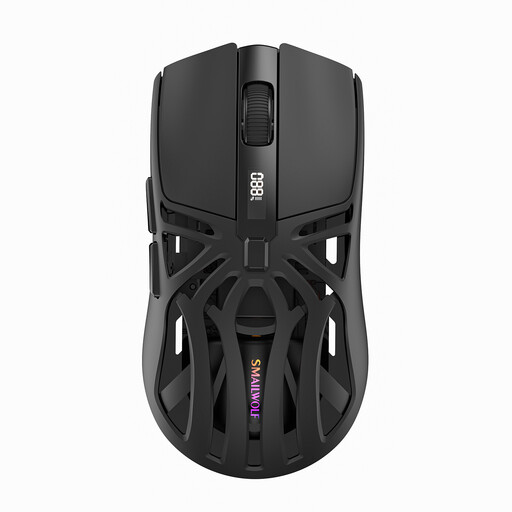
AJAZZ AJ159 PRO Wireless Gaming Mouse
The stated size for small to medium-sized hands may be useful when comparing fit.
The title lists 2.4G, USB-C and Bluetooth, a 400 mAh battery and a weight of 56 g. The description mentions a magnetic charging base and advises keeping it away from pacemakers and other medical implants.
Joybuy
Frequently asked questions
Do you need customisation software to edit slides?
Not for basic pointer functions. Logi Options+ is required for the customisable MX Master 4 features described by Logitech; Logitech lists Windows and macOS as compatible with the app. Check that the action you want works in your presentation software.
How do you connect a trackball and keep it clean?
For the Orbit Wireless, Kensington lists a 2.4 GHz receiver or Bluetooth, with plug-and-play for basic functions. Kensington recommends gently removing dirt from the ball with a finger or dry cloth; KensingtonWorks is for customisation.
What rights do you have when buying online or if a product is faulty?
According to the Dutch government, consumers buying online from a business usually have 14 days to change their mind, although there are exceptions and the seller’s status matters. ACM ConsuWijzer explains that your statutory warranty is separate from a manufacturer’s or extended warranty, and that the seller must offer an appropriate solution if a product breaks too soon under normal use.
Does Dutch law specify which mouse you must use at home?
Arboportaal’s guidance does not name a specific mouse that you must use. However, rules for employees cover safe screen work, including alternating it with other tasks or taking breaks. These obligations apply to employers and do not amount to legal approval of a particular mouse.


