
Designers working on wide canvases
You often navigate horizontally across a homepage design and want scrolling or shortcuts close at hand. Logitech describes the MX Master 4 as having a side scroll wheel and customisable controls.


Start by considering whether you mainly navigate horizontally across wide designs, have a preferred hand position or have limited room to move your mouse. A mouse with a side scroll wheel, a vertical mouse and a trackball each offer a different way to work; none guarantees greater accuracy or prevents discomfort. Also check your hand size, operating system and connection. Two screens connected to one computer don’t automatically mean you need a mouse that works with multiple devices.
You often navigate horizontally across a homepage design and want scrolling or shortcuts close at hand. Logitech describes the MX Master 4 as having a side scroll wheel and customisable controls.
You choose a mouse shape that suits your hand first, rather than focusing only on extra buttons. Logitech says the Lift is suitable for small to medium-sized hands and also comes in a left-handed version.
You have little space to move a mouse and want to see whether a trackball suits your design tasks. Kensington describes the SlimBlade Pro as a symmetrical, finger-operated trackball.
Best for: navigating horizontally across wide design canvases and keeping controls close at hand. Logitech lists a side scroll wheel and customisable controls for the MX Master 4.
Consider: extra controls aren’t necessarily useful if you mainly make small, precise movements. Also check that the software features work with your system.
Best for: making the mouse shape and hand position your first considerations. Logitech says the Lift is suitable for small to medium-sized hands and also offers a left-handed version.
Consider: check which version you’re buying and whether you can point accurately and comfortably with it. A different shape doesn’t guarantee that it will prevent or treat discomfort.
Best for: working with limited room to move your mouse or trying finger-operated controls. Kensington describes the SlimBlade Pro as symmetrical and finger-operated.
Consider: using the ball feels different from using a regular mouse. Try it out to see whether selecting and dragging in your design software feels comfortable.
Best for: when horizontal scrolling is your main requirement and you’d like to consider an alternative to a high-end productivity model. Trust lists a side scroll wheel for the Ozaa+.
Consider: Trust describes the Ozaa+ as a large model, so check that its size suits your hand.
| What to consider | What to look for | Who should pay particular attention? |
|---|---|---|
| Navigating a wide design | Check whether it has a side scroll wheel and whether you can customise the buttons for the software you use. | If I often navigate horizontally across a wide canvas, I want to scroll and access controls quickly. Around 36% of consumers prioritise this type of navigation. |
| Hand position and fit | Consider your hand size, whether you need a left- or right-handed version, and the space available next to your keyboard. | When pointing and clicking for long periods, I want a shape that suits my hand rather than relying on extra buttons alone. Around 29% of consumers prioritise a comfortable hand position. |
| Limited room for your mouse | Check how much space the mouse needs and whether using the ball feels comfortable when clicking, dragging and selecting. | If I have limited room to move my mouse at my workstation, I want to know whether a trackball suits my design work. Around 21% of consumers prioritise being able to work with limited mouse space. |
| Connecting to computers | Check whether you use one or two computers, which connections are available and how you switch between devices. | If my screens are connected to different computers, I want to switch between them with one mouse. Around 14% of consumers prioritise connecting to separate computers. |
If both screens are connected to the same computer, you don’t need to switch between devices to move the cursor from one screen to the other. Arboportaal advises limiting intensive use of screens, keyboards and mice, and varying your tasks; choosing a mouse doesn’t replace good working practices.
Switching between devices is only relevant if you actually use separate computers. Two screens connected to one computer don’t, by themselves, require this feature.
Check how your screens are connected before deciding whether you need to switch between computers.
Hand size, fit and working hours vary from person to person. A mouse’s shape doesn’t prove that it will prevent or treat discomfort.
Check that the version suits your hand and vary your tasks. Arboportaal also provides advice on working with screens.
A maximum DPI figure doesn’t tell you which cursor speed will feel comfortable with your screen layout or for precise tasks.
Check whether you can adjust the sensitivity and try the setting in your own design software.
The models mentioned range from a productivity mouse with extra controls to a vertical mouse.
The Bayo+ and Ozaa+ offer different control options and ways to connect.
The SlimBlade Pro is a trackball option to consider if you want to work without moving your mouse around much.
These products are suited to horizontal navigation, a vertical mouse shape or different connection options for design work across two screens.
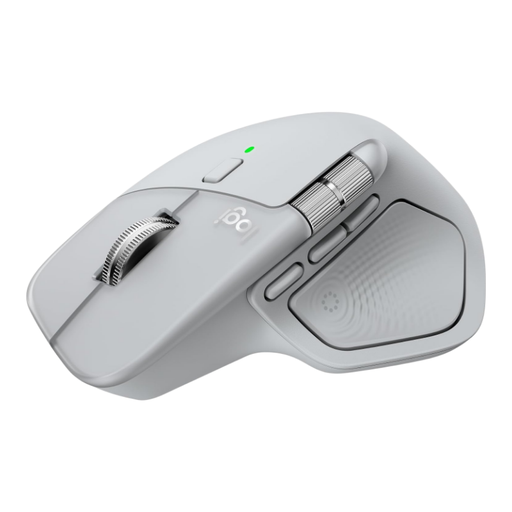 No image available
Worth considering if you often navigate horizontally across wide canvases and want customisable buttons; this model is designed for right-handed use.
The description lists a thumb wheel for horizontal scrolling and eight programmable buttons.
 No image available
A vertical shape to consider if you’re looking for an alternative to a conventional mouse; check that it suits your hand.
The title lists Bluetooth, 2.4 GHz, six buttons and three DPI levels: 800, 1200 and 1600. The description mentions Windows, macOS and Linux.
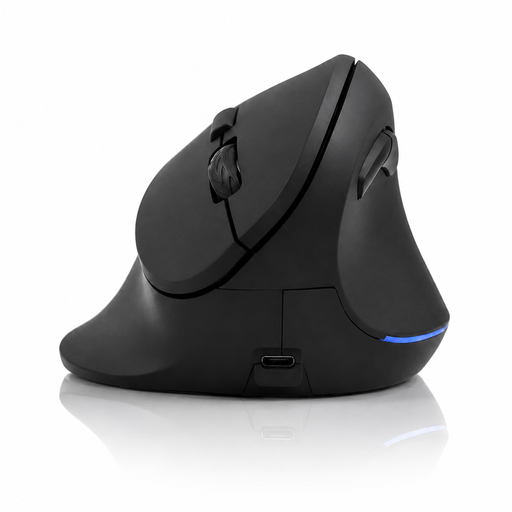 No image available
An option to compare if you want a vertical shape and adjustable cursor sensitivity; the DPI setting isn’t a measure of accuracy for design work.
The title lists Bluetooth, 2.4 GHz, USB-C and three DPI levels from 800 to 1600.
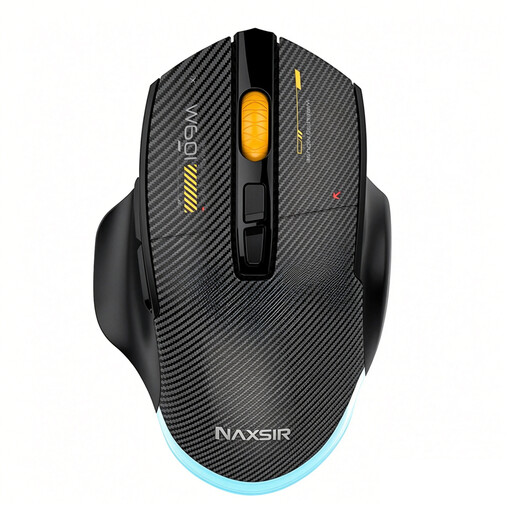 No image available
Worth considering if you want to compare different connection options and programmable buttons with your design software and computer.
The title lists wired, 2.4 GHz and Bluetooth connections, 12.800 DPI, seven programmable macro buttons and RGB lighting. The DPI figure alone doesn’t tell you how accurate pointing will feel.
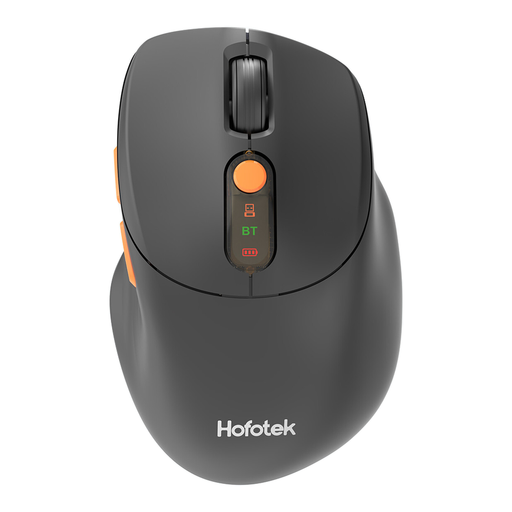 No image available
An option to consider if you want to compare multiple connections and adjustable cursor sensitivity; check which connection works with your computer.
The description lists Bluetooth and 2.4 GHz, connectivity with up to three devices, multiple DPI levels and quiet clicks. The stated weight is 62 ± 5 g; the title specifies one AA battery.
Not if both screens are connected to the same computer. Switching between devices is designed for separate computers, so check how your screens are connected first.
Arboportaal advises limiting intensive use of screens, keyboards and mice, and varying your tasks. The stated limit of six hours of intensive use per day is workplace health and safety guidance, not a product specification or a guarantee that a particular mouse will prevent discomfort.
For an online consumer purchase, you generally have a statutory cooling-off period of up to 14 days after delivery. ACM ConsuWijzer explains that you may unpack and try out a product; also check the applicable exceptions and returns policy.
In the Netherlands, you have a statutory guarantee if a product doesn’t meet what you could reasonably expect. According to ACM ConsuWijzer, the seller must resolve a fault where applicable; a manufacturer’s guarantee alone doesn’t determine how long your statutory rights apply.
Dutch workplace health and safety guidance doesn’t require a specific mouse model. Depending on the working situation, employers do have obligations relating to screen work and workplace set-up; these aren’t general product specifications for every buyer.