What should you look for when choosing?
Start by asking which action or limitation you encounter most often: lots of scrolling, a particular hand position, click noise or limited space. Then compare the shape and connection with your hand and the computer at the shared desk.
| What to consider |
What should you check? |
Who is this important for? |
| Hand comfort when working precisely |
Check the size of your hand, whether the mouse is designed for left- or right-handed use, button reach and the space beside your keyboard. |
If you work precisely for long periods, you’ll want a shape that suits your hand and workspace. Around 31% of consumers put hand comfort first. |
| Controls for design canvases |
Check whether a side scroll wheel and easy-to-reach buttons suit the way you work, and whether the customisation software runs on your computer. |
If you often navigate long pages or wide design canvases, extra controls may be useful. Around 25% of consumers prioritise design controls. |
| Click noise |
Check whether the main buttons on the exact model are described as silent or quiet-clicking; assess the sound in your own working environment. |
If you work alongside others, you’ll want to avoid disturbing them with frequent clicks. Around 25% of consumers put quiet operation first. |
| Space and connection |
Check Bluetooth or the available USB port, rules about receivers and software, the size, and what’s included in the box. |
If you have limited desk space or switch between computers, the mouse needs to work with the available connection. Around 19% of consumers prioritise portability or connectivity. |
Joybuy mice for different needs
These Joybuy products are suited to quiet desk work, scrolling through long pages, limited desk space and trying a different hand position. Check for each model whether the connection and shape suit your computer and hand.
 No image available
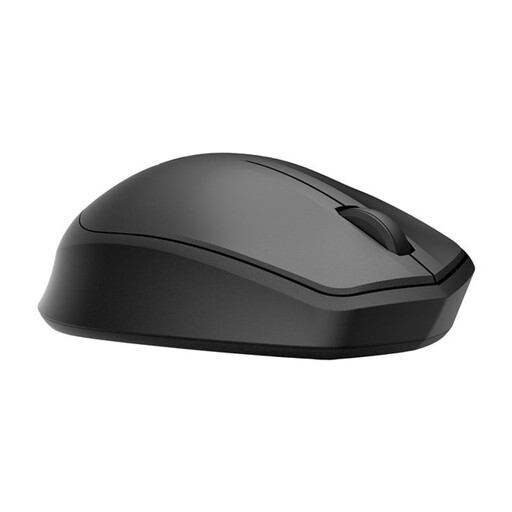
HP 285 Silent Wireless Mouse
Worth considering if quiet clicks are important at a shared desk.
It connects via a USB dongle, so check that your computer has a spare USB port.
View at Joybuy
 No image available
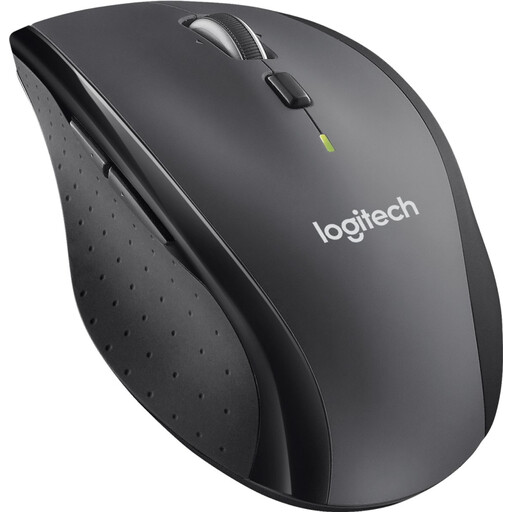
Logitech M705 Wireless Mouse Black
The product description mentions fast scrolling through long documents, which may be useful when working with long pages.
This model doesn’t use Bluetooth. It connects to a USB port using the included Unifying receiver.
View at Joybuy
 No image available
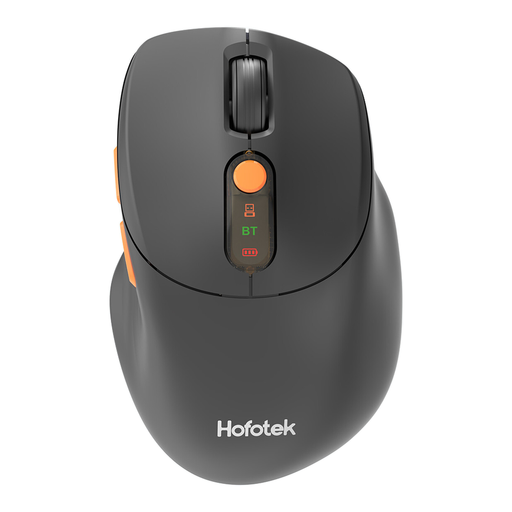
HOFOTEK M311 2.4G+BT Silent Office Mouse
The product description mentions quiet clicks and connectivity with up to three devices, making it worth considering if you want to work quietly or switch between devices.
Check whether Bluetooth or the 2.4GHz connection is right for the computer you use.
View at Joybuy
 No image available
Logitech ERGO M575S Graphite
A stationary trackball worth considering if you have little room to move a standard mouse.
The listed version is right-handed. Check that trackball control suits the way you work.
View at Joybuy
 No image available
Logitech Lift Vertical Ergonomic Mouse Graphite
A vertical option if you’d like to try a different hand position. Logitech describes the Lift as designed for small to medium-sized hands.
This version is right-handed; check the variant and fit before choosing.
View at Joybuy
Frequently asked questions
Do I need to install software for customisable design buttons?
For the customisations Logitech links to Logi Options+, check that your mouse and operating system are supported. If you’re using a shared or managed computer, also find out whether you’re allowed to install software.
What should I check before connecting a wireless mouse to a shared computer?
Check whether Bluetooth is available or whether you have a suitable USB port and receiver. Logitech says the compatible Logi Bolt receiver isn’t included with the MX Anywhere 3S; also bear in mind the rules at your shared workplace.
Can an ergonomic mouse prevent discomfort when designing for long periods?
A mouse’s shape alone can’t guarantee that you won’t experience discomfort. Arboportaal advises limiting intensive use of screens, keyboards or mice to a maximum of six hours a day; this doesn’t mean that a particular mouse model will prevent discomfort.
What are my rights if I don’t like a mouse I bought online or it breaks?
According to the Dutch government, many online consumer purchases come with a 14-day cooling-off period, subject to conditions and exceptions that depend on the purchase. You’re also entitled to a product that meets the legal guarantee of satisfactory quality; contact the seller if there’s a problem. A manufacturer’s warranty doesn’t replace your statutory rights.
Does Dutch law require an ergonomic mouse at a shared desk?
The Arboportaal guidance consulted doesn’t mention a general requirement to use one specific mouse model. However, for employees who work with a screen for more than two hours a day, there are requirements for setting up the workstation, including using a separate screen or keyboard when working on a laptop; these don’t specify a particular mouse model.


