Choose based on the controls and hand position you genuinely need while designing. A conventional mouse with extra scrolling or customisable controls may suit frequent navigation, while a vertical mouse or trackball is worth considering if hand position or limited space is your main concern. Also check the fit, connectivity and any software requirements. None of these mouse designs guarantees that discomfort will disappear or that you’ll design more accurately.
Which mouse is right for you?
Designer who spends long sessions using a mouse
If you work on your homepage for long periods, consider whether the mouse suits your hand size and working posture. Arboportaal notes that screen-based work can involve repetitive hand movements and static strain, so it’s important to vary your activities and posture.
Designer who does a lot of navigating
If you often switch between pages or design windows, check whether a side scroll wheel or customisable controls fit your workflow. Logitech describes these features on specific MX Master models, but features vary by model.
Designer with a small desk
If you have little room beside your keyboard, you could compare a trackball with a mouse that you move across the desk. Kensington says the Expert Mouse Wireless suits medium to large hands; a trackball isn’t automatically more accurate.
What should you look for when choosing?
Conventional productivity mouse
Choose this if: you navigate frequently and will actually use a thumb wheel or customisable controls.
Consider: extra features don’t make up for a poor fit. Also check the software requirements for the exact model.
Vertical mouse
Choose this if: you want to try a more upright hand position and the shape suits your hand.
Consider: the different grip takes some getting used to and isn’t a proven treatment for discomfort; check which hand the model is designed for.
Trackball
Choose this if: you have little room to move a conventional mouse and want to try using a trackball.
Consider: pointing and scrolling work differently from using a mouse you move across the desk, and a good fit still matters.
| What to consider |
What to look for when buying |
Who is it important for? |
| Hand fit and working posture |
Check your hand size, whether the mouse is designed for left- or right-handed use, and how much room you have for your arm. |
If I work on my homepage for a long time, I want to know first whether the mouse suits my hand and working posture. Around 40% of consumers also prioritise fit and working posture. |
| Navigation and customisable controls |
Check whether you use horizontal scrolling or customisable buttons, and whether the required software is compatible with your system. |
When I often navigate through pages and wide designs, I want controls that suit the way I work. Around 30% of consumers prioritise navigation features and customisation. |
| Room to move on your desk |
Measure the space beside your keyboard and consider whether trackball controls suit your design tasks. |
With little free space beside my keyboard, I want to know whether I can use a trackball comfortably to control the pointer. Around 20% of consumers say limited desk space is their top priority. |
| Simple controls and connectivity |
Check which connections your computer supports and whether you really need extra buttons. |
If I mainly want a calm working environment at home, I look for suitable connectivity and basic controls without unused extra features. Around 10% of consumers prioritise simple, straightforward controls. |
How to avoid common buying mistakes
-
Assuming a vertical mouse will prevent discomfort
A different grip won’t automatically eliminate repetitive hand movements or static strain; your workstation setup and varying your activities also play a part.
Choose a mouse that suits your hand size and preferred controls, check your workstation setup, and vary your tasks and posture.
-
Confusing features across different MX Master models
Logitech describes haptics and Actions Ring for the MX Master 4, while the thumb wheel and sensor information mentioned here apply to the MX Master 3S.
Check the full model name and software requirements for the exact version you’re considering.
-
Choosing a trackball just because it takes up little space
You control the pointer differently with a trackball than with a mouse you move across the desk, and fit can matter too.
Consider both the desk space available and how the ball, buttons and scroll ring work for your design tasks.
Brands worth considering
Logitech
The MX Master models offer different control features. The Lift is a vertical mouse to consider if you’re looking for an alternative hand position.
- Logitech says the MX Master 3S has a thumb wheel and an adjustable sensor. The manufacturer says the MX Master 4 has Actions Ring and haptic features.
- Features vary by model. Logitech says Logi Options+ is required to customise the MX Master 4 features mentioned here; according to the manufacturer, the Lift is designed for small to medium-sized hands and has a left-handed version.
Kensington
The Expert Mouse Wireless is a trackball option to consider if you want to use a ball and scroll ring while keeping the device in one place.
- Kensington lists Bluetooth and a USB receiver for this model.
- Kensington describes the mouse as suitable for medium to large hands; this doesn’t tell you whether it will feel comfortable when pointing at small design elements.
Trust
The Ozaa+ is a conventional office mouse worth looking at if side scrolling and connecting to multiple devices are important to you.
- Trust lists a side scroll wheel, USB receiver, Bluetooth and a rechargeable battery for the Ozaa+.
- Decide for yourself whether the shape and controls suit you; the product description isn’t an independent comparison with other mice.
Mouse options at Joybuy
The options shown include a productivity mouse, vertical mice and wireless models to suit different control preferences when working from home.
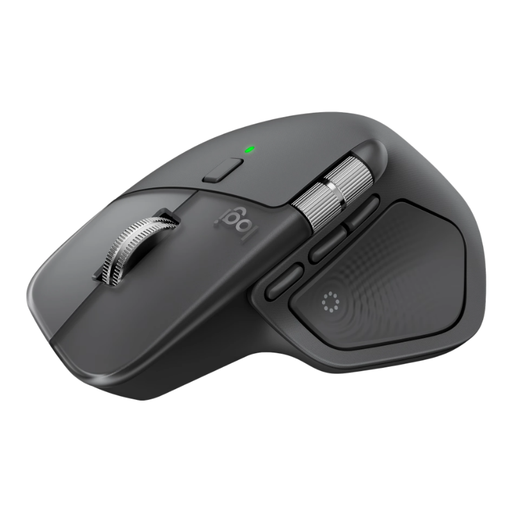 Image unavailable
Logitech MX Master 4 Graphite
An option if you often navigate across wide designs and want to customise Actions Ring. Logitech says Actions Ring and haptic features can be customised through Logi Options+.
View at Joybuy
 Image unavailable
Vertical wireless mouse with USB-C, Bluetooth and 2.4 GHz
A vertical design to consider if you want to try a different hand position; check that it suits your hand.
The product name lists Bluetooth, 2.4 GHz and three DPI settings: 800, 1200 and 1600.
View at Joybuy
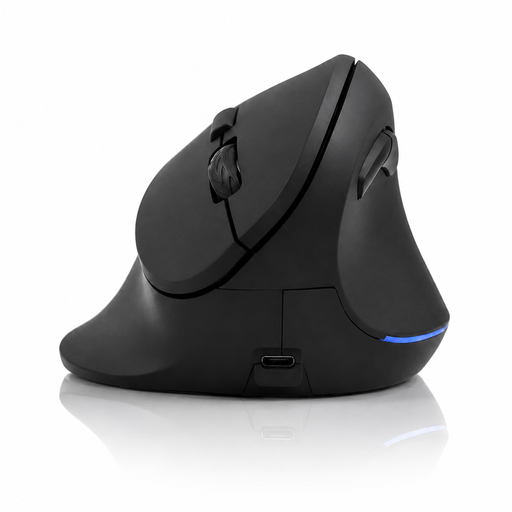 Image unavailable
Vertical wireless mouse with 6 buttons and USB-C
A vertical mouse to consider if you want to try a different grip; its shape alone doesn’t prove that it will suit you better.
The product name lists 2.4 GHz, USB-C and a DPI range of 800–1600.
View at Joybuy
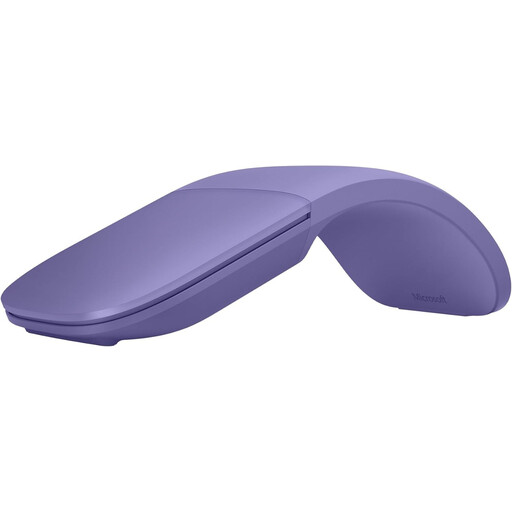 Image unavailable
Microsoft Surface Arc Mouse Violet
An option if you want to scroll both horizontally and vertically and take your mouse with you; check that Bluetooth pairing works with your device.
The product description mentions Surface or Windows 10/11 devices.
View at Joybuy
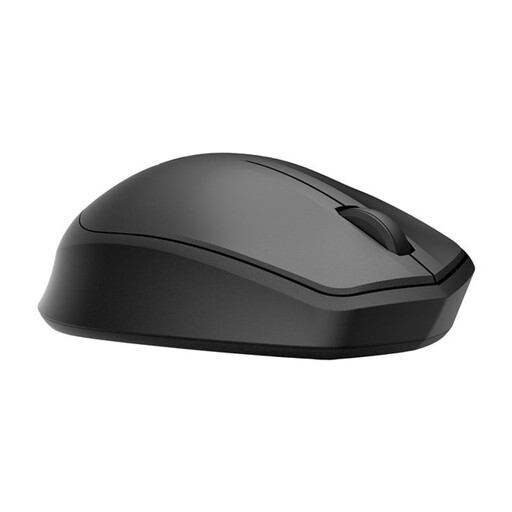 Image unavailable
HP 285 Silent Wireless Mouse
An option if you want quiet clicks while working from home; the product name indicates that it operates quietly.
The product description lists a 2.4 GHz dongle; check that your computer has a suitable USB port.
View at Joybuy
Frequently asked questions
Do I need the highest DPI setting to work accurately on my homepage?
Not necessarily. Logitech says you can adjust the MX Master 3S tracking sensitivity in Logi Options+ to suit your workflow and monitor resolution. Instead of comparing only the maximum DPI, check whether you can position the pointer comfortably on your own screen.
What can I do if using a mouse for a long time causes discomfort?
Also review your workstation setup and vary your posture and activities. Arboportaal advises seeking help from a prevention officer or occupational physician if you start experiencing work-related symptoms; changing your mouse alone isn’t a treatment.
Do I need software for all the extra features?
It depends on the model and feature. Logitech says Logi Options+ is required to customise the haptic feedback and Actions Ring mentioned for the MX Master 4. Check that the software is available for your system before relying on these features.
What are my return and warranty rights when buying online in the Netherlands?
ACM ConsuWijzer states that online purchases generally come with a statutory cooling-off period that ends 14 days after delivery; check which exceptions and return conditions apply to your purchase. According to the Dutch Government, if a product is faulty, the seller is your point of contact for a solution.
Does my employer have to provide a specific mouse for working from home?
Arboportaal’s guidance describes employers’ responsibilities for safe screen-based work and setting up relevant workstations, but it doesn’t specify a particular mouse model. The equipment you’re entitled to depends in part on your employment and working arrangements.


