What should you look for?
First, decide what matters most to you: navigating photos and lists, a comfortable grip, limited desk space or a simple connection. Then check that the controls and any software features are compatible with your computer and classification application.
| What to consider |
What to look for |
Who it matters to |
| Navigating photos and lists |
Check whether your application uses horizontal scrolling and customisable shortcuts. |
If I switch frequently between photos, species lists and input fields, I want to move between them quickly. Navigation is the main priority for around 36% of consumers in this breakdown. |
| Hand comfort when clicking repeatedly |
Consider your hand size and which hand you use; try the grip if possible, and alternate mouse work with other tasks or breaks. |
If I click repeatedly, I want a grip that suits my hand, without treating it as the only solution to my working posture. Around 29% of consumers prioritise clicking comfort above all else. |
| Space and handedness |
Check the space beside your keyboard, which hand you use and whether making precise selections in your programme feels comfortable. |
If my workspace is cramped or I have a particular hand preference, I want controls that suit my needs. For around 21% of consumers, desk space or handedness is the main consideration. |
| Simple connection |
Check that both screens are connected to the same computer, which USB ports are available and whether a cable would get in the way. |
If you want to plug in and get started without extra connectivity features, check whether a wired mouse suits your setup. Around 14% of consumers put a simple connection first. |
Mice at Joybuy
These mice are suited to navigating photos and species lists, vertical use and workspaces with limited room.
 No image available
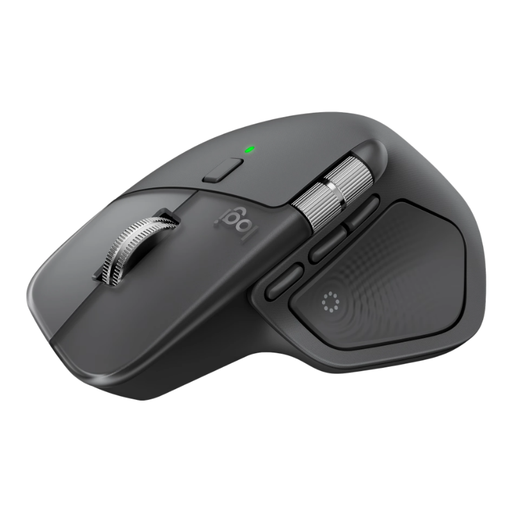
Logitech MX Master 4 Graphite
An option for navigating long species lists or wide content and using customisable features in your workflow. Check that they suit your application.
Joybuy
 No image available
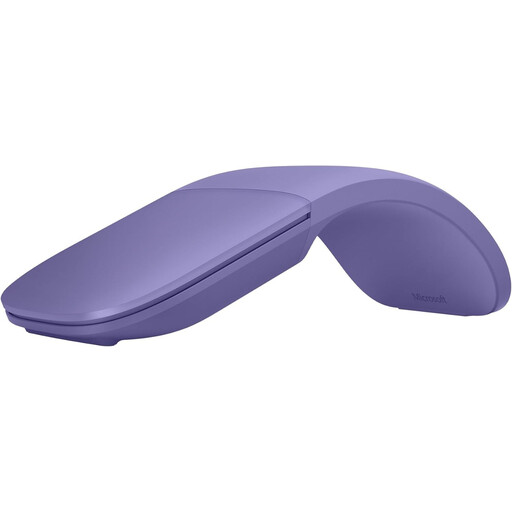
Microsoft Surface Arc Mouse Violet
Suitable if you want to scroll both horizontally and vertically, and are looking for a mouse that folds flat for a portable workspace.
Joybuy
 No image available
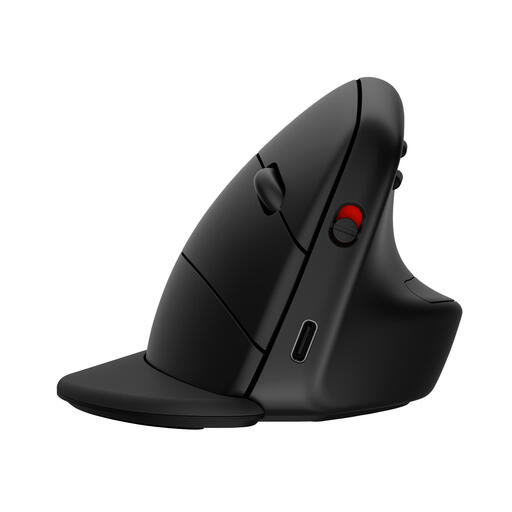
HP 925 Ergonomic Vertical Mouse
A vertical option if you’re looking for a different grip and want to switch between several devices; this version is for right-handed use.
Joybuy
 No image available
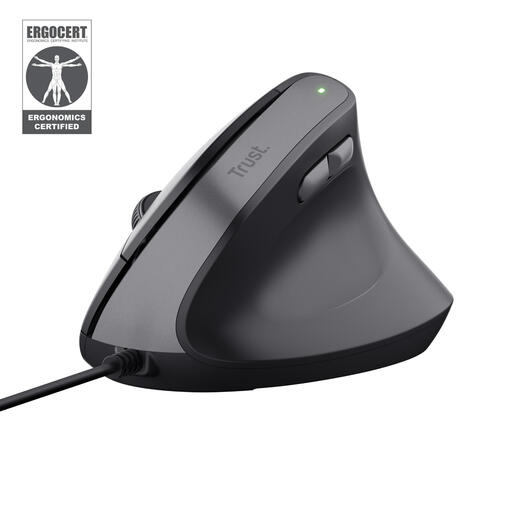
Trust Bayo II Vertical Wired Black
A wired vertical option for a fixed USB setup; this version is designed for right-handed use.
Joybuy
 No image available
Logitech ERGO M575S Graphite
Suited to a cramped workspace where you want to control the cursor with a trackball from a fixed position.
Joybuy
Frequently asked questions
Do I need a mouse that switches between devices to use two screens?
No, not if both screens are connected to one computer. If needed, arrange the screens in your Windows display settings. Features such as Logitech Flow are designed for use with multiple computers; check compatibility if that’s how your setup is arranged.
How can you make long periods of classification more manageable?
Vary your screen-based work and posture, and take breaks. The Dutch Working Conditions Portal advises alternating screen work with other tasks or taking a break. A mouse described as ergonomic doesn’t replace the need to vary your activities.
What should you check about connection and controls?
Check which USB or Bluetooth connection is available, and adjust the cursor speed for both screens. A wired trackball needs a free USB port. Also check that its controls feel comfortable when making precise selections in your programme.
What are my rights when buying a mouse online in the Netherlands?
For most distance sales to consumers, you have a 14-day cooling-off period after delivery, subject to exceptions depending on the purchase. ACM ConsuWijzer also explains that the legal guarantee applies if a product used normally doesn’t meet what you could reasonably expect. In the Netherlands, there is no fixed legal guarantee period of exactly two years.
Are there Dutch workplace rules for screen work?
Employers have obligations concerning employees’ screen work, including ensuring that it is regularly alternated with other tasks or a break. This doesn’t mean that private buyers are legally required to choose a particular type of mouse.


