What should you consider when choosing?
When working with plant observations, precise selection, prolonged pointing, low click noise and shared use may each be deciding factors. The right controls also depend on the user’s hand and workspace.
Quiet traditional mouse
A good fit if: you want a familiar mouse shape and click frequently; Logitech says the Signature M650 has quiet buttons and a SmartWheel.
Trade-off: its conventional shape changes your hand position less than vertical or central controls, but quiet clicks won’t silence other workplace noise.
Vertical mouse
A good fit if: you want to try a different grip; Logitech says the Lift is designed for small to medium-sized hands, while Trust lists quiet buttons for the Bayo II.
Trade-off: the different grip takes some getting used to and won’t automatically suit every hand or shared workspace.
Stationary trackball
A good fit if: you have little room to move a mouse; Kensington says the Orbit Wireless Trackball has a scroll ring and controls that left- and right-handed users can try.
Trade-off: using a ball and scroll ring feels different from sliding a mouse across the desk. Try making selections in your own software.
Central roller mouse
A good fit if: you want to try a central control in front of your keyboard; Contour describes the RollerMouse Red as having a rollerbar.
Trade-off: this setup needs space by the keyboard and must work for everyone sharing the desk.
| What to consider |
What to check when buying |
Who might consider this more important? |
| Precise selection |
Compare adjustable cursor speeds and try selecting small targets in your own software. |
If I often select small items, I want to tailor the controls to my task. Around 31% of consumers prioritise precision. |
| Hand position during longer sessions |
Check hand size, hand preference and grip; try vertical or central controls. |
If I spend a long time pointing, I want a shape that suits my hand. Around 25% of consumers put hand position first. |
| Low click noise |
Check that the specific version you choose has quiet main buttons, and try how they feel. |
If I click frequently alongside colleagues, I want to keep unnecessary click noise down. Around 25% of consumers prioritise keeping things quiet for colleagues. |
| Use at a shared desk |
Check the connection, hand preference and available desk space for all users. |
If several people use the same mouse, I want the connection and controls to work for everyone. Around 19% of consumers prioritise suitability for shared use. |
Joybuy products
These products include vertical mice and mice with conventional controls that may suit precise selection or use at a shared desk. For each version, check hand preference, connection options and the features you need.
 No image available
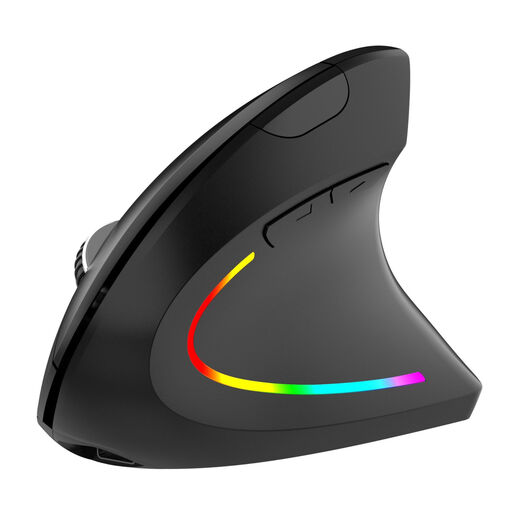
NAXSIR Wireless Vertical Ergonomic Mouse, Rechargeable, LED, 6 Buttons, Adjustable DPI
Quiet buttons and adjustable DPI may suit frequent clicking and let you tailor the cursor speed.
Wireless vertical mouse with six buttons, a rechargeable battery, USB-C charging and a 2.4 GHz connection.
View at Joybuy
 No image available
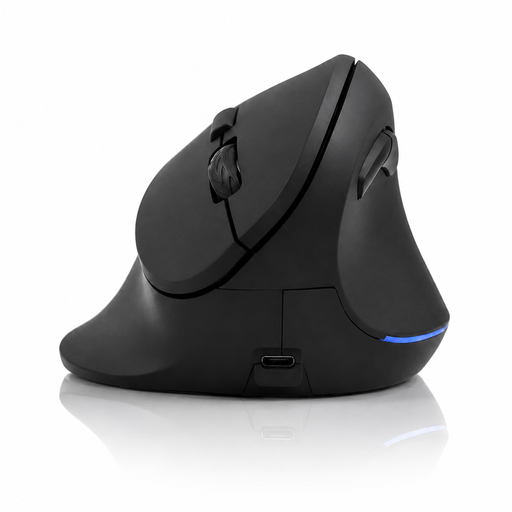
Vertical Wireless Mouse with USB-C Charging
Adjustable DPI settings may be useful if you want to change the cursor speed for selection work.
Connects via Bluetooth or 2.4 GHz; three DPI settings: 800, 1200 and 1600.
View at Joybuy
 No image available
Wireless Vertical Mouse with Six Buttons
The DPI settings give you the option to tailor the cursor speed to your selection work.
Wireless 2.4 GHz connection; DPI range of 800–1600. The description lists a DPI switch and four-way scroll wheel.
View at Joybuy
 No image available
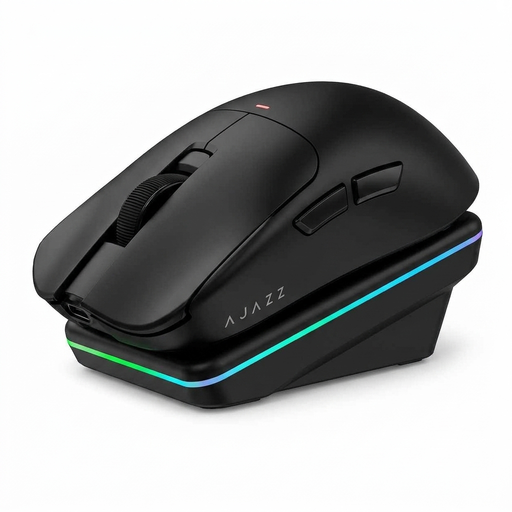
AJAZZ AJ200 AI MC
Adjustable DPI may come in handy when you want to tailor the cursor speed to your selection task.
Connects via Bluetooth, 2.4 GHz or USB-C; the product name lists a PAW3311 sensor, 24000 DPI and a weight of 63 g.
View at Joybuy
 No image available
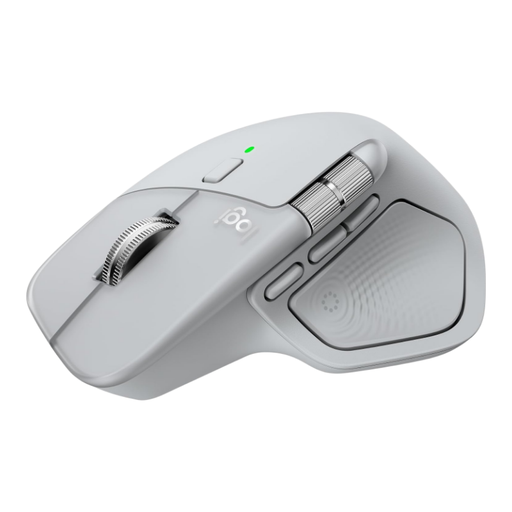
Logitech MX Master 4 Light Grey
The quiet buttons described may suit frequent clicking in a shared space; check that the hand preference is right for you.
The product description lists adjustable DPI, vertical and horizontal scrolling, and Bluetooth or a USB-C receiver. The version described is for right-handed users.
View at Joybuy
Frequently asked questions
Which mouse setting helps with small targets?
Try a lower cursor speed if you often overshoot a target, and increase it if you need to move your hand a lot. Kensington links lower DPI settings with precise work, but the best setting depends on your screen and software.
How can you connect a mouse without a free USB-A port?
Check whether your computer supports Bluetooth and whether the version of the mouse you’ve chosen can connect that way. Logitech lists both Bluetooth Low Energy and a Logi Bolt USB receiver for the Signature M650. Check in advance which connection methods are allowed on your office computer.
Is an ergonomic mouse enough for prolonged classification work?
No. A different mouse doesn’t replace the need to vary your work. Arboportaal identifies precise or frequent mouse use as a factor to consider when working with a screen and recommends alternating it with other work or taking a break. If you start experiencing symptoms, contact your occupational health physician.
What Dutch rules apply to office screen work?
According to Arboportaal, screen work should be alternated with other work or a break at regular intervals. There are also workplace setup requirements for employees who work with a screen for more than two hours a day; these do not specify a particular type of mouse.
What warranty and cooling-off period apply to an online purchase in the Netherlands?
When you buy as a consumer, you’re entitled to a product that is fit for purpose. The Dutch government says there is no fixed statutory warranty period, and the seller must provide a solution if something goes wrong. When you buy online from a business, you usually have 14 days to change your mind. Check the applicable terms and any exceptions.


