
Photo gallery creator
You select and organise lots of images and want to move smoothly between pages or across wide workspaces. Compare the tracking settings, scroll controls and any customisation software.


Choose a mouse that suits your hand and computer, then consider its clicking noise and how easy it is to use when selecting, organising and browsing photos. Adjustable cursor speed and extra scrolling or shortcut features can be useful, but may require software and don’t, by themselves, prove that you’ll edit photos more accurately or quickly.
You select and organise lots of images and want to move smoothly between pages or across wide workspaces. Compare the tracking settings, scroll controls and any customisation software.
You work close to other people and want to reduce the noise from repeated clicking. Consider the shape of the mouse too, and check which buttons are described as quiet.
You may switch between computers or have limited desk space. Compare the connection options, whether a receiver is needed and how a trackball works.
| What to consider | What should you check? | Who should prioritise this? |
|---|---|---|
| Selecting and organising photos | Try selecting and dragging items; compare the cursor speed and how easy the buttons are to reach. | If I select and move lots of photos, I want the cursor and controls to suit the way I work with galleries. Around 31% of consumers say ease of use when selecting and organising photos is their top priority. |
| Quiet clicks | Check which buttons are described as quiet, and try the scroll wheel too. | When I work close to colleagues, I want to reduce the noise from repeated clicking. Around 31% of consumers put quiet clicks ahead of other mouse features. |
| Fit for your hand | Check your hand size and choose the right left- or right-handed version; try out the grip. | During longer work sessions, I want the mouse to feel comfortable to hold and the buttons to be easy to reach. Around 23% of consumers say a comfortable fit for extended use is their top priority. |
| Connection and desk space | Check which USB ports and Bluetooth are available; compare a standard mouse with a trackball. | If I switch between computers or have limited desk space, I want a suitable connection that doesn’t take up unnecessary room. Around 15% of consumers say connectivity or desk space is their top priority. |
A DPI figure describes a product specification, but it doesn’t automatically tell you how easy it will be to select photos.
Try your usual selecting and dragging movements, then adjust the cursor speed to suit your screen and preferences.
Models can differ in size and left- or right-handed design. A vertical shape also takes some getting used to, and doesn’t tell you how comfortable it will be to select and move photos.
Check the size and whether the model is designed for left- or right-handed use. Try the grip and the actions you need for your gallery work.
Logitech says the customisable features of the Logitech MX Master 4 use Logi Options+. On a shared computer, you may need permission to install software.
Ask your administrator whether you’re allowed to install the required software before making those features a deciding factor.
Compare the MX Master 4 for extra navigation with the Lift for a vertical grip; they offer different shapes and ways of working.
The Ozaa+ is worth comparing if quiet buttons, a side scroll wheel and use with multiple devices matter to you.
Compare the wired GENTIX SILENT with the vertical MW 4500 or MW 4500 LEFT; they’re designed for different preferences.
The SlimBlade Pro is a trackball to consider if you have limited desk space or want a device that can be used with either hand.
This selection includes a Logitech MX Master 4 and vertical mice for gallery work. Compare each model’s shape, listed features and connection options.
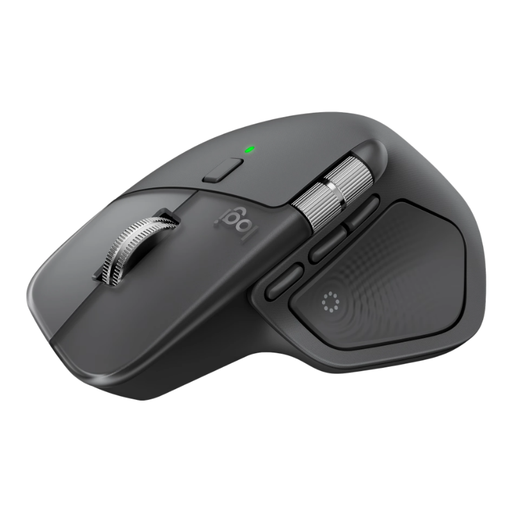 Image unavailable
An option to consider if you want to compare extra navigation and customisable features for gallery work.
Logitech lists 8K DPI tracking and a side scroll wheel. Customisation requires Logi Options+; check whether you’re allowed to install this software on your work computer. The DPI figure alone doesn’t guarantee more precise selection.
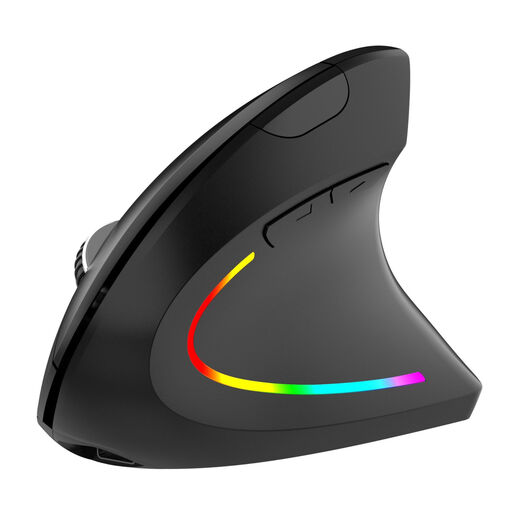 Image unavailable
An option to compare if you’re looking for a vertical grip and quiet buttons; check whether the shape suits your hand.
The product name lists six buttons, adjustable DPI, quiet buttons and a rechargeable design.
 Image unavailable
An option if you want a vertical shape with a choice of Bluetooth or 2.4 GHz connectivity.
The product name lists three DPI levels: 800, 1200 and 1600 DPI, plus USB-C charging.
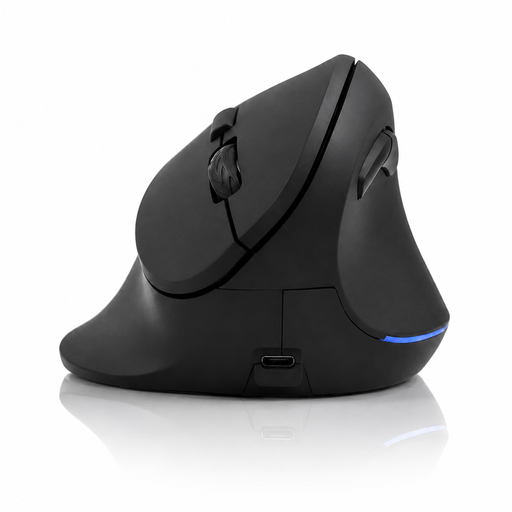 Image unavailable
A vertical option to compare if you’re considering a different grip and adjustable cursor speed.
The product name lists 2.4 GHz, a DPI range of 800–1600 and six buttons.
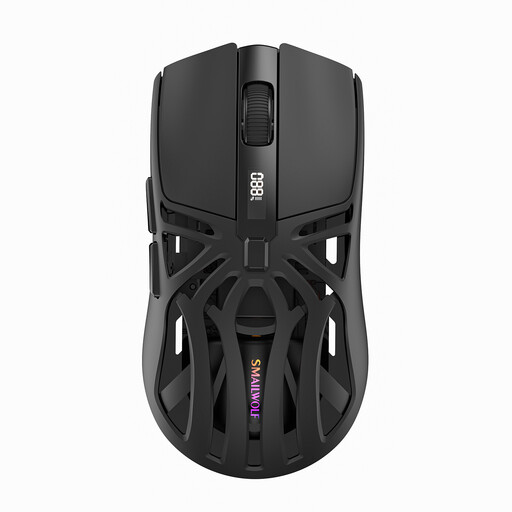 Image unavailable
An option if you want to compare DPI settings and different connection options; check which connection suits your computer.
The product name lists Bluetooth, 2.4G, a Type-C cable connection and a six-level DPI setting.
No. That sensor figure alone doesn’t prove that you’ll find it easier to select photos. Try selecting and dragging items, and see whether you can set the cursor speed to suit you; Logitech lists adjustable tracking for the MX Master 4.
Check which USB connection or Bluetooth link is available. If you want to use custom actions on the MX Master 4, also ask whether you’re allowed to install Logi Options+; Logitech lists this software for customisable features.
When you buy as a consumer in the Netherlands, you’re entitled to a product that works as it should, but there’s no fixed statutory warranty period. According to the Dutch government, the assessment depends on factors including the product, normal use and what you could reasonably expect; a manufacturer’s or extended warranty is an additional benefit. If your employer buys the mouse, check which terms apply to that purchase.
According to the Dutch government, you can dispose of an old electrical appliance in several ways, including returning it when buying a similar new appliance or taking it to a collection point. Loose used batteries should go to a battery collection point, not in the rubbish bin.
No. Dutch government guidance doesn’t specify a particular mouse model. The rules on screen-based work include taking regular breaks or alternating screen work with other tasks; they don’t make one type of mouse suitable for everyone.