
Anyone sorting lots of photos
You select and organise lots of photos, and want to move quickly through galleries without losing control of the cursor.


For sorting lots of photos, choose a mouse whose scrolling and cursor settings work comfortably with your gallery software. If you switch between computers, also check how easy it is to change the connection. If you have limited room to move the mouse or prefer a different hand position, a trackball or vertical mouse may be worth considering, but try the controls and fit for yourself. At a shared desk, check the hand orientation and click noise too.
You select and organise lots of photos, and want to move quickly through galleries without losing control of the cursor.
You take your mouse with you or switch between computers, so connectivity, switching and size all play a part in your choice.
You have little room to move a mouse, or want to try a different hand position. A trackball and a vertical mouse offer different ways to work.
Start with how the mouse works in your gallery software, then check connectivity, fit and click noise for your shared workspace.
A good choice if: you often navigate through lots of images and make regular use of the scroll wheel or side scrolling. Trust describes the Ozaa+ as having two scroll wheels; the MX Master 3S is another example.
Bear in mind: check the fit, software requirements and exact version. Extra controls are only useful if they work with your application.
A good choice if: you take your mouse between workstations and want something compact. The CHERRY MW 9100 and Trust Ozaa Compact are examples with different features.
Bear in mind: check the connection type, available ports and whether the smaller size feels comfortable in your hand.
A good choice if: a different hand position matters to you and the shape suits your hand. Logitech positions the Lift for small to medium-sized hands and also offers a left-handed version.
Bear in mind: the shape may take some getting used to and cannot guarantee individual comfort; choose the version for the correct hand.
A good choice if: you have little room to move a mouse across your desk. The Kensington Orbit Wireless stays in place and, according to Kensington, can be used with either hand.
Bear in mind: a ball and scroll ring work differently from a regular mouse; try them out to see whether you can select items accurately.
| What to consider | What should you check? | Who should prioritise this? |
|---|---|---|
| Scrolling and selecting | Try the scroll wheel, any side scrolling and the cursor speed in your own gallery software. | If you browse lots of images but also need to point to individual photos precisely, prioritise navigation in your gallery; around 33% of consumers put this first. |
| Connectivity and portability | Check which connections your work computer allows, whether it has a suitable port and how to switch between devices. | If you often move between desks or computers, you’ll want to know how to connect and carry your mouse; around 27% of consumers prioritise this flexibility. |
| Hand fit and room to move | Check the hand orientation and recommended hand size; try pointing, dragging and selecting. | If you need a particular fit or have little room to move your mouse, look for controls that suit your situation; around 20% of consumers prioritise fit or desk space. |
| Click noise | Check whether the exact version has quiet buttons, and listen for scroll noise too if possible. | If colleagues work nearby, quieter clicks may be important; around 20% of consumers prioritise keeping noise down for others. |
An adjustable sensor setting alone doesn’t tell you whether pointing and selecting will feel comfortable with your hand and software.
Try pointing, dragging and scrolling in the application you actually use.
A model name can refer to different versions. For example, the Logitech page reviewed is for a Bluetooth edition, while a Joybuy listing mentions a USB receiver.
Before buying, compare the full model name, packaging and supported connections.
Shapes and controls vary, and your workspace set-up and variety of tasks also matter.
Check the fit, try the controls and set up your workspace properly. If discomfort persists, seek appropriate professional advice.
The MX Master 3S Bluetooth edition offers quiet clicks, adjustable tracking and MagSpeed scrolling; the Lift is a separate vertical option.
According to Trust, the Ozaa+ combines quiet buttons, a side scroll wheel and multi-device connectivity; the Ozaa Compact is a separate, smaller option.
The Orbit Wireless Trackball with scroll ring is a stationary alternative if desk space or hand orientation influences your choice.
The MW 9100 is a compact, rechargeable wireless mouse; the GENTIX SILENT is a separate option focused on quiet buttons.
Joybuy product picks for photo navigation, wireless use and working at a shared desk.
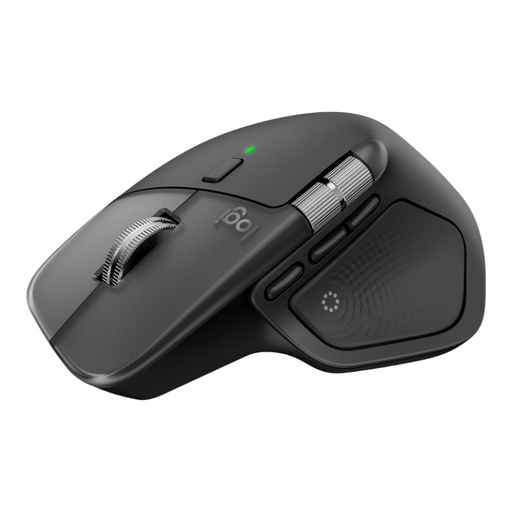 No image available
An option if you want to browse lots of images and switch between paired devices.
The product name lists Bluetooth and support for MacOS, iPadOS and Windows.
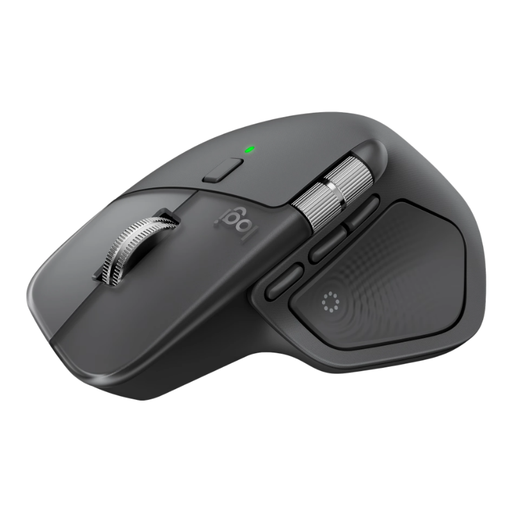 No image available
A contender if you want to use MagSpeed and horizontal scrolling to navigate your gallery.
Check that the listed features work with your gallery software and the way you switch between computers.
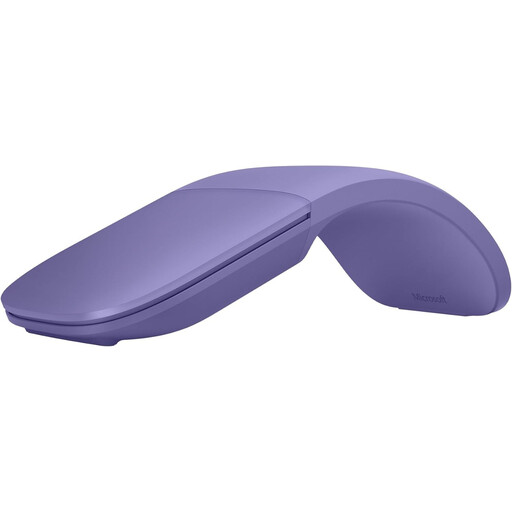 No image available
An option if you want to take your mouse between workstations and scroll using a touch surface.
Check that Bluetooth is available on your computer and try the controls in your gallery software.
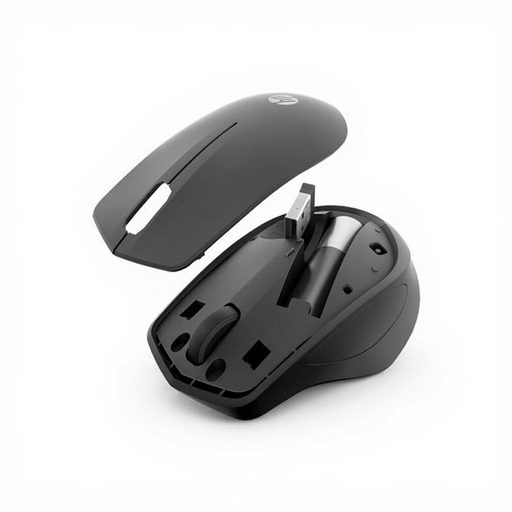 No image available
An option if quiet clicks matter at a shared desk.
Check that your computer has a suitable port for the wireless receiver mentioned.
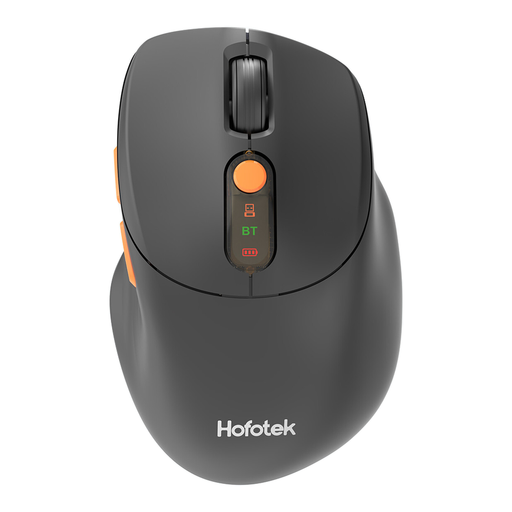 No image available
An option if quiet clicks matter and you want to switch between computers.
The product name lists 2.4G+BT, adjustable dpi and a 1xAA battery; check which connections your work computer allows.
Not necessarily: a stated dpi value describes an adjustable sensor resolution, not how well you’ll be able to select photos. Check that you can set the cursor speed comfortably and that the scrolling controls work in your programme. Lightroom also has keyboard shortcuts for various tasks.
Check whether the computer supports and allows Bluetooth, whether it has a suitable port for a receiver if needed, and which connection and accessories come with the exact version. Not all product ranges offer the same connection options.
No. Arboportaal describes repetitive movements and static strain when working at a screen, and highlights the importance of varying tasks and setting up your workspace properly. This is not evidence that any one mouse model prevents discomfort.
For a standard online consumer purchase, you generally have a statutory cooling-off period of up to 14 days after delivery; ACM ConsuWijzer lists some exceptions. You also have a statutory guarantee: in the Netherlands, the law does not set a single general guarantee period of exactly two years. What you can reasonably expect from a product depends, among other things, on the product and normal use. Check the specific terms of sale and contact the seller if there is a fault.
The government guidance from Arboportaal describes employers’ obligations for safe screen-based work and setting up the workplace, but does not specify a brand or type of mouse here. Assess the workspace and input device in the specific work situation.