
Frequent photo organisers
You browse lots of photos and folders, and want to switch easily between precise pointing and fast scrolling.


Start by considering which hands the people sharing the mouse use, and how you navigate your photo archive. If you browse a lot, comfortable scrolling matters; for prolonged precision work, a good fit is important. A mouse with extra controls may suit one regular user. If left- and right-handed users need to share the same mouse, it’s worth considering an ambidextrous design. A different mouse is no substitute for a suitable workstation setup or regular breaks.
You browse lots of photos and folders, and want to switch easily between precise pointing and fast scrolling.
You spend long sessions selecting and organising images, and want a mouse shape that suits your hand and workstation.
You share a workstation or computer and are particularly mindful of hand preference, connectivity and quiet operation.
A good fit when: you often navigate long folders or wide overviews, and the shape suits the main user.
Bear in mind: extra features or a pronounced hand-shaped design won’t suit everyone. Customisable functions may require software on the computer.
A good fit when: one regular user finds a vertical shape comfortable and the size suits their hand.
Bear in mind: left- and right-handed versions are separate models. A vertical mouse is no substitute for a suitable workstation setup or regular breaks.
A good fit when: left- and right-handed users need to share one pointing device, or there’s little room to move a mouse.
Bear in mind: using a ball may take some getting used to. Check the fit and software compatibility too.
Use the table to match your main need with a specific check to make before buying.
| What to consider | What should you check? | Who should pay particular attention? |
|---|---|---|
| Archive navigation | Check that the scroll wheel and any side-scrolling controls work with the archive software you use. | If I’m browsing lots of photos and folders, I want to scroll quickly and point accurately; around 29% of consumers put archive navigation first. |
| Comfort during prolonged use | Check your hand size and hand preference. Also see whether the speed and shape can be adjusted comfortably. | For long sorting sessions, I want a shape that suits my hand and a well-adjusted workstation; around 29% of consumers prioritise comfort during prolonged use. |
| Use by multiple people | Check whether the mouse is genuinely ambidextrous or only available in separate left- and right-handed versions, and whether it connects to the computers you use. | If different people use the same workstation, I want the mouse to suit their hand preferences and connections; around 21% of consumers prioritise shared use. |
| Room to move | Compare the space the device takes up with the hand movement it requires. A trackball stays in place, but you still need to find its controls comfortable. | With little room beside the keyboard, I want to point without sliding the mouse across the desk; around 21% of consumers prioritise having less room to move. |
An adjustable sensor alone doesn’t tell you whether the controls will feel comfortable with your screen, speed and way of working.
First, assess the scrolling controls and fit. Then check whether you can set the cursor speed to a comfortable level.
A model available in separate left- and right-handed versions isn’t automatically the same device for both hand preferences.
Decide who will share the mouse before choosing a hand-specific version. If left- and right-handed users need to use the same mouse, check that it really has an ambidextrous design.
If different users want to use a vertical mouse but have opposite hand preferences, you may need separate versions.
A different mouse doesn’t remove the need for a suitable workstation setup and variety during screen-based work.
Choose a shape that suits the user, adjust the workstation accordingly, and break up intensive mouse work with other tasks or breaks.
The Logitech models mentioned cater for different needs: the MX Master 3S offers advanced scrolling, the Lift has a vertical grip, and the Signature M650 range caters for different hand sizes and preferences.
The Ozaa+ is a conventional mouse with a side scroll wheel, for anyone looking for horizontal scrolling and control of multiple devices.
The Expert Mouse Wireless Trackball is an option when left- and right-handed users need to share one stationary pointing device.
This Joybuy selection includes conventional mice, vertical mice and trackballs, with options for scrolling, shared use and limited desk space.
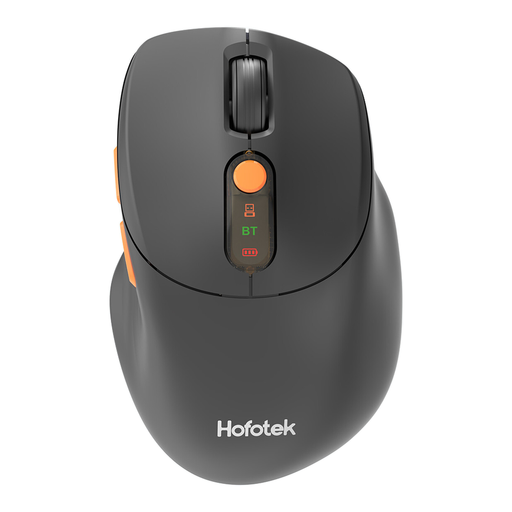 Image unavailable
A good fit for a shared desk where quiet operation and switching between computers are important.
The product information lists adjustable DPI levels, quiet clicks and connection to up to three devices. The mouse runs on one AA battery, which the product information says is included.
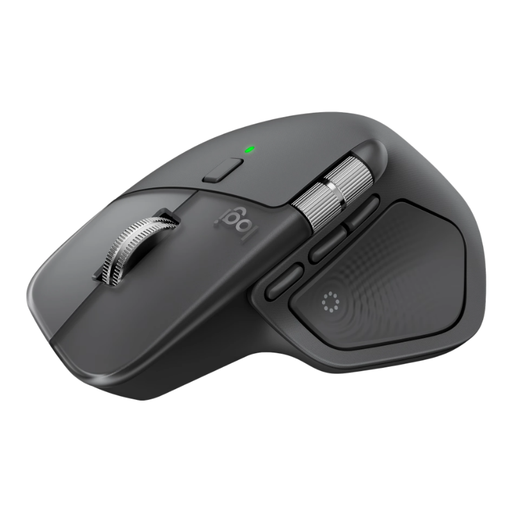 Image unavailable
A good fit for long lists of photos or folders where fast, precise scrolling matters.
The product information lists a MagSpeed scroll wheel, horizontal scrolling and pairing with up to three devices. Its right-handed shape makes it less suitable if left-handed users need to share the same device.
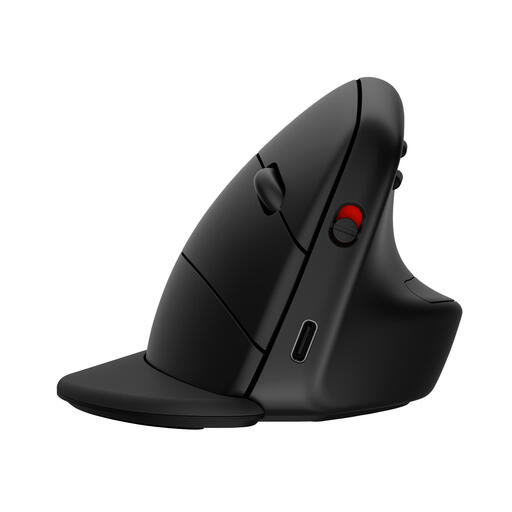 Image unavailable
A good fit for someone looking for a vertical mouse who uses multiple computers.
The product information lists a connection to up to three devices. This is a right-handed version, so check that it suits everyone who will use the mouse.
 Image unavailable
A good fit for a desk with little room to move a mouse; you operate this trackball with your thumb.
The product information lists Bluetooth or Logi Bolt connectivity. It’s a right-handed version, making it less suitable for sharing with left-handed users.
 Image unavailable
A good fit for anyone looking for a vertical mouse with quiet clicks, provided the version suits their hand size.
The product information lists SmartWheel scrolling. This is a right-handed model for small to medium-sized hands, so check that it suits the people sharing the workstation.
Only if the same mouse needs to be used by people with both hand preferences. Kensington specifies an ambidextrous design for the Expert Mouse; Logitech sells the Lift in separate versions for left- and right-handed users.
Adjust the workstation to suit the user, and break up screen-based work with other tasks or breaks. Arboportaal also recommends micro-breaks; this is workstation advice, not a proven effect of any particular mouse model.
Not without first checking software compatibility. Logitech lists Logi Options+ for customising the MX Master 3S on Windows and macOS. For Kensington TrackballWorks, check whether the features are available on the computer being used.
For an online purchase, you generally have a statutory 14-day cooling-off period after delivery; check the applicable terms and exceptions. ACM ConsuWijzer also explains that, when used normally, you’re entitled to a product that meets what you could reasonably expect. If the product doesn’t meet those expectations, the seller is responsible for providing an appropriate solution. The statutory guarantee isn’t simply a fixed two-year period for every mouse.
Arboportaal’s guidance doesn’t specify a particular mouse model. However, screen-based work is subject to rules on healthy working conditions and taking breaks or alternating with other tasks. What’s suitable also depends on the working situation.