What should you look for when buying?
First choose a mouse that fits your hand and the space on your desk, then compare the controls and connections you’ll actually use. Arboportaal also highlights the importance of setting up your workspace properly; a different mouse shape is no substitute.
| What to consider |
What should you check? |
Who is this important for? |
| Fit and hand position |
Check your hand size, whether the mouse is designed for left- or right-handed use, and how much room you have to move it. |
If I spend a long time preparing lesson plans, I want a shape that suits my hand and desk. Around 36% of consumers put fit and hand position first. |
| Scrolling through documents |
Check whether the mouse offers fast, precise scrolling and whether you need horizontal scrolling for your documents. |
If I work with lots of long lesson plans or wide spreadsheets, how I navigate them matters most. Around 29% of consumers prioritise document navigation. |
| Connecting to multiple devices |
Check Bluetooth support, available USB ports, whether a receiver is included and how many devices the mouse supports. |
If I edit teaching materials on several computers, I want to know whether I can switch between them using the connection I’ve chosen. This is the top priority for around 21% of consumers. |
| Simple connection |
Check the port and cable clearance you’ll need, and whether the features you want require additional software. |
If I usually work at one computer, a simple connection may matter more than extra features. Around 14% of consumers choose this as their top priority. |
Joybuy product picks
This selection includes mice for navigating documents, with both conventional and vertical designs. For each model, check that the version and connection suit your computer and the way you work.
 No image available
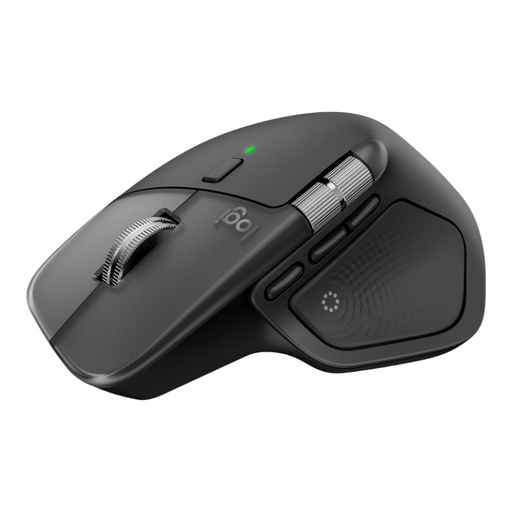
Logitech MX Master 4 for Mac, Space Black
The listed MagSpeed and horizontal scrolling controls are designed for long documents. The description also says it can connect to up to three devices.
The product information lists eight programmable buttons, quiet buttons and Bluetooth or a USB-C receiver. Windows is listed as a compatible operating system; check that the features and any software suit your computer.
View at Joybuy
 No image available
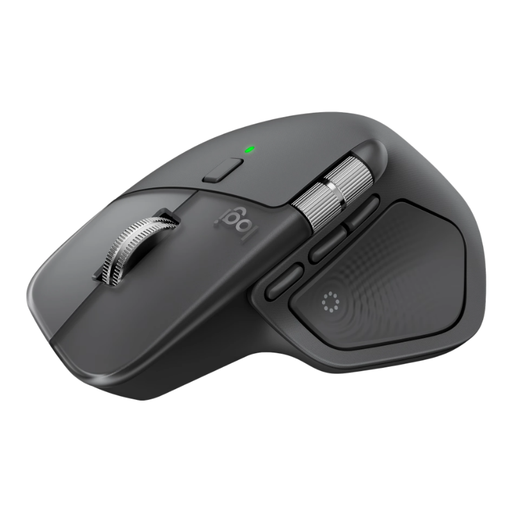
Logitech MX Master 4 Graphite
The product information lists vertical and horizontal scrolling, plus the ability to connect to up to three devices, for anyone who uses these controls while preparing lessons.
The description lists eight programmable buttons and connection via Bluetooth or a USB-C receiver. Check which connection suits your computer.
View at Joybuy
 No image available
Ergonomic Vertical Wireless Mouse, 3 DPI settings
A vertical design is an option if you’re looking for a different hand position; fit is a personal matter.
The title lists USB-C charging and three DPI settings: 800, 1200 and 1600. The description lists Bluetooth and a 2.4 GHz receiver.
View at Joybuy
 No image available
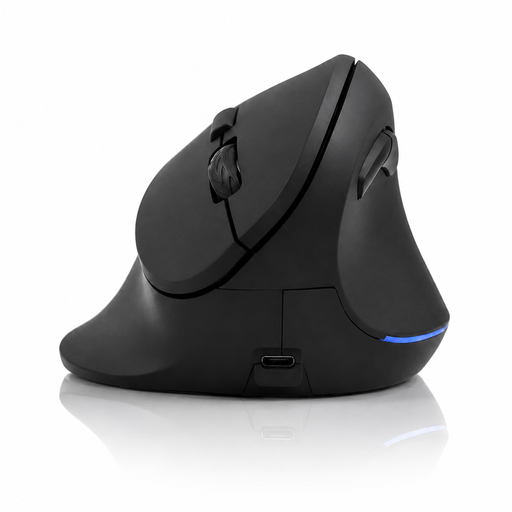
Wireless Ergonomic Vertical Mouse, 6 buttons
The description says it’s designed for office work, working from home and studying, with a four-way scroll wheel for navigating documents and web pages.
The product information lists six buttons, a USB receiver and compatibility with Windows, macOS and Linux. Check that the connection suits your computer.
View at Joybuy
 No image available
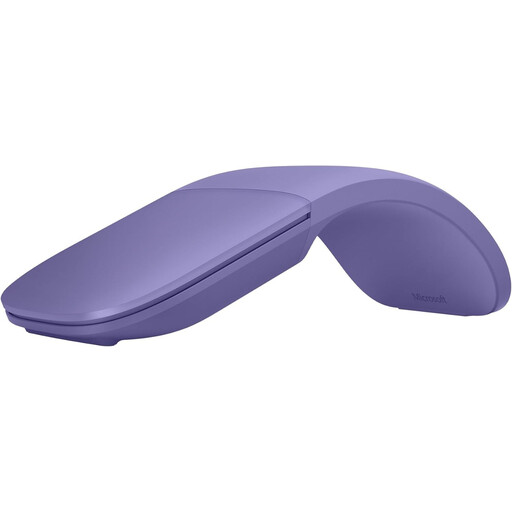
Microsoft Surface Arc Mouse Violet
According to the product description, the scroll surface is designed for vertical and horizontal navigation; the mouse connects via Bluetooth.
The description lists Surface devices and devices running Windows 10 or 11 as compatible options. Check your computer’s requirements.
View at Joybuy
Frequently asked questions
Is a vertical mouse essential or enough for a healthy home workspace?
No. Arboportaal explains how to set up an ergonomic home workspace and employers’ duty of care towards employees, but it doesn’t prescribe one particular mouse shape. If an employee has discomfort or needs their workspace adjusted, Arboportaal recommends discussing it with their employer.
How do I connect a wireless mouse?
Depending on the model, you can connect it via Bluetooth or with a wireless USB receiver. Logitech lists both options in its set-up instructions; check which method your mouse and computer support.
Does a wireless mouse need CE marking in the Netherlands?
For radio equipment placed on the EU market, the Dutch Authority for Digital Infrastructure describes CE marking as part of the relevant product requirements. Check the marking and product information for the exact wireless version; the marking alone isn’t a performance test.
What warranty do I have if a mouse breaks too soon under normal use?
According to ACM ConsuWijzer, if a product breaks sooner under normal use than you could reasonably expect, the seller must repair or replace it free of charge, or offer a refund under certain conditions. This statutory right isn’t automatically limited to a fixed two-year period.
Can I try out a mouse at home after buying it online?
For an online consumer purchase, you’ll generally have a statutory cooling-off period of up to 14 days after delivery, with some exceptions. ACM ConsuWijzer advises checking the terms for unpacking, trying out and returning the product before you order.


