
Precision-focused designer
You edit lots of elements and navigate long pages. Adjustable cursor control, scrolling and easy-to-reach buttons are important to you.


Start with a mouse that fits your hand and lets you adjust the cursor and scrolling to suit you. Then consider how noticeable the button clicks are. Extra scrolling controls and shortcuts can be useful for long designs, while a vertical or simple silent mouse may be a better fit if hand position or a quiet office matters more. Also check whether your office computer allows the connection type and any configuration software.
You edit lots of elements and navigate long pages. Adjustable cursor control, scrolling and easy-to-reach buttons are important to you.
You share a space with colleagues and want frequent clicks to be as unobtrusive as possible, without giving up the controls you need for your work.
You use a mouse for long periods and want a shape that suits your hand and workspace. It’s also important to set up your workspace and vary your tasks; Arboportaal highlights both as considerations for hybrid working.
First, think about which controls you use most while designing and which grip suits your hand. Then check whether the mouse is quiet enough for your shared workspace and whether you can use its connection type and software on your office computer.
| What to consider | What should you look for? | Who should pay particular attention? |
|---|---|---|
| Cursor and navigation | Check whether the sensitivity, scrolling and any shortcuts suit your screen and design software. Extra settings may require software. | If I place lots of elements and review long pages, I want to tailor the cursor and navigation to my work; around 36% of consumers say cursor control is their main purchase priority. |
| Click noise | Check which buttons the silent-click claim applies to, and, if possible, try the mouse in the workspace where you plan to use it. | In a quiet workspace, I often want to click without unnecessarily disturbing colleagues; around 29% of consumers prioritise quieter, less noticeable clicks. |
| Fit and hand position | Consider your hand size, preferred hand and grip. A vertical shape may take some getting used to; also set up your workspace and vary your tasks. | For longer design sessions, I want a mouse that suits my hand and workspace; hand position is the top purchase priority for around 21% of consumers. |
| Connection and software | Check whether Bluetooth or a receiver is allowed, whether there’s a suitable port available and whether you’re permitted to install configuration software. | If I switch between office computers, I want a connection and settings I can actually use on them; around 14% of consumers give connection and switching workspaces top priority. |
Silent-click claims may apply to specific buttons. Logitech describes the click comparison for the MX Master 3S for left- and right-clicking; Trust describes the main buttons on the Mydo and Bayo II, among others, as silent. That doesn’t mean every part of the mouse is silent in every setting.
Check which buttons the claim applies to and, if possible, listen to the mouse in an environment similar to your office.
According to Logitech, the Logitech Lift is designed for small to medium-sized hands and is available in a separate left-handed version. A model that doesn’t suit your hand or preferred hand may be less suitable for the way you work.
Check the exact version and try the grip if possible. Also set up your workspace and vary your posture and tasks.
For the customisation options mentioned, Logitech and HP refer users to their own software. Installation may be restricted on a managed office computer.
Check in advance which software and connection types are allowed, and find out which controls are available without extra configuration.
The MX Master models are designed for extensive scrolling and customisable controls; the Lift is a vertical option for small to medium-sized hands.
The Mydo is a simple, silent mouse with a receiver; according to Trust, the Bayo II combines silent buttons with a vertical shape.
The HP 710 is designed for use with either hand, with customisable buttons and support for multiple devices.
The compact Pro Fit Bluetooth offers a simple option without a USB receiver; the Pro Fit Ergo Wireless has more buttons and two connection options.
The HE Break range is worth considering if size, preferred hand and break reminders are important to you.
This Joybuy selection includes mice for quieter clicking, customisable controls, different connection options and a vertical grip. Check which features matter for your office computer and working style for each model.
 No image available
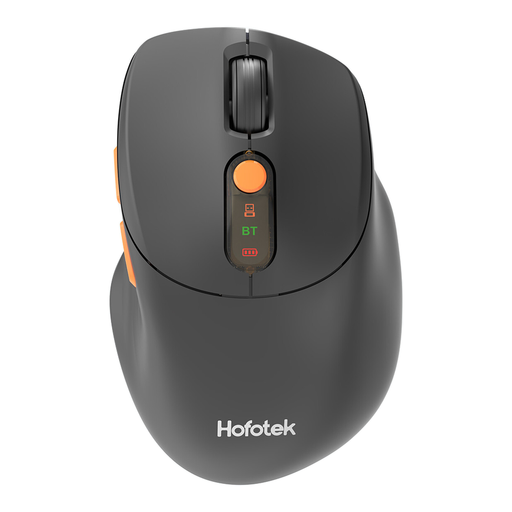
An option to compare if you’re looking for a quiet office mouse with multiple connection options.
The product name lists 2.4G+BT, adjustable DPI levels, multi-system compatibility and 1xAA Battery.
 No image available
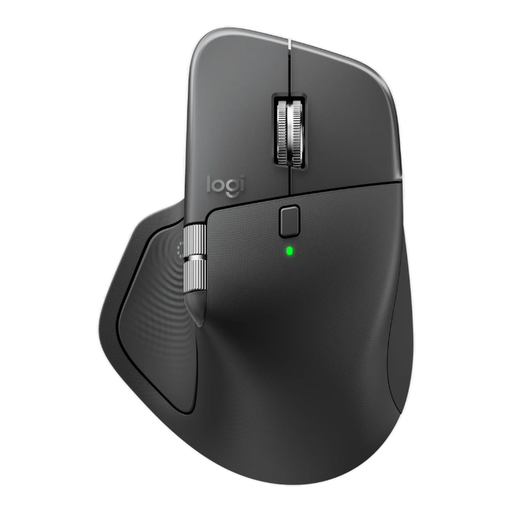
An option for anyone looking to compare extra scrolling and customisable controls, and who uses a mouse with their right hand.
The product name lists 8K DPI, a Logi Bolt receiver, Bluetooth, USB-C charging and the colour Graphite. Logi Options+ is required for the haptic settings described.
 No image available
Worth comparing if you’re looking for a compact mouse where quiet operation matters.
 No image available
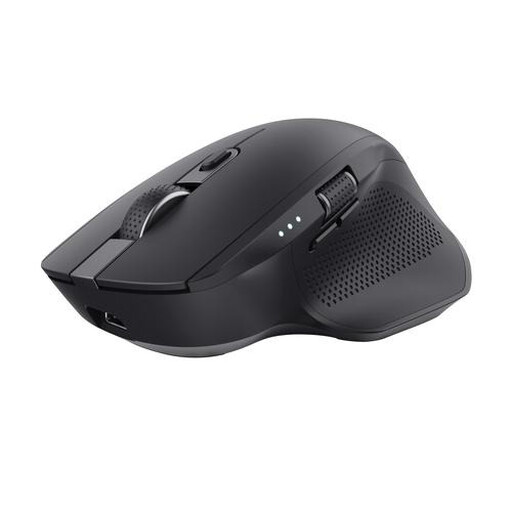
An option if you’re looking for a right-handed office mouse and want to compare RF and Bluetooth.
The product name lists RF wireless, Bluetooth and 3200 DPI; this version is designed for right-handed use.
 No image available
A vertical option to compare if you’d prefer a different grip; Logitech lists silent clicks for the Lift.
This version is designed for right-handed use and small to medium-sized hands. Check that it fits your hand, and bear in mind that Logitech software is required to customise the buttons.
No. Choose a cursor speed that you can comfortably adjust to suit your screen and tasks. Logitech lists an adjustable sensor of up to 8000 dpi for the MX Master 3S; Trust lists 1000–1800 dpi for the Mydo. These maximum figures aren’t directly comparable measures of design quality.
Check with your IT administrator whether installation is allowed. Logitech lists Logi Options+ for the haptic adjustments described for the MX Master 4; HP lists HP Accessory Center for app-specific buttons on the HP 710. If you can’t access this software, check which features you can still use.
No. A vertical shape is just one factor to consider and doesn’t guarantee that discomfort will go away. Arboportaal advises you to set up your workspace and vary your posture and tasks; also check that the mouse suits your hand size and preferred hand.
According to Arboportaal, screen work must not pose a risk to employees’ health and safety. Working Conditions Decree 5.10 states that screen work must be regularly alternated with other work or a break. This doesn’t require you to buy a particular mouse model.
According to ACM ConsuWijzer, online consumer purchases generally come with a cooling-off period of up to 14 days after delivery, subject to exceptions. You’re also covered by the statutory guarantee if a product doesn’t perform as you could reasonably expect under normal use; the seller must then resolve the problem. These consumer rights don’t automatically apply when your employer buys the mouse.