
Form designer who needs precision
You place and check small elements, and want to tailor the pointer and navigation to the way you work.


For form design, start by choosing a mouse that feels comfortable in your hand and lets you adjust pointer speed. In a shared office, quiet buttons deserve extra consideration. A side scroll wheel is particularly useful for wide designs, while a compact Bluetooth mouse can come in handy if you move between desks. Also check whether it’s made for left- or right-handed use, how it connects and whether it requires any software.
You place and check small elements, and want to tailor the pointer and navigation to the way you work.
You work close to other people and want to keep clicking noise down without overlooking how your work computer connects.
You’re looking for a mouse that suits your hand and working posture, or is easy to take with you between workstations.
| What to consider | What should you look for? | Who should give this more thought? |
|---|---|---|
| Precise control | Check whether you can adjust the pointer speed, and whether a side scroll wheel or customisable button would suit your design work. A high maximum DPI figure doesn’t, by itself, guarantee better alignment. | If you align small form fields, you’ll want to set the pointer speed to a level you can control. Around 36% of consumers prioritise precise design control. |
| Less clicking noise | Look for an explicit mention of quiet buttons for the exact model. Don’t assume that quiet-click technology also makes the scroll wheel quiet. | If you work close to colleagues, you’ll want to keep clicking noise down without sacrificing controls you don’t need. Around 29% of consumers give quiet operation top priority. |
| Hand fit and posture | Check your hand size and whether the mouse is designed for left- or right-handed use. Try the grip if possible, and adjust your workstation to suit you too. | If you use a mouse for long periods, you’ll want a shape that suits your hand. A vertical mouse isn’t automatically right for everyone. Around 21% of consumers choose primarily based on hand fit. |
| Connectivity and portability | Check which connection types your work computer allows, how many devices you can pair and whether a receiver is included. | If you move between desks or computers, you’ll want to know whether the mouse is easy to connect or take with you. Around 14% of consumers prioritise switching between workstations. |
The maximum resolution doesn’t tell you how easy it is to control the pointer when placing small form elements.
Check whether you can adjust the sensitivity and whether the mouse feels comfortable in your hand. Also consider the surface you’ll be working on.
A vertical grip won’t necessarily suit every hand or precise movement. Your workstation setup and breaks from screen work are important too.
Check whether the mouse is designed for left- or right-handed use, and try the grip if possible. If you’re starting to experience discomfort, ask for advice about your workstation.
Connectivity and included accessories can vary between versions. Some features of the Logitech MX Master 4 require Logi Options+.
Before buying, check the full product specification, what’s in the box, and which software and connection types are allowed on your work computer.
The models mentioned offer different control options, from a straightforward Bluetooth mouse to one with extra customisable features.
The Ozaa+ combines multi-device control with a side scroll wheel, while the Bayo+ has a vertical grip.
According to CHERRY, the compact MW 9100 is designed for the office and travel, with Bluetooth or a 2.4 GHz receiver.
According to Razer, the Pro Click Mini is designed for productivity, with quiet clicks and the option to switch between devices.
These mice are suited to needs such as quiet operation, adjustable pointer speed, navigating wide designs or using a vertical grip.
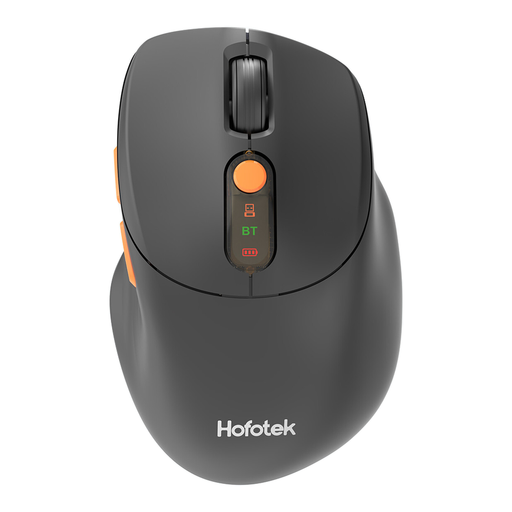 No image available
Worth considering if you’re looking for quiet clicks and adjustable pointer speed.
2.4 GHz + Bluetooth connection; adjustable DPI; 1xAA Battery.
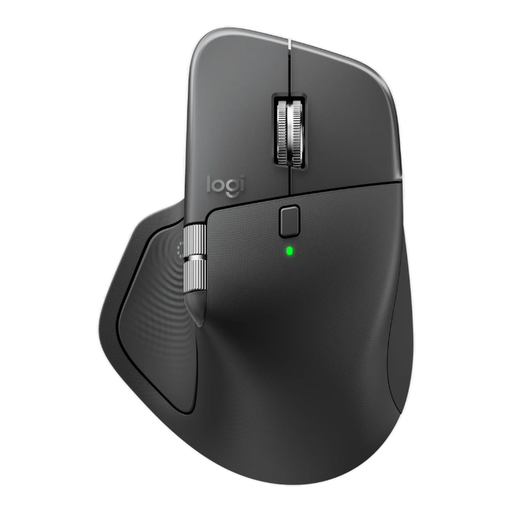 No image available
Worth considering if you’re looking for extra controls for working on wide designs.
8K DPI; Logi Bolt Receiver and Bluetooth; USB-C charging; Graphite. The product information lists the Logi Options+ app as a requirement for customising haptic feedback.
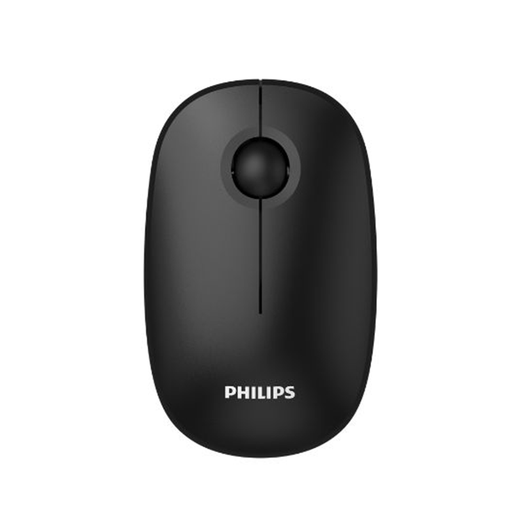 No image available
Worth considering if you’re looking for quiet clicks and straightforward wireless connectivity via a receiver.
2.4 GHz USB receiver; 1600 DPI; optical mouse; EU Version, Black.
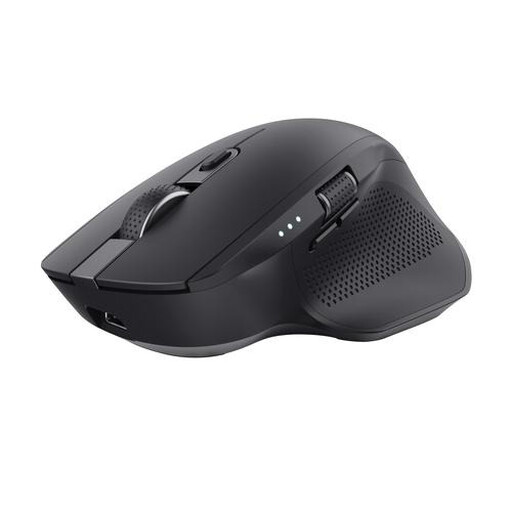 No image available
Worth considering if you’re looking for quiet buttons, side scrolling and the option to switch between multiple devices.
Wireless via RF and Bluetooth; 3200 DPI; right-handed. This model is large, so check that its size suits your hand and workstation.
 No image available
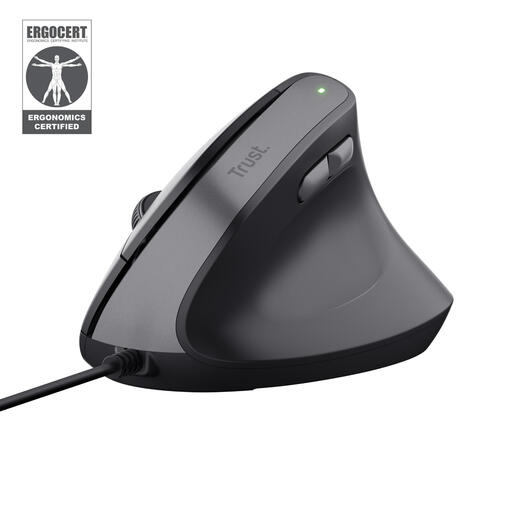
Worth considering if you’re thinking about a vertical mouse for a fixed workstation.
Wired USB connection; right-handed vertical palm grip; adjustable DPI.
Not necessarily. It’s more important that you can set the pointer speed comfortably and that the mouse suits your hand. CHERRY lists three adjustable settings for the MW 9100, but that specification doesn’t measure how accurately you can design with it.
Adjust your workstation to suit your body, and break up intensive screen work with other tasks or a break. Arboportaal recommends varying your activities during screen work; an ergonomic mouse doesn’t replace these measures.
For an online consumer purchase in the Netherlands, you generally have a statutory cooling-off period of up to 14 days after delivery. This is separate from your rights if a product is faulty: according to the Netherlands Authority for Consumers and Markets, the seller is responsible for the statutory guarantee, which isn’t a general fixed two-year period. Check who the seller is and which terms apply to your purchase.
No. The official Dutch rules on screen work consulted here don’t prescribe a specific mouse model. They focus on safe and healthy working conditions; screen work should regularly be alternated with other work or a break. Choose individual adjustments to suit the workstation and the person using it.