
Programme editor working with long documents
If you edit programme copy, you’ll want to work accurately line by line and scroll smoothly through long pages. Logitech describes the scrolling options on the Signature M650.


For laying out a concert programme at a shared desk, choose a mouse that lets you navigate documents accurately and smoothly, and that connects to the computer you use. If you work alongside others, look for quiet buttons; if you switch between computers, check the connection options and available ports. Choose one that suits your hand size and preferred hand, too: a different mouse is no substitute for a properly set-up workstation or varying your tasks.
If you edit programme copy, you’ll want to work accurately line by line and scroll smoothly through long pages. Logitech describes the scrolling options on the Signature M650.
If you share a desk, quieter clicks may be important to avoid disturbing colleagues nearby. Trust and Logitech describe quiet operation on specific mouse models.
If you switch between your own laptop and another computer, check the available connection and whether the mouse suits your hand. Arboportaal also recommends adjusting your workstation when you sit somewhere else.
Start with the controls you need for long programme documents, then check the connection, click noise and whether the mouse suits your workstation.
| What to consider | What should you check? | Who is this important for? |
|---|---|---|
| Document navigation | Compare the Logitech Signature M650’s precise and fast scrolling with the side scroll wheel listed for the Trust Ozaa+; see which controls suit your documents. | If I edit programme copy accurately and work through long pages, I want to be able to switch between precise and fast scrolling. Around 31% of consumers prioritise document navigation. |
| Click noise | Trust describes the Ozaa+ as having quiet buttons, while Logitech describes the Lift as having quiet clicks. Check which controls are described as quiet on the exact model. | At a shared desk, I don’t want to disturb colleagues with repeated clicking. Around 25% of consumers prioritise quiet operation. |
| Connection | Check Bluetooth support, available USB ports and the type of receiver. Logitech lists Bluetooth or a Logi Bolt receiver for the M650; HP lists Bluetooth or a USB-A nano receiver for the HP 435. | When I switch between my laptop and the desktop computer, I want to know which connection works with both. Around 25% of consumers prioritise compatibility with the computers they use. |
| Fit and posture | Check the intended hand size and whether the model is designed for left- or right-handed use. Logitech distinguishes between the M650, M650 L and M650 L Left; the Lift is designed for small to medium-sized hands, according to Logitech. | For extended mouse use, I want a shape that suits my hand size and preferred hand; a different shape is no guarantee against discomfort. Around 19% of consumers prioritise fit and posture. |
The Logitech Signature M650, M650 L and M650 L Left are designed for different hand sizes or hand preferences. There is also a left-handed version of the Lift.
Before buying, check the full model name, the intended hand size and whether the mouse is designed for left- or right-handed use.
The mice mentioned use different combinations of Bluetooth and USB receivers. A shared or managed computer may have restrictions on pairing or available ports.
Check the computer, available connections and permitted pairing methods before choosing a version.
A vertical shape won’t automatically suit everyone. Arboportaal recommends adjusting your workstation and varying your tasks and posture.
Choose a shape that suits your hand, and keep reviewing your desk set-up and posture too.
The Signature M650 range offers different scrolling and size options; the Lift is a separate vertical option.
The Ozaa+ is worth considering if quiet buttons, switching between devices and horizontal scrolling are all important to you.
The HP 435 Multi-Device is an option if you want to switch between two devices and choose between Bluetooth and a USB-A receiver.
The compact MS7421W is another option if you switch between devices.
This selection includes wireless and vertical mice for desk use, with different connections and designs. Compare the features listed for each model and check that the connection and fit suit your workstation.
 Image unavailable
A good option if you’re looking for a vertical mouse and want to switch between devices.
The product name lists USB-C charging, Bluetooth, a 2.4GHz receiver and three DPI settings: 800, 1200 and 1600. Check whether your computer supports Bluetooth or has a spare USB port for the receiver.
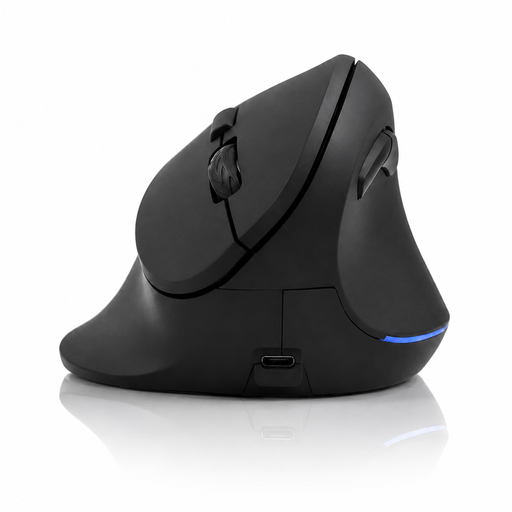 Image unavailable
Worth comparing if you’re looking for a vertical design for desk work.
The product name lists six buttons, a 2.4GHz connection, a USB-C battery and a range of 800–1600 DPI. To use the receiver, you’ll need a compatible, available USB port.
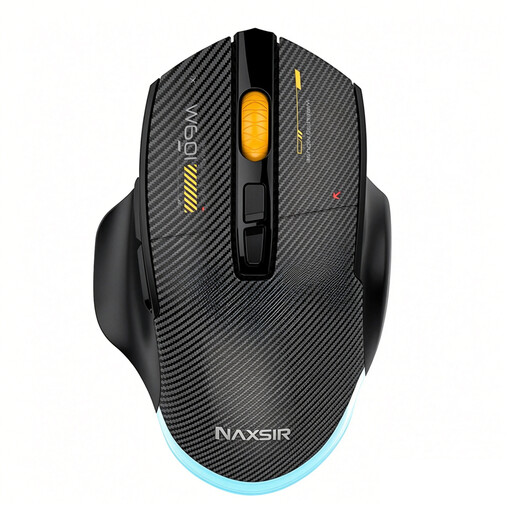 Image unavailable
The different connection types listed may be useful if you want to use the mouse with different devices.
The product name lists wired, 2.4GHz and Bluetooth connections, 12,800 DPI, seven programmable macro keys and RGB lighting. If click noise matters at a shared desk, check which buttons on this version are described as quiet.
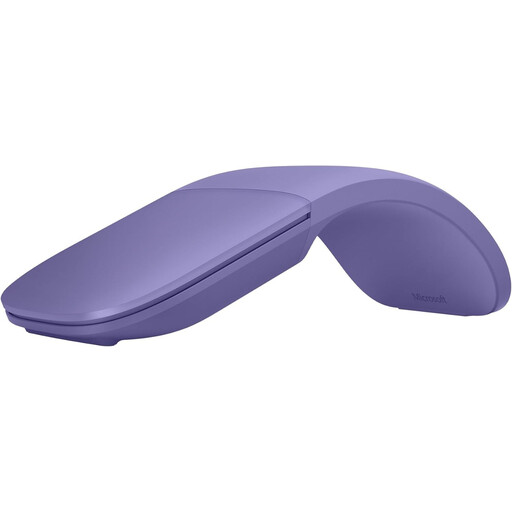 Image unavailable
An option to compare if you work at different workstations; check beforehand that this version is compatible with your computer.
The product information lists Bluetooth and Windows 10 or Windows 11 as system requirements. Also check that your computer supports Bluetooth.
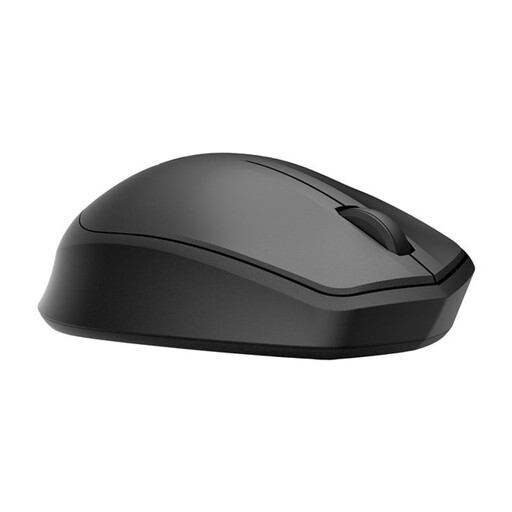 Image unavailable
The product name describes this mouse as quiet, which may be useful if you work alongside colleagues.
It connects via a receiver; check whether the computer you use has a USB-A port available.
Choose a connection that the computer supports and that’s available at your workstation. Logitech lists Bluetooth Low Energy or a Logi Bolt USB receiver for the Signature M650; HP lists Bluetooth or a USB-A nano receiver for the HP 435. If you use a managed work computer, also check whether pairing is permitted.
Adjust your workstation each time, and vary your posture and tasks. Arboportaal recommends this; no particular mouse model can guarantee that discomfort will be prevented.
It varies by model: HP specifies one AA battery for the 435, while Trust lists a rechargeable battery for the Ozaa+ and says you can keep working while it charges. Check what’s included with the exact version.
If a product is faulty, contact the seller to arrange a solution; any manufacturer’s warranty is in addition to your statutory rights. According to the Dutch Government, online purchases from a business usually come with a 14-day cooling-off period. Whether this applies depends on the purchase and the legal conditions.
According to Arboportaal, screen-based work should be alternated at set intervals with other work or a break. This isn’t a general requirement for a mouse you buy; its application depends on your working situation.