
Organising lots of photos
You browse through batches of photos and create selections or albums. Adobe describes viewing, sorting and managing photos as tasks in Lightroom Classic.


For browsing and organising lots of photos, a mouse with a comfortable scroll wheel and, if useful, customisable controls is a sensible choice. For longer sessions, hand fit and varying your activities matter; a vertical design doesn’t guarantee you’ll avoid discomfort. If you have limited room to move a mouse, consider a trackball and check whether its different cursor controls suit you.
You browse through batches of photos and create selections or albums. Adobe describes viewing, sorting and managing photos as tasks in Lightroom Classic.
You use your mouse for extended periods and want to choose a shape that suits your hand and workspace. Arboportaal advises limiting intensive use of screens, keyboards and mice.
You have little room to move a mouse and want to see whether a stationary, finger-operated trackball suits the way you work.
A good fit if: you browse photos frequently and use the extra controls in your software.
Bear in mind: extra features add little if you mainly use keyboard shortcuts; check the connection and model variant.
A good fit if: hand position matters during longer sessions and the shape suits your hand.
Bear in mind: the shape may take some getting used to and is no guarantee against discomfort.
A good fit if: you have little room to move a mouse or want to try using both hands.
Bear in mind: you control the cursor and scroll differently from a standard mouse; also check system compatibility.
First decide which task matters most to you, then compare the controls, fit and connection.
For each shopper, the purchase priority that matters most in this situation is what counts.
| What to consider | What to look for | Who might value this most? |
|---|---|---|
| Browsing and selecting photos | Try the scroll wheel and check whether you can use button assignments in your software. | If I select lots of photos, I want to move smoothly through batches and only have extra buttons if I’ll actually use them; around 36% of shoppers give photo navigation top priority. |
| Hand position during longer sessions | Check your hand size, preferred hand and how easily you can reach the buttons; try the shape if possible. | When I work for long stretches, I look for a shape that suits my hand and vary my activities; around 29% of shoppers put hand comfort first. |
| Space beside the keyboard | Measure the available space and try a trackball’s cursor and scroll controls. | At a small desk, I want to control the pointer without moving the mouse across the desktop; around 21% of shoppers say limited space is their top priority. |
| Connection and compatibility | Check the connection, required port and operating system support for the exact model variant. | If I want to connect the mouse to my existing computer, I want to know in advance what connection and any software it needs; around 14% of shoppers put straightforward compatibility first. |
The shape needs to suit your hand and may take some getting used to. Arboportaal also advises limiting intensive use of a mouse, keyboard and screen.
Check that the mouse is designed for your preferred hand and vary your activities. Don’t treat manufacturers’ comfort claims as a guarantee of an individual health outcome.
Logitech’s information applies specifically to the MX Master 3S Bluetooth Edition; the CHERRY MW 4500 has a separate left-handed version.
Before buying, compare the full model variant, preferred hand, connection and package contents.
A receiver that doesn’t fit or an unsuitable model variant may mean you need a different connection or version.
With the Kensington SlimBlade Pro, you move the cursor using a ball and scroll by rotating it. Kensington also says that Windows computers with an ARM processor are not currently supported.
Check that your system is compatible and try the controls in your photo software.
The product ranges mentioned include a mouse with extra controls and vertical mice.
The SlimBlade Pro is a finger-operated trackball for anyone with limited room to move a mouse or who wants to try using both hands.
The MW 4500 is a vertical mouse with a nano receiver; the MW 4500 LEFT is a separate left-handed version.
These options mainly include vertical mice and mice with adjustable controls, alongside a few wireless mice for photo navigation and general computer use.
 No image available
An option to compare if you’re looking for a vertical shape and scroll controls for photo navigation.
USB-C charging; Bluetooth and 2,4 GHz; three DPI levels: 800, 1200 and 1600.
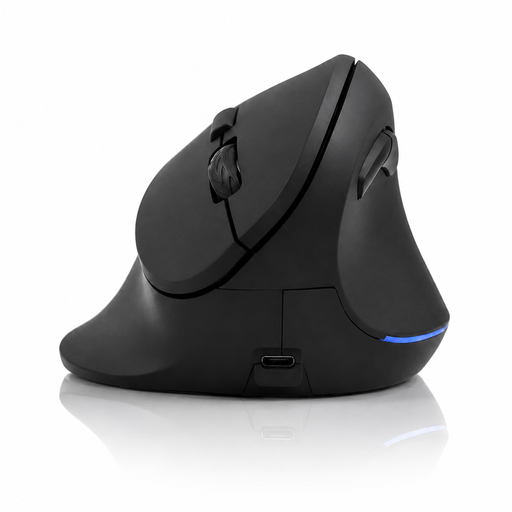 No image available
An option to compare if you want a vertical mouse with extra buttons for regular navigation tasks.
USB-C charging; 2,4 GHz wireless; DPI range of 800–1600 with three levels.
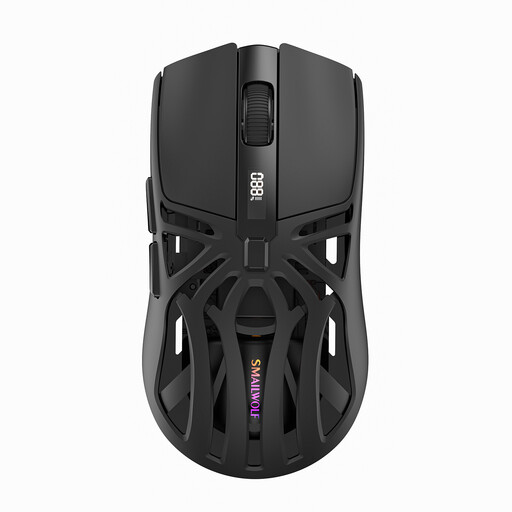 No image available
An option to compare if you want to adjust pointer speed while working on your computer.
Connects via Bluetooth, 2,4 GHz or Type-C cable; six DPI levels.
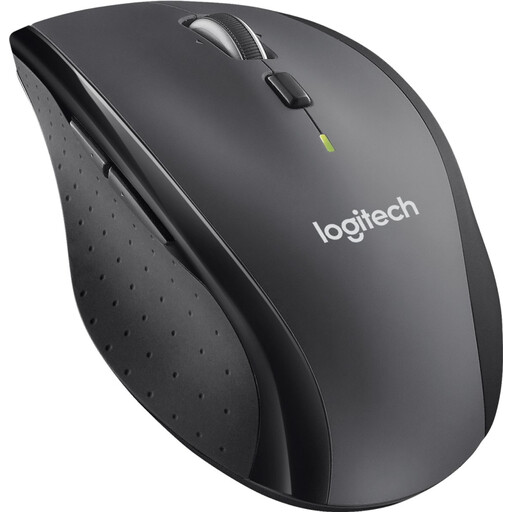 No image available
An option if you want to browse long batches of photos with a mouse described as having fast scrolling.
The wireless connection uses a Unifying receiver and requires a USB port; according to the product information, this mouse doesn’t work via Bluetooth.
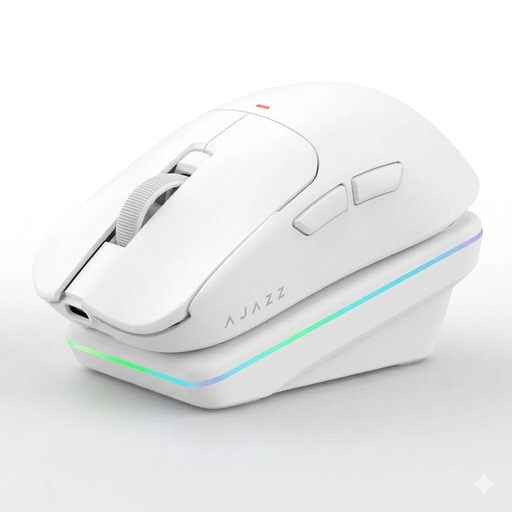 No image available
An option if you want to customise regular controls; check that the features suit your photo work.
Tri-mode connection via Bluetooth, 2,4 GHz or USB-C; 24000 DPI sensor; weight listed as 63 g.
No. A mouse’s maximum dpi value alone doesn’t determine whether it suits your photo work. Logitech lists adjustable sensitivity for the MX Master 3S Bluetooth Edition; what matters most is whether you can set the pointer speed comfortably for your screen and software.
For the SlimBlade Pro, Kensington lists Bluetooth, a 2,4GHz receiver and a cable. Kensington says you can gently remove dirt from the ball with a finger or a dry cloth; also check the instructions for the exact model variant.
For a consumer purchase made online, ACM ConsuWijzer says you often have up to 14 days from delivery to change your mind; check which terms apply to your purchase. In the Netherlands, you’re also entitled to a product that does what you could reasonably expect under normal use. There isn’t automatically one fixed warranty period for every mouse.
No. The Dutch workplace rules cited don’t require a specific vertical mouse. Employers do have a duty of care to provide employees with a healthy and safe home-working environment; which rules apply to screen work depends on the working situation.