For wide tables, a mouse with horizontal scrolling is a sensible place to start, provided it works with your dashboard software. For example, Logitech explains how to set up the thumb wheel on the MX Master 4 for Excel. If hand position or limited desk space matters more, compare a vertical mouse, trackball or central pointing device. Also consider your workstation setup and how you alternate between sitting, standing and taking breaks.
Which mouse is right for you?
Dashboard builder working with wide tables
If you often navigate wide tables and long dashboards, a mouse with suitable scrolling controls may be worth considering. Logitech explains how to set up the MX Master 4 thumb wheel to scroll horizontally in Excel.
Long hours at a screen
If you work for long periods, it’s worth considering the mouse shape, your hand size and your workstation setup together. Arboportaal recommends varying your posture; changing your mouse doesn’t replace that.
Working with limited mouse space
If you have little room to move a mouse, you could compare a trackball or central pointing device. Kensington describes the Expert Mouse as a stationary trackball, while Contour positions the RollerMouse Red for use in front of the keyboard.
What should you look for when choosing?
Conventional productivity mouse
A good fit if: you often navigate wide spreadsheets or dashboard panels and prefer a familiar mouse shape. Logitech explains how to set up the MX Master 4 thumb wheel for horizontal scrolling in Excel.
Consider: you move the mouse across your desk, and you’ll need to check that the scrolling controls work in your own application.
Vertical mouse
A good fit if: you’re looking for a more angled hand position. Logitech gives the Lift a 57° angle and says it’s designed for small to medium-sized hands; Trust describes the Vyran as a tilted mouse with horizontal and vertical scrolling.
Consider: fit and getting used to the mouse vary from person to person. Also check the scrolling features of the specific model.
Stationary trackball
A good fit if: you have little room to move a mouse, or want to be able to switch between left- and right-handed use. Kensington describes the Expert Mouse Wireless as stationary and suitable for either hand.
Consider: check that the ball controls, stated connection options and software are compatible with your computer. Kensington says it’s a good fit for medium to large hands.
Central rollerbar
A good fit if: you want to control the pointer in front of the keyboard rather than beside your work area. Contour positions the RollerMouse Red for this setup.
Consider: the rollerbar needs space in front of the keyboard and a suitable keyboard setup.
Start by choosing a mouse for your main day-to-day task, then check the connection, fit and available space.
| What to consider |
What should you check? |
Who is this important for? |
| Dashboard navigation |
Check horizontal scrolling and shortcuts in your dashboard application and operating system. |
If I often work across wide dashboards, I want to navigate tables smoothly. Around 36% of consumers prioritise dashboard navigation. |
| Hand position |
Check your hand size, whether the mouse is designed for left- or right-handed use, and the position of your mouse and keyboard when sitting and standing. |
During long work sessions, I want a mouse shape that suits my hand, including when I alternate between sitting and standing. Around 29% of consumers say hand position is their main priority. |
| Room to move |
Measure the space beside and in front of your keyboard and, where possible, try the type of control you’re considering. |
If my desk has limited space, I want to control the pointer without constantly moving the mouse. Around 21% of consumers prioritise having less room to move. |
| Connection and use |
Check USB ports, Bluetooth support, whether any software needs installing and how the model is powered. |
I want a mouse that works with the connections and settings available at my workstation. Around 14% of consumers make easy connection their main priority. |
Common pitfalls when choosing a mouse
-
Assuming an ergonomic shape will prevent discomfort
Mouse shape is only one part of working at a screen; posture, workstation setup and variety still matter. Arboportaal recommends changing your posture regularly.
Consider the fit and controls, and readjust your workstation when switching between sitting and standing.
-
Assuming every vertical mouse scrolls in the same way
Scrolling controls vary by model. Logitech describes a separate thumb wheel on the MX Master 4, while Trust says the Vyran has a tilting wheel for horizontal and vertical scrolling.
Check the features of the exact model and whether they work in the application you use.
-
Confusing an extra protection plan with your statutory rights
ACM ConsuWijzer explains that statutory rights apply alongside the seller’s guarantee. If a product doesn’t do what you could reasonably expect under normal use, the seller is responsible for providing a solution.
Check your rights with the seller before considering additional cover.
Brands and product ranges to consider
Logitech
The MX Master 4 and Lift offer different approaches: scrolling and shortcut controls versus a vertical mouse shape.
- Logitech describes the MX Master 4 as having a thumb wheel and customisable functions. The manufacturer says the Lift has a 57° angle and is designed for small to medium-sized hands, with a left-handed version also available.
- iCreate notes that the Lift’s height can make it awkward to switch between the keyboard and mouse. These features don’t automatically apply to other Logitech models.
Kensington
The Expert Mouse Wireless is a stationary trackball with a scroll ring, designed for those who want to use less space for mouse movement.
- Kensington lists Bluetooth or a USB nano receiver and a design suitable for either hand.
- The manufacturer says it’s a good fit for medium to large hands. Also check that the stated software compatibility suits your system.
Contour
The RollerMouse Red is a central rollerbar designed to be used in front of the keyboard.
- Its central position differs from a mouse placed beside the keyboard.
- Check how much space you’ll need and how your keyboard is set up. Contour’s claims about pain relief are brand claims, not a proven outcome for every user.
Trust
The Vyran combines a tilted mouse shape with a wheel for horizontal and vertical scrolling.
- Trust lists a 50° angle, connection to up to three devices and connectivity via USB receiver or Bluetooth.
- Consider whether the shape and scrolling controls suit your hand and the way you work. The manufacturer’s comfort claims don’t guarantee a particular result.
Microsoft
The Surface Arc Mouse is a foldable Bluetooth mouse for anyone who takes their device between workspaces.
- Microsoft says you can scroll horizontally and vertically using the touch surface.
- Its compact, foldable design is different from a vertical mouse or stationary trackball. Decide for yourself whether it feels comfortable in your hand during extended use.
Mouse options on Joybuy for dashboard work
This selection of Joybuy products includes a mouse with scrolling controls, vertical mice and a trackball to suit different ways of working with dashboards.
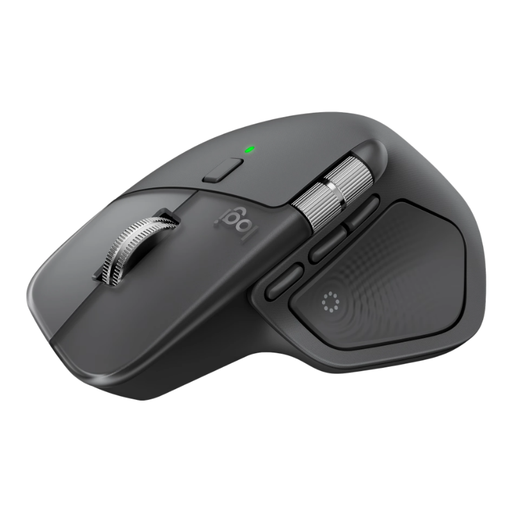 Image unavailable
Logitech MX Master 4 Graphite
An option for anyone who often navigates wide tables. Logitech explains how to set up the thumb wheel for horizontal scrolling in Excel. Check that the controls also work in your own dashboard software.
View on Joybuy
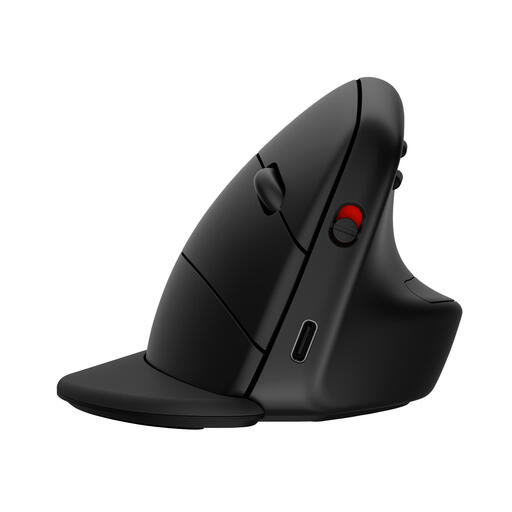 Image unavailable
HP 925 Ergonomic Vertical Mouse
An option if you’re looking for a vertical mouse shape. The version described is designed for right-handed use; check that it suits your hand and workstation.
View on Joybuy
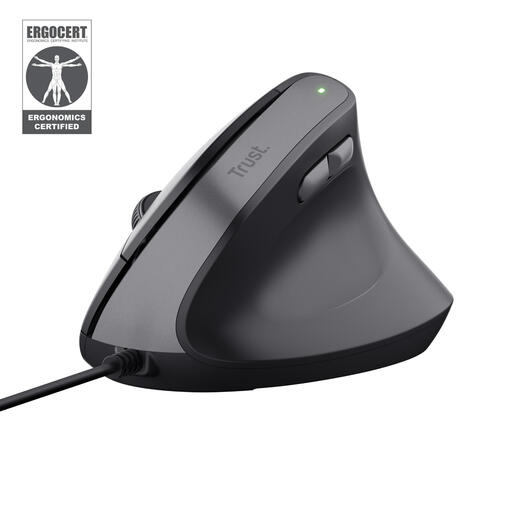 Image unavailable
Trust Bayo II Vertical Mouse, Wired, Black
This wired vertical mouse is suited to a fixed workstation with a USB port available.
View on Joybuy
 Image unavailable
Logitech ERGO M575S Graphite
Worth considering if you want to control the pointer with a trackball in a compact workspace. The version described is designed for right-handed use.
View on Joybuy
 Image unavailable
Logitech Lift Vertical Ergonomic Mouse Graphite
Logitech describes the Lift as a vertical mouse for small to medium-sized hands. The version described is designed for right-handed use; check that it fits your hand.
View on Joybuy
Frequently asked questions
Should you reposition your mouse when you change the desk height?
Reassess your working posture when switching between sitting and standing. Arboportaal recommends keeping your shoulders, wrists and forearms relaxed and varying your posture regularly.
Does horizontal scrolling work automatically in your dashboard software?
It depends on the application. Logitech explains how to set up the MX Master 4 thumb wheel for horizontal scrolling in Excel. Check how it works in your dashboard software separately, and whether you can use the configuration required.
How do you connect a mouse if your laptop has few USB ports?
Check the connection options on the exact model and your computer. Kensington lists both Bluetooth and a USB nano receiver for the Expert Mouse Wireless. Bluetooth can free up a USB port if your computer supports it.
Is an ergonomic mouse enough to prevent discomfort when working at a screen?
No. A mouse shape alone doesn’t replace varying your posture, setting up your workstation properly or taking breaks. Arboportaal recommends regularly breaking up screen work with other tasks or a break.
Do you need an extra protection plan in addition to your statutory rights?
An extra plan doesn’t replace your statutory rights. ACM ConsuWijzer explains that the seller is responsible if a consumer product doesn’t do what you could reasonably expect under normal use. Check your rights before considering additional cover.


