
Route planner who values precision
You regularly move waypoints and refine the route line on a map. You’re particularly interested in pointer control and how the mouse feels to use. Komoot explains how to refine a route by dragging the route line.


For placing and dragging route points accurately, a mouse with pointer settings you can adjust to suit you is a sensible starting point; extra buttons are only useful if you use them in your route planner. For longer sessions, hand size and whether you’re left- or right-handed are worth considering, while a trackball may be a good option if you have little room to move a mouse around. Controls vary between types, so try clicking, dragging and scrolling in your own route planner before you decide.
You regularly move waypoints and refine the route line on a map. You’re particularly interested in pointer control and how the mouse feels to use. Komoot explains how to refine a route by dragging the route line.
You plan for long stretches at a time and pay attention to hand size, whether you’re left- or right-handed, and varying your working position. Arboportaal offers advice on limiting intensive use of screens, keyboards and mice.
You have little room to move a mouse around, so you’re considering a trackball. Logitech and Kensington describe trackball models that stay in place while you control the pointer.
Start by choosing based on what matters most to you: dragging route points accurately, planning comfortably for longer, using a mouse on a small desk or finding a suitable connection. The following points can help you make a more informed choice.
| What to consider | What should you look for? | Who is this important for? |
|---|---|---|
| Placing route points | Check whether you can adjust the pointer speed, and try clicking, dragging and scrolling in your planner. | When refining route points, I want to place them precisely and drag the route line smoothly. Around 33% of consumers prioritise precise map control. |
| Hand size and posture | Check the fit and whether the design is for left- or right-handed use; take breaks from prolonged, intensive mouse use. | For long planning sessions, I want a grip that suits my hand and doesn’t make it unnecessarily difficult to maintain a good working posture. Around 27% of consumers prioritise hand comfort during long planning sessions. |
| Limited desk space | Compare thumb and finger controls, and check that you can use and clean the ball and scroll mechanism easily. | At a small desk, I want to control the pointer without moving the whole mouse. Around 20% of consumers choose with limited movement space in mind. |
| Connectivity and maintenance | Compare Bluetooth, a cable or a USB receiver with your computer’s connections, and check whether the mouse needs charging. | When setting up my workspace, I want a connection that works with my computer and requires little extra effort. Around 20% of consumers focus on connectivity and keeping their mouse ready to use. |
A model may be available in several versions. For example, the Logitech Lift comes in left- and right-handed versions; the connection and included receiver may also vary between versions.
Before buying, check the full product name, handedness, connection and package contents.
A vertical mouse changes your grip, but the fit varies from person to person. A suitable shape won’t necessarily prevent discomfort, and it’s no substitute for taking breaks from prolonged, intensive mouse use.
Try the grip if you can, and take breaks from prolonged, precise mouse work.
With a trackball, you control the ball with your thumb or fingers instead of moving the whole mouse. Dragging route points may therefore feel different from what you’re used to. Kensington notes that dirt around the ball can affect its movement.
Try using it in your route planner and, if it feels stiff, follow the cleaning instructions for your model.
Allow time to get used to the controls and to clean the trackball regularly.
The models mentioned offer different ways to control the pointer: the MX Master 3S Bluetooth edition, the vertical Lift and the ERGO M575 thumb trackball.
The Bayo II is a vertical mouse that, in the version mentioned, connects wirelessly using a USB receiver.
The Orbit with Scroll Ring is a wired trackball with finger control and a scroll ring.
The MW 4500 is a wireless vertical mouse; the MW 4500 LEFT is a separate version.
This selection includes conventional mice, vertical models and a trackball for planning cycling routes at a home desk.
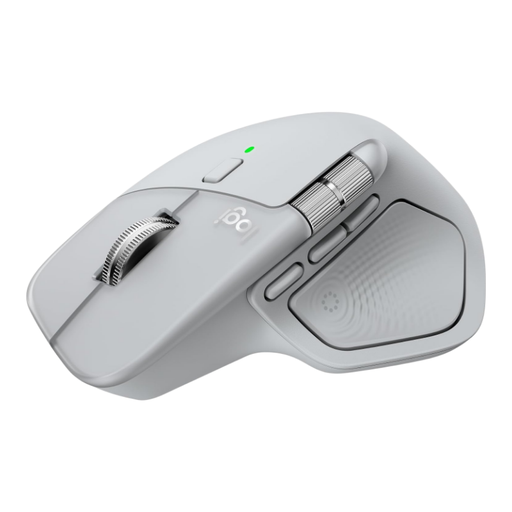 No image available
A conventional mouse to consider if you want to adjust the pointer speed when placing and dragging route points.
The product information lists adjustable DPI, a MagSpeed wheel and horizontal scrolling. This version is designed for right-handed use, according to the product information.
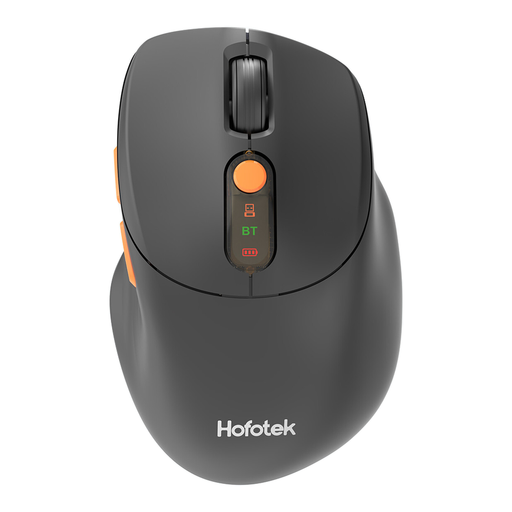 No image available
A wireless option to consider if you want to try different pointer speeds when working with maps.
The product information lists five DPI levels, optical tracking and connectivity via Bluetooth or a USB receiver. The product name specifies an AA battery.
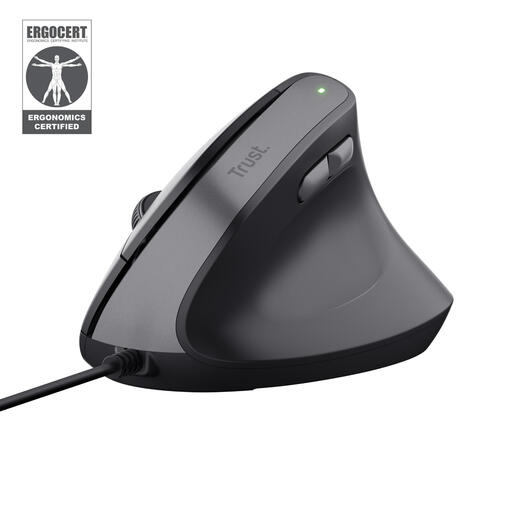 No image available
A vertical version to consider if hand position matters during longer planning sessions and you’re looking for a wired mouse.
The product information describes a right-handed vertical grip and a DPI setting of 800 to 2400. This version is wired.
 No image available
A trackball to consider if you have little room to move a mouse around and want to control the pointer with your thumb.
The product information lists a trackball and three customisable buttons.
 No image available
A vertical mouse to consider if you want to try a different grip during longer planning sessions.
The product information lists a SmartWheel, four customisable buttons and connectivity via Bluetooth or USB receiver. This version is for small to medium-sized right hands.
No, a high DPI isn’t a general requirement for route planning. Logitech describes adjustable tracking for the MX Master 3S Bluetooth edition; above all, try to see whether your chosen setting makes clicking and dragging route points comfortable.
In your own app, try adding a point, dragging the route line and checking how scrolling works. Komoot describes clicking map points and dragging the route line; other planners may work differently.
Check for dirt around the ball and follow the manufacturer’s cleaning instructions for your model. Kensington explains that built-up dirt can affect movement and pointer responsiveness.
According to ACM ConsuWijzer, a standard online consumer purchase usually comes with a cooling-off period that ends 14 days after delivery; check which exceptions apply. You’re also entitled to a product that lasts as long as you may reasonably expect under normal use. A manufacturer’s warranty doesn’t replace this legal right.
The guideline mentioned isn’t a single legal usage limit that applies to every private consumer. Arboportaal advises limiting intensive use of screens, keyboards and mice, and highlights work where software requires frequent or very precise mouse movements.