Choose based on the action you perform most often: a mouse with horizontal scrolling can be useful for wide map windows, while hand fit and desk layout matter most when you spend a long time pointing. Using two screens with one computer doesn’t automatically mean you need a mouse for multiple devices; that only becomes relevant if the screens are connected to separate computers.
Who is this choice relevant for?
Route planner using wide map windows
You switch between maps, elevation profiles and route information, and want to find out whether horizontal scrolling suits the way you plan. Logitech lists horizontal scrolling via the M720’s tilt wheel; Trust lists a separate side-scroll wheel on the Ozaa+.
Frequent map editor
You do a lot of pointing and dragging, and prioritise hand fit, mouse position and changing tasks over extra controls. Arboportaal highlights repetitive movements and static strain when working at a screen.
User of two computers
Your two screens are connected to separate computers, and you want to use one mouse with both devices. Logitech Flow requires, among other things, compatible software on both computers and the same Wi-Fi or Ethernet network.
What should you look for when choosing?
First, check whether you mainly want to move horizontally through map windows or spend long periods pointing. Then work out whether you use one computer with two screens or two separate computers.
| What to consider |
What should you check? |
Who is this important for? |
| Map navigation and scrolling |
Compare a side-scroll wheel with a tilt wheel, and check how your mapping software responds to panning, zooming and horizontal scrolling. |
If I use wide map windows and route directions, I want to know which scrolling action my software actually uses. Around 36% of consumers prioritise map controls. |
| Hand fit during extended use |
Check your hand size, whether the mouse is designed for left- or right-handed use, its position and whether you can vary your tasks. |
For long editing sessions, I want a shape and set-up that suit my hand and workspace. Around 29% of consumers prioritise hand comfort. |
| Switching between computers |
Establish whether both screens are connected to one computer; if you use two computers, check compatible devices, software and network requirements. |
If my screens are connected to separate computers, I want to know how to switch between them and what set-up is needed. Around 21% of consumers prioritise controlling two computers. |
| Connectivity and software |
Check Bluetooth support or the required USB port, the receiver supplied and which features are available on your operating system. |
I want a connection that works with my computer, without needing an extra feature that isn’t supported by my system. Around 14% of consumers prioritise connectivity and predictable performance. |
Things to check before buying
-
Confusing two monitors with two computers
A mouse feature for switching between devices is designed for separate computers; two monitors connected to the same computer are a different set-up.
Before buying, check what each screen is connected to. For Logitech Flow, Logitech lists software on both computers and the same Wi-Fi or Ethernet network as requirements.
Setting up software and pairing devices may take extra time.
-
Assuming a scroll feature from the product name
The M720 uses a tilt wheel for horizontal scrolling; according to Trust, the Ozaa+ has a separate side-scroll wheel. What happens when you use it depends on your mapping software.
Test panning, zooming and horizontal scrolling separately in your own route-planning software before relying on a particular control.
-
Assuming a vertical shape will prevent discomfort
The shape of a mouse alone doesn’t prove that it will prevent discomfort. Arboportaal also highlights repetitive movements, static posture and workspace set-up when working at a screen.
Consider hand size, whether the mouse is designed for left- or right-handed use, mouse position and opportunities to vary your tasks together. Arboportaal also recommends changing posture regularly and taking short breaks when working at a screen.
-
Assuming software features or receivers are included
Connectivity and customisable features can vary by model and operating system. For example, Logitech says that button customisation via Logi Options+ isn’t available on Linux for the M720; the MX Master 3S specifications consulted are for the Bluetooth edition.
Before buying, compare the full model details, connection type, included items and software support with your computer.
Brands and models to compare
Logitech
The M720 with its tilt wheel, the MX Master 3S with customisable controls and the Lift with its vertical shape cater to different priorities.
- Logitech lists horizontal scrolling via the M720’s tilt wheel, along with two vertical scrolling modes. According to Logitech, the Lift is designed for small to medium-sized hands and is also available in a left-handed version.
- The M720 has a right-handed shape, and button customisation via Logi Options+ isn’t available on Linux. Logitech Flow has software and network requirements.
Trust
The Ozaa+ is a conventional mouse with a separate side-scroll wheel and multi-device connectivity.
- According to Trust, the Ozaa+ has two scroll wheels, silent buttons, a rechargeable battery and a sensor of up to 3200 dpi.
- Trust describes the Ozaa+ as large, so its size won’t suit every hand. The specifications listed aren’t based on an independent user test.
CHERRY
The MW 4500 and the separate MW 4500 LEFT are vertical options if hand position and choosing the right-handed or left-handed version matter to you.
- CHERRY lists a 45° shape, one scroll wheel, a USB nano receiver and a maximum resolution of 1200 dpi for the MW 4500.
- The MW 4500 has one scroll wheel, so check whether its vertical shape suits the way you use map controls. CHERRY’s statements about wrist strain aren’t a guarantee of individual results.
Mice for route planning on Joybuy
This selection includes mice with horizontal scrolling controls and vertical models for anyone who also considers hand fit when spending long periods pointing.
 No image available
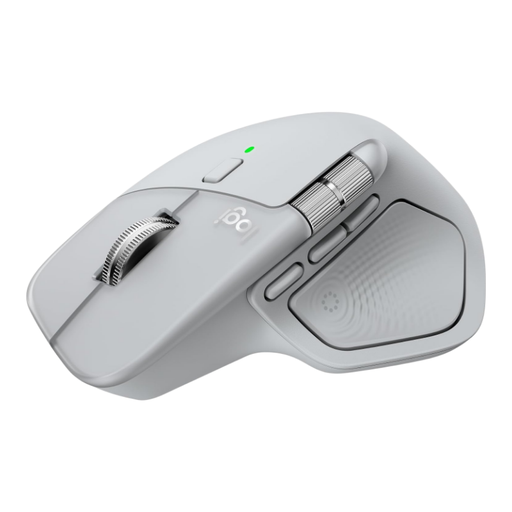
Logitech MX Master 4 Light Grey
The thumb wheel for horizontal scrolling is useful if you often work with wide map windows.
The product description lists Bluetooth, a Logi Bolt USB-C receiver and a MagSpeed wheel. This model has a right-handed shape and can be paired with up to three devices, according to the description.
View at Joybuy
 No image available
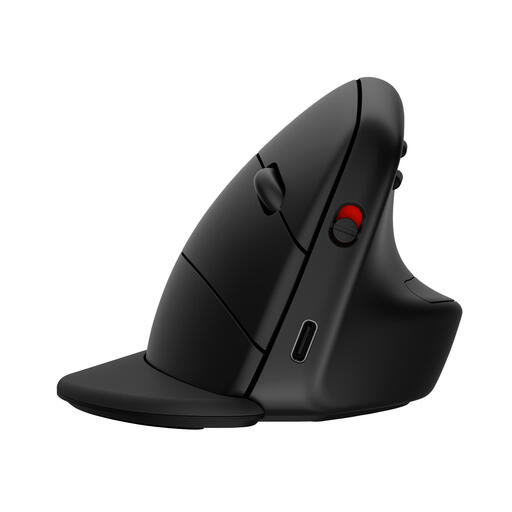
HP 925 Ergonomic Vertical Mouse
The vertical shape may suit you if hand position is a factor when you spend long periods pointing.
The product description lists Bluetooth 5.3, an HP dongle, a detachable wrist rest and a switch button for up to three devices. This model is right-handed.
View at Joybuy
 No image available
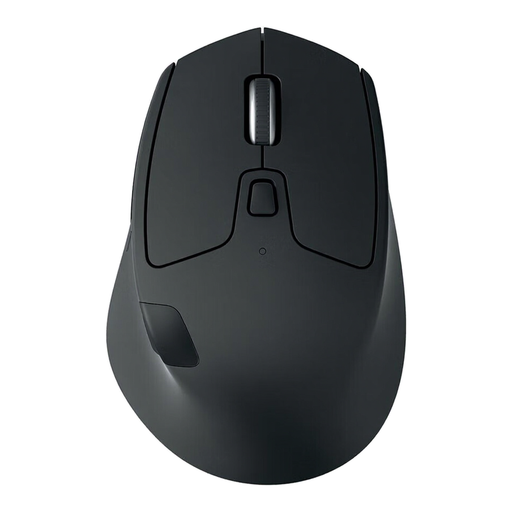
Logitech M720 Triathlon Wireless Right-Hand Mouse Black, model 910-004791
The tilt wheel is useful if you want to scroll horizontally through wide windows as well as read long route descriptions.
Logitech lists horizontal scrolling via the tilt wheel and two vertical scrolling modes. The product description lists Easy-Switch for up to three computers; this model is right-handed.
View at Joybuy
 No image available
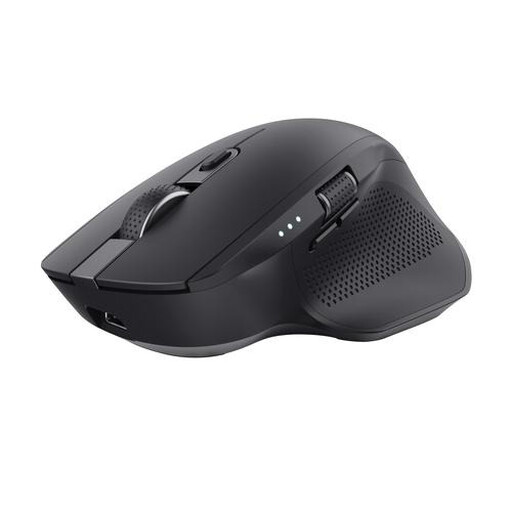
Trust Ozaa+ wireless optical office mouse, RF and Bluetooth, 3200 DPI, right-handed
The separate side-scroll wheel is useful if you want to move horizontally through wide map windows.
The product description lists a USB receiver, two Bluetooth channels, a rechargeable battery and a large size. Trust lists a sensor of up to 3200 dpi for the Ozaa+; this model is right-handed.
View at Joybuy
 No image available
Logitech Lift Vertical Ergonomic Mouse Graphite
The vertical shape is an option if hand fit is your main consideration when spending long periods pointing.
The product description lists Bluetooth, a USB receiver, a SmartWheel and four customisable buttons. This graphite model is described as suitable for small to medium-sized right hands and has a thumb rest.
View at Joybuy
Frequently asked questions
Do I need a multi-device mouse for two monitors?
Not if both monitors are connected to the same computer: switching between devices applies to separate computers. Logitech lists, among other requirements for Flow, Logi Options+ on both computers and the same Wi-Fi or Ethernet network.
How can you check whether horizontal scrolling works in your route-planning software?
Test horizontal scrolling, zooming and dragging the map separately in your route-planning software. Logitech lists horizontal scrolling via the M720’s tilt wheel; Trust lists a side-scroll wheel on the Ozaa+. These specifications don’t determine how an individual programme processes the input.
Will a vertical mouse prevent discomfort during long planning sessions?
The product specifications don’t establish that. Arboportaal highlights repetitive movements and static strain when working at a screen, and recommends varying your activities and taking short breaks. Also consider your hand size and workspace set-up; if you develop work-related symptoms, discuss them with your occupational health doctor if needed.
What are your rights if you buy a mouse online or it develops a fault?
ACM ConsuWijzer states that, for a standard online product purchase, you generally have a statutory 14-day cooling-off period after delivery, subject to applicable exceptions. Statutory guarantees also apply, separate from any manufacturer’s warranty: if a mouse breaks too soon during normal use or doesn’t do what you could reasonably expect, the seller is responsible for providing an appropriate solution.
Do Dutch screen-work rules also apply to planning routes at home?
The obligations under the Working Conditions Decree described by Arboportaal apply to employers and employees; they aren’t a general legal requirement to buy a particular type of mouse for personal use. Advice on varying your activities and setting up your workspace can also be useful when using a screen at home.


