Who is this advice for?

Calendar designer working with lots of detail

You select small elements and often move around your design. In that case, being able to adjust pointer speed and scrolling to suit the way you work can be important. Logitech says the MX Master 3S Bluetooth Edition offers adjustable sensitivity through Logi Options+.

Working from home for long periods

You use a mouse for long stretches, so it’s worth considering how your hand is positioned and the size of the mouse. Arboportaal explains that screen-based work involves repetitive hand movements and static strain, so take your workstation setup into account too.

Designer with a small desk

You have little room to move a mouse around beside your keyboard. A trackball stays in place, but you control the pointer with the ball rather than moving the mouse itself. Kensington describes this as a way to reduce the amount of desk space needed for mouse movement.

What should you look for in a mouse for calendar design?

Standard mouse with adjustable controls

Good for: scrolling a lot and selecting small elements, if the shape feels comfortable in your hand.

Keep in mind: check that the settings you want work with your computer and design software. Higher sensitivity alone doesn’t prove that you’ll design more accurately.

Vertical mouse

Good for: taking hand position into account when using a mouse for long periods, provided you can find a model that suits your hand.

Keep in mind: fit and feel vary, and manufacturers’ comfort claims don’t guarantee the same benefits for every user.

Trackball

Good for: when you have little room to move a mouse across your desk.

Keep in mind: using a ball takes some getting used to, and Kensington recommends cleaning it if dirt starts to affect its movement.

What to consider What to look for Who it matters more to
Selecting small details Check for adjustable sensitivity and scrolling controls, and see whether any settings software works with your computer. If I’m selecting small calendar elements and often moving around my design, I want to be able to adjust the pointer speed to suit the way I work. Around 36% of consumers prioritise detailed work.
Hand comfort during long sessions Compare the size and shape, check whether the mouse is designed for left- or right-handed use, and make sure the buttons are easy to reach. For long design sessions, I want a shape that suits my hand, and I also pay attention to my workstation. Around 29% of consumers give hand comfort top priority.
Limited room to move the mouse Consider how much space the device itself takes up, as well as the different way you operate a trackball. If there’s little room beside my keyboard, I want to control the pointer without moving the mouse itself. Around 21% of consumers prioritise desk space.
Connecting to your computer Check the connection options, available ports, supported systems and whether the required receiver is included. I want to use the mouse with my existing computer without any hassle, so I check the connection and what’s included. Around 14% of consumers make easy connectivity their top priority.

Common pitfalls when choosing a mouse

  • Assuming a higher DPI means greater design precision

    A stated DPI value describes a sensor specification or adjustment range, but it doesn’t prove that you’ll design small elements more accurately. Logitech says you can adjust the sensitivity of the MX Master 3S Bluetooth Edition using Logi Options+.

    Check whether you can adjust the pointer speed, then see how comfortable it feels in your own design software.

  • Choosing a vertical mouse without checking the version

    According to Logitech, the Lift is designed for small to medium-sized hands, and a left-handed version is available. These features don’t automatically apply to every vertical mouse.

    Check the exact model, whether it suits your hand size and whether you can comfortably reach the buttons with the hand you use.

  • Assuming a trackball is maintenance-free

    Kensington warns that dirt in the ball housing can make movement less smooth.

    Bear in mind that it may need cleaning from time to time, and follow the care instructions for your chosen model.

  • Confusing a manufacturer’s warranty with your statutory rights

    In the Netherlands, there’s no fixed statutory warranty period for all products. If a fault is covered by the statutory guarantee, the seller is responsible for putting it right. ACM ConsuWijzer and the Dutch government explain these rules.

    Keep your proof of purchase and contact the seller if a fault develops.

Relevant mouse brands to consider

Logitech

The MX Master 3S Bluetooth Edition and Lift mentioned here offer different ways of controlling the pointer. The features below apply to these product lines, not to every Logitech mouse.

  • Logitech says the MX Master 3S Bluetooth Edition offers adjustable sensitivity through Logi Options+.
  • According to Logitech, the Lift is designed for small to medium-sized hands, and a left-handed version is available.
  • Check the exact version, connection and fit before choosing.

Kensington

The Expert Mouse Wireless Trackball is an alternative if you have little room to move a standard mouse around.

  • Kensington lists Bluetooth and a USB nano receiver for the Expert Mouse.
  • Kensington says this model is suited to medium to large hands.
  • The ball takes some getting used to, and dirt in the housing may mean it needs cleaning.

Trust

The Verto 22879 wireless vertical mouse is another model to compare for its shape and adjustable sensitivity.

  • Trust lists a 60-degree shape and sensitivity settings of 800, 1200 and 1600 dpi.
  • The manufacturer’s claim that its shape reduces strain doesn’t prove that it will have the same effect for every user.
  • Check that the shape and connection suit your hand and computer.

Mice at Joybuy with adjustable controls

This selection features standard mice with adjustable sensitivity, scrolling or connection options. Check each model’s features to see which ones suit the way you work on your designs.
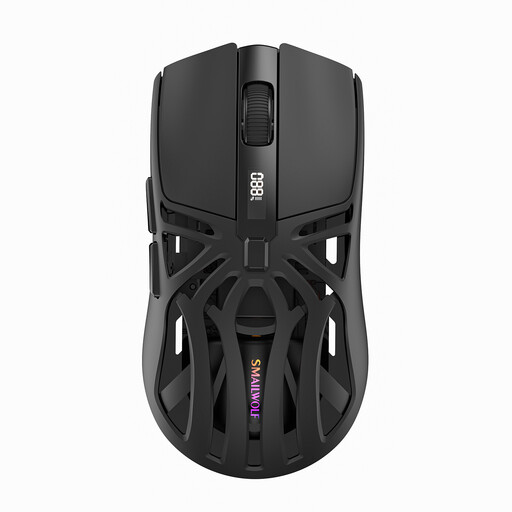
NAXSIR wireless mouse with Bluetooth, 2.4G and Type-C connection

NAXSIR wireless mouse with six DPI levels

For detailed work where you want to adjust the pointer speed.

The product information lists six adjustable DPI levels and connection via 2.4G, Bluetooth or a Type-C cable.

View at Joybuy
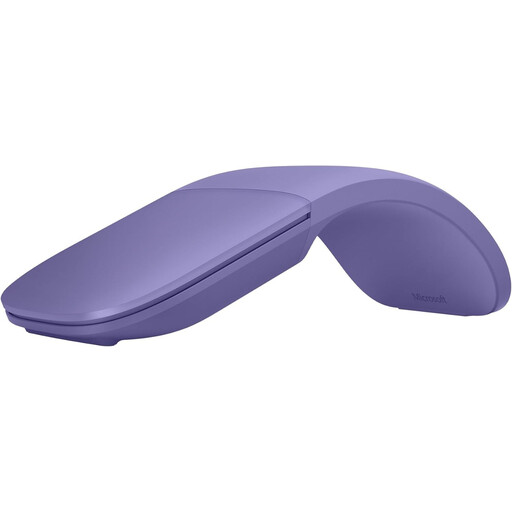
Microsoft Surface Arc Mouse Violet

Microsoft Surface Arc Mouse Violet

For anyone who wants to scroll horizontally and vertically while designing, and store their mouse compactly.

The product information lists two-way scrolling and a design that folds flat.

View at Joybuy

AJAZZ AJ159 PRO wireless gaming mouse in white

AJAZZ AJ159 PRO wireless gaming mouse, white

For anyone who wants to adjust the cursor speed and is looking for a mouse that, according to the product specifications, suits small to medium-sized hands.

The specifications list six adjustable DPI levels and connection via 2.4G, USB-C or Bluetooth. The product information also mentions a magnetic charging dock.

According to the product warning, keep the magnetic dock away from pacemakers, medical implants and credit cards.

View at Joybuy
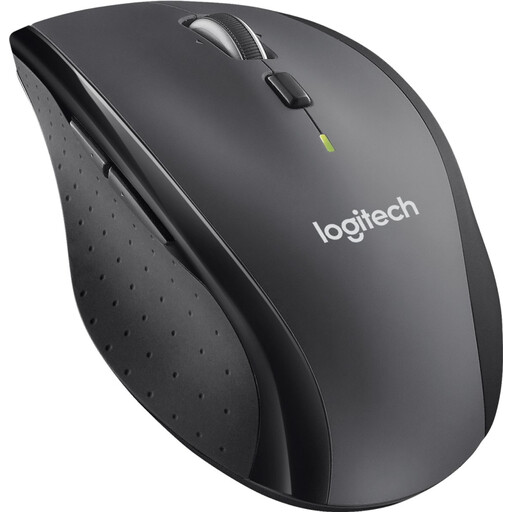
Logitech M705 wireless mouse, black

Logitech M705 wireless mouse, black

For anyone who wants to scroll through long designs and adjust the DPI setting.

The product information lists adjustable DPI and hyper-fast scrolling. The mouse uses a Unifying receiver and doesn’t connect via Bluetooth.

View at Joybuy
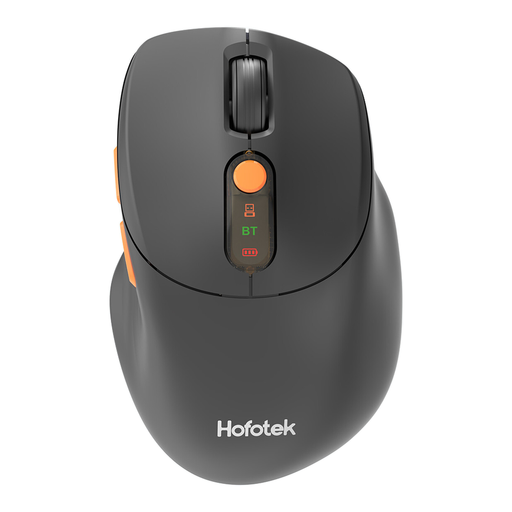
HOFOTEK M311 wireless silent office mouse

HOFOTEK M311 silent office mouse

For anyone weighing up DPI settings, quiet clicks and the option to connect to multiple devices.

The product information lists Bluetooth 5.1, 2.4 GHz and a USB receiver, with DPI settings of 800, 1600, 2400, 3200 and 4000. It also mentions switching between up to three devices and compatibility with Windows, macOS and Android.

View at Joybuy

Frequently asked questions about mice for calendar design

Is a higher DPI automatically better for designing small calendar elements?

No. A DPI value doesn’t prove that you’ll get better design results. Check whether you can adjust the pointer speed to a setting that feels comfortable. Logitech lists Logi Options+ for this on the MX Master 3S Bluetooth Edition.

How do I connect a wireless mouse or trackball?

It depends on the model and your computer. Kensington lists both Bluetooth and a USB nano receiver for the Expert Mouse Wireless Trackball. Before buying, check the available ports, supported systems and what’s included in the box.

What should I do if a trackball feels stiff or moves jerkily?

Clean the ball and housing if dirt is affecting its movement. Kensington recommends this maintenance; follow the instructions for the model you’re using.

Who can help if a mouse bought in the Netherlands breaks too soon during normal use?

For a consumer purchase, the seller is responsible for the statutory guarantee. ACM ConsuWijzer says the seller must put right, at no cost, any fault covered by that guarantee. According to the Dutch government, there’s no fixed statutory warranty period for all products.

Does Dutch law require a particular mouse for a home workstation?

Government guidance doesn’t specify a particular mouse model. Arboportaal says an employer’s responsibility for a healthy and safe workplace also applies to working from home, and that screen-based work should be broken up at set intervals with other work or a break. Talk to your employer about any adjustments you need.
