
Print designer
Assesses photos and illustrations for the printed booklet, focusing on colour management rather than just a wide colour gamut. EIZO and Adobe describe calibration and colour management as part of preparing work for print.


For photos and illustrations being assessed for print, a monitor with hardware calibration and a suitable colour gamut is a sensible choice, provided you also work with the output profile and a proof print. For a shared workspace, suitable USB-C power delivery, a hub and, possibly, KVM functionality may matter more. A 4K screen helps you inspect layout details, but does not, by itself, guarantee that the print will match.
Assesses photos and illustrations for the printed booklet, focusing on colour management rather than just a wide colour gamut. EIZO and Adobe describe calibration and colour management as part of preparing work for print.
Switches between computers or users and wants to manage connections, peripherals and screen settings easily. BenQ and Dell list features such as KVM and a USB-C hub in their model information.
Checks text, maps and page details during longer work sessions, and looks for sharpness and an adjustable workspace. The Arboportaal guidance on working with screens is relevant when employees use the workspace.
Start with your print workflow and the printer and paper profile. Then check each computer’s connections, the screen space you need and how adjustable the monitor is for its users.
| Consideration | What should you check? | Who is this most relevant to? |
|---|---|---|
| Colour for print | Check the exact model’s calibration options and how the output profile and a proof print fit into your workflow. | When I assess photos for the printed booklet, I want to be able to match colours to the paper and print profile. Around 36% of consumers say colour for print is their top priority. |
| Sharing computers and peripherals | For each computer, check the video signal, the USB-C power delivery required and whether you need KVM functionality. | When we share one desk and peripherals between computers, I want to be able to switch easily. Around 29% of consumers say shared connections are their top priority. |
| Space for layout details | View your layout software on the screen size you’re considering and check that text and controls remain easy to read. | When laying out maps and photos, I want to assess text and page details clearly. Around 21% of consumers put layout details first. |
| Adjustability | Check which screen adjustments the exact model offers and assess the workspace as a whole. | When several people take turns working at the same desk, I want to be able to adjust the screen for each user. Around 14% of consumers say adjustability is their top priority. |
A monitor is just one part of the chain linking the image file, printer and paper. Adobe also highlights the importance of calibration, the viewing environment and colour management.
Agree the output process with your printer and check how the exact monitor model supports calibration.
Colour management may require a measuring device and proof prints.
Monitors vary in their KVM functionality and USB-C charging power. A connection will not necessarily suit every computer or peripheral.
For each computer, check the video signal, power requirements, cables and features you need.
You may need a different cable, a separate power supply or an additional switching solution.
A product page listing does not automatically confirm that the exact version is available at that time.
Check current availability and the model version with the seller before deciding.
The ColorEdge CS2740 is an example of a monitor for those who prioritise colour management when preparing photos for print.
The Creative Pro PD2705U is a 4K design monitor with built-in KVM for a workspace with multiple computers.
The UltraSharp U2723QE is an example of an adjustable 27-inch 4K monitor with a USB-C hub.
The UltraFine 27UP850K-W is an example for mixed 4K design work, with USB-C and an adjustable stand.
These Joybuy picks are aimed at colour-critical design work, sharing a computer and viewing layout details on a 4K screen.
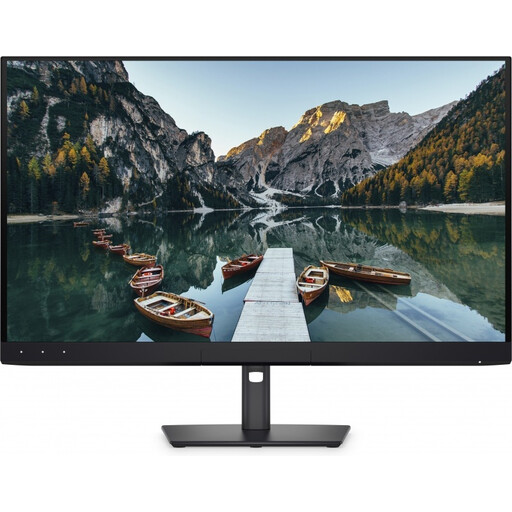 Image unavailable
The product information highlights colour-critical work and Auto-KVM for switching between computers.
According to the product description: 94% Adobe RGB, an integrated colourimeter and an adjustable stand.
The title lists 32 inches, 4K UHD, 120 Hz and QD-OLED.
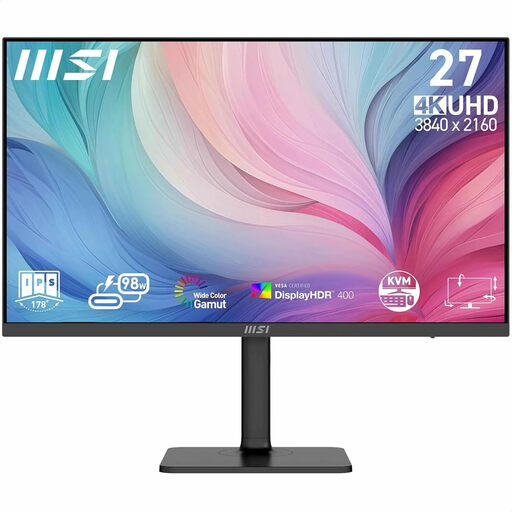 Image unavailable
The product description recommends this monitor for graphic design and photo editing, with KVM for a shared workspace.
The title lists 3840 × 2160 pixels and 4K UHD.
According to the product description: 94% Adobe RGB, factory calibration and 98 W USB-C power delivery.
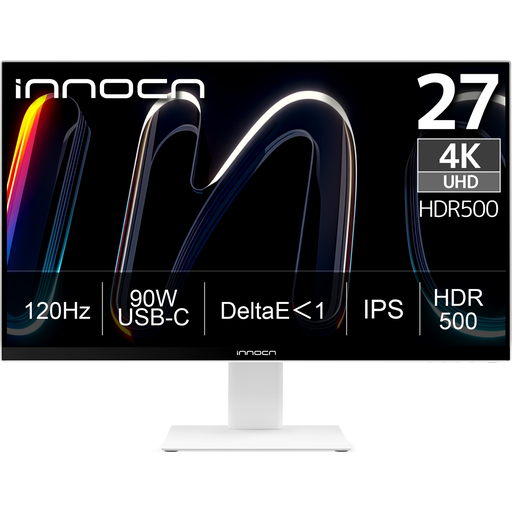 Image unavailable
The product information highlights design and productivity use, with PIP/PBP for displaying multiple sources.
The title lists 3840 × 2160 pixels and IPS. According to the product description: 99% Adobe RGB and DeltaE < 1.
The product description lists USB-C power delivery of up to 90 W and 150 mm height adjustment.
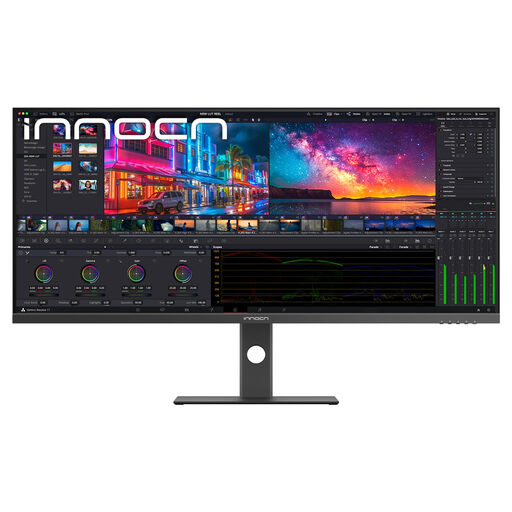 Image unavailable
The product description highlights design and photo editing, with PIP/PBP for multiple sources.
The title lists 5120 × 2160 pixels, 100 Hz and a 21:9 aspect ratio.
According to the product description: 65 W USB-C power delivery and Adobe RGB 87% (1931) / 91% (1976).
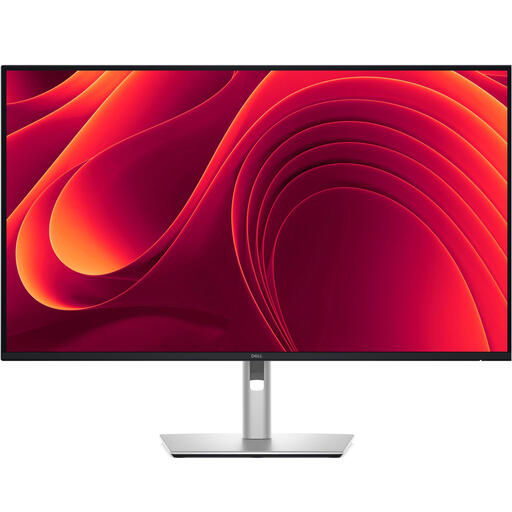 Image unavailable
The product information highlights design work and multitasking, with a hub for peripherals in a shared workspace.
The title lists 3840 × 2160 pixels and 4K UHD.
According to the product description, this model has USB-C power delivery of up to 90 W and RJ45.
No. 99% Adobe RGB coverage alone does not predict how the print will look. EIZO lists this coverage for the CS2740, but calibration, the output profile and the viewing environment also play a part. Ask your printer which profile and proofing method are right for the paper you have chosen.
For each computer, check the video signal, the power delivery required and the peripherals before relying on a single USB-C connection. For colour-critical work, also record which screen settings and profile are being used. Adobe advises recalibrating if colour or brightness settings change after calibration.
According to the Dutch government, consumers are entitled to a product that is fit for purpose, and the Netherlands has no fixed statutory warranty period. If a product is faulty, the seller is your point of contact; any additional warranty is on top of your statutory rights.
Employers have obligations towards employees, depending on the circumstances. The Arboportaal states that if employees work with a screen for more than two hours a day, the screen and keyboard must not be attached to each other. This is not a uniform product specification for every private buyer.