
Developer with the debugger alongside the code
You want to keep your code and debugger clearly visible while building and troubleshooting. How you arrange your windows is an important consideration.


An adjustable 27-inch QHD monitor is a compact starting point for keeping your code and debugger on one screen. If you also want to view documentation or an app example alongside them, a 34-inch ultrawide screen gives you more horizontal space. A 27-inch 4K screen offers more pixels, but readability also depends on the scaling setting. If you’re considering USB-C, check that your laptop can output video through that port and that the charging power is suitable for your laptop.
You want to keep your code and debugger clearly visible while building and troubleshooting. How you arrange your windows is an important consideration.
As well as your code and debugger, you keep documentation or an app example open and want to be able to view all these windows at once.
You want to use an external screen and need to check whether video, charging and any peripherals will work through the connection you choose.
Start with the layout you use every day: keeping your code and debugger on one screen calls for a different setup from viewing your code, debugger and documentation side by side. Then compare readability, desk space and connections.
| Consideration | What to look for when buying | Who is this more important for? |
|---|---|---|
| Space for code and debugger | Try your usual window layout. Compare QHD at 2560 × 1440 pixels with ultrawide at 3440 × 1440 pixels; Dell Netherlands and Lenovo Netherlands list the first resolution for specific models, while LG Netherlands lists the second. | If I want to keep my code and debugger side by side, I focus on usable window space and whether the screen will fit on my desk. Around 36% of consumers list space for windows as their main purchase need. |
| Readability and workspace | Check the height adjustment and test your editor at a readable scaling setting at the screen’s native resolution. Microsoft Support warns that text may look less sharp if you use a resolution below the native one. | If I’m reading code for long periods, I want to be able to see the text clearly and position the screen comfortably. Around 29% of consumers put readability and their workspace first. |
| Laptop connection and power | Check whether your laptop supports video output via USB-C or a suitable Thunderbolt connection. Also compare the cable, required charging power and ports on the exact monitor model. | I want to connect my laptop without discovering afterwards that video or charging won’t work through the connection I’ve chosen. For around 21% of consumers, the laptop connection is their main purchasing priority. |
| Detail for app examples | Decide whether you need extra pixels or specific colour features. For example, compare 4K with QHD and set a readable scaling level yourself; manufacturer specifications are not independent colour measurements. | If I also want to review my app’s design, extra detail may be a consideration alongside the debugger layout. Around 14% of consumers give app viewing and visual checks the highest priority. |
Your laptop’s USB-C port must support video output, and the charging power must be suitable for your needs. Having a USB-C port on the monitor alone doesn’t guarantee this.
Check your laptop manual, the monitor port and the cable before relying on a single cable.
If the connection isn’t suitable, you may need a separate video cable or charging solution.
More pixels don’t automatically mean more usable window space: the scaling setting affects how large text and apps appear.
Test your editor and debugger at the screen’s native resolution, and adjust the scaling if needed. Microsoft Support warns that a resolution below the native one can make text look less sharp.
According to LG, the 34WR55QC-B is 809 mm wide including its stand. The extra screen width is only useful if the screen and stand fit on your desk.
Measure the available width and depth, allowing space for the stand.
The Joybuy listing for the Dell P2725QE says QHD, while Dell Netherlands specifies a resolution of 3840 × 2160 pixels for this exact model.
Compare the full model number and the features that matter most to you against the manufacturer’s specifications.
The Dutch Pro Plus models P2725DE and P2725QE offer a choice between 27-inch QHD and 27-inch 4K, both with a USB-C hub.
The 34WR55QC-B is an ultrawide option, while the 27UP850K-W is a separate 27-inch 4K model.
The ThinkVision T27h-30 is a 27-inch QHD option to compare if docking and an adjustable stand are important to you.
The Business Monitor 27B2G5500/00 is a Dutch example of a 27-inch QHD monitor with listed office features.
The ProArt PA32QCV is a more specialised 31.5-inch 6K option if its listed resolution and extra features are also relevant to other work you do.
This selection focuses on 34-inch ultrawide monitors for viewing code, your debugger and possibly other windows side by side.
 No image available
The wide screen layout could suit you if you want to view your code and debugger side by side.
The product description lists a 21:9 aspect ratio and a WUHD mode of 5120 × 2160 pixels.
Also listed: USB-C, a USB hub, KVM and an adjustable stand with height, swivel and tilt adjustment.
 No image available
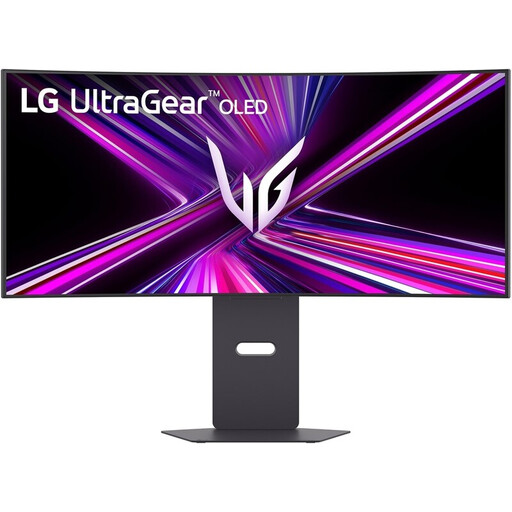
This 34-inch ultrawide screen could suit you if you want to arrange your code and debugger side by side.
The product name lists 3440 × 1440 pixels, an OLED panel and a 240 Hz refresh rate.
The description lists an adjustable stand, a USB hub and USB-C power delivery of up to 65 W; check that this charging power is suitable for your laptop.
 No image available
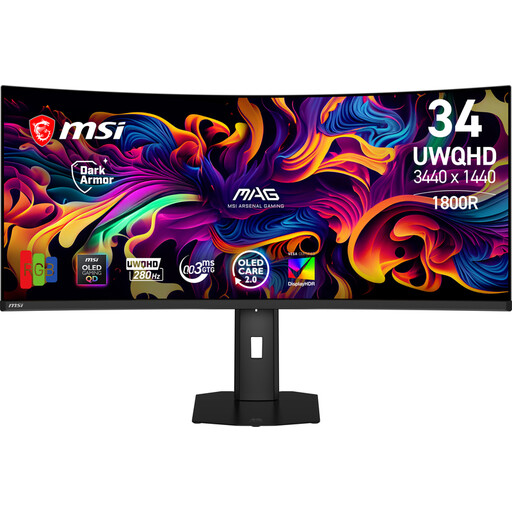
The ultrawide design could suit you if you want to display several work windows side by side.
The product name lists 3440 × 1440 pixels and a QD-OLED panel with a 280 Hz refresh rate.
The description lists USB-C with DisplayPort Alt Mode and up to 15 W Power Delivery, plus height, swivel, tilt and pivot adjustment.
 No image available
This wide screen layout could suit you if you want to view your code, debugger and extra windows side by side.
The product description lists 3440 × 1440 pixels and a 21:9 aspect ratio.
Also listed: a USB-C hub with 90 W Power Delivery, RJ45, KVM, and height and tilt adjustment. Check that your laptop and cable support the features you want.
 No image available
The wide screen could suit you if you want to place your code and debugger side by side.
The product description lists 3440 × 1440 pixels and a 100 Hz refresh rate.
Picture-by-Picture is listed for viewing two devices at the same time; the stand can be tilted.
No. Microsoft Learn explains that you can move and arrange tool windows in Visual Studio, including debugger windows. First, try to see whether your window layout is readable on a QHD screen or across two supported screens; ultrawide is mainly an option if you want more room side by side.
In Windows, use the screen’s native resolution and adjust the scaling for text and apps if needed. Microsoft Support warns that a resolution below the native one can make text look less sharp.
No. Check your laptop manual to see whether the port supports video output, for example via DisplayPort Alt Mode or a suitable Thunderbolt port. Check the cable and required charging power separately too; Dell Support’s guidance on video over USB-C applies to the Dell monitors mentioned there and doesn’t replace checking your own devices.
According to ACM ConsuWijzer, a standard online consumer purchase generally comes with a statutory cooling-off period of up to 14 days after delivery, with some exceptions. Your statutory guarantee is separate from any manufacturer’s warranty. If a product doesn’t meet your reasonable expectations under normal use, contact the seller.
Employers may have occupational health and safety obligations, depending on the working situation. Arboportaal states that for employees who work with display screens for more than 2 hours a day, the screen and keyboard must not be attached to each other; this is not a universal product requirement for every private buyer.