
Vandaag of morgen in huis

Kwaliteit gegarandeerd

Welkomstaanbiedingen ontgrendelen: GRATIS bezorging | Tot 80% korting | Gratis 30 dagen JoyPlus-proefperiode
Download de app
A monitor arm can free up space on your desk and make it easier to position one or more screens correctly. However, not every monitor mount is suitable for every desk or monitor. An arm that offers plenty of adjustment options on paper may be unstable in practice, have insufficient load capacity or not fit the space available on your desk.
The Joybuy Product Recommendation Officer therefore filters the most important product specifications, allowing you to compare marketing terms with verifiable information.
A monitor arm for 27 inches is not automatically suitable for every 27-inch screen. The weight of the monitor, including any stand or accessories, is just as important. Always check the maximum load capacity per screen. An arm with a capacity of 6 kg per screen is not suitable for a display weighing more than that.
Also consider the type of screen. A curved ultrawide monitor may need a heavier or specially reinforced VESA monitor arm than a standard flat screen.
Most models in this selection use VESA 75 × 75 mm or 100 × 100 mm. These are the distances between the mounting holes on the back of the screen. If your monitor has a different pattern, an adapter plate may be required. Without a suitable VESA connection, you cannot safely attach the screen to the monitor mount.
A monitor arm for a desk is often attached using a clamp or a through-desk mount, also known as a grommet. Check the following in advance:
On some models, a 180° stop mechanism limits movement towards a wall. This is a practical feature, but it does not replace correct installation.
Do not look only at the total load capacity. With a dual monitor arm, you should compare the maximum weight per screen. For four screens, the combined weight is also important. The FPMA-D935D4, for example, is suitable for four screens up to 27 inches and specifies a maximum of 6 kg per screen. This means a theoretical maximum screen weight of 24 kg, excluding the weight of the arm.
A fixed monitor stand takes up little space but offers less freedom of movement. An adjustable monitor arm can alter the height, depth, rotation and viewing angle. Models with a gas-spring monitor arm use gas-spring assistance for height adjustment. This is particularly practical if you regularly switch between sitting and standing or rearrange your screens.
Pay attention to the exact adjustment range. The DS75-450WH2, for example, has a height range of 27.7 to 56 cm and a depth range of 0 to 50.5 cm. Another model may offer a greater range, but may therefore also require more space behind or beside the desk.
Integrated cable management prevents power and display cables from hanging loosely across the desk. Also check whether the monitor arm comes with a desktop clamp, grommet or both. A clamp is usually easy to attach to the edge of a sturdy desk. A grommet uses an opening in the desktop and can provide a neat installation.
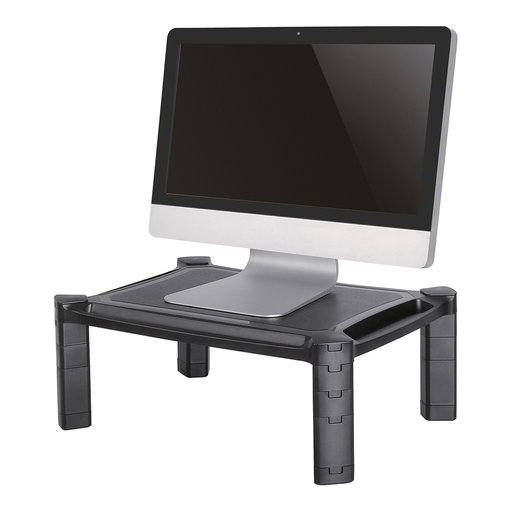
Why it suits this profile: A monitor riser is an accessible solution if you mainly want extra height and storage space without attaching an arm to your desk.
You do not need to check a VESA pattern or desktop clamp. The riser stands independently on a flat, stable desk.
Height adjustable from 4.6 to 16.8 cm; load capacity up to 10 kg; suitable for a monitor or laptop up to 32 inches.
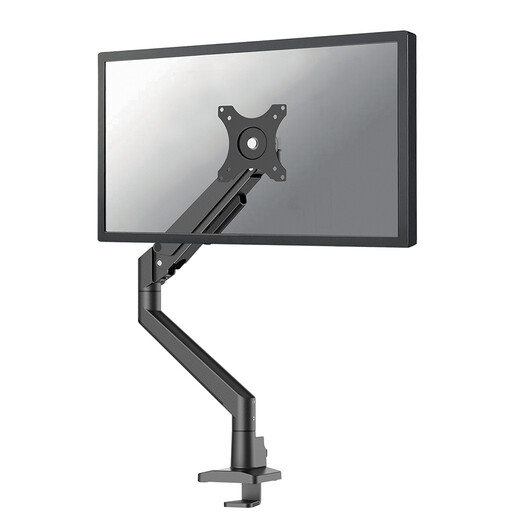
Why it suits this profile: This gas-spring monitor arm is ideal for home workers and office professionals who frequently reposition their screen and need a wide adjustment range.
The product specifications clearly state the screen size, weight and VESA pattern: up to 35 inches, a maximum of 9 kg, and 75 × 75 or 100 × 100 mm.
Gas-spring height adjustment from 21.5 to 49.5 cm; depth adjustment from 7 to 52.5 cm; suitable for flat and curved screens.
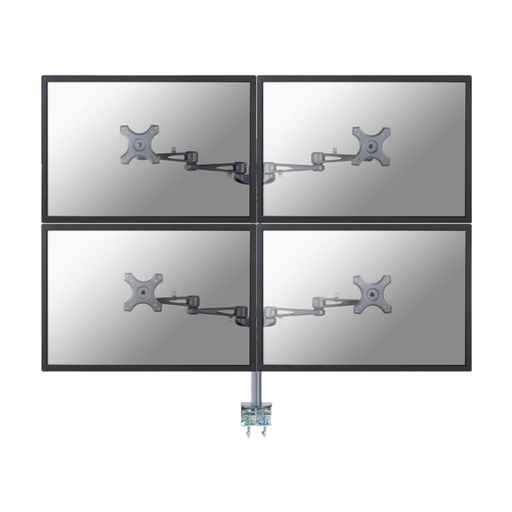
Why it suits this profile: For IT users, traders and professionals who need four screens side by side, this monitor arm for 4 screens provides a stable base on a single desk.
The number of screens and maximum load are specified. However, check that your desk can support the combined weight of the arm and monitors.
Space for four screens up to 27 inches; maximum 6 kg per screen; manual height adjustment up to 80 cm and cable management.
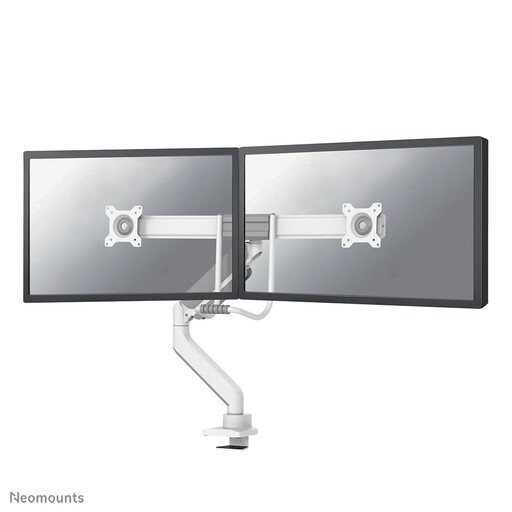
Why it suits this profile: This dual monitor arm is designed for two screens measuring 17 to 32 inches and is ideal for users who regularly adjust their viewing angle or working position.
The model supports a maximum of 8 kg per screen and uses a top-fix clamp or grommet. This allows you to adapt the mounting method to your desk’s construction.
Gas-spring adjustment from 27.7 to 56 cm; depth up to 50.5 cm; 180° stop mechanism and integrated cable management.
For a 27-inch monitor arm, the weight is particularly important. With a 32-inch monitor arm, you should also check that the arm provides sufficient depth and lateral space. If you use three screens, look for a monitor arm for 3 screens; for a laptop alongside a monitor, a separate laptop stand may sometimes be more practical than an additional arm.
We have compiled a complete, up-to-date list of products that fully meet these strict selection criteria and the applicable European safety regulations.
No. The desktop must be flat, sturdy and thick enough for the chosen clamp or grommet. Do not install an arm on glass, a damaged desktop or weak board material without checking first.
Its lifespan depends on the materials, load, installation and how often you move the arm. Check the fixings regularly and do not use the arm above its stated load capacity. Depending on the product, the Neomounts models mentioned come with a two- or five-year warranty; statutory warranty rights continue to apply.
A standard monitor arm does not use electricity. However, costs may arise from installation, a VESA adapter or longer cables. A gas-spring monitor arm does not require an electrical connection; its adjustability comes from the mechanical system.
