What should you look for when buying?
Start by considering whether you mainly read one long manuscript or regularly keep sources open alongside your draft. Then check that the connections and adjustability suit your laptop and workspace.
| Consideration |
What should you look for? |
Who is this important for? |
| Space for your manuscript |
Compare aspect ratio and resolution; adjust text size, screen height and viewing position to suit your workspace. |
If I mainly write one long document, I want to read it clearly without giving unnecessary space to other windows. Around 36% of consumers rank the main manuscript as their top buying priority. |
| Draft and sources side by side |
Compare screen size and resolution, and try your usual window layout and scaling settings. |
If I want to view match reports, interviews or images alongside my draft, I weigh screen space against a comfortable text size. Around 29% of consumers prioritise viewing their draft and sources at the same time. |
| Connecting a laptop and peripherals |
Check the video input, your laptop’s video mode and the power output required; connect external storage and set up your backup separately. |
If I work with a laptop and peripherals, I want to know exactly which devices the USB-C connection supports. Around 21% of consumers cite laptop and peripheral connections as their top buying priority. |
| Screen position while writing |
Check height adjustment, tilt and the space available on your desk; assess readability and reflections in your workspace. |
If I spend a long time working on my manuscript, I want to adjust the screen to suit my posture and desk. Around 14% of consumers prioritise an adjustable writing setup. |
Monitors for writing and research
These Joybuy products suit a range of writing setups: from a compact screen for a long manuscript to larger displays for sources, images and laptop connections.
 No image available
Dell Pro P3426WEV 34.1-inch curved WQHD monitor with webcam
Suited to a wide workspace where you want to view a draft and sources at the same time, and connect a laptop and peripherals.
34.1-inch WQHD screen in 21:9 format; USB-C hub with up to 90 W power delivery, KVM and RJ45.
View at Joybuy
 No image available
Lenovo L16 portable 16-inch WUXGA IPS monitor
Suited to a compact writing space where you want extra vertical room for a document and plan to use the monitor with a compatible laptop.
16:10 aspect ratio and 1920 × 1200 pixels; two USB-C ports with DisplayPort Alt Mode and up to 65 W power delivery for a compatible laptop.
View at Joybuy
 No image available
Philips 27E1N1800AE/00 27-inch 4K UHD IPS monitor
Suited to anyone who wants to view images as well as text on a larger screen and adjust the monitor’s height.
27-inch IPS screen with a resolution of 3840 × 2160 pixels; HDMI and DisplayPort connections, plus a height-adjustable stand.
View at Joybuy
 No image available
MSI Modern MD272UPHG 27-inch 4K UHD monitor
Suited to a workspace where you want to combine text and visual sources and connect several devices.
27-inch screen with a resolution of 3840 × 2160 pixels; USB-C power delivery up to 98 W, KVM and PIP/PBP. The stand offers height, tilt and swivel adjustment.
View at Joybuy
 No image available
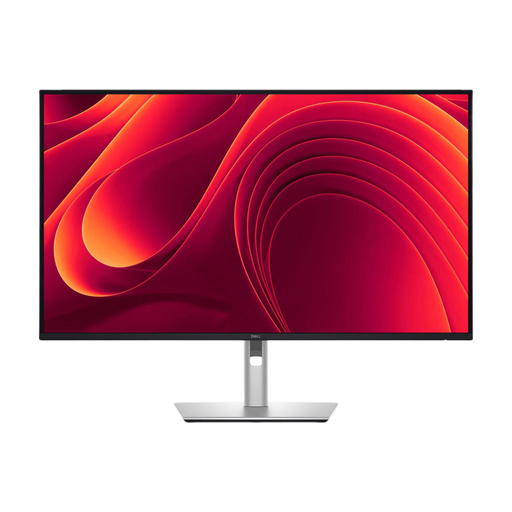
Dell Pro Plus P3225DE 31.5-inch QHD monitor
Suited to anyone who wants to view a manuscript and sources on a larger screen and connect a laptop via a compatible USB-C connection.
31.5-inch QHD screen with a resolution of 2560 × 1440 pixels; USB-C hub with up to 90 W power delivery and an RJ45 connection.
View at Joybuy
Frequently asked questions
Will a monitor or USB-C hub automatically create an offline backup of your biography?
No. A backup is a separate copy of your files that you set up yourself, for example on an external drive. A monitor or hub can connect devices, but it does not create a backup by itself. The National Cyber Security Centre describes the 3-2-1 approach for business data as additional guidance, not a purchasing requirement for every individual writer.
Can you use any USB-C monitor with a single cable for video and laptop power?
No. It depends on the features of the port on the exact monitor model and on your laptop. Dell lists the P2425 as having a USB-C data downstream port of up to 15 W, and the P2425DE as providing 90 W power delivery. Philips states that the source device must support DP Alt Mode for video over USB-C on the 24B1U5301H/00; also check that its charging capabilities are suitable for your laptop.
How should you set up a monitor for long writing sessions?
Make sure the text is easy to read, minimise reflections and adjust the screen and furniture to suit your body measurements. Arboportaal also recommends varying your tasks and taking short breaks. An adjustable stand alone will not prevent discomfort.
What can you do in the Netherlands if a monitor bought online isn’t working properly?
For a consumer purchase, contact the seller if a product is faulty; the Dutch government lists free repair or replacement as possible solutions. When buying from a business remotely, you will also usually have a 14-day cooling-off period. Check who the seller is and which terms apply; a manufacturer’s guarantee does not replace your statutory rights.
Where can you take your old monitor in the Netherlands?
When you buy a new, similar electrical appliance, the shop must, according to the Dutch government, take back an old appliance from a private customer free of charge; this also applies to online purchases. Your local council’s collection service is another option. The take-back scheme for private customers does not apply in the same way to business equipment.


