
Writers who view sources alongside their manuscript
You want to keep your text and source material on screen together while drafting or editing. Screen space and the room taken up by the monitor and its stand are important considerations.


Start by choosing a monitor that suits the way you write. A compact screen may be right for working on a single manuscript at a small desk, while a larger screen gives you more room to view sources alongside it. Then check the adjustability and connections on the exact model you’re considering. A monitor doesn’t determine which keyboard shortcuts you use in your writing software.
You want to keep your text and source material on screen together while drafting or editing. Screen space and the room taken up by the monitor and its stand are important considerations.
You want a monitor that suits the space available on your desk and can be positioned to fit your workspace. So measure not only the screen, but also the space needed for the stand.
You switch between your laptop, keyboard and writing software. Check the video connection and make sure your keyboard will be easy to reach. The monitor itself doesn’t set up your keyboard shortcuts.
First, decide whether you usually work with one document on screen or want to view your manuscript and sources side by side. Then check that the screen size, adjustability and any laptop connections suit your desk and computer.
| What to consider | What should you check? | Who should pay particular attention? |
|---|---|---|
| Space for text and sources | Compare screen size, resolution and aspect ratio. Consider whether you want to use two windows at once, and measure the space needed for both the screen and stand. | If I want to view my manuscript and sources at the same time, I need to know whether both windows will fit without the monitor dominating my workspace. Around 36% of consumers say having room for their manuscript and sources is their main buying concern. |
| An adjustable workspace | Check the model’s height and tilt adjustment options, and whether its stand will fit on your desk. | If you want to adjust the screen position to suit your workspace, check the range of adjustment and the space around the stand. Around 29% of consumers prioritise an adaptable workspace. |
| Laptop connection | Check whether your laptop can output video via USB-C and whether the power delivery is sufficient. A USB-C port for data doesn’t automatically make the monitor a laptop dock. | If I connect my laptop at a permanent writing desk, I need to know whether a single cable can provide video and enough power. Around 21% of consumers say laptop connectivity is their main buying concern. |
| Compact size and features | Measure the space available for the complete set-up and decide whether you really need extra resolution or docking. | If you mainly write a single document and have limited space, consider a compact size rather than choosing features your workflow doesn’t require. Around 14% of consumers prioritise a compact design and avoiding features they won’t use. |
USB-C ports can support different functions. Dell specifies that the P2425 has a USB-C downstream port for data, with a maximum of 15 W, while the separate P2425E supports up to 90 W.
Check the full model number and what the port does. Also compare the video support and power requirements of your laptop.
If the monitor can’t supply enough power to your laptop, you may need a separate laptop charger.
A 27-inch screen takes up more room with its stand than a more compact option. It also needs to fit in your chosen spot on the desk.
Measure the available space and decide where the screen will go before choosing a size.
A label such as Eye-Care or a 4K resolution doesn’t, by itself, prove that a screen will be more comfortable for you to read. The right text scaling and screen position also depend on your computer and workspace.
Assess the adjustment options and readability at the text size you use. Don’t assume a product label alone guarantees a health or comfort benefit.
Dell offers compact 16:10 models as well as separate hub monitors for laptop workspaces.
The ProLite XB2797QSU-B1 is a 27-inch QHD model for viewing documents side by side.
According to BenQ, the GW2790QT combines a 27-inch QHD screen with USB-C and a USB hub.
The FlexScan EV2740X is a 27-inch 4K model with USB-C docking, for those looking for a higher pixel density.
These product picks are aimed at writers who want a larger screen for viewing their manuscript and sources, or who want to connect a laptop to their workspace via USB-C. The models shown vary in size, resolution and connections, so check which features suit your computer and desk.
 Image unavailable
Ideal for viewing a manuscript and source material side by side on a 27-inch screen.
27 inch; 3840 × 2160 pixels; 4K Ultra HD.
The product description lists USB-C with DP Alt Mode, 98 W Power Delivery, a KVM switch and an adjustable stand. Check that the USB-C features and power delivery suit your laptop.
 Image unavailable
An option if you’re looking for a 27-inch screen to view your manuscript and sources side by side.
27 inch; 3840 × 2160 pixels; 4K Ultra HD.
The product description lists USB-C with up to 65 W Power Delivery, height adjustment and tilt. Check your laptop’s video support and power requirements.
 Image unavailable
Ideal for viewing multiple documents on a 27-inch screen.
27 inch; 3840 × 2160 pixels; 4K Ultra HD; 163 ppi.
The product description lists Thunderbolt 4. Check that the connections suit your laptop and workspace set-up.
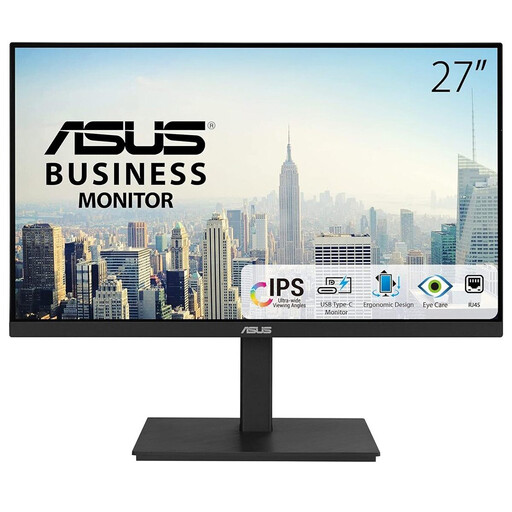 Image unavailable
A 27-inch QHD option for viewing your manuscript and sources side by side.
27 inch; 2560 × 1440 pixels; Wide Quad HD.
The product description lists height adjustment, tilt and swivel, plus up to 90 W Power Delivery via USB-C. Check that your laptop supports the video and charging features you need.
 Image unavailable
A more compact size to consider if desk space is limited and you want to connect your laptop via USB-C.
24 inch; 2560 × 1440 pixels; Quad HD.
The product description lists USB-C with up to 90 W Power Delivery, a hub, RJ45, height adjustment and tilt. Check that the connections and power delivery suit your laptop.
No, a monitor doesn’t choose or change the keyboard shortcuts in your writing software. Check the shortcuts in your software and make sure your keyboard is easy to reach. Arboportaal lists the availability of keyboard shortcuts as a consideration for intensive screen work.
Not necessarily. Your laptop’s USB-C port needs to support the video function you need, and the power delivery must be sufficient. For example, don’t confuse the Dell P2425’s USB-C data port, which delivers up to 15 W, with a USB-C hub monitor. Dell specifies up to 90 W for the separate P2425E.
Choose a screen position you can adjust to suit your workspace, and check that you can position your keyboard and mouse comfortably. For employees working from home, employers have a duty of care to provide healthy and safe working conditions. This doesn’t mean every writer using a personal computer needs a specific monitor model.
When you buy from a business at a distance, the seller must provide information about matters including the product and the cooling-off period. The Dutch government states that this period is usually 14 days. Check the terms of the specific sale, and bear in mind that a cooling-off period is different from your rights if a product is faulty or doesn’t match its description.