A compact Full HD screen may be enough if you usually write one document at a time, while a 27-inch QHD monitor gives you more room for revision marks and a source alongside your text. Also check whether the monitor is adjustable and whether its video connection and any USB-C power delivery are compatible with your laptop. You don’t need 4K for this task.
Who is this choice relevant to?
Writers working with sources and revisions
If you’re writing a guide and want to view comments or a source document alongside your draft, it helps to have a screen layout with enough room for both. Microsoft Support explains how to display tracked changes in Word and compare documents side by side.
Anyone working with text for long periods
If you write or proofread for long stretches, look for a screen you can adjust to suit your workspace. The Dutch Working Conditions Portal explains workplace requirements for employees.
Laptop users with a small desk
If you want to use an external monitor with your laptop but have limited desk space, weigh the screen size and available connections against how much screen space you need. Lenovo, Dell and BenQ publish model specifications that can help you check.
What should you look for?
When writing and revising, the main things to consider are how many documents you want to view at once, your sitting position and the connections your laptop uses.
| What to consider |
What should you check? |
Who should pay particular attention? |
| Room for text and revisions |
Compare the screen size and resolution with the windows you want to use side by side, and make sure the text remains comfortable to read. |
If I want to view a draft, revision marks and sometimes a source at the same time, I look for enough room without making the text difficult to read. Around 36% of consumers prioritise an overview when revising. |
| An adjustable workspace |
Check the height adjustment, tilt, screen reflections and the space available on your desk. |
For long writing sessions, I want to be able to adjust the screen to suit my workspace. Around 29% of consumers pay particular attention to being able to adjust their working position. |
| Connecting to your laptop |
Check that your laptop supports video output through the connection you’ve chosen and that the power delivery is suitable for your laptop. |
If I want to connect my laptop with a single cable, I first check which video output and charging capacity it supports. Around 21% of consumers prioritise a laptop connection that suits their needs. |
| Compact and straightforward |
Measure the space available on your desk and check that the monitor has the video connection you need. |
For a single document and a small desk, I don’t want to choose a bigger screen than my way of working calls for. Around 14% of consumers are mainly looking for a compact, straightforward setup. |
Common buying mistakes
-
Assuming USB-C guarantees video and charging
A USB-C port on the monitor doesn’t automatically mean your laptop can send video through it or receive enough power. The video connection you need and the power delivery available depend on the laptop and the exact monitor model.
Before choosing a cable or monitor, compare your laptop’s video output and power requirements with the monitor model’s specifications.
If the connections aren’t compatible, you may need a different cable, an adapter or a separate charger. Check this before setting up your existing equipment around the monitor.
-
Choosing based on pixel count alone
A higher resolution doesn’t, by itself, tell you whether text and multiple windows will be comfortable to use on your desk.
First decide how many windows you want to view at once, then check the screen size, resolution and adjustment options.
-
Confusing the manufacturer’s warranty with your statutory rights
A manufacturer’s warranty is not the same as your statutory rights if there’s a problem with a product. According to the Dutch Government, the retailer remains your point of contact for statutory guarantees; in the Netherlands, there is no fixed statutory guarantee period.
Check what any paid-for extended cover actually includes and whether it adds anything to the rights you already have.
Brands and models to consider
Lenovo
The ThinkVision S24i-30 is a compact Full HD option for straightforward text work.
- Lenovo lists this model as having a 23.8-inch IPS screen with 1920 × 1080 pixels, plus HDMI and VGA connections.
- For lots of revision marks or multiple windows, this resolution has fewer pixels than the QHD models in this comparison. Don’t assume this model supports video input over USB-C.
Dell
The Pro 27 Plus P2725DE is a 27-inch QHD monitor with a USB-C connection.
- Dell lists QHD resolution, 90 W power delivery over USB-C and an RJ45 connection for this model.
- Check your laptop’s video and charging requirements. The listed connections alone don’t prove that the combination will suit your workspace.
BenQ
The GW2790QT combines a 27-inch QHD screen with adjustment options and USB-C.
- BenQ lists a resolution of 2560 × 1440 pixels, an anti-glare coating, 110 mm of height adjustment and 65 W USB-C power delivery.
- Whether 65 W is enough depends on the laptop you want to connect.
LG
The 27UP850K-W.AEU is a 27-inch 4K option for anyone specifically looking for extra resolution.
- LG lists a resolution of 3840 × 2160 pixels, an adjustable stand and up to 96 W of USB-C power delivery.
- Extra resolution isn’t essential for text editing alone. Also check that the stated USB-C power delivery is suitable for your laptop.
Philips
The 27E1N5600HE/01 is a QHD option with a built-in webcam for anyone who also makes video calls.
- Philips lists this version as having a 27-inch screen with 2560 × 1440 pixels, a webcam and USB-C with power delivery.
- Check the exact version and the power delivery you need before choosing this monitor as a laptop dock.
Monitors on Joybuy for writing and revising
This selection includes QHD and 4K monitors, as well as an ultrawide option for anyone looking for more screen space while writing or revising. When choosing, check which resolution, connections and adjustment options suit your laptop and desk.
 No image available
MSI Modern MD272UPHG
A 27-inch 4K model to consider if you’re specifically looking for a higher resolution for your documents and reference material.
Specifications in the product name: 27 inches and 3840 × 2160 pixels.
View on Joybuy
 No image available
INNOCN 2751S PLUS
A 27-inch QHD option to compare if you want to view revisions and a source alongside your text.
Specifications in the product name: 27 inches, QHD 2560 × 1440, HDMI, DisplayPort and a height-adjustable stand.
View on Joybuy
 No image available
KTC M27P6
A 27-inch 4K model to consider if you specifically want extra resolution alongside your text. Check that the listed connections are compatible with your laptop.
Specifications in the product name: 4K, dual mode with 160 Hz at 4K and 320 Hz at FHD, USB-C with 65 W, KVM and a height-adjustable stand.
View on Joybuy
 No image available
Dell Pro Plus P2725DE
A 27-inch QHD option for anyone who wants to view a draft, revisions and a source side by side. Check that the USB-C connection and power delivery are suitable for your laptop.
Specifications: 2560 × 1440 pixels, USB-C with 90 W power delivery and RJ45, according to Dell.
View on Joybuy
 No image available
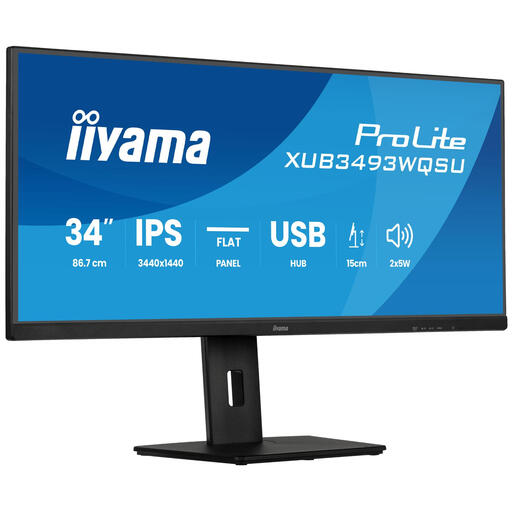
iiyama ProLite 34-inch IPS ultrawide monitor
An ultrawide screen to consider if you’re looking for extra horizontal space for your writing. Measure your desk beforehand and check that the screen layout suits the way you work.
Specifications in the product name: 34 inches, IPS, PiP and PbP, with a height-adjustable stand.
View on Joybuy
Frequently asked questions
Do I need a 4K monitor to track changes?
No. Track Changes is a Word feature and doesn’t require a 4K monitor. Microsoft Support explains how Word displays tracked changes; choose a screen based on readability and the space you need for documents and comments.
How can I view a source and my draft side by side?
In Word, you can open two documents and select the ‘View Side by Side’ option. Microsoft Support also explains synchronous scrolling. Check on your own screen whether both documents fit at a comfortable text size.
What should I check when connecting and adjusting the monitor?
First, check that the monitor’s video output and any USB-C power delivery are compatible with your computer. Then adjust the screen height and viewing angle to suit your workspace, and check for reflections. The Dutch Working Conditions Portal explains additional workplace requirements for employees.
Does paid-for extended cover replace my statutory guarantee?
No, paid-for cover doesn’t replace your existing statutory rights. According to the Dutch Government, you can contact the retailer if there’s a problem with a consumer purchase; in the Netherlands, there is no fixed statutory guarantee period. Check what the additional cover includes.
Can I return a monitor bought online?
According to the Dutch Government, when you buy from a business at a distance, you usually have 14 days to change your mind, although there are exceptions. Check the terms that apply to the specific retailer and order.


