
Editor reviewing changes
You write instructional text and want to review additions, deletions and comments clearly. Microsoft Support explains how tracked changes appear in Word; the monitor itself doesn’t manage those changes.


If you mainly work with instructional text and tracked changes, a 16:10 screen with a resolution of 1920 × 1200 can give you a useful document layout. For a camera image alongside your text, a 27-inch QHD screen gives you more pixels for arranging windows side by side. Dell lists a USB-C hub with up to 90 W power delivery for the P2425E, while LG specifies USB-C power delivery of up to 65 W for the 27BA65QB-B. Check that your laptop supports the connection you need and that you can adjust the monitor to suit your workspace; specifications alone can’t tell you how much faster you’ll write.
You write instructional text and want to review additions, deletions and comments clearly. Microsoft Support explains how tracked changes appear in Word; the monitor itself doesn’t manage those changes.
You often refer to a camera image or screenshot alongside your document while writing. Extra screen space can help you view both windows at the same time.
You write and edit for extended periods and want to position your monitor to suit your desk and sitting posture. Arboportaal offers advice on screen positioning; employers also have responsibilities for safe screen-based work.
First decide whether you usually view one document or need an image alongside it too. Then check the screen setup and the connection to your laptop.
| What to consider | What to look for | Who is this most important for? |
|---|---|---|
| Text and revisions | Compare resolution and aspect ratio, and check how your word processor displays changes. In Word, additions and deletions are shown differently. | If I mainly review instructional text and revision marks, I want enough vertical space for the document. Around 39% of consumers choosing a monitor for this writing task prioritise being able to see text and revisions clearly. |
| Text alongside an image | Compare both screen size and resolution, and measure the space available on your desk; the number of inches alone doesn’t tell you how much room you’ll have for windows. | When I want to refer to a camera image alongside the quick-start guide, space for both windows matters. Around 23% of consumers prioritise space for text and images. |
| Screen position | Check the height adjustment and tilt options, and whether the stand will fit on your desk. Arboportaal advises positioning the top of the screen slightly below eye level and tilting it so you look straight at it. | When writing for long periods, I want to adjust the screen to suit my workspace. Around 23% of consumers prioritise an adjustable screen position. |
| Connecting your laptop | Check your laptop’s video output, the monitor port’s features, its power delivery and which cables you’ll need. USB-C ports can vary from model to model. | If I want to connect and possibly charge my laptop through the monitor, the ports and power delivery need to be compatible. Around 15% of consumers make the laptop connection their top priority. |
The Dell P2425 and P2425E have different USB-C features. Dell describes the P2425 port as a downstream data port supporting up to 15 W; the P2425E has a USB-C hub with up to 90 W power delivery.
Compare the features of the exact monitor and laptop. Check video, data, power delivery, compatibility and the cables you’ll need before ordering.
If the port you choose doesn’t provide the features you need, you may need a separate adapter or dock.
The models reviewed have different resolutions and aspect ratios: 1920 × 1080, 1920 × 1200 and 2560 × 1440 don’t offer the same amount of space for documents and windows.
Think about whether you usually read one document or view an image alongside it too. Then compare the resolution, aspect ratio and space available on your desk.
The right screen position also depends on your desk, the stand and the person using it. Arboportaal advises positioning the screen so you look straight at it, with the top slightly below eye level.
Before buying, check that the stand or intended mounting arrangement allows you to set it up as you’d like.
Depending on your workspace, you may need a monitor arm or another adjustment.
The Pro Plus P2425 and P2425E models reviewed are 16:10 monitors with a resolution of 1920 × 1200, designed to give you more room for documents.
According to LG, the 27BA65QB-B combines a 27-inch QHD screen with an adjustable stand.
According to Philips, the 24E1N1300A/01 is a 23.8-inch Full HD monitor with USB-C functionality.
The ThinkVision T24v-30 is a 23.8-inch Full HD monitor reviewed here, with a built-in camera and microphones.
This selection includes monitors for document work, viewing text alongside images and adjusting screen position. Check which connection and screen layout suit your laptop and desk for each model.
 No image available
An option for viewing text and camera images on a larger screen; check that it will fit on your desk.
27 inches; 3840 × 2160; 60 Hz; 4 ms; HDMI and DisplayPort; height-adjustable stand.
 No image available
The listed PIP and PBP features are useful if you want to display multiple image sources on one screen; check whether that suits the way you work.
27 inches; 3840 × 2160; IPS; PIP and PBP; USB-C with 90 W PD; HDMI and DisplayPort; height-adjustable stand.
 No image available
A 27-inch QHD option for viewing text alongside an image; check that the screen size suits the space available on your desk.
2560 × 1440; 275 Hz; 1 ms; HDMI and DisplayPort; height-adjustable stand.
 No image available
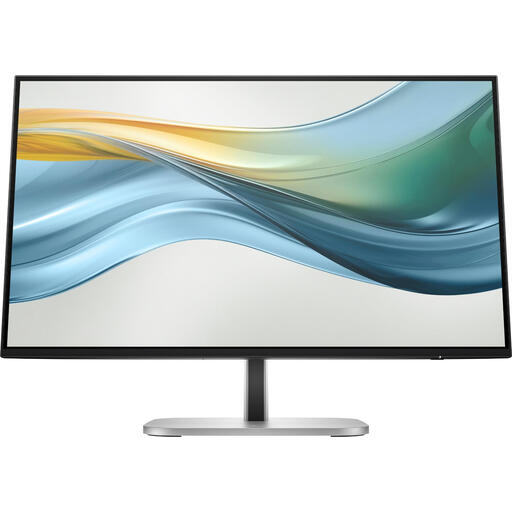
A more compact option for document work; check that its USB-C features suit your laptop and the setup you want.
23.8 inches; 1920 × 1080; HDMI; adjustable stand with height, tilt and swivel functions. According to the product information, the charger isn’t included as standard and must be bought separately.
 No image available
A 24-inch screen for documents and images; the adjustable stand gives you options for positioning the screen.
2560 × 1440; HDMI, DisplayPort and USB-C; height-adjustable, tiltable, swivelling and with pivot function.
No. Tracked changes are a feature of your word processor. In Word, for example, you can choose how markup appears. Choose a monitor based on the space you need for your document and any other windows, and check the options available in your software.
Arboportaal advises placing the screen directly in front of you, with the top slightly below eye level and tilted so you look straight at it. Check that the stand or intended mounting arrangement allows you to achieve this position at your desk; this advice doesn’t guarantee that any particular model will prevent discomfort.
No, features vary between models and ports. Dell lists a USB-C downstream data port supporting up to 15 W for the P2425, and a USB-C hub with up to 90 W power delivery for the P2425E. Check the precise port features on your monitor and laptop, and which cable you’ll need.
For a standard online consumer purchase, ACM ConsuWijzer says you generally have a statutory cooling-off period of up to 14 days after delivery, subject to legal exceptions. If a product is faulty, the seller is responsible for the statutory guarantee; the Authority for Consumers and Markets (ACM) says this may include free repair or replacement and, in some cases, a refund. A manufacturer’s warranty doesn’t replace these statutory rights.
The European Commission describes energy labelling and ecodesign requirements for electronic displays; the energy label runs from A to G and helps you compare models. According to Arboportaal, employers have responsibilities for providing a safe workplace and for screen-based work. These employer responsibilities aren’t general product specifications that apply to every private buyer.