
Writer who uses reference windows
Often works with a draft and locally saved reference material side by side, and wants a window layout that suits their preferred text size.


If you usually write in one document and refer to printed sources, a compact, adjustable monitor could suit you. If you want to view the manual and saved documents at the same time, consider a larger screen with more pixels. Try your preferred text size and window layout, measure your desk space and check that the ports on the exact monitor you’re considering are compatible with your computer.
Often works with a draft and locally saved reference material side by side, and wants a window layout that suits their preferred text size.
Keeps books, printouts or notes next to the screen and wants enough desk space left over, with the option to adjust the screen position.
Wants to connect a laptop and needs to check that the video input, data connection and, where relevant, charging capacity are compatible.
A good fit if: you mainly write in one document and use books or printouts on your desk.
Trade-off: less horizontal space can make it harder to read two wide windows side by side.
A good fit if: you often write in the manual while referring to saved documents.
Trade-off: a larger screen and stand take up space. More pixels don’t automatically make text readable at your chosen scaling.
| What to consider | What to look for when buying | Who should pay particular attention? |
|---|---|---|
| Readable text | Try a representative page at your usual text size; check the resolution, screen size and height adjustment. | If I’m writing the manual for long periods, I want to be able to read the characters without losing sight of the screen position. Around 36% of consumers say readability is their top priority. |
| Reference windows side by side | Test two windows at your preferred text scaling and compare the usable space with what you have on your desk. | When I want to keep a local document next to my draft, there needs to be room for both windows. Around 29% of consumers say having reference windows open at the same time is their top priority. |
| Desk space and adjustment | Measure the space, including the monitor stand; check the height adjustment and make sure books or a document holder will still be within reach. | With printed sources on my desk, I want to position the monitor so there’s still room to work. Around 21% of consumers say desk layout is their top priority. |
| Connecting to your computer | Compare your computer’s video output with the monitor’s inputs. For USB-C, also check the supported functions and charging capacity. | If the laptop connection determines my choice, I want to know whether the same connection carries video and, if needed, provides enough power. Around 14% of consumers say connectivity is their top priority. |
Features vary by monitor. Dell lists a USB-C downstream port on the P2425 for data at up to 15 W; LG lists USB-C on the 27BA65QB-B for video, data and power delivery up to 65 W.
Check the video input, data direction and power output for the exact model, then compare them with your laptop’s ports and charging requirements.
Depending on the connections, you may need an extra cable or a separate power supply.
The monitor stand and keyboard share your desk with books, printouts or a document holder.
Measure the available width and depth, including the stand, and decide where your printed sources will go.
More pixels don’t guarantee that text will be comfortable to read at your chosen scaling.
Try a page from the manual and a locally saved reference document side by side at your preferred text size.
Tweakers listed the Philips 24E1N1300AE/00 as a Best Buy in a guide last updated on 28 November 2024. That mention doesn’t confirm which version is currently available.
Check the date, the full model suffix and the specifications of the version you’re considering.
The P2425 is a compact 16:10 model worth considering for text-based work.
The 27BA65QB-B is a 27-inch QHD model worth considering if you want more room for windows.
The GW2490T is a compact Full HD option to compare if adjustability and its ePaper mode are important to you.
The 24E1N1300AE/01 is a compact Full HD option with USB-C functions described by Philips.
These Joybuy product picks are suited to writing at a desk, with a focus on screen space for documents and connectivity with your computer.
 No image available
The 27-inch screen and 4K resolution are worth considering if you want to use several document windows side by side.
IPS panel, 3840 × 2160 pixels, anti-glare screen, height adjustment, HDMI and DisplayPort.
 No image available
The 27-inch 4K version could suit you if you want to view the manual and saved reference windows side by side.
IPS panel, 3840 × 2160 pixels and an adjustable stand with 150 mm of height adjustment, tilt, swivel and pivot. USB-C power delivery up to 90 W requires a compatible computer and connection.
 No image available
This more compact 24-inch screen is worth considering if you mainly work on one main document.
IPS panel, 2560 × 1440 pixels, HDMI, DisplayPort, USB-C and an adjustable stand. Check the connection features your computer supports.
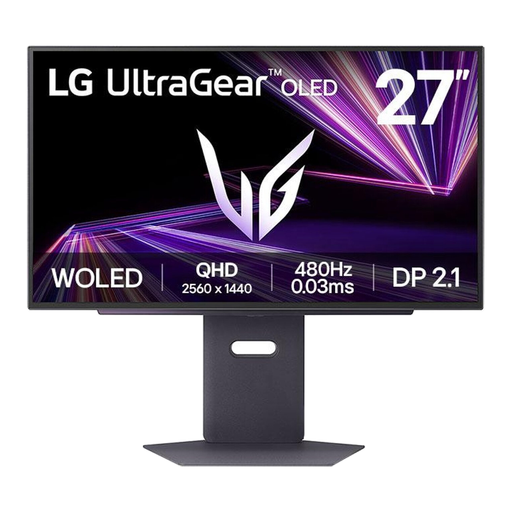 No image available
The 27-inch QHD version is worth comparing if you want to arrange your writing and document windows on a larger screen.
2560 × 1440 pixels, OLED panel, HDMI and DisplayPort. The stand offers height adjustment, pivot, swivel and tilt.
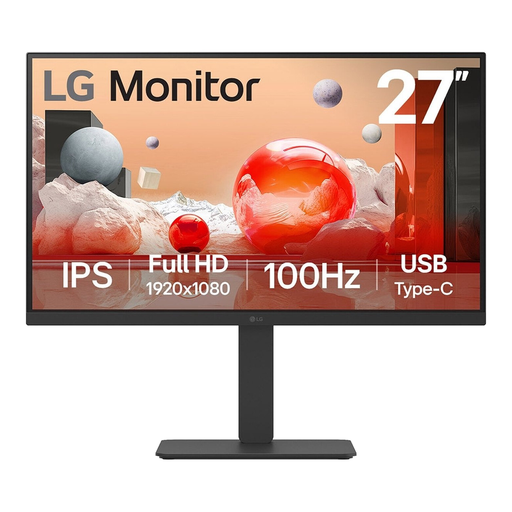 No image available
This 27-inch model could suit you if you’re looking for a larger screen for writing and Full HD works for your preferred window layout.
IPS panel, 1920 × 1080 pixels, HDMI, DisplayPort and USB-C. The stand offers height adjustment, swivel and tilt; check that the USB-C functions are compatible with your computer.
The monitor mainly affects the screen space and readability of your document windows. Check your computer, software and file storage to make sure your sources are available without an internet connection.
Only if the monitor supports video input and provides enough power, and your laptop has compatible video output. Dell lists a USB-C downstream port on the P2425 that supports data only; LG lists video, data and power delivery up to 65 W for the 27BA65QB-B.
Adjust your workstation to suit your body, keep text readable and avoid glare. Arboportaal also recommends alternating screen work with other tasks, regularly looking away and taking micro-breaks; a monitor feature is no substitute for these working practices.
Rules for screen work apply to employees. According to Arboportaal, requirements for workstation set-up apply when working with a screen for more than two hours a day, including a height-adjustable screen. This is not a general product specification or a universal requirement for every private buyer.
According to the Dutch government, the seller must provide a solution if a product is faulty. The Netherlands does not have a fixed statutory two-year guarantee period; what you can expect depends, among other things, on the product and the information provided. An additional guarantee is a separate decision.